


The Export Run History feature downloads a flat file of your automation's run records — filtered by date range or specific row selection — so you can analyse execution data offline or share it for audit and incident reporting.
Overview
You can export the Run History list as a flat file for offline analysis, incident reporting, or audit purposes. The export produces a file containing one row per run, reflecting the date range and any row selection active at the time you export. Two file formats are available: CSV and Excel.
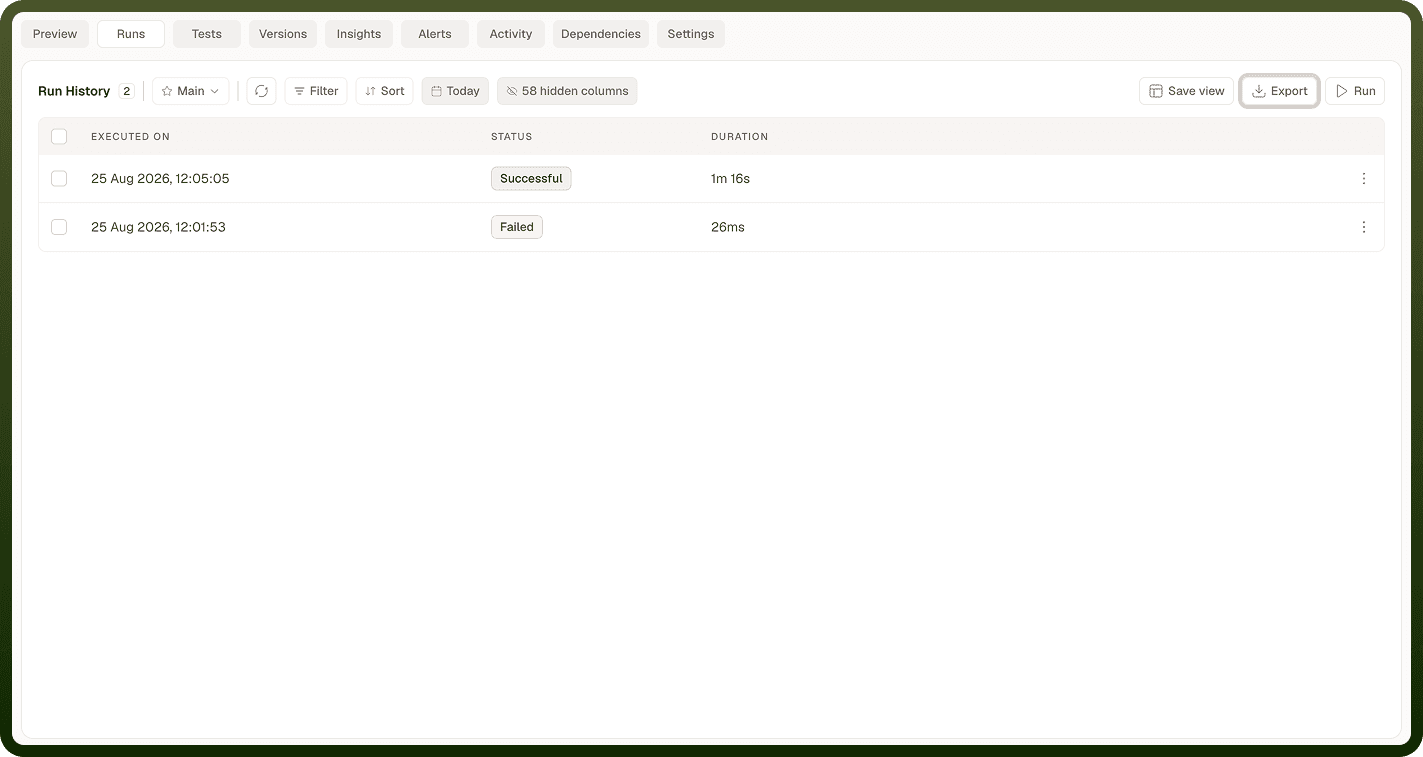
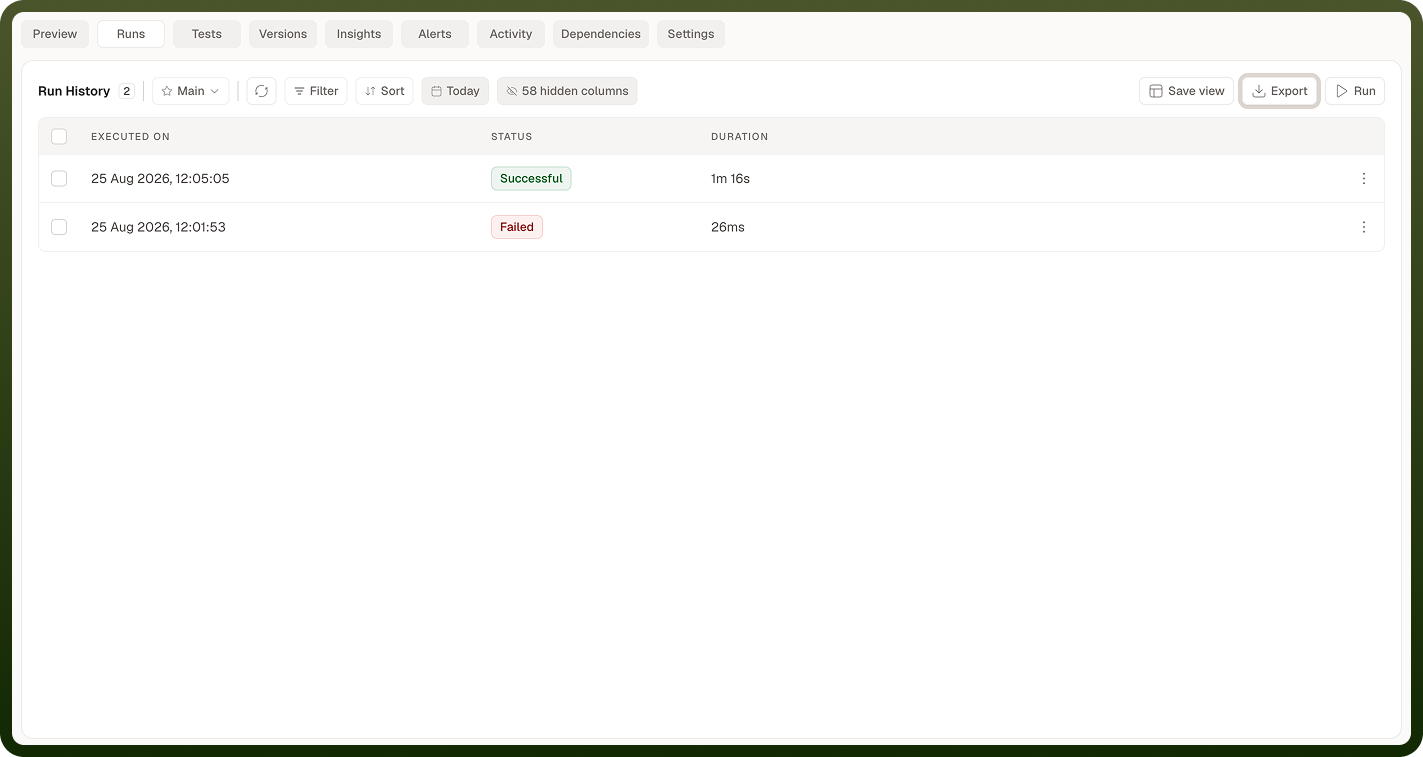
The export always reflects the current filter state of the Run History list — set your date range before exporting to ensure the file contains exactly the window of runs you need.
Exporting Run History
Export all runs in the current date range
Navigate to the Run History screen for the automation.
Use the date range picker at the top of the list to set the window of runs you want to export. The export will include only runs that fall within this range.
Click Export in the Run History toolbar.
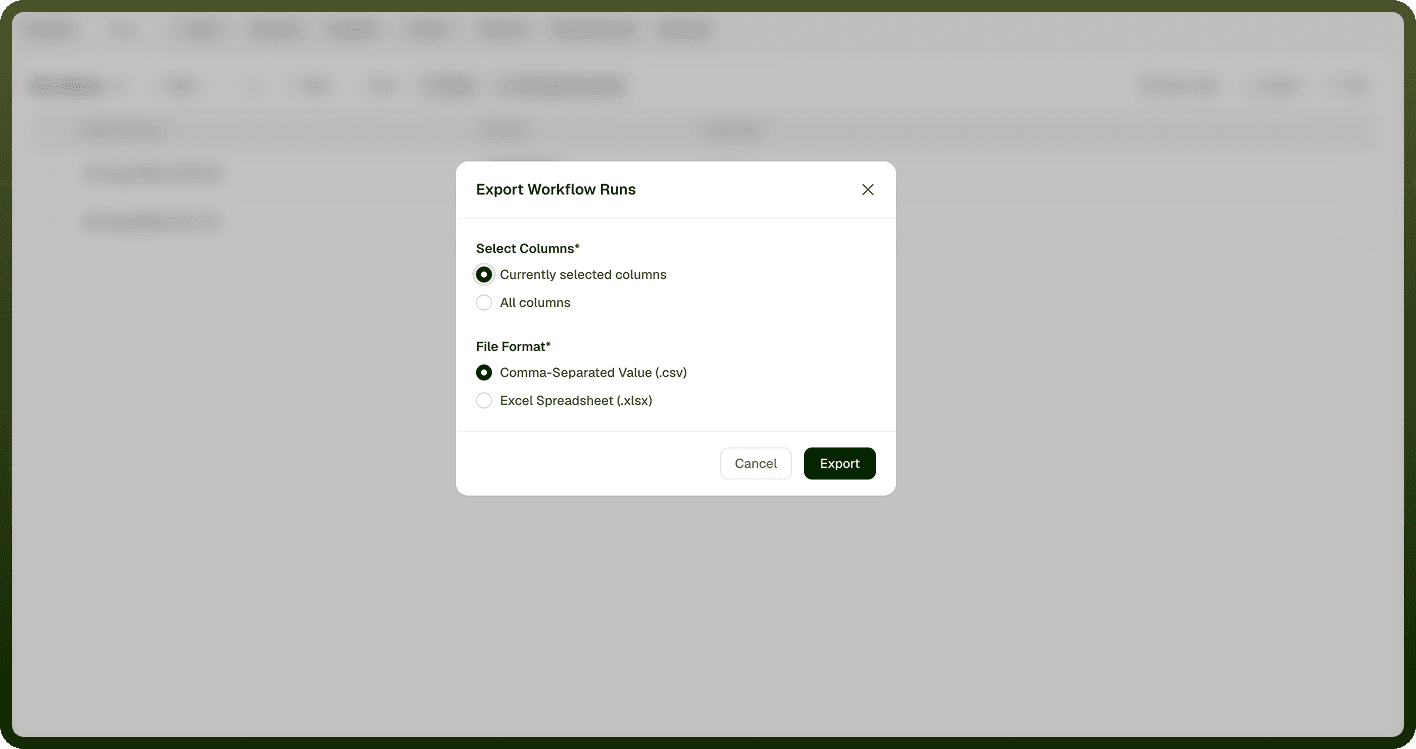
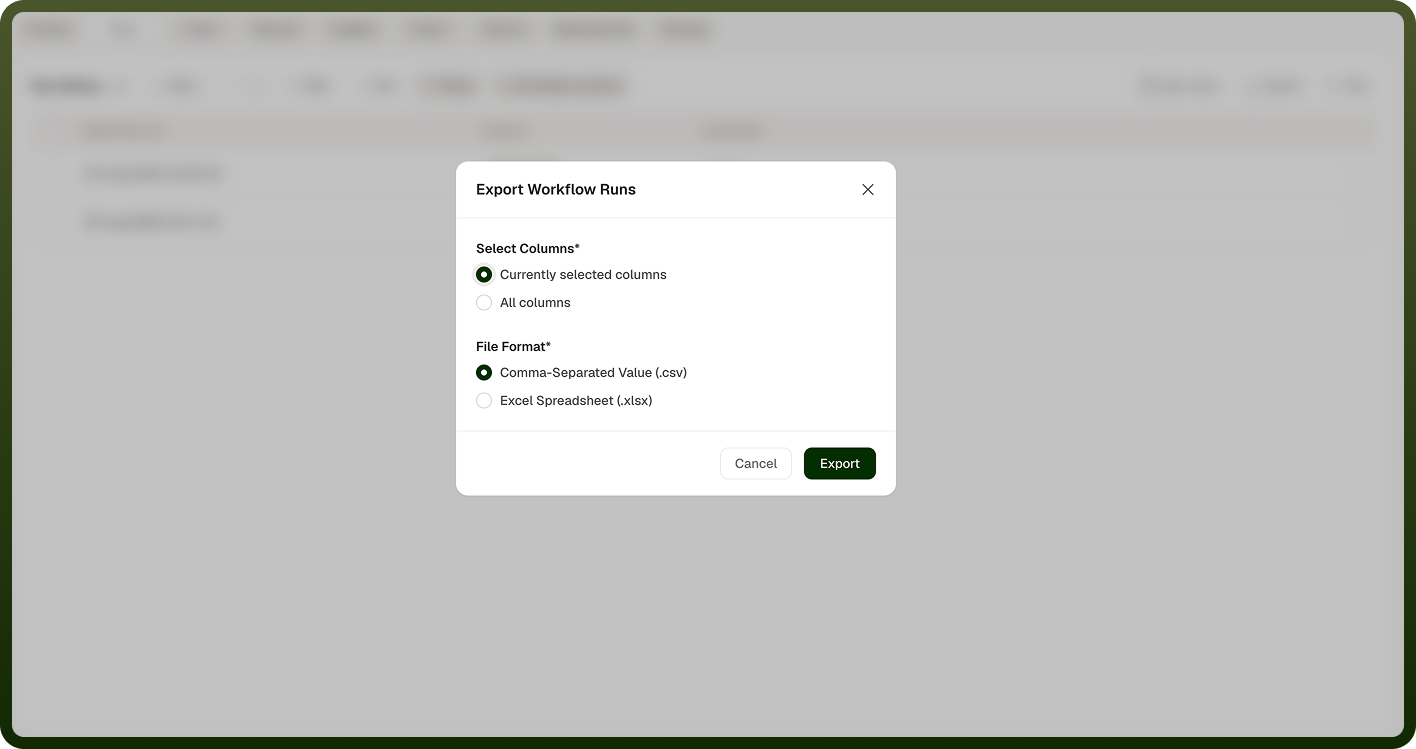
Select a file format:
Comma Separated Value (.csv) — A plain-text file compatible with any spreadsheet application or data pipeline.
Excel Spreadsheet (.xlsx) — A formatted spreadsheet file for direct use in Microsoft Excel or compatible tools.
The file downloads immediately to your browser's default download location.
Export a selection of runs
In the Run History list, check the rows you want to include. The toolbar updates to show N Selected Runs confirming how many rows are selected.
Click Export in the toolbar.
Select Comma Separated Value (.csv) or Excel Spreadsheet (.xlsx).
The file downloads containing only the selected rows.
Note: Row selection and date range filtering work independently. When rows are selected, the export includes only those rows regardless of the date range currently shown. When no rows are selected, the export includes all runs within the active date range.
Exported Data Format
Each row in the exported file corresponds to one run. The columns map directly to the columns visible in the Run History list:
Column | Description |
|---|---|
Executed On | The date and time the run was triggered. |
Status | The final state of the run: Successful, Failed, Completed, Cancelled, In Progress, or Waiting. |
Duration | Total wall-clock time from trigger to completion for the run. |
Notes
Exporting run history is most useful for post-incident reviews and periodic reliability reporting. To make the most of it:
Always set the date range before exporting. The default view shows today's runs — if you need a broader window for a report or audit, widen the range first so the export captures the full period.
Use row selection when you only need specific runs — for example, all failed runs from a particular incident window — rather than exporting and filtering externally afterward.
Choose .csv when the export will be consumed by a script or data pipeline. Choose .xlsx when it will be reviewed directly in a spreadsheet application with formatting.
The export does not include step-level details. For step-by-step data, open individual runs in the Run Detail view rather than relying on the exported file.