


The automations manager's Columns, Search, and Saved Views controls let you customize which columns appear in the automation list, filter automations by name, and save your preferred configuration for quick reuse across sessions.
Overview
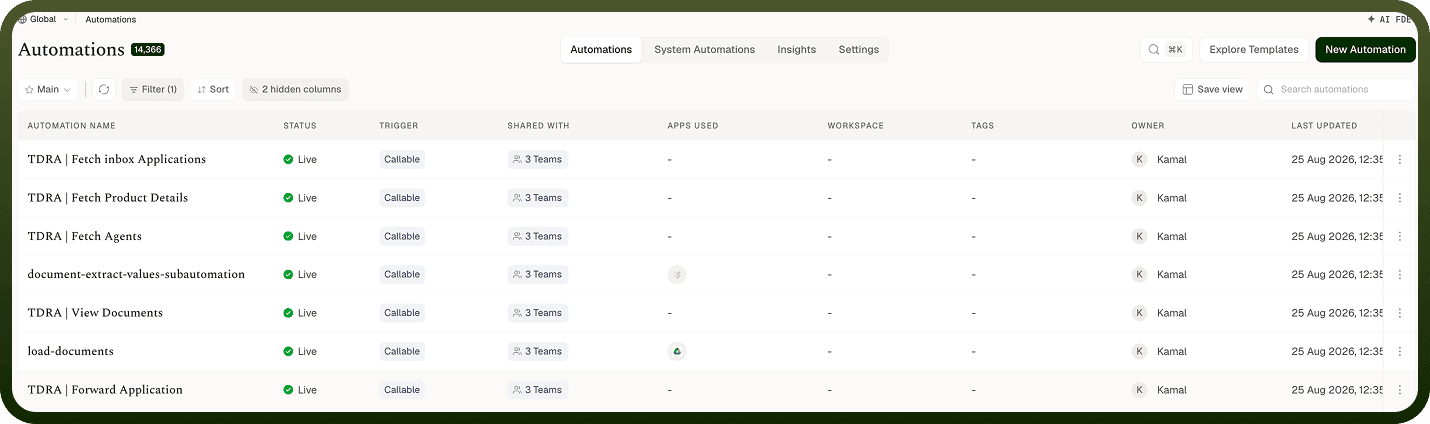
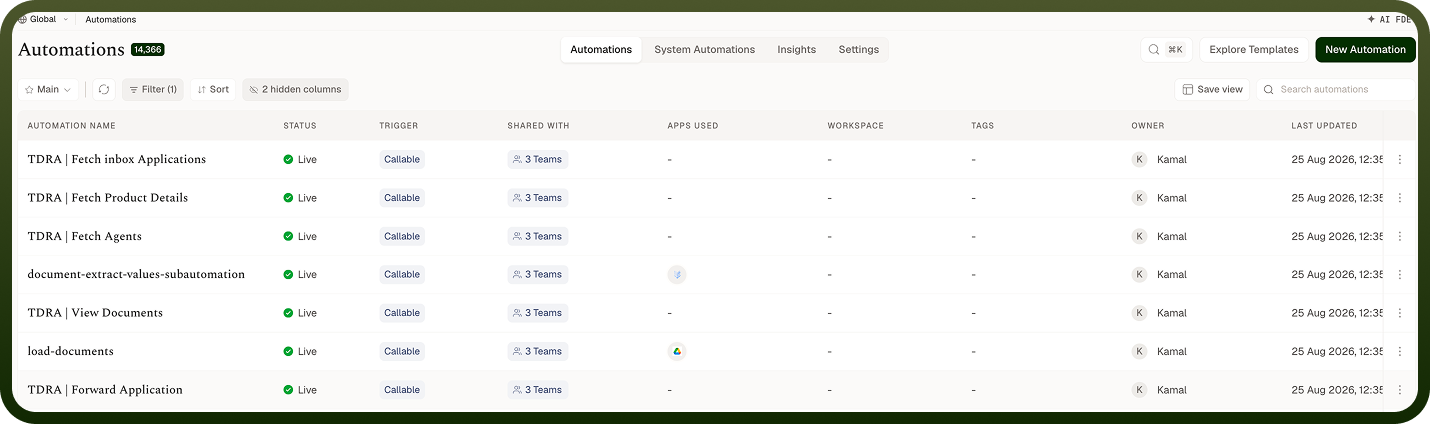
The automations manager displays every automation you have access to in a table. You can control which columns appear in that table, search for specific automations by name, and save your preferred filter and column configurations as saved views — named arrangements you can return to without reconfiguring each time.
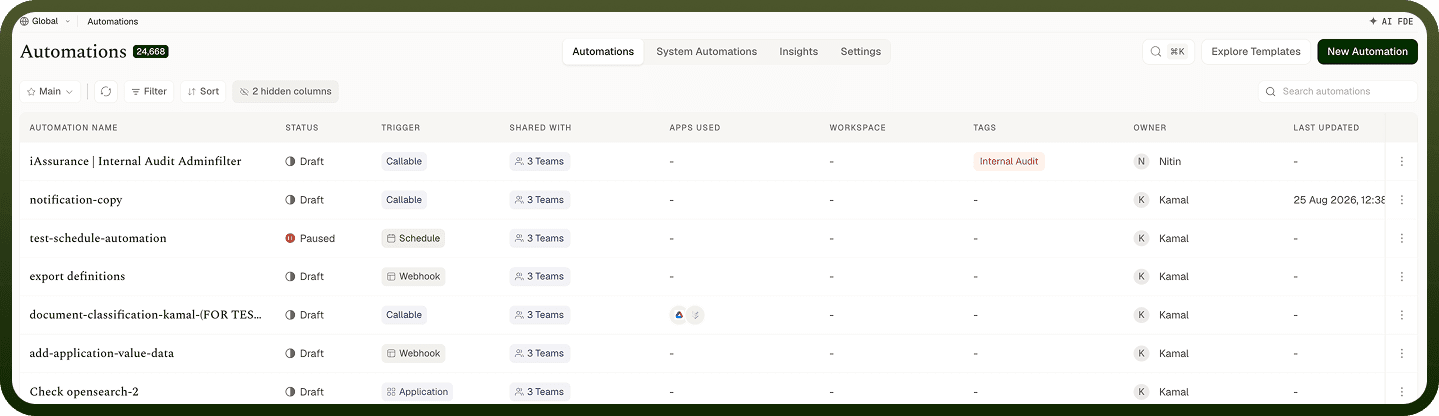
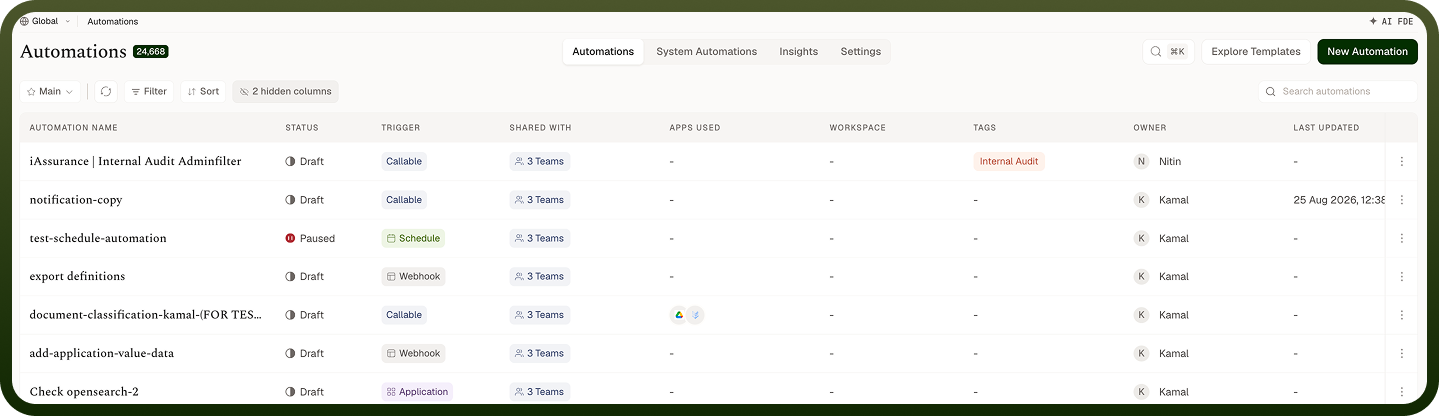
These three capabilities work together: search narrows the list by name, columns determine what information each row exposes, and saved views let you preserve any combination of those settings for later reuse.
Customizing Columns
The automations list exposes a set of default columns that describe each automation at a glance. The columns available in the table are:
Column | Description |
|---|---|
Automation Name | The display name of the automation. Click a row to open it. |
Status | The current state of the automation: Live, Paused, or Draft. Live and Paused rows show an indicator dot for quick scanning. |
Trigger | How the automation starts — Application, Schedule, Webhook, or Callable — shown as a tagged label with an icon. |
Apps Used | The integrations the automation connects to. |
Tags | Any labels applied to the automation for organizational purposes. |
Owner | The user who owns the automation. |
Last Updated | The date and time of the most recent change. |
Workspace | Appears only when you are viewing automations across all workspaces, so you can tell which workspace each automation belongs to. |
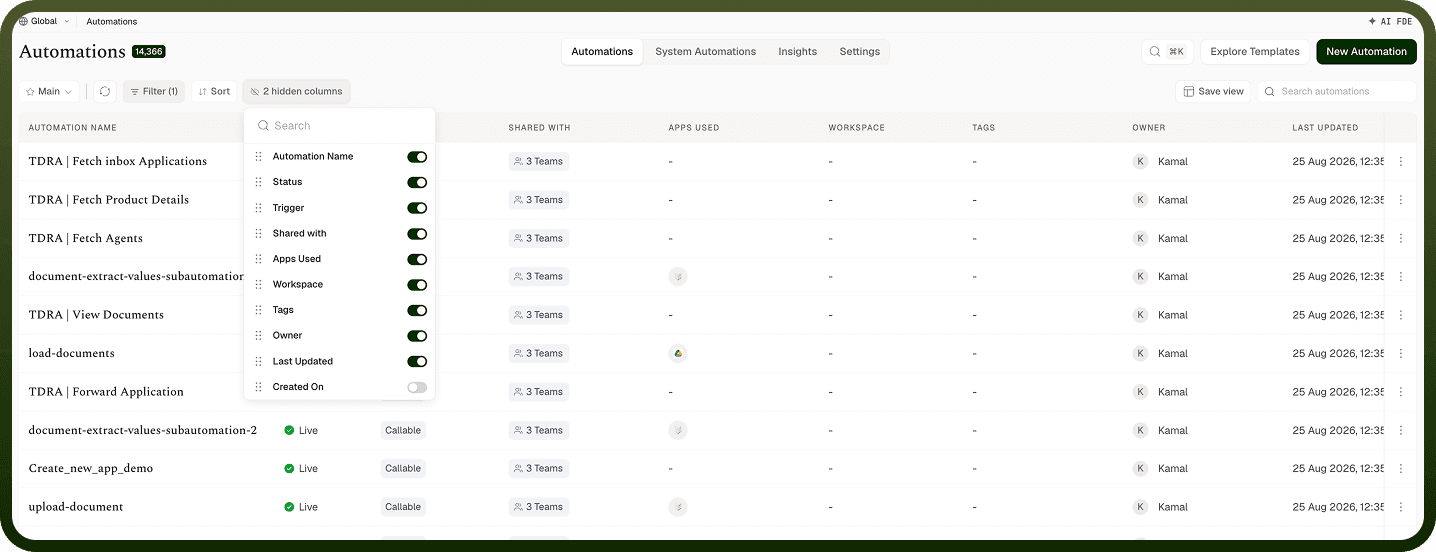
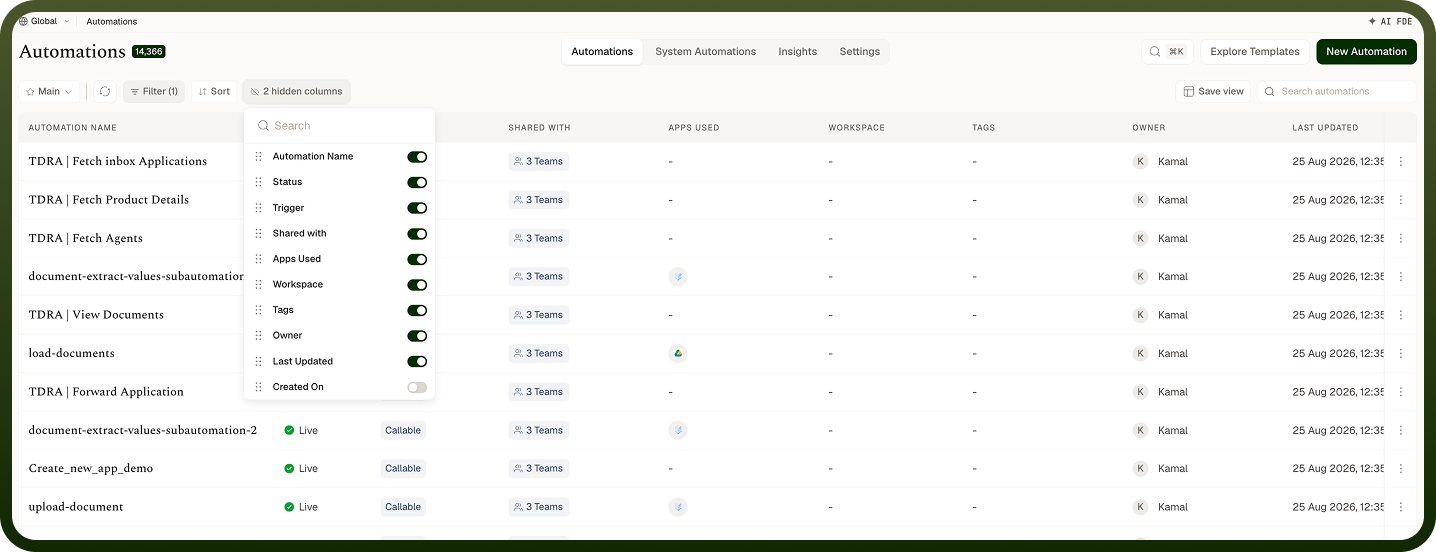
Note: The Workspace column appears automatically when you are in a cross-workspace view. It is not manually toggled.
Searching Automations
Use the Search automations box in the automations manager header to filter the list by automation name. As you type, the table updates to show only automations whose names match your input.
The platform also provides a global search bar in the main header for finding things across the entire platform — not just automations. Use the inline Search automations box when you want to stay within the automations list; use the global search when you are not sure where the item lives.
The automations list is split between your own automations and standard pre-built ones, so you can browse each set separately when looking for a specific automation.
Saved Views
Saved views let you store a named configuration of filters and column arrangements so you can return to a particular view of the automations list without reconfiguring it each time. Once saved, a view appears in the view selector and can be applied with a single click.
Creating a saved view
Configure the automations list with the columns and filters you want to preserve.
Open the saved views control in the automations manager toolbar.
Select the option to save the current view and give it a name.
Confirm to save. The view now appears in your saved views list.
Columns, Search & Saved Views step-by-step
Applying a saved view
Open the saved views selector in the automations manager toolbar.
Click the name of the view you want to apply.
The table updates immediately to reflect that view's column and filter settings.
Deleting a saved view
Open the saved views selector.
Locate the view you want to remove.
Use the delete option next to that view's name and confirm.
Notes
To make the most of it:
Create a saved view for each team or project — for example, a view filtered to a specific tag — so collaborators can jump directly to the automations relevant to them.
Use the Trigger column to quickly distinguish scheduled jobs from event-driven or webhook-triggered automations, especially in large lists.
Prefer the inline Search automations box over the global search bar when you know the automation exists and just need to find it by name quickly.
The list loads more rows as you scroll and shows a total count — use search or saved views rather than scrolling when managing a large number of automations.