


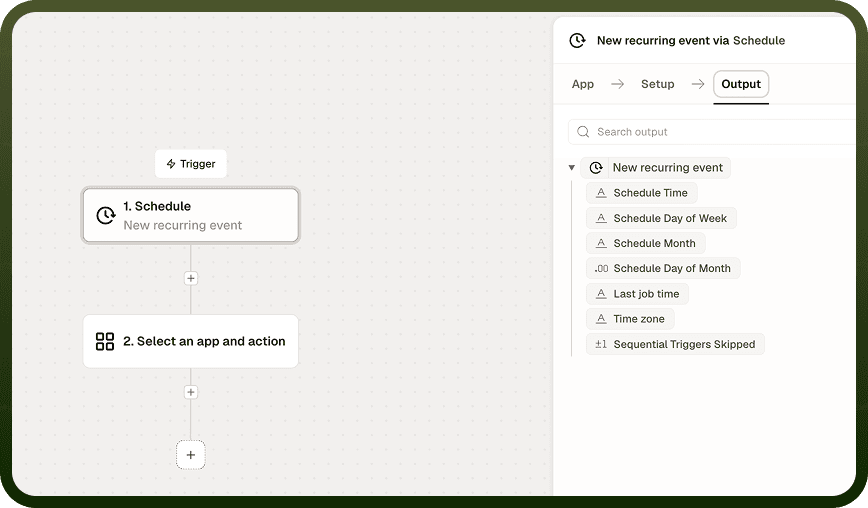
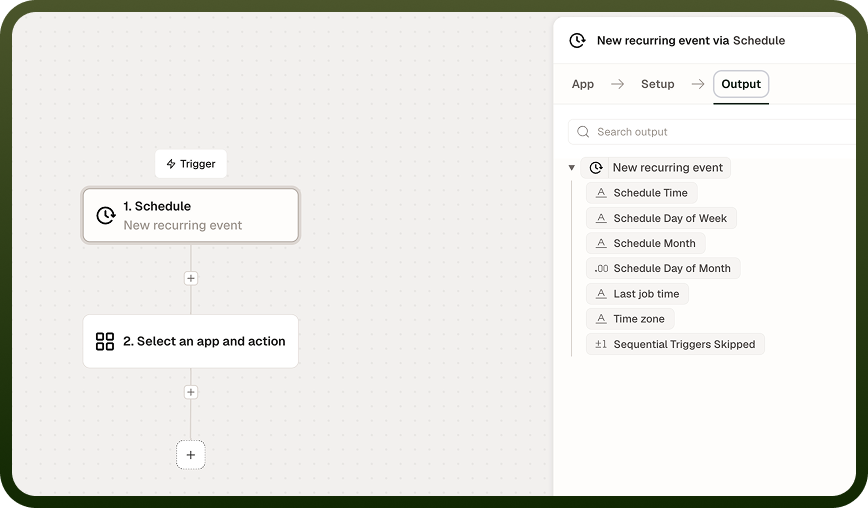
The Schedule Trigger runs an automation on a recurring timetable — no incoming request or manual start needed. Set it to repeat at a simple interval or at a precise calendar time using a cron expression, pick the timezone it should follow, and the platform handles the rest. Use it for digests, data syncs, cleanups, reminders, and any job that should run on the clock.
Overview
The Schedule Trigger fires an automation run automatically at the times you define. You control recurrence with either an interval (every N seconds, minutes, hours, days, or weeks) or a cron expression for exact calendar timing. The trigger is timezone-aware, and the platform handles daylight-saving transitions so runs arrive at the right local time without manual adjustment.
Recurrence Modes
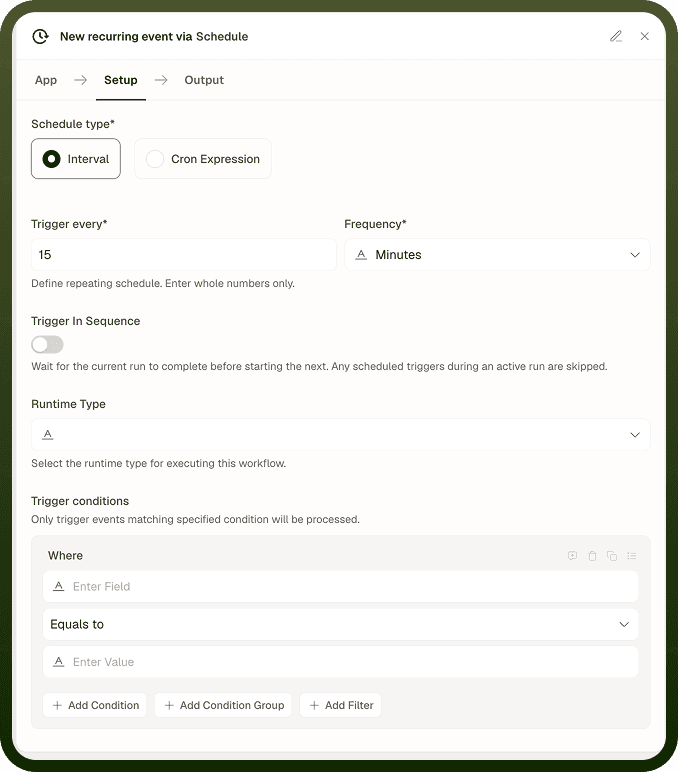
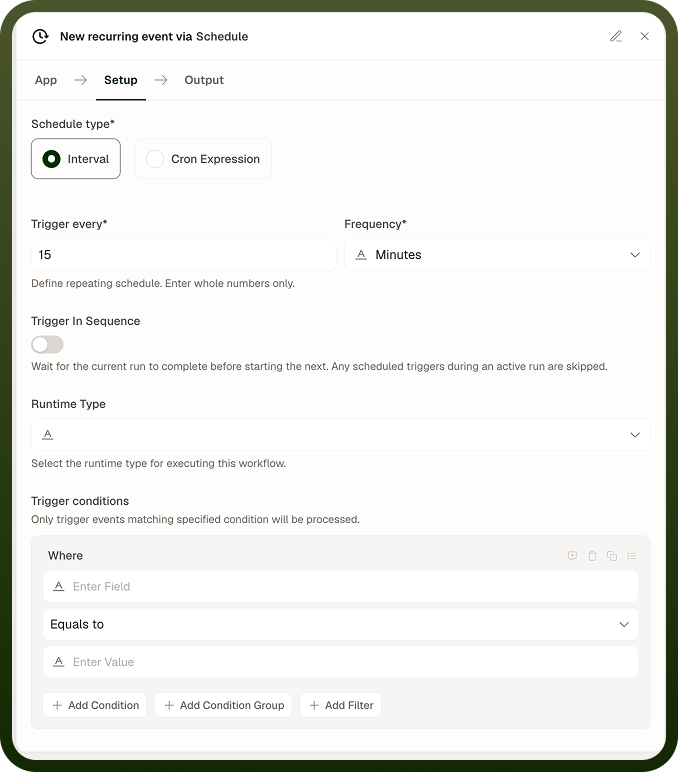
Choose one of two ways to express how often the automation should run:
Interval
Set a number and a unit — for example, every 30 minutes or every 2 hours. Supported units are seconds, minutes, hours, days, and weeks. Interval mode is straightforward to configure and suits workloads where the gap between runs matters more than the exact clock time.
Cron Expression
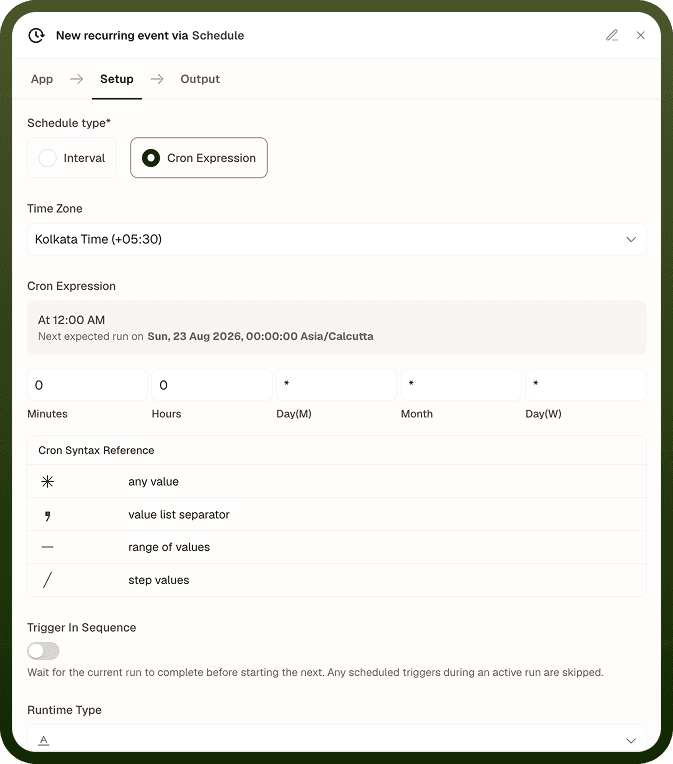
Write a standard cron expression for precise calendar timing — for example, 0 9 * * 1-5 to run at 09:00 on weekdays. Use cron when you need runs tied to specific times of day or days of the week, such as a digest sent every Monday morning or a report generated on the first of each month.
Timezone
Both interval and cron schedules are timezone-aware. You set the timezone the schedule should follow, and the platform fires runs at the correct local time — including adjustments for daylight-saving transitions. Set the timezone that matches the business context of the job, not the server location.
Minimum Interval
The shortest interval the Schedule Trigger accepts is 15 seconds by default. Setting an interval below this minimum is rejected with a validation error — you cannot accidentally create a job that fires faster than the platform allows. Platform administrators can configure a longer minimum for your environment, so the floor in your deployment may be higher than 15 seconds.
Check the floor before building high-frequency automations: The 15-second minimum is a default. If your administrator has set a higher minimum, schedules below that threshold will be rejected at save time.
Overlapping Runs
If a scheduled run has not finished by the time the next one is due, you have two options:
Sequential — the next run waits until the previous one completes. Choose this when runs touch shared data or must not collide. It is the safe default for most workloads.
Concurrent — the next run starts on schedule regardless of whether the previous one is still active. Choose this when runs are independent and fast, and throughput matters more than ordering.
When in doubt, start with sequential. Concurrent runs can pile up quickly if the automation is consistently slower than the interval — one slow run becomes two outstanding runs, then three, until the queue grows beyond what is useful.
Notes
Keep the following in mind when configuring a Schedule Trigger.
The minimum interval is 15 seconds by default. Intervals below the minimum are rejected at save time. Your platform administrator may enforce a higher floor.
Set the timezone to match the business context of the job, not the server location. The platform handles daylight-saving shifts automatically.
Use interval when the gap between runs matters; use a cron expression when the exact clock time or calendar day matters.
Choose sequential run handling when runs touch shared data or must not overlap; choose concurrent only when runs are genuinely independent.
Monitor run duration against your interval. If runs consistently take longer than the interval, either lengthen the interval or switch to sequential mode to prevent queue buildup.
Test your schedule with a short interval first to confirm the automation behaves correctly, then adjust to the intended cadence before deploying to production.