


Repeat Run and Run from Failed Step let you re-execute an automation run using its original trigger data — either from the very beginning or resuming from the step that failed without returning to the trigger source.
Overview
After inspecting a run, you can re-execute it without returning to the trigger source. UnifyApps gives you two re-run options: Run Complete Workflow re-runs the entire automation from the trigger using the original trigger data, and Run from Failed Step resumes execution from the step that failed — skipping all steps that already completed successfully. The second option is particularly useful after applying a fix, because it avoids reprocessing data that already succeeded.
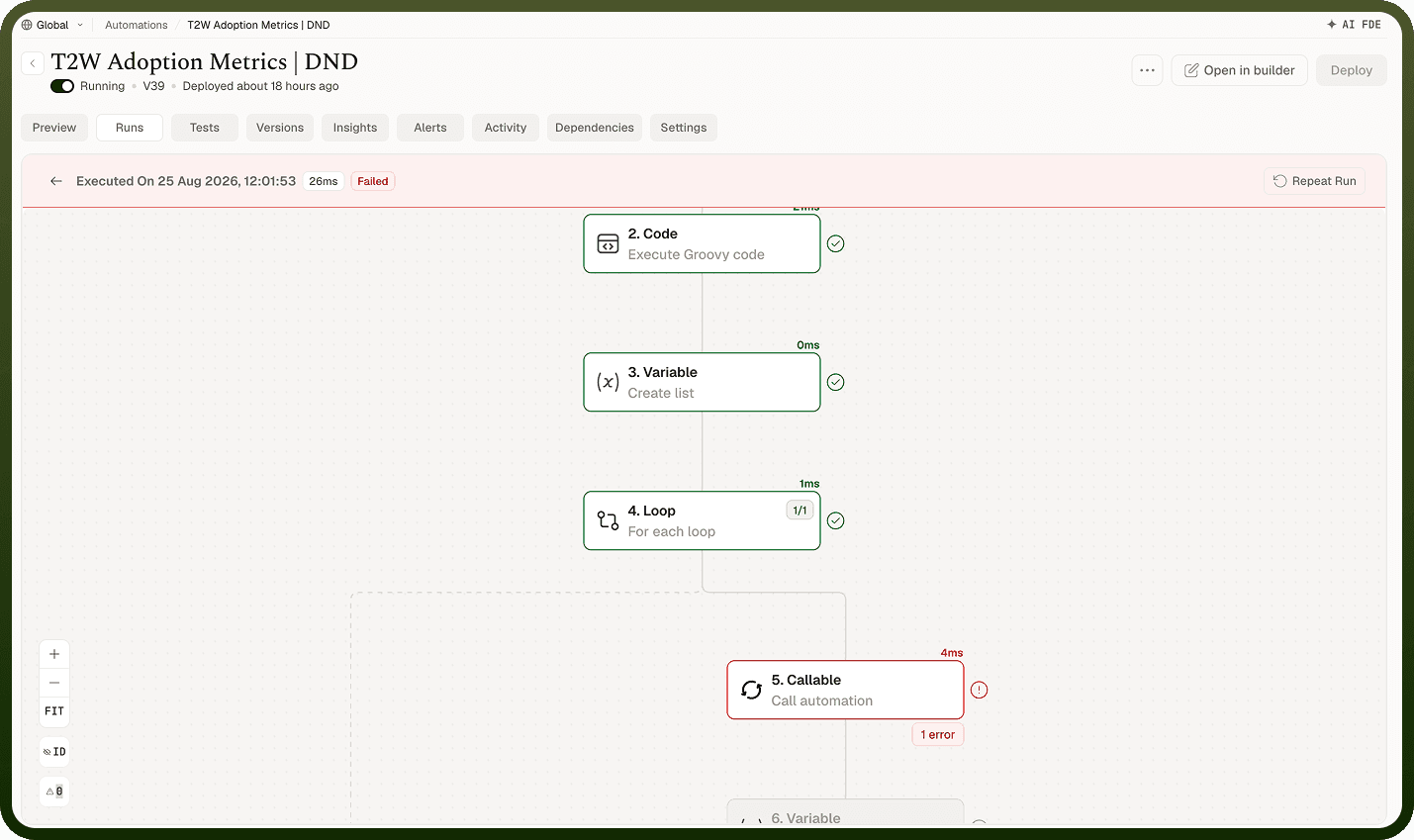
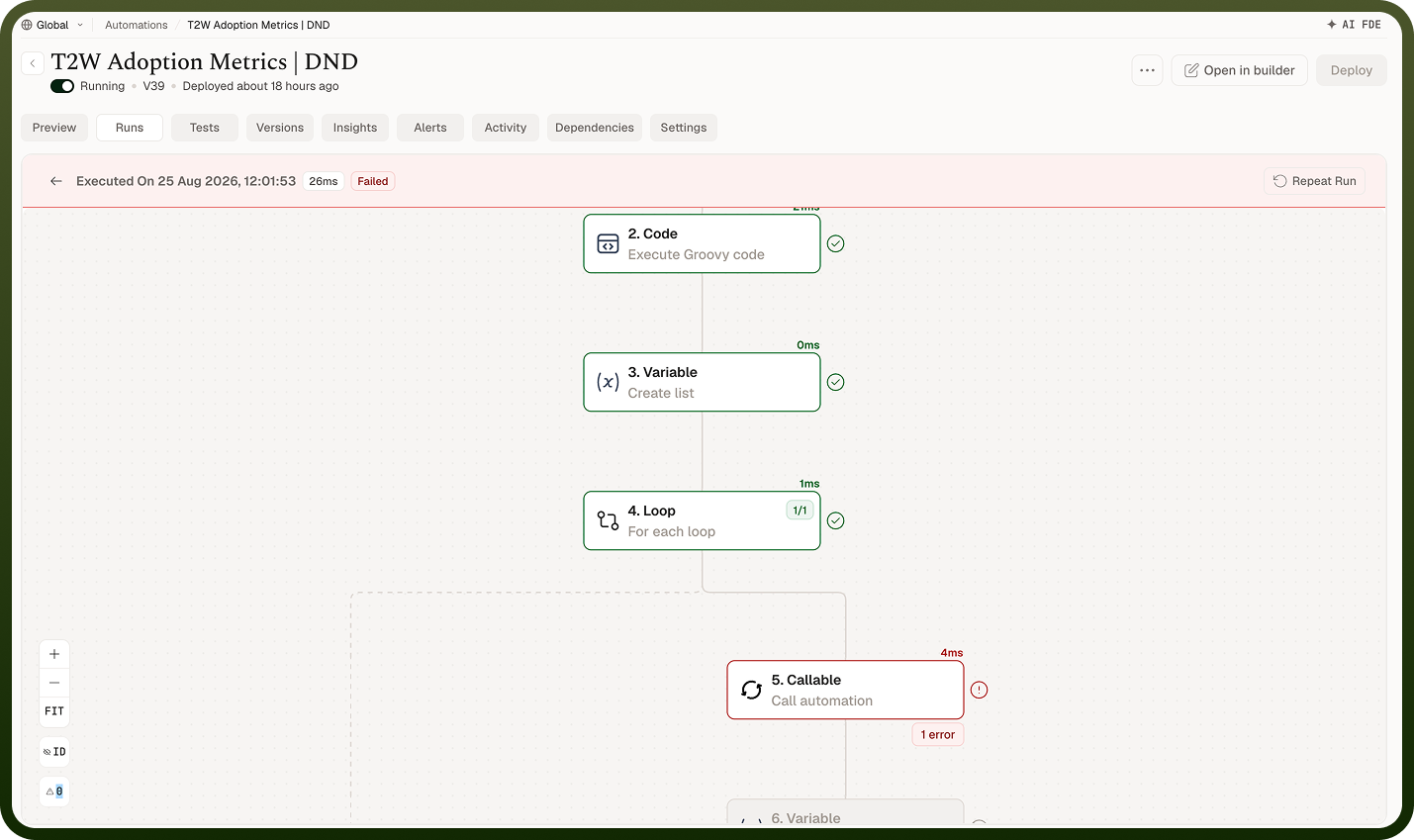
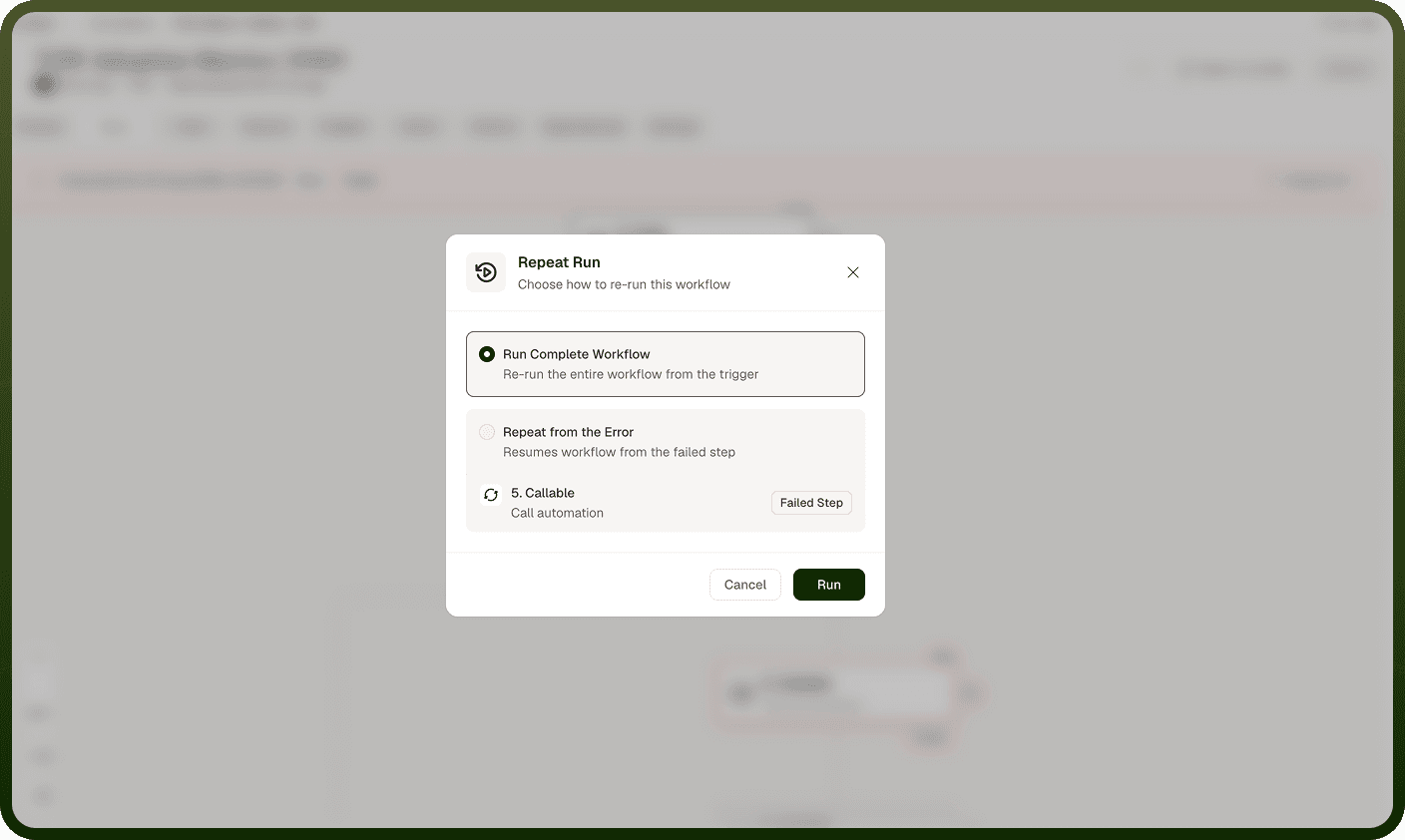
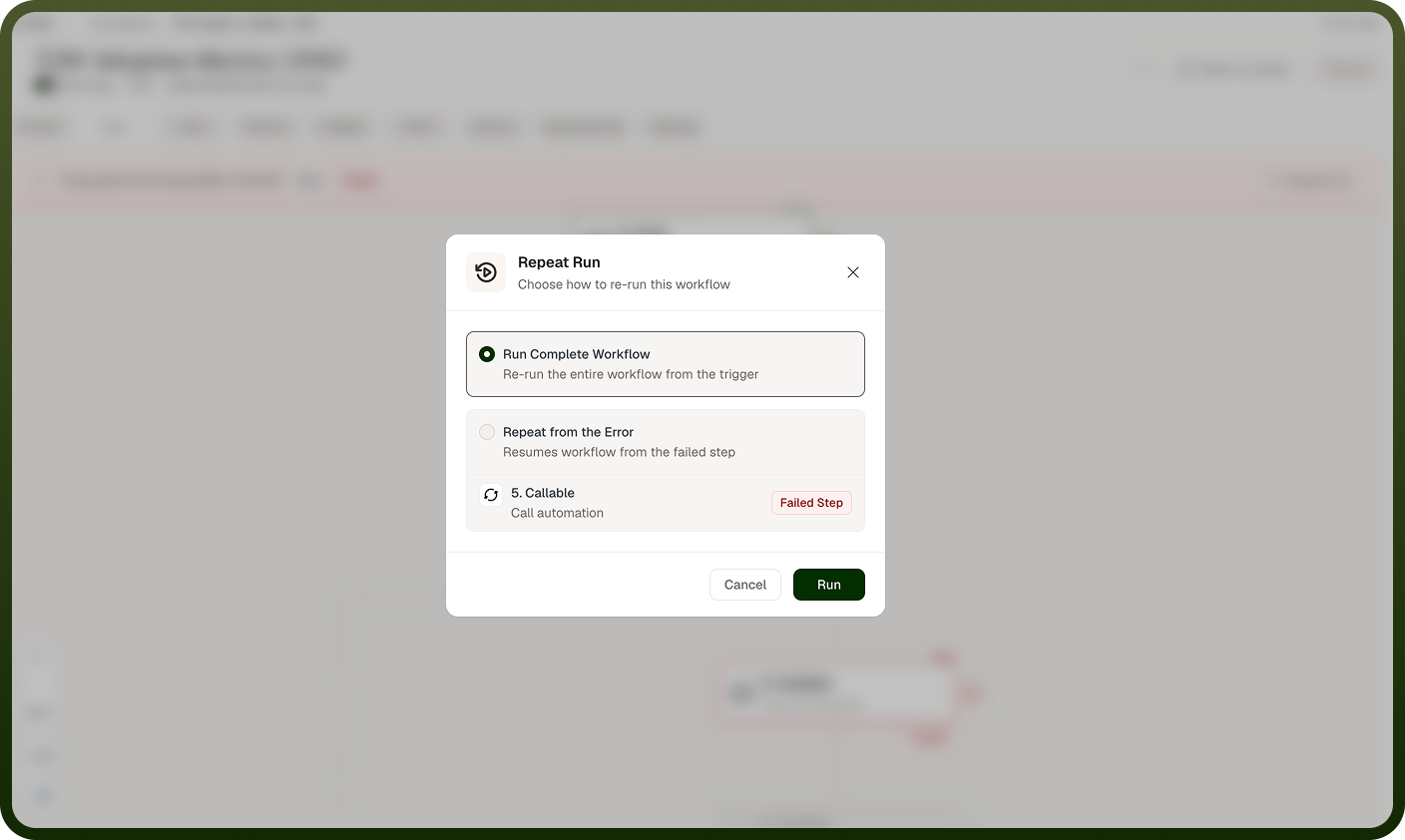
You can also repeat any run directly from the Run History list using the per-row re-run action.
Repeat a Run
Use this option to re-execute an entire run from scratch using the same trigger data it originally received.
Open the run you want to repeat from the Run History list.
In the run detail view, click Repeat Run.
In the dialog that opens, select Run Complete Workflow — described as "Re-run the entire workflow from the trigger".
Review the trigger data in the Review Trigger Data step. The form pre-fills with the original run's trigger data. Edit any values if needed.
Click Trigger Run to confirm.
A confirmation message — Automation triggered successfully — appears when the new run is queued.
Note: You can also repeat a run directly from Run History without opening the run detail. Hover any row to reveal the row actions, then select Re-run. This repeats the run with the same trigger data, without an option to review or edit it first.
Run from a Failed Step
Use this option after fixing the underlying cause of a failure. Rather than re-running the entire automation from the trigger, execution resumes from the step that previously failed, preserving all outputs that steps before it already produced.
Open the failed run from the Run History list.
In the run detail view, click Repeat Run.
In the dialog that opens, select Run from Failed Step — described as "Resumes workflow from the failed step".
Review the trigger data in the Review Trigger Data step. The form pre-fills with the original run's trigger data. Edit values if your fix requires different input.
Click Trigger Run to confirm.
A confirmation message — Automation triggered successfully — appears when the run is queued.
Note: Not every failed step supports resume. When a step's error cannot be retried from that point, the option reads This error cannot be retried. In this case, use Run Complete Workflow instead to re-run from the beginning.
Notes
Re-running an automation replays real actions against connected systems. To make the most of it:
Use Run from Failed Step after applying a fix to avoid re-triggering steps that already wrote data to an external system — for example, steps that created records or sent notifications.
Always review the pre-filled trigger data in the Review Trigger Data step before confirming. If the original payload contained a value that caused the failure, correct it there before re-running.
If the Run from Failed Step option is unavailable for a given error, check whether the failed step has side effects that make resuming unsafe — in that case, running the complete workflow from the trigger is the correct path.
The re-run from the Run History row action does not offer a trigger data review step. Use the Repeat Run dialog inside the run detail view when you need to inspect or adjust the payload before re-executing.
Using the right re-run option avoids re-triggering steps that already wrote data or sent notifications successfully on the first attempt.