


The Trigger New Run dialog lets you manually start a run of a deployed automation by supplying a custom trigger payload.
Overview
The Trigger New Run dialog lets you manually start a run of a deployed automation by supplying a custom trigger payload. This is useful when you want to test how the automation handles a specific edge case — an unusual field value, a missing optional key, or a boundary condition — without waiting for a real trigger event to occur naturally in your connected system.
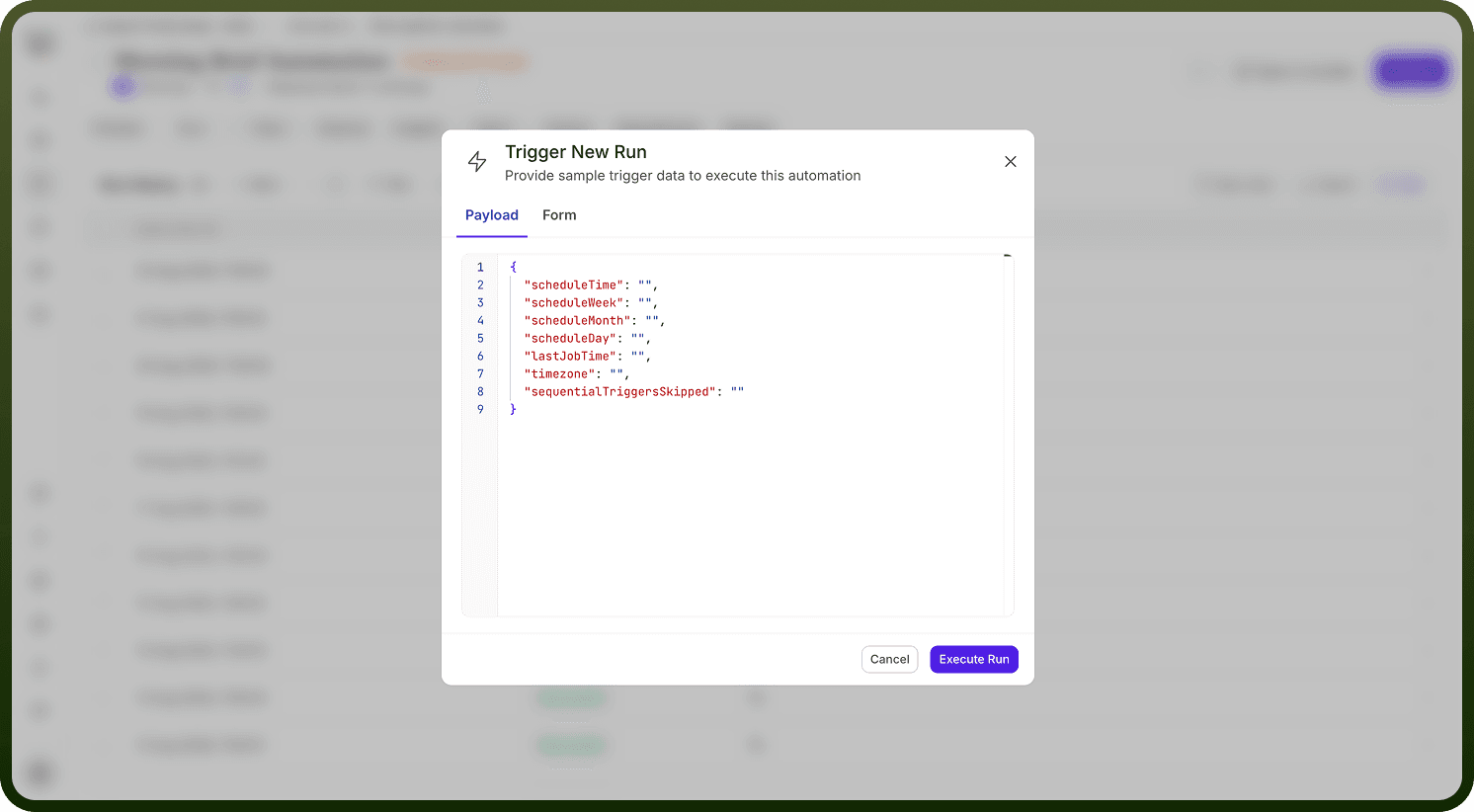
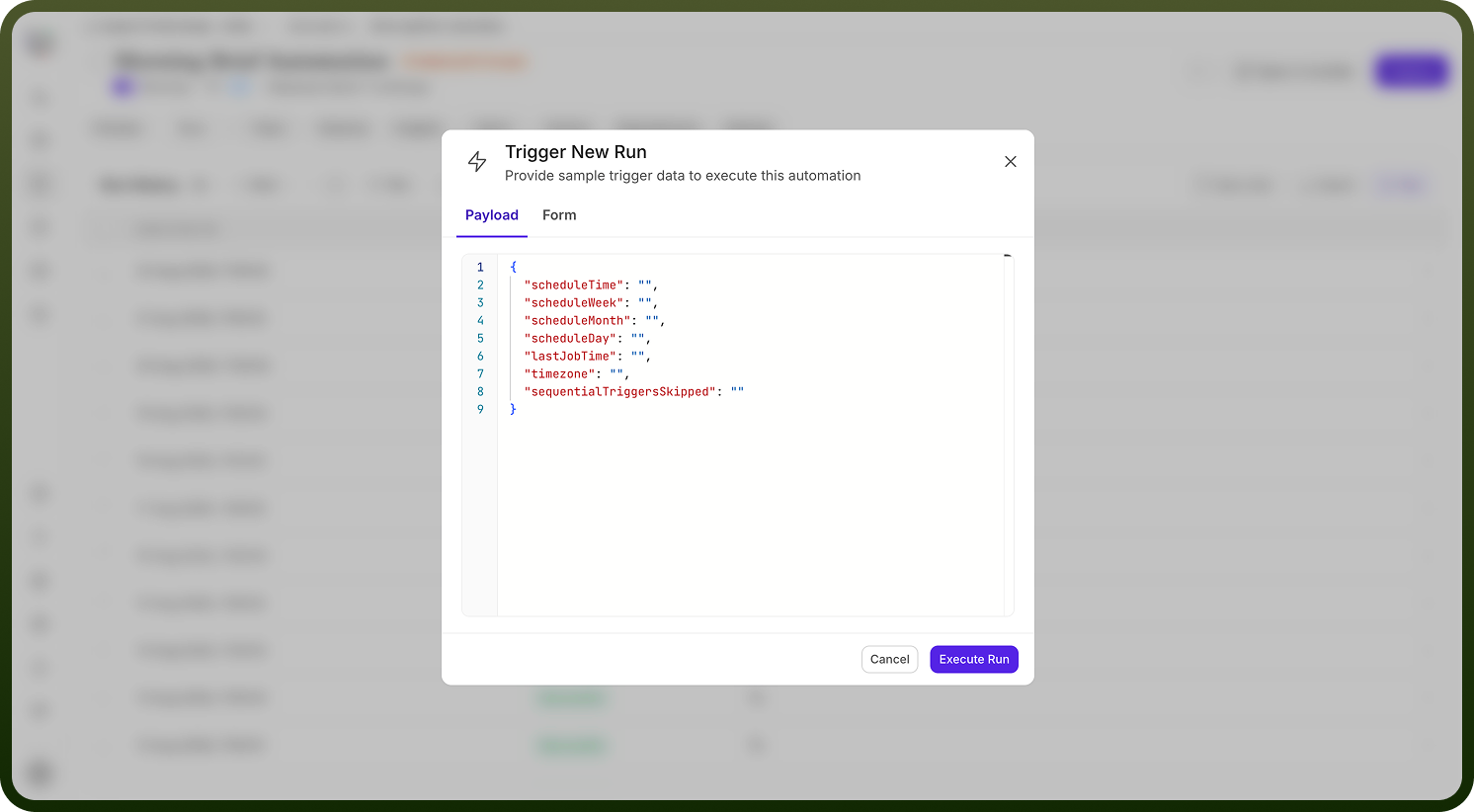
You can provide the trigger payload as raw JSON or fill it in using a form generated from the trigger's schema. An AI-assisted option can generate realistic sample data for you if you want a sensible starting point.
Note: The Run button is disabled until the automation has been deployed at least once. Hovering the disabled button shows the tooltip: Deploy the automation to execute it.
How to Trigger a Run with Sample Data
Navigate to the Run History screen for the automation.
Click the Run button at the top of the Run History list. The Trigger New Run dialog opens — described as "Provide sample trigger data to execute this automation".
Enter your trigger payload using one of the two input methods:
Payload tab — A JSON editor where you type or paste the trigger data directly as a JSON object.
Form tab — A form generated from the trigger's schema, with one field per top-level key. Use this if you prefer a structured input rather than hand-editing JSON.
Optionally, click Generate with AI to auto-fill the payload with realistic sample data based on the trigger's schema. Review and adjust the generated values before proceeding.
Click Execute Run to start the automation with the payload you provided.
The new run appears in the Run History list. Open it to inspect each step's execution against the sample data you supplied.
Notes
Triggering runs with sample data is the fastest way to validate behavior against specific inputs without modifying the live trigger source. To make the most of it:
Use the Form tab when the trigger schema has many fields — it is easier to fill individual fields selectively than to maintain a full JSON object by hand.
Use the Payload tab when you already have a JSON payload copied from a previous run's trigger data or from an external system's event log.
Use Generate with AI as a starting point, then edit the generated values to match the specific edge case you want to test — rather than using the generated payload as-is.
After the run completes, open the Run Detail view and verify each step's inputs and outputs against what you expected given the sample payload you provided.
Manually triggered runs appear in Run History alongside runs triggered by the live automation source. Use the date range filter or status filter to locate them if the list is busy.