


Unify AI is a comprehensive AI operations node that provides a suite of machine learning and AI capabilities directly within automation workflows.
Overview
Unify AI is a comprehensive AI operations node that provides a suite of machine learning and AI capabilities directly within automation workflows. Its actions span document processing, text and semantic analysis, ML model lifecycle management, computer vision, and code analysis — enabling automations to incorporate AI processing without building custom model infrastructure.
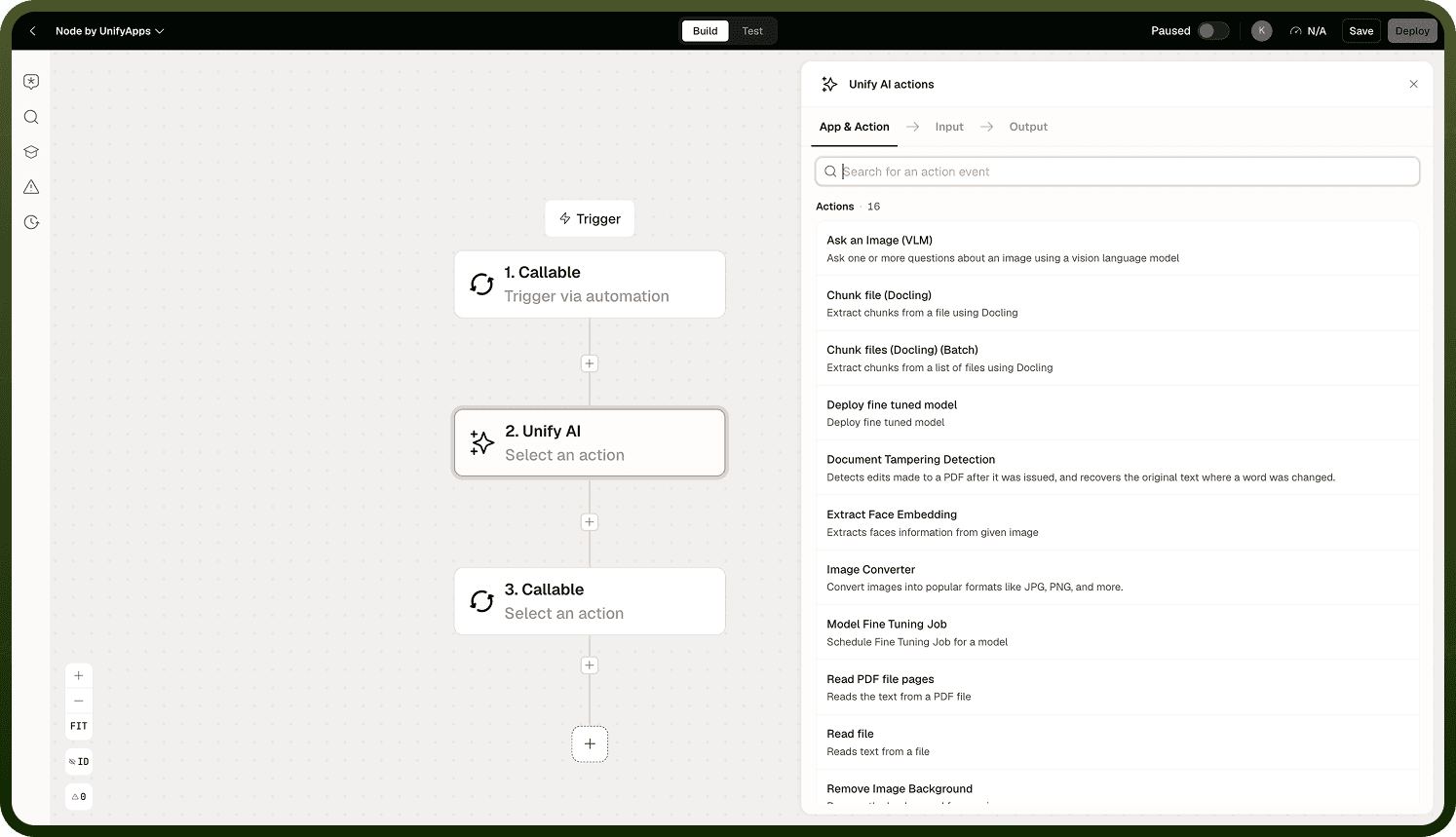
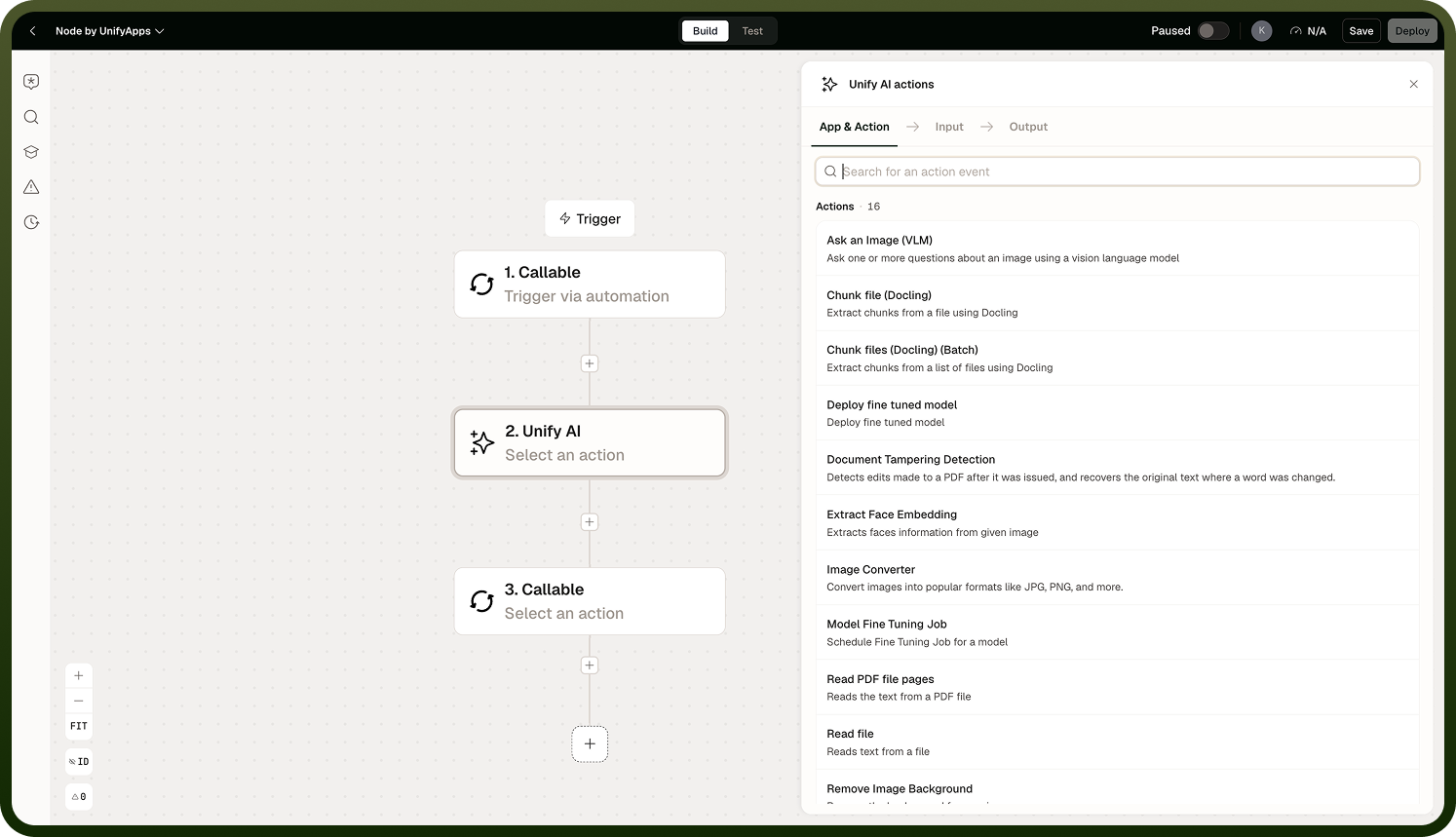
Document Processing
Actions for reading, extracting, and chunking content from documents and files for downstream AI processing such as embedding generation, RAG pipelines, and summarization.
Read PDF File Pages — Extracts text content from PDF files on a per-page basis, returning structured page-level data suitable for chunking and indexing
Read File — Reads content from a file (e.g., txt, docx) and returns the raw text for processing
Read File Docling — Uses the Docling parser to extract structured content from complex documents including tables, headings, and layout-aware text
Chunk File Docling — Splits a single document into semantic chunks using Docling's layout-aware chunking strategy, producing output ready for embedding
Chunk Files Batch — Processes multiple files in batch, chunking each and returning all chunks as a unified list for bulk indexing workflows
Document processing action configuration
Text and Semantic Analysis
Actions for splitting text into manageable segments and normalizing temporal expressions for NLP pipelines.
Text Splitter — Splits text into chunks using the sentence-transformers/all-mpnet-base-v2 model's tokenization boundaries, producing chunks optimized for semantic embedding with that model
Identify and Normalize Time Expressions — Detects temporal phrases within text (e.g., "next Tuesday", "in 3 hours") and normalizes them to absolute ISO 8601 timestamps, making them usable in downstream date-comparison logic
ML Operations
Actions for fine-tuning and deploying custom machine learning models within the UnifyApps AI infrastructure.
Model Fine Tuning Job — Initiates a fine-tuning job for a base model using provided training data, customizing the model for a specific domain or task
Deploy Fine Tuned Model — Deploys a completed fine-tuned model to an inference endpoint, making it available for use in Call LLM Model or Execute Prompt actions
Note: Fine-tuning jobs may take significant time to complete. Use the workflow's run monitoring tools to track job status for long-running fine-tuning operations.
Computer Vision
Actions for image and video-based AI processing.
Extract Face Embedding — Generates a vector embedding representing the facial features in an image, suitable for face matching, verification, and identity management workflows
Image Converter — Converts images between formats (e.g., PNG to JPEG, BMP to WebP) and applies transformations such as resizing, rotating, or resampling
Computer vision action configuration
Code Analysis
Actions for converting source code into structured graph representations for analysis, dependency mapping, and code intelligence applications.
Transform Python Code to Graph — Parses Python source code and produces a graph representation of its structure (functions, classes, imports, call relationships), enabling static analysis and architecture visualization
Transform Java Code to Graph — Performs the same graph transformation for Java source code, supporting dependency analysis and refactoring workflows
Notes
Keep the following in mind when using Unify AI:
Choose the action category (Document Processing, Computer Vision, etc.) that matches the task; the Unify AI node groups actions to make it easier to find the right operation.
AI processing time varies by input size; design timeout settings and error handlers to account for longer response times when processing large documents or images.
Validate AI output with an assertion or conditional branch before using it in downstream critical operations; model responses may be unexpected for edge-case inputs.
Use Text and Semantic Analysis for NLP tasks (classification, extraction) rather than writing custom code, unless the task requires logic the built-in actions do not support.
Computer Vision actions require image inputs; pre-process images with the Files or Utility node to confirm they are in a supported format and within size limits before calling Unify AI.