


Unify Automations › Manage Automation › Merge Versions & Resolve Conflicts
Merge Versions & Resolve Conflicts
4 mins read
Merge Versions lets you reconcile two divergent versions of an automation — reviewing each difference step by step and choosing which changes to keep. Use it when parallel edits have produced conflicting states that need to be combined rather than overwritten.
Overview
Merging lets you reconcile two versions of an automation when parallel work has produced divergent states. Instead of choosing one version and losing the other's changes, the Merge Changes view lets you review each difference individually and decide — step by step — which changes to keep.
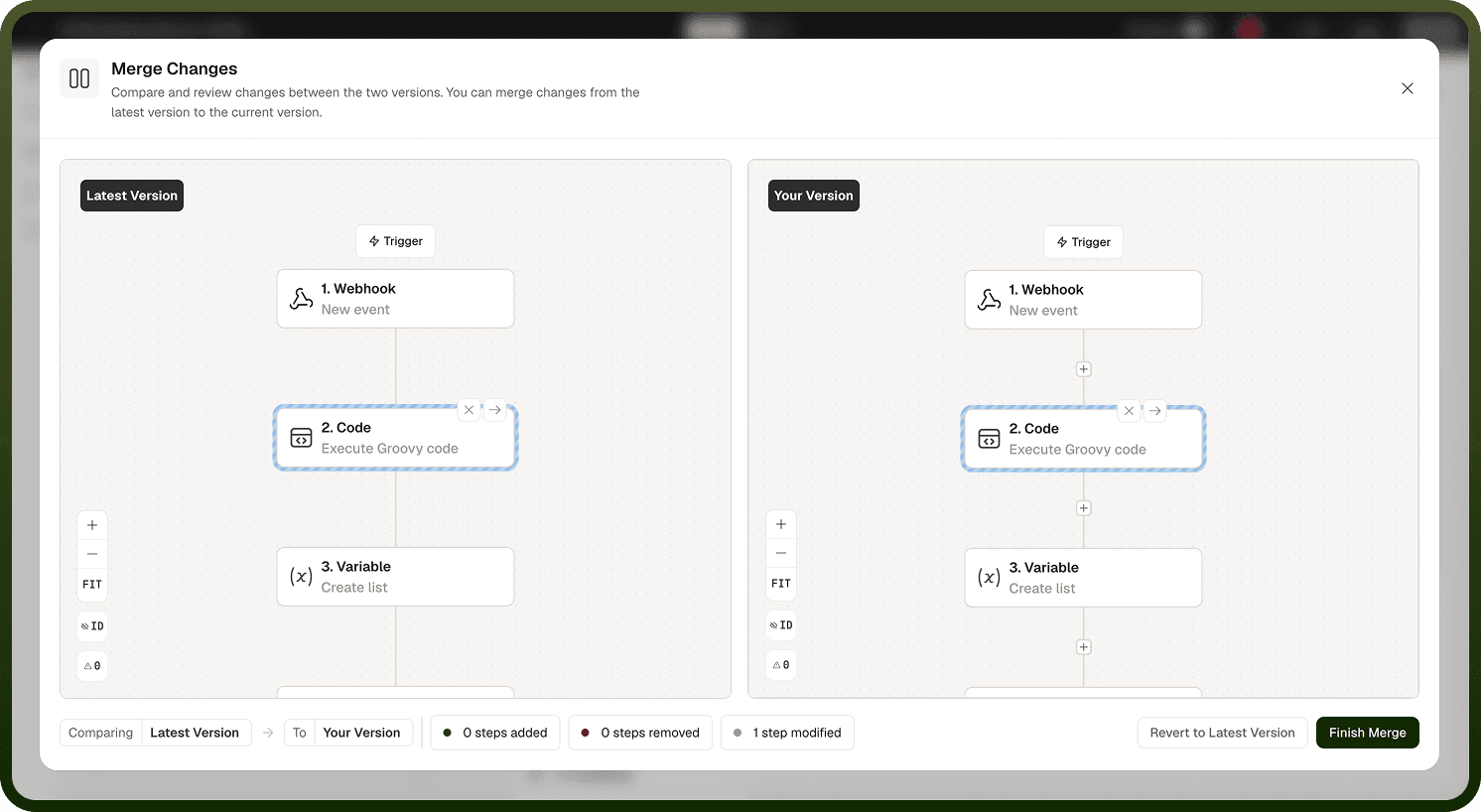
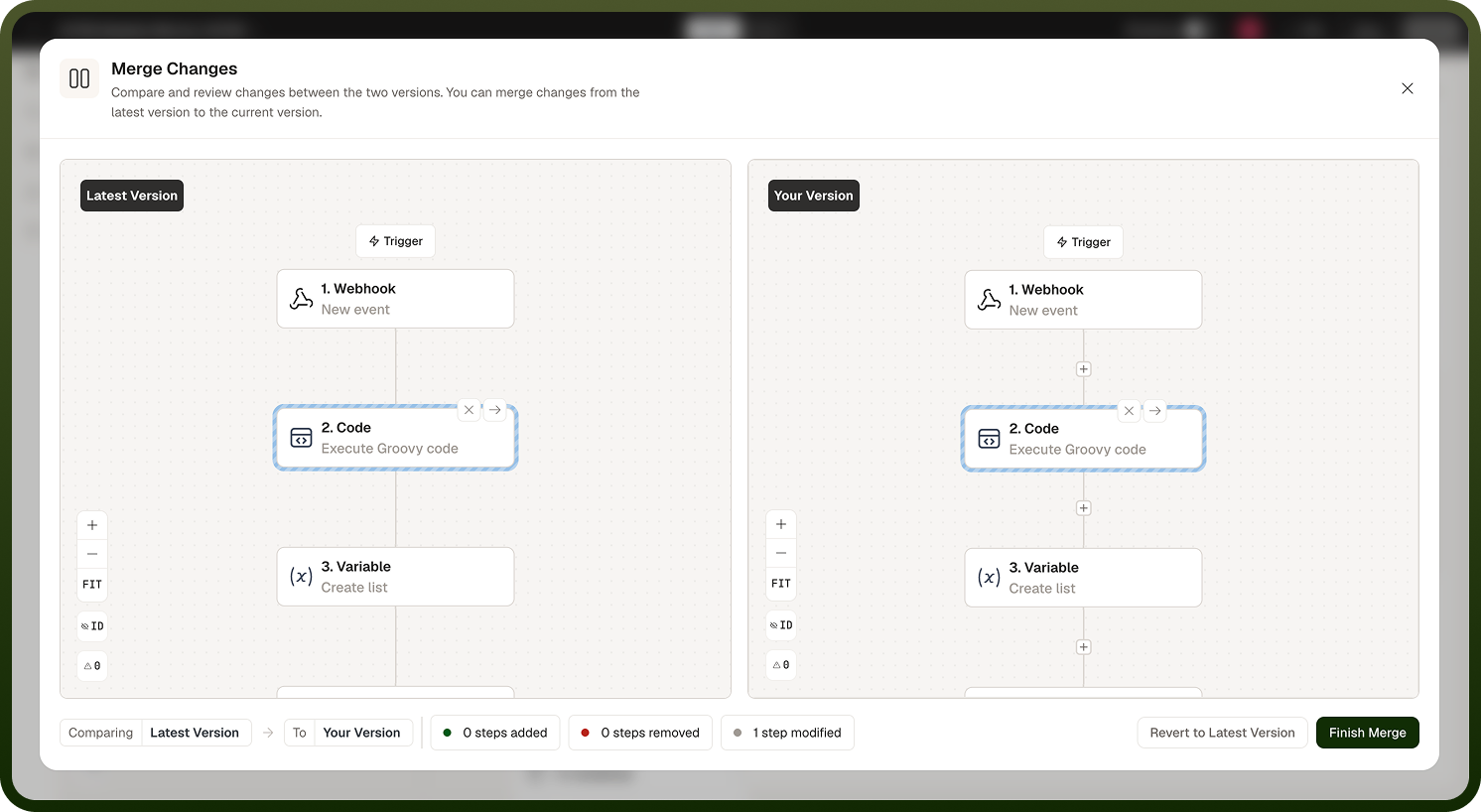
The merge compares the Latest Version (incoming changes from the platform's current state) against Your Version (the version you are editing in the builder). The result is a combined definition that you control, ready to review and deploy once you finish resolving all differences.
When Merging Is Needed
A merge becomes necessary when two sets of changes have been made to the same automation independently — for example, when one team member deploys a new version while another has unpublished edits in the builder. The platform presents the Merge Changes view to let you combine the two versions rather than overwriting one with the other.
Common scenarios where merging applies:
A colleague deploys a hotfix while you are mid-way through editing the same automation in the builder.
A newer version is imported via a changeset and conflicts with the current working state.
The latest deployed version has advanced beyond the snapshot you restored into the builder.
How to Merge Versions
When the platform detects divergent versions, it opens the Merge Changes view automatically, or you can access it from the builder when an incoming change is detected.
The view presents two read-only canvases side by side, using the same added/removed/modified chip summary as Compare: N steps added, N steps removed, and N steps modified.
Review the summary chips at the top to understand the total scope of differences before working through individual steps.
For each changed step, hover over the node to reveal two controls:
Accept — takes that incoming change into your version.
Ignore — excludes the incoming change, keeping your current version of that step.
As you resolve each step, it is tagged to indicate its outcome (see Resolving Conflicts below) so you can track progress through the full list.
When you have reviewed all steps, click Finish Merge to apply your decisions and return to the builder with the merged definition.
Note: If any steps remain unresolved when you click Finish Merge, the platform prompts: "N steps are still unmerged. Do you want to proceed without merging them?" Select Yes to finish with unresolved steps left as-is, or No to return and continue resolving.
Resolving Conflicts
Step resolution states
Each step in the Merge Changes view is tagged as you work through it, giving you a live view of your progress:
Tag | Meaning |
|---|---|
Accepted | The incoming change for this step has been accepted into your version. |
Accepted theirs | The incoming step (added in the latest version) has been accepted wholesale into your version. |
Ignored | The incoming change for this step has been excluded; your current version of the step is retained. |
Discarding your changes entirely
If you decide that the latest version should replace your working state entirely, choose Revert to Latest Version. This discards your local changes and loads the latest deployed version into the builder. Use this option when your changes are no longer relevant or when a colleague's deploy supersedes your work.
Note: Reverting to the latest version is not reversible from within the Merge Changes view. If you need to recover your previous edits after reverting, you can find them in the Saved Version panel, which retains all autosaved snapshots.
Notes
Merging gives you precise control over how parallel changes are combined, but it requires attention to each step to avoid introducing inconsistencies. To make the most of it:
Review the summary chips before resolving individual steps to understand the scale of the merge — a large number of modified steps may warrant using Compare first to understand the full context of the incoming changes.
Work through steps in the order they appear in the flow rather than jumping around; dependencies between nodes can make an out-of-order resolution harder to reason about.
Use the per-step tags (Accepted, Ignored) to track which steps you have already resolved, especially in long, complex automations.
If you are unsure whether to Accept or Ignore a step, choose Ignore and finish the merge — you can always return to the builder, make a targeted edit, and re-deploy, rather than accepting a change you do not fully understand.
After finishing a merge, deploy immediately if the combined result is production-ready; leaving the merged definition in the builder as unsaved work means a subsequent merge or restore could override it.