


Export as Template packages a working automation so others can start from its structure, while the Documentation Panel generates and displays an AI-written summary of an automation's purpose and logic — both tools for sharing and understanding automations at scale.
Overview
This page covers two features available when viewing an automation: Export as Template and the Documentation Panel.
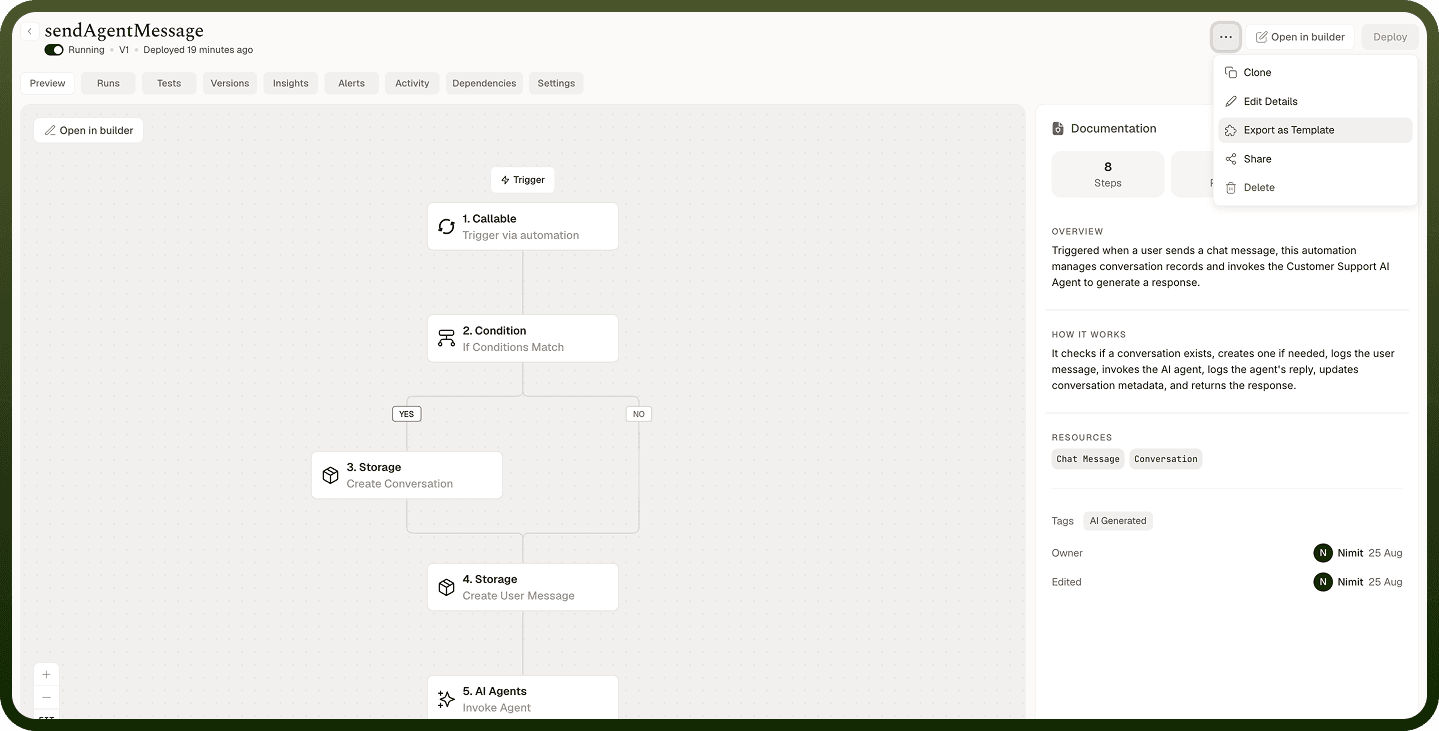
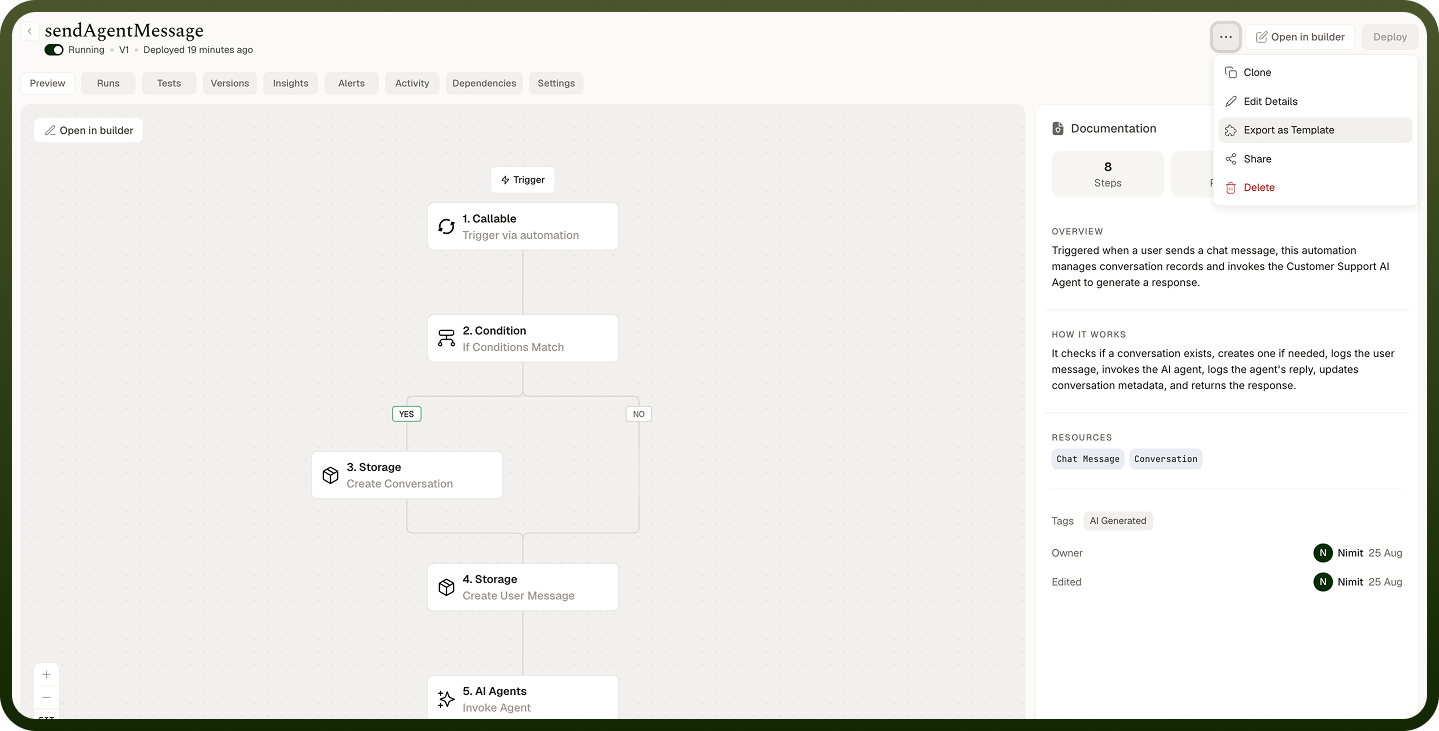
Export as Template converts a working automation into a reusable template that others can start from, letting you distribute proven automation patterns across your team or organization. The Documentation Panel is an AI-generated summary of what an automation does — its purpose, how it works step by step, and the data flow between nodes — displayed alongside the automation's flow without requiring you to read the builder configuration directly.
Export as Template
Exporting an automation as a template packages it so that others can create new automations based on its structure and configuration. Templates appear in the template library, accessible from the Explore Templates entry point in the automations manager.
Steps
Open the automation you want to export.
Open the header actions menu inside the automation.
Select Export as template.
Complete any prompts that appear (such as a template name or description) and confirm.
The automation is now available as a template in the template library for others to use as a starting point.
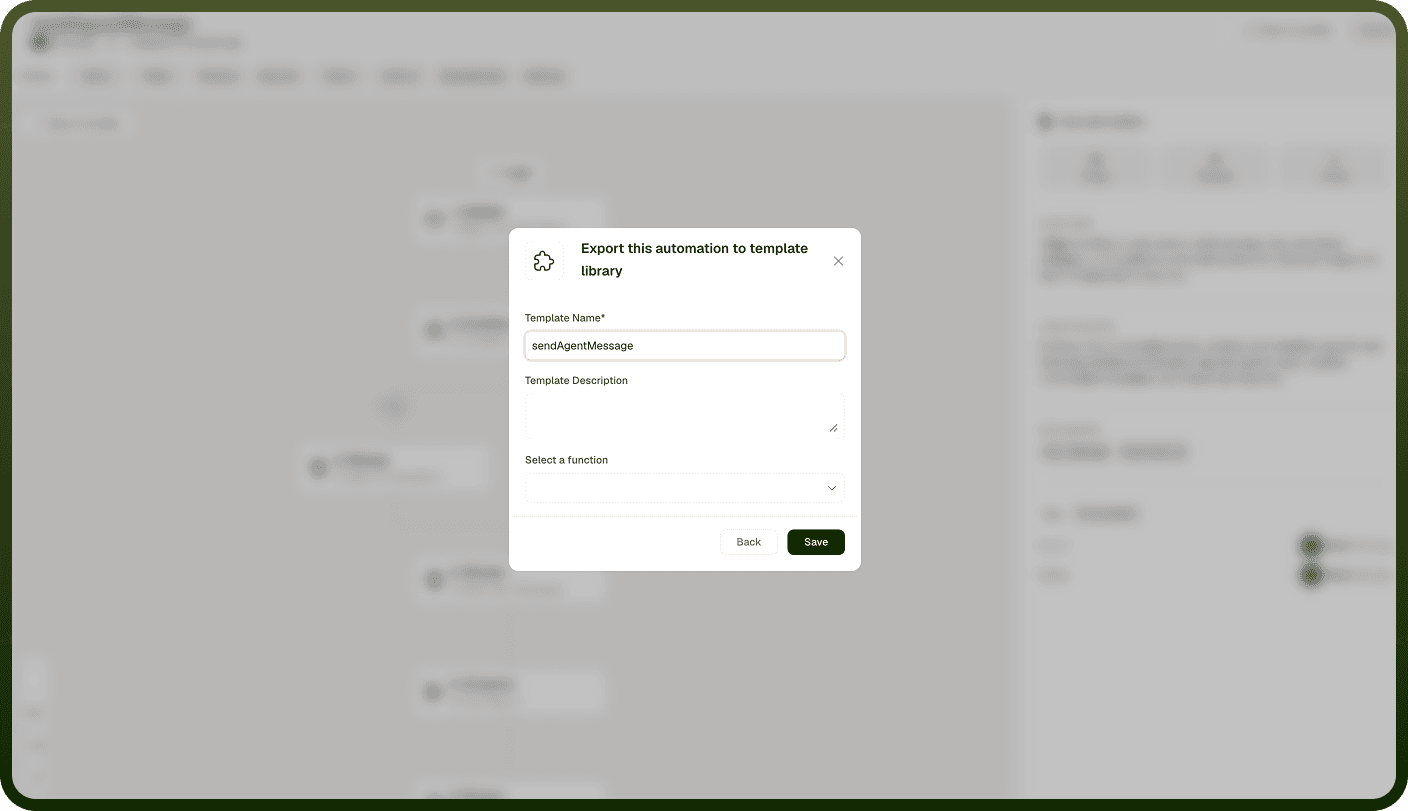
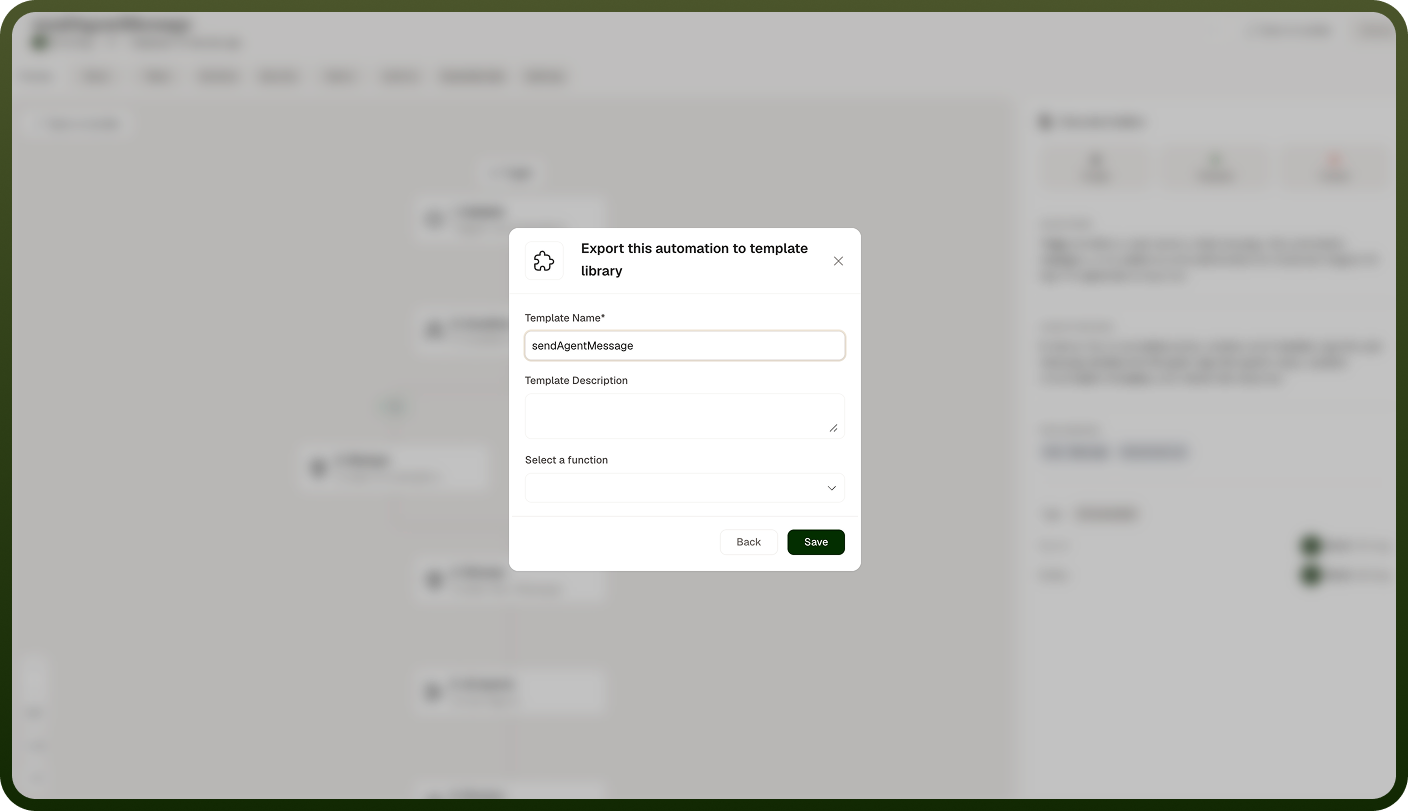
Note: Export as template is also accessible from the row actions menu in the automations manager list. Both entry points produce the same result. The option appears only if you have the appropriate permissions for the automation.
Documentation Panel
The Documentation Panel appears on the right side of the automation's flow view. It provides an AI-generated plain-language summary of the automation so you can understand what it does without reading each node's configuration individually.
What the panel shows
At the top of the panel you see aggregate information about the automation:
Steps — the number of nodes in the automation's flow.
Passed — the count of successful run executions.
Failed — the count of failed run executions.
Below that, the panel is organized into two sections:
Overview — a high-level description of what the automation does and why.
How it works — a step-by-step walkthrough of the automation's logic in plain language.
Generating and regenerating the summary
If no summary has been generated yet, the panel shows a Generate summary button. Click it to produce the initial AI-generated documentation.
If the automation's flow has changed since the summary was last generated, the panel displays a notice prompting you to Regenerate it. Regenerating updates the summary to reflect the current configuration.
Inspecting individual steps
Click any step listed in the How it works section to expand its detail. The expanded view shows:
The step's purpose — what it does within the automation.
The resources it uses — the apps or services it connects to.
Its
data flow
:
Reads from — the inputs or upstream data the step consumes.
Feeds into — the downstream steps or outputs the step's results flow into.
Note: The Documentation Panel summary is AI-generated from the automation's current configuration. After making significant changes in the builder, regenerate the summary to keep it accurate.
Notes
To make the most of it:
Export as template after a newly built automation has been running successfully in production — this ensures the template reflects a proven, working pattern rather than a draft.
Generate the Documentation Panel summary before sharing an automation with teammates who did not build it — the summary lets them understand its purpose without needing to read the builder.
Regenerate the summary whenever you make structural changes to the flow, such as adding, removing, or reordering nodes, so the documentation stays current.
Use the per-step data flow details (Reads from / Feeds into) when debugging unexpected outputs — they make the data dependencies between steps explicit.