


Standard automations are pre-built automations that ship with the UnifyApps platform to run system-level processes behind the scenes. They are owned and maintained by the platform, making them read-only: you can observe how they are built and how they run, but you cannot create, edit, or remove them.
Overview
Standard automations handle things the product does for you rather than flows you design. They appear alongside your own automations in the automations area but are distinguished as platform-owned — not user-created. Think of them as the platform's own automations that you can observe for transparency and troubleshooting.
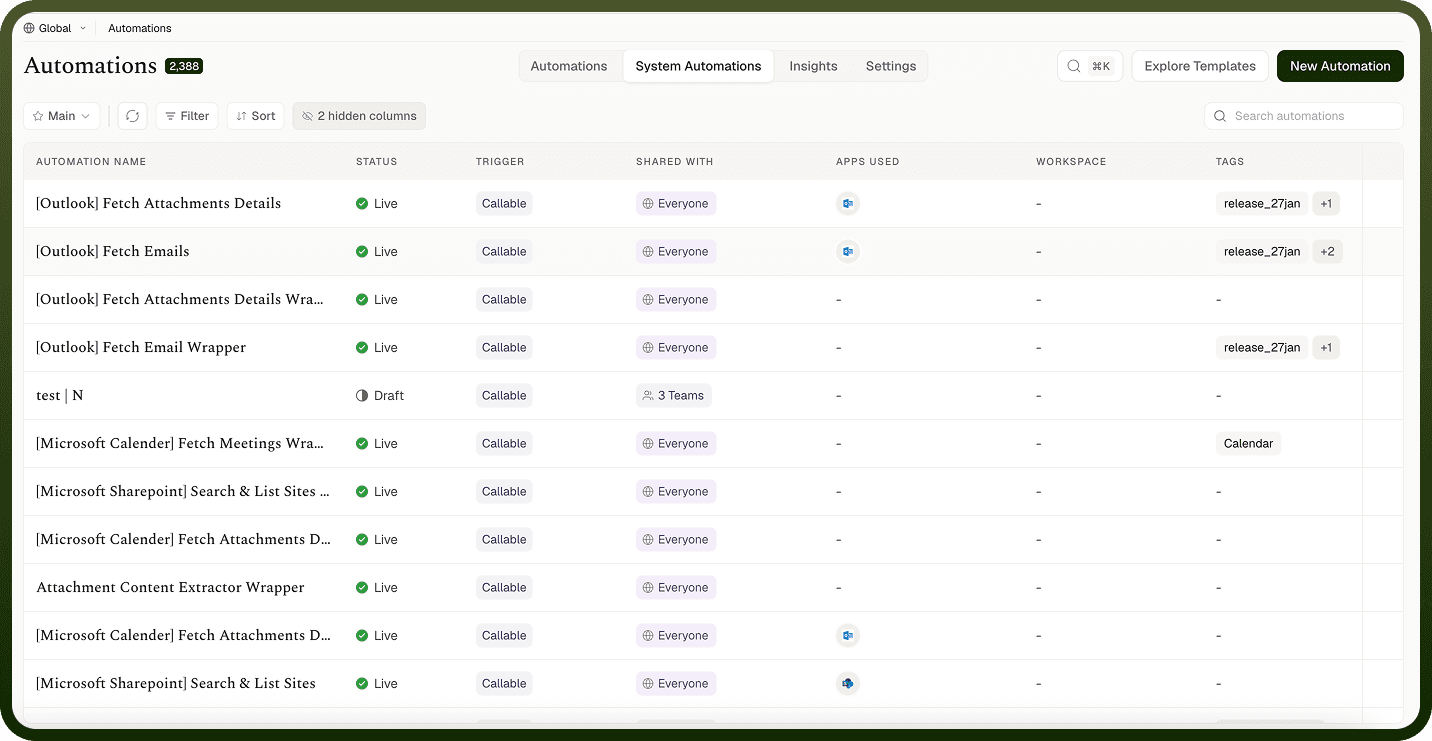
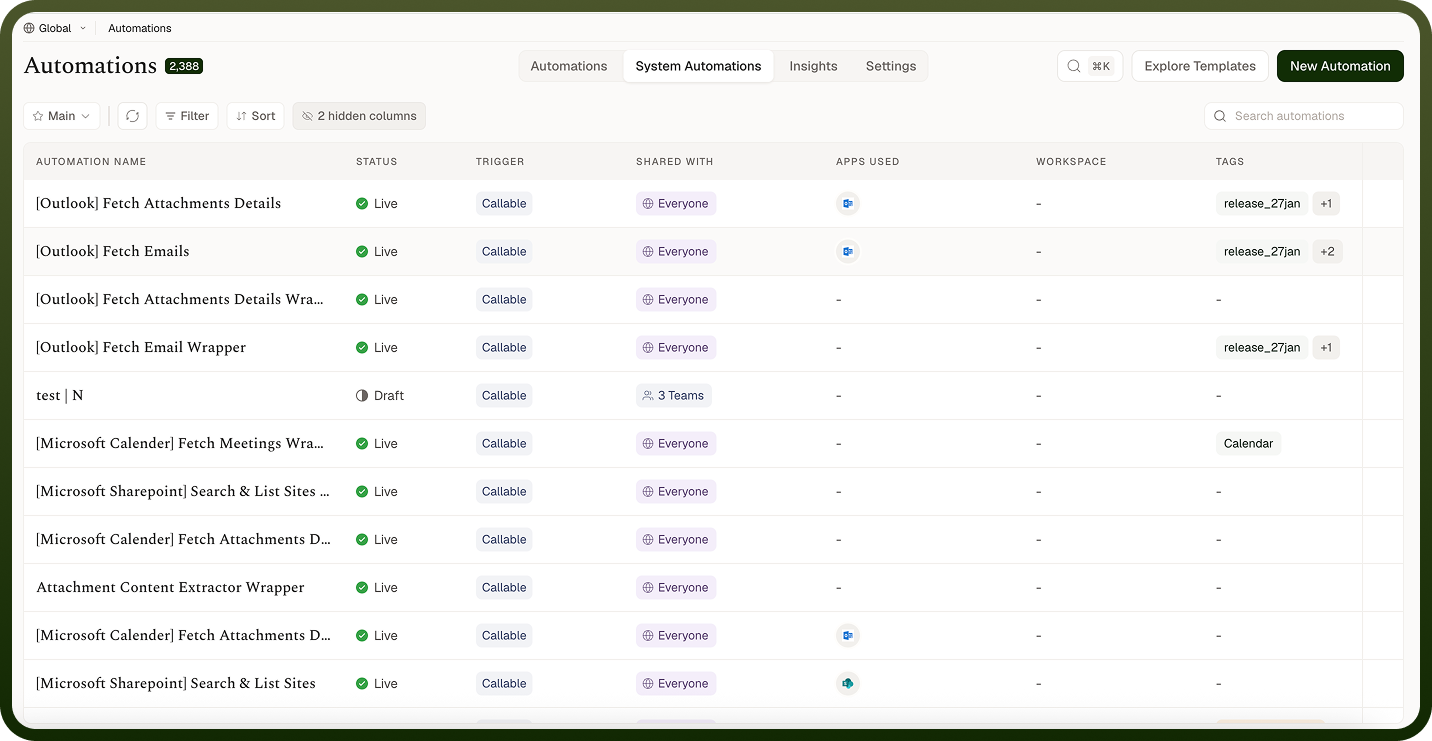
Because the platform manages the lifecycle of standard automations and keeps them consistent for every workspace, the usual build and lifecycle actions are turned off for them. Only viewing is available.
Note: Standard automations show their configured alerts in the Alerts tab, but you cannot delete those system-level alert rules.
Viewing Standard Automations
Standard automations are listed separately from the automations you build, in the Standard list within the automations area. To access them:
Go to the Automations area.
Select the Standard list from the navigation.
The list displays platform automations in the same layout as your own automations — searchable, with the same columns.
Click any row to open the automation and inspect its details.
Once you open a standard automation, you can:
View its steps on a read-only canvas, seeing the trigger and each downstream node.
Browse its run history to confirm it has been executing and review individual runs.
Check its version history to understand how it has changed over time.
These viewing capabilities are sufficient to inspect behavior or investigate a run when you are diagnosing something that depends on a system process.
Enabling a Standard Automation
Standard automations run as part of the platform's own lifecycle — they are activated and managed by UnifyApps, not by individual users. You do not enable or disable them through the automations area. The platform controls when they are active and when they run.
If a standard automation is not running as expected, do not attempt to enable or restart it through the UI. Instead, review its run history to understand whether executions are occurring, and contact support@unifyapps.com if behavior appears incorrect.
Note: The deploy, pause, and activate controls that appear on your own automations are not available on standard automations.
Customizing Standard Automations
Standard automations cannot be customized. The following actions are not available on any standard automation:
Editing — the canvas and node configuration are read-only.
Deploying or pausing — the platform manages the automation's active state.
Deleting — standard automations cannot be removed.
Cloning — you cannot copy a standard automation to use as a starting point.
Sharing — standard automations are not shareable to other workspaces in the way user automations are.
This restriction exists by design: allowing individual users to change or remove system automations could break behavior that other users and platform features rely on.
If a standard automation is not doing what you expect, reach out to support rather than attempting to edit it. For use cases where you need a similar flow that you can control, build your own automation from scratch or from a template.
Notes
To make the most of it:
Use the Standard list to confirm that a system process ran when investigating unexpected behavior in platform features — the run history shows whether the automation executed and whether it succeeded.
Do not attempt to replicate or override standard automations by building your own versions; if a system process is misbehaving, contact support.
Remember that standard automations contribute to the same run logging and insights infrastructure as your own automations — their run data appears in module-level insights.
Check the Alerts tab of a standard automation to see which monitoring rules are already in place for it at the system level.
Standard automations give you useful transparency into platform processes — use their run history and canvas to investigate system behavior without needing to create or edit anything yourself.