


Automation Settings contains configuration options that govern how an automation runs at a global level.
Overview
Automation Settings contains configuration options that govern how an automation runs at a global level. These settings affect execution priority and data management behavior across all nodes in the workflow, and are found in the automation's settings panel rather than on individual nodes.
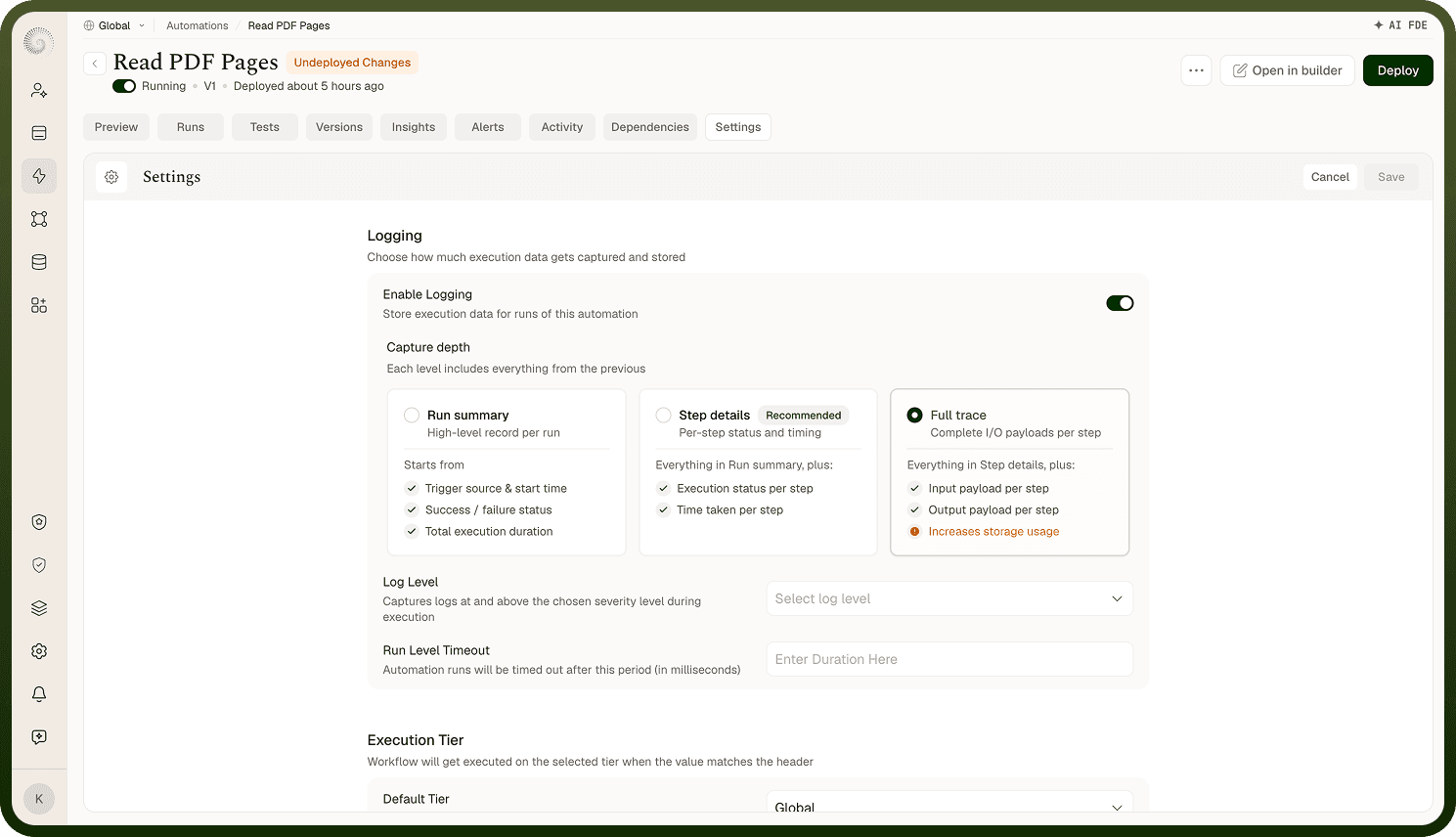
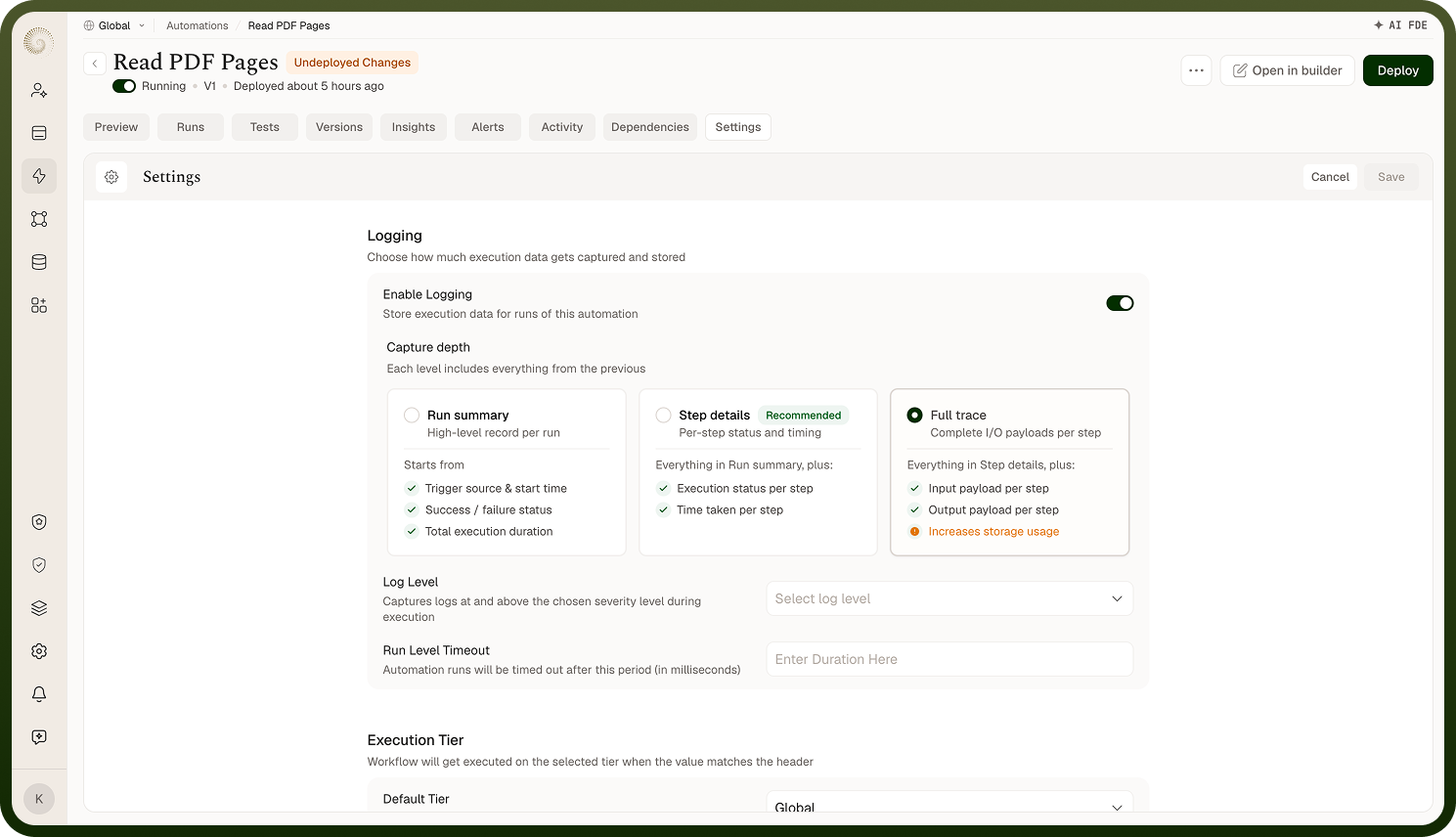
Execution Tier
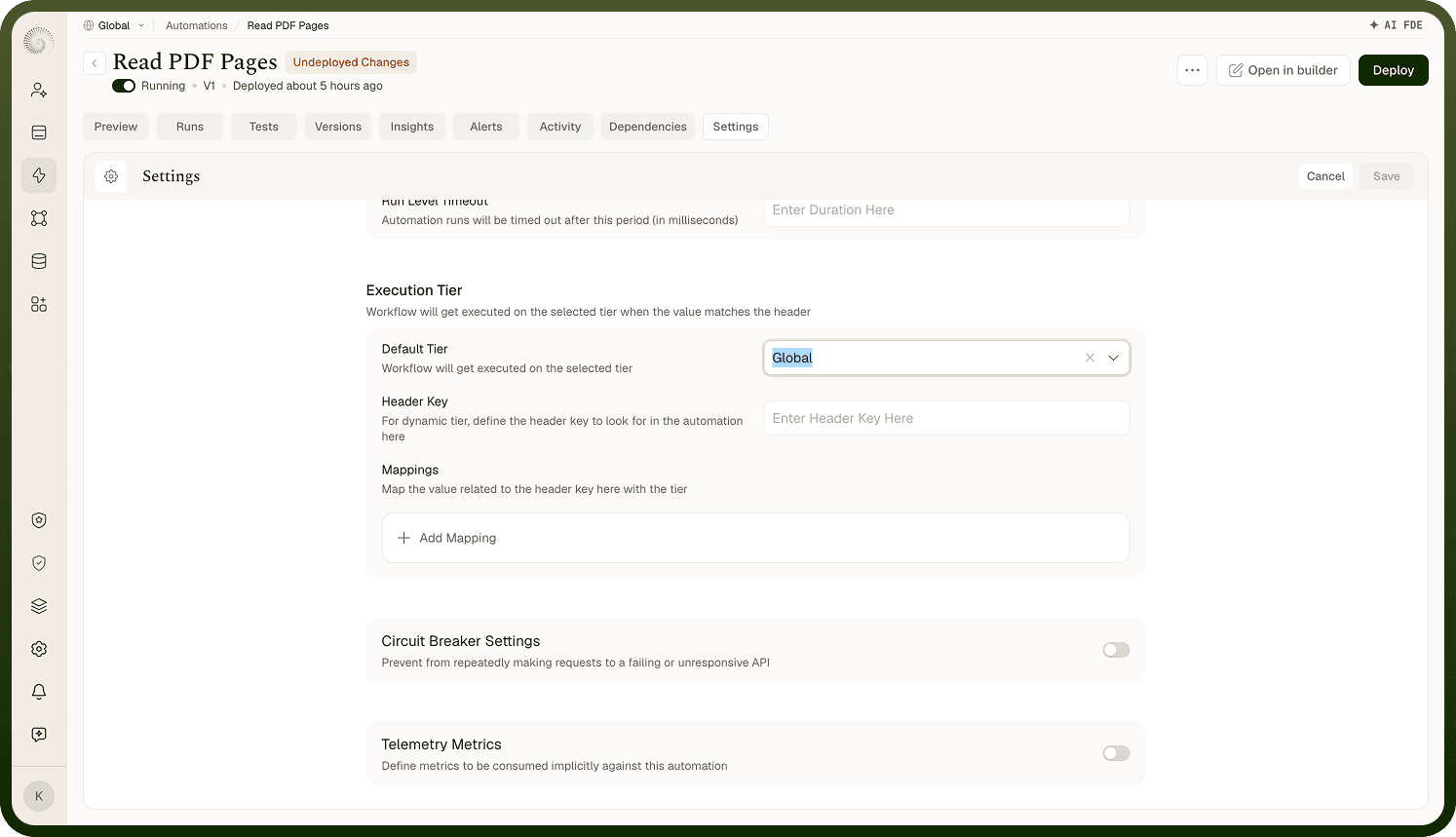
The Execution Tier setting controls the priority level at which the automation runs relative to other automations in the system. Higher tiers receive more processing resources and are prioritized in the execution queue.
Default Tier
All automations start on the default execution tier, which provides standard processing priority suitable for the majority of workloads.
Dynamic Tiers
Dynamic tiers allow the execution priority to vary per automation run based on request headers passed at trigger time. This enables a single automation definition to serve multiple priority levels — for example, serving premium customers at a higher tier than standard customers.
Field | Description |
|---|---|
Header key | The name of the HTTP header that carries the tier identifier |
Header value | The expected value in that header that maps to this tier |
Tier | The execution tier to apply when the header key/value pair is matched |
Multiple dynamic tier rules can be defined. The system evaluates them in order and applies the first matching rule. If no rule matches, the automation falls back to the Default tier.
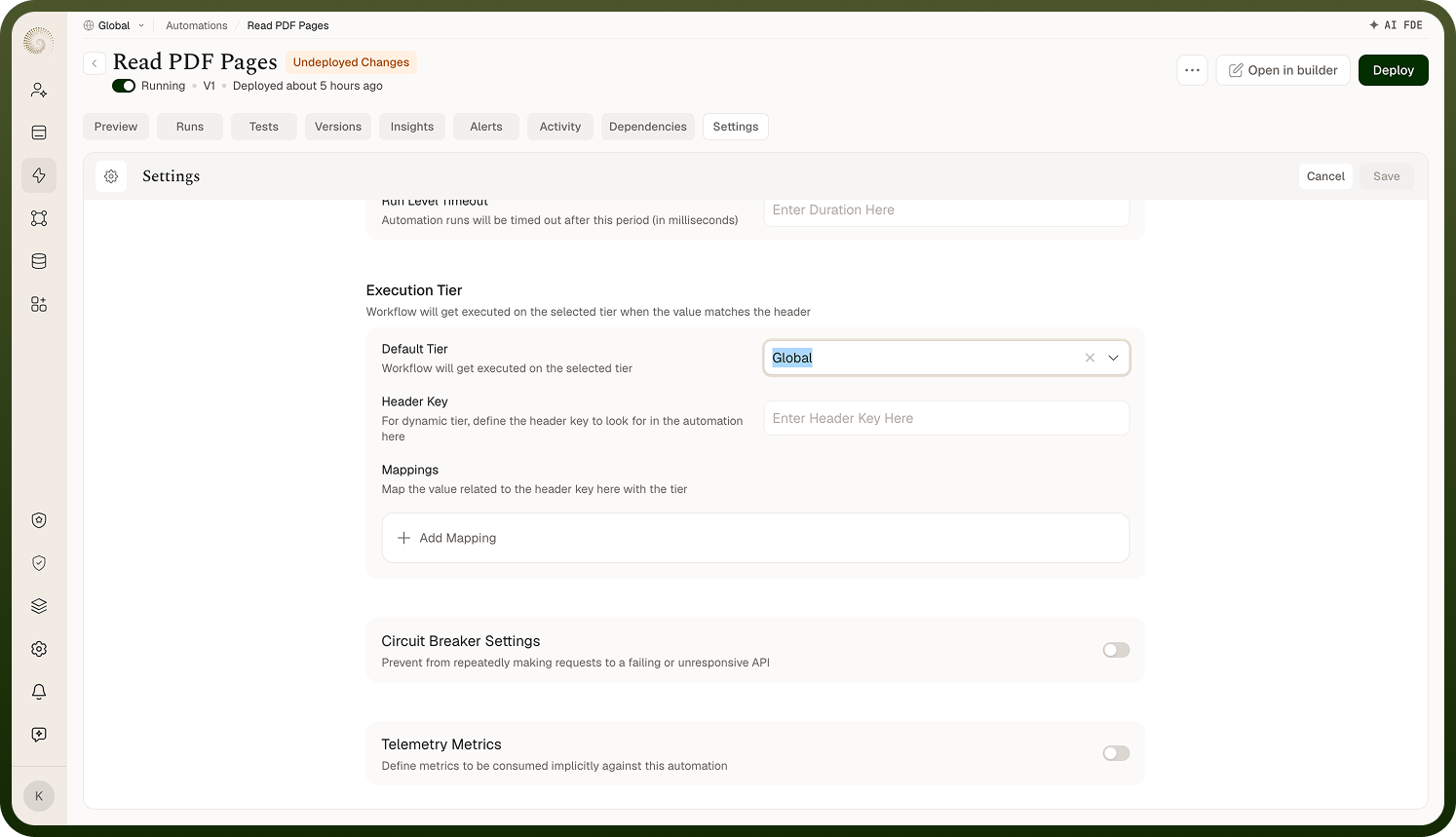
Data Management
Data Management settings control what execution data is captured and retained during automation runs. These settings affect observability and the ability to debug runs after the fact.
Traversed Path
When enabled, the system records the execution path taken through the workflow — which branches were followed, which conditions evaluated to true, and which nodes were skipped. This is visible in the run summary and is used by the Workflow Debugger to highlight the active path.
Disable this setting to reduce storage overhead for high-volume automations where path tracing is not required for debugging.
I/O of Each Node
When enabled, the input and output data for every node execution is captured and stored as part of the run record. This data is viewable in the Node-Level Preview panel when inspecting a completed run.
Important: Disabling I/O logging significantly reduces the ability to debug failed runs, since node-level input and output data will not be available in the run preview. Only disable this setting for automations where storage cost and privacy requirements outweigh debuggability needs.
Notes
Keep the following in mind when using Automation Settings:
Choose the Execution Tier that matches the automation’s workload before deploying; switching tiers later requires redeploying the automation.
Data Management settings affect how long run history is retained; configure the retention period before the automation goes live to avoid retroactive data loss.
Settings apply to all deployed versions of the automation; a setting change takes effect on the next run, not on past runs.
Review Execution Tier options with your workspace administrator before assigning a high-priority tier to a non-critical automation.
Saving Automation Settings does not require redeploying the automation logic, but changes do not take effect until the settings are saved.