

Setting up a new connector and finding the ones you've built.
Overview
Go to Connectors › Custom Connectors to see the connectors you and your team have built. From the list you open a connector to edit its authentications, actions, triggers, and settings, or start a new one. If it's empty you'll see a prompt to add your first custom connector. Each tab's header shows a live count of the connectors in it — the Custom Connectors count never includes standard ones. With the right permission there's also a Standard Connectors tab, listing platform-native connectors you've extended: on a standard connector you can add custom actions of your own (its platform-native actions are enabled by default and aren't listed) — but only the Actions tab is shown. Its authentications, triggers and settings are platform-managed, so those tabs don't appear.
Creating a connector
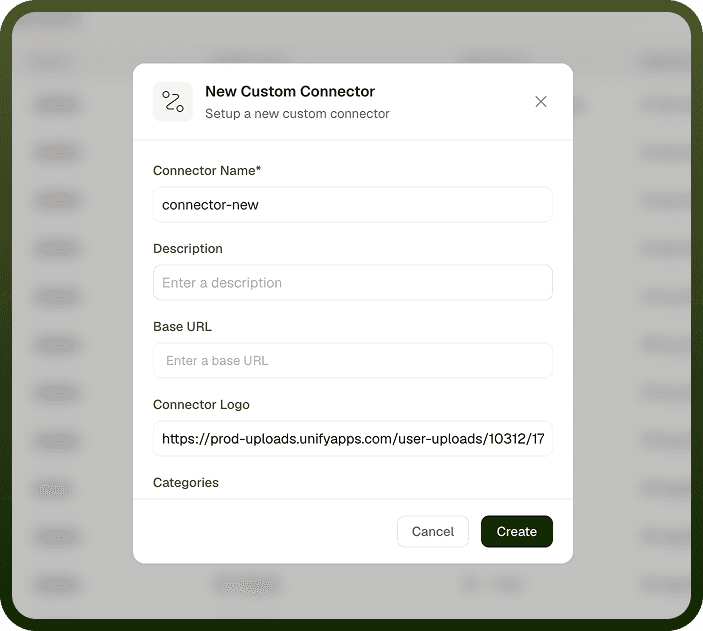
Use New Custom Connector and set the basics:
Connector Name (required) — what the connector is called.
Description — what it integrates and does.
Base URL — the root of the API all its requests sit under (for example https://api.example.com/v1). Each action and trigger can then define just the endpoint beneath this, so you set the host once. It must be a valid URL — or a {{ variable }} reference (such as an environment variable) where an API's host varies by account, region, or environment. The base URL can't be edited after creation.
Connector Logo — a logo URL so it's recognizable in pickers.
Categories — optional; the app categories the connector is listed under.
After creating, you land on the connector's details — tabs for Authentications, Triggers, Actions, and Settings — to define how it works.
Setting up after creating the connector
A new connector is an empty shell until you define how it works. In order, you typically:
Add at least one authentication so users can connect;
Add actions (and/or triggers) — each with its input, HTTP request, and output;
Adjust settings (object schema, which modules can use it);
Deploy each action and trigger so automations can use it;
Publish the connector (Publish, top right) so your deployed actions and triggers appear in automations.
You can build incrementally — add one action, deploy it, then add more. Publish again after later changes. The connector becomes useful in automations once it has a working authentication and at least one deployed action or trigger, and you've published it.