


Describing an app in plain language and letting an agent write, preview, and ship the code for it.
Overview
Code Builder is an AI app builder: you describe the app you want, an agent plans it, you approve the plan, and it writes a real front-end application you can preview live, keep chatting to change, and publish to a URL. The result is a code app — it appears alongside your other applications and has its own name, ID, tags, versions, and published URL. Unlike the no-code application builder, what the agent produces is source code, which you can read, download, and (optionally) sync to your own Git repository.
Where: Applications › Custom
Creating a code app
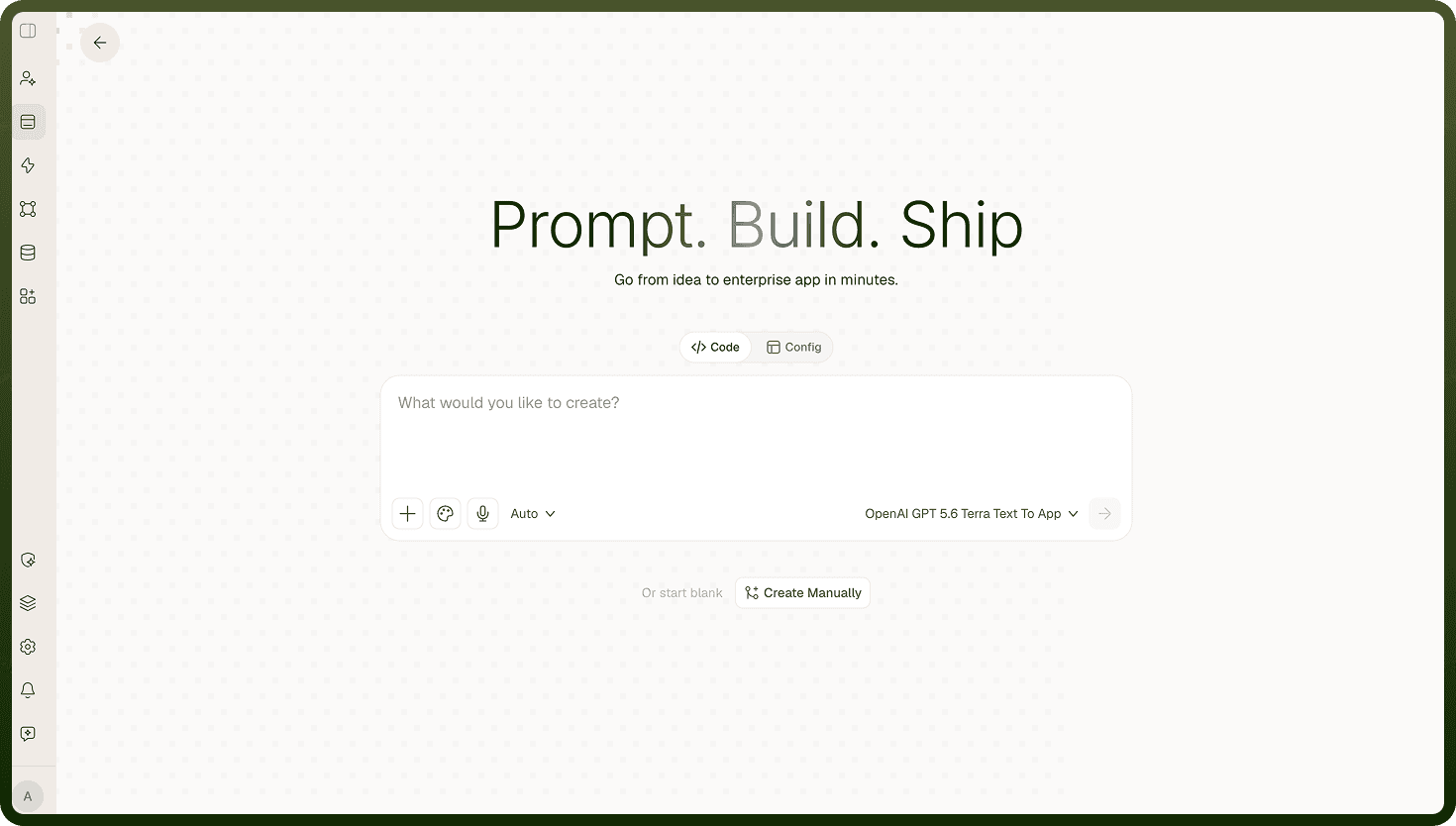
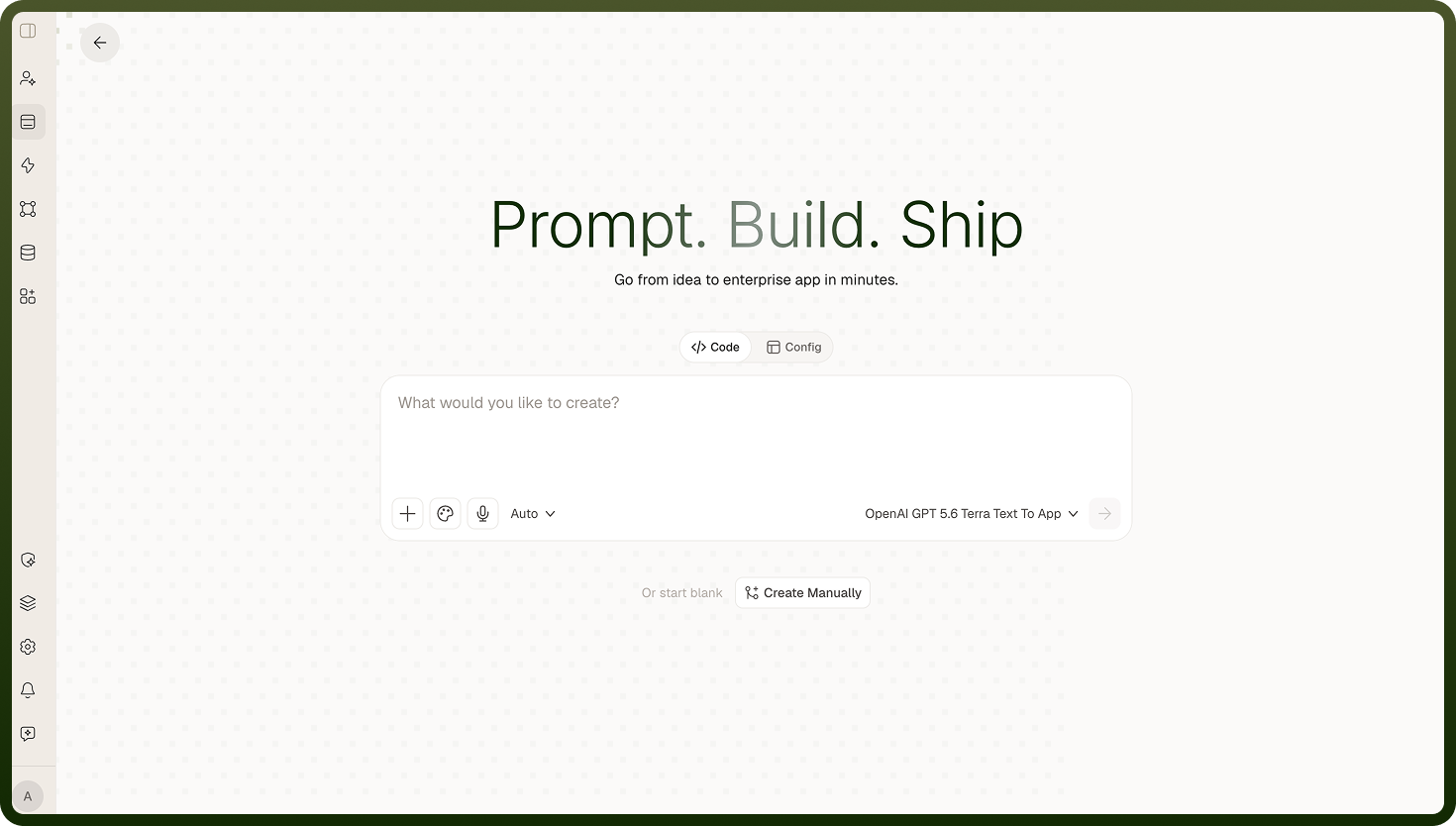
Start a new application with AI. The page is headed Prompt. Build. Ship — "Go from idea to enterprise app in minutes." — and offers two modes above the prompt box: Code (this one, and the default) and Config, the no-code AI builder. Describe what you want in the box ("What would you like to create?"), optionally attach files, pick a model, and send. The app is created and you land straight in the builder with the agent already working. Or start blank / Create Manually below the box slides up the standard no-code create form instead. If the app can't be created you'll see the failure reported in red under the box.
Where: Applications › create with AI › Code
App's pages
Opening a code app from the applications list gives you four tabs:
Overview — a live preview of the app on its main branch plus a Details panel.
Versions — every published version, with the ability to open one.
Insights — the same usage-analytics dashboard other applications get, scoped to this app.
Settings — the app's settings.
Two buttons sit in the header on all of them: Open in Builder (goes to the chat + preview workspace) and Preview (opens the running app in a new tab — disabled until the app has been built at least once). Open in Builder deliberately doesn't name a chat, so each person lands in their own conversation rather than whoever created the app.
Where: Applications › your code app
Details panel on Overview
Application URL — the public address of the published app (shown once the app has one).
Application ID — the app's identifier, with a copy button. This is the id used everywhere else in the platform for this app.
Tags — free-form labels you can add or remove here.
Created by and Last modified by — who and when.
An app that hasn't been named yet shows as Untitled.
Where: Applications › your code app › Overview
Renaming or deleting a code app
Both live in the More menu (the "…" button) in the builder header, on the Preview tab:
Rename opens Rename app with a single App name field. Save is unavailable until you actually change the name to something non-empty. If it fails you'll see "Could not rename the app".
Delete app asks to confirm — "This permanently deletes "…" — every chat, version and branch. This cannot be undone." Deleting removes the app's whole workspace (all chats, branches and commits) as well as the application record, then returns you to the Custom applications list, since the app's own pages no longer exist. A failure shows "Could not delete the app".
Where: Code Builder › header › More