


On/off switches for platform capabilities, backed by System environment variables.
Overview
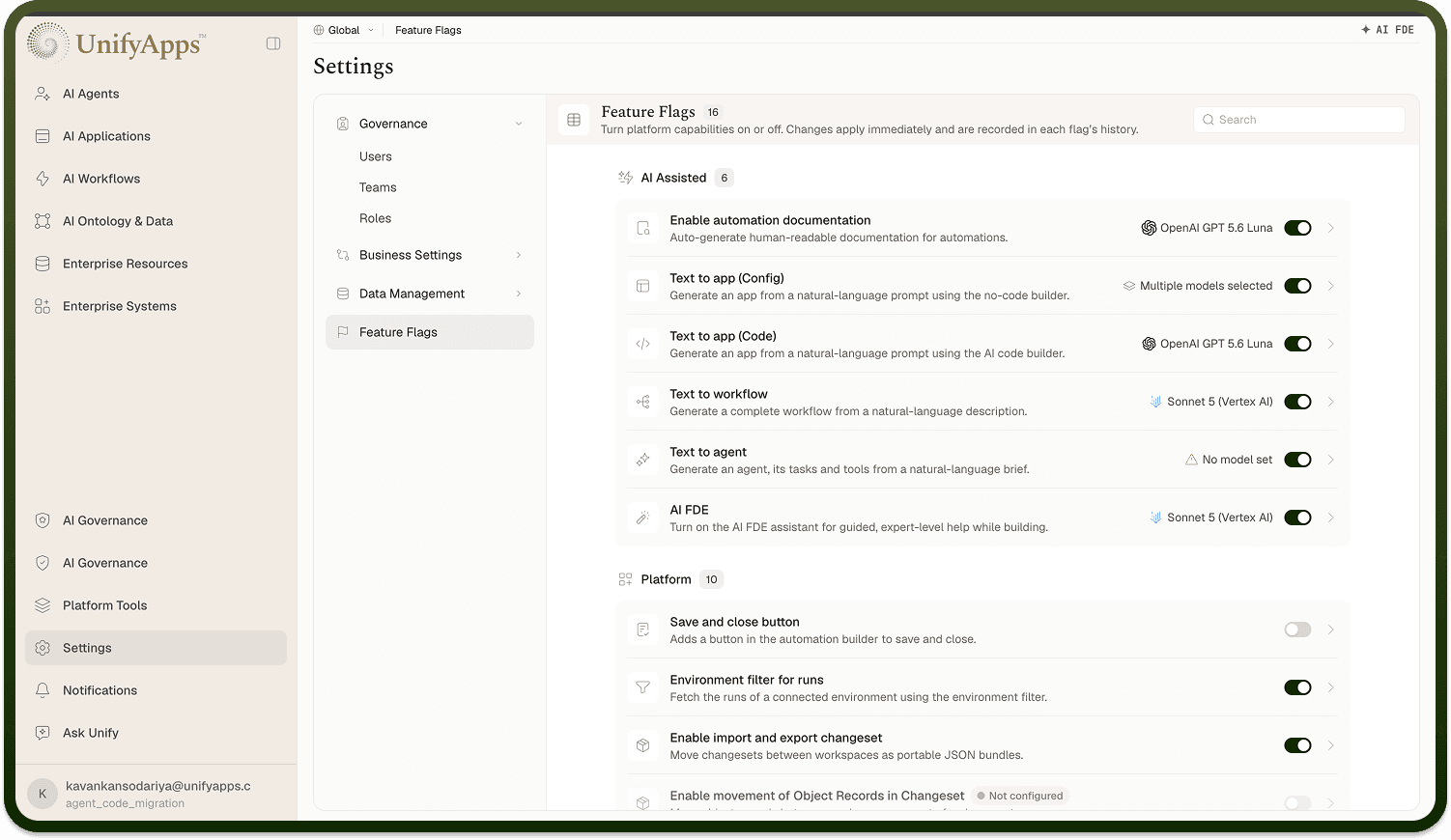
Feature Flags is a settings screen that lets you turn platform capabilities on or off from one place. Its subtitle sums it up: "Turn platform capabilities on or off. Changes apply immediately and are recorded in each flag's history." Each flag is a labeled row with an icon, a short description of what it does, and a toggle. The screen is a friendlier view over a curated set of System (standard) environment variables — the boolean switches the platform reads to enable or disable features — so you don't have to find and edit those variables by hand. A search box (Search) filters the list, and a count pill shows how many flags there are.
Where: Settings › Feature Flags
Turning a feature on or off
Flip the flag's toggle. Changes apply immediately — there's no separate save step. The toggle updates optimistically and confirms with "Changes saved"; if the save fails it reverts and shows "Couldn't save changes." Because a flag maps to a System environment variable that platform features read, turning it on or off changes how the platform behaves for the workspace right away (for example, enabling an AI generation capability or interface collaboration).
Where: Feature Flags, a flag's toggle
How the flags are organized
Flags are grouped by area:
AI Assisted — capabilities powered by AI, such as generating an application, workflow, or agent from a natural-language prompt (e.g. Text to application — "Generate a complete interface from a natural-language prompt").
Platform — general platform behaviors, such as change-set import/export, interface collaboration, and Default sensitive value ("Treat new values as sensitive by default so they are masked") — the flag that decides whether new environment variables start out sensitive.
Use search to jump straight to a flag by name.
Where: Feature Flags, groups
Flag's change history
Each flag has a View history action (the clock icon) that opens a day-grouped timeline of changes. Entries are labeled Created, Updated, Turned on, or Turned off, each with who made the change — a specific user or System. If there's nothing yet it reads "No changes recorded yet."; a load failure shows "Couldn't load change history." This history is the audit trail for the flag's underlying environment variable, so it's also the place to see the change log for that variable.
Where: Feature Flags › a flag › View history
How Feature Flags relate to environment variables
A feature flag is a System environment variable — a boolean one the platform ships and reads to switch a capability. Feature Flags simply presents the important ones as labeled toggles with descriptions and history, while the same variables also appear on the System tab of Environment Variables. Reaching this screen needs the same permission that unlocks that System tab. Flip a flag here or change the System variable's value there — it's the same underlying setting.
Where: Settings › Feature Flags · Environment Variables › System