


Automated backups of your platform configuration into your own Git repository.
Overview
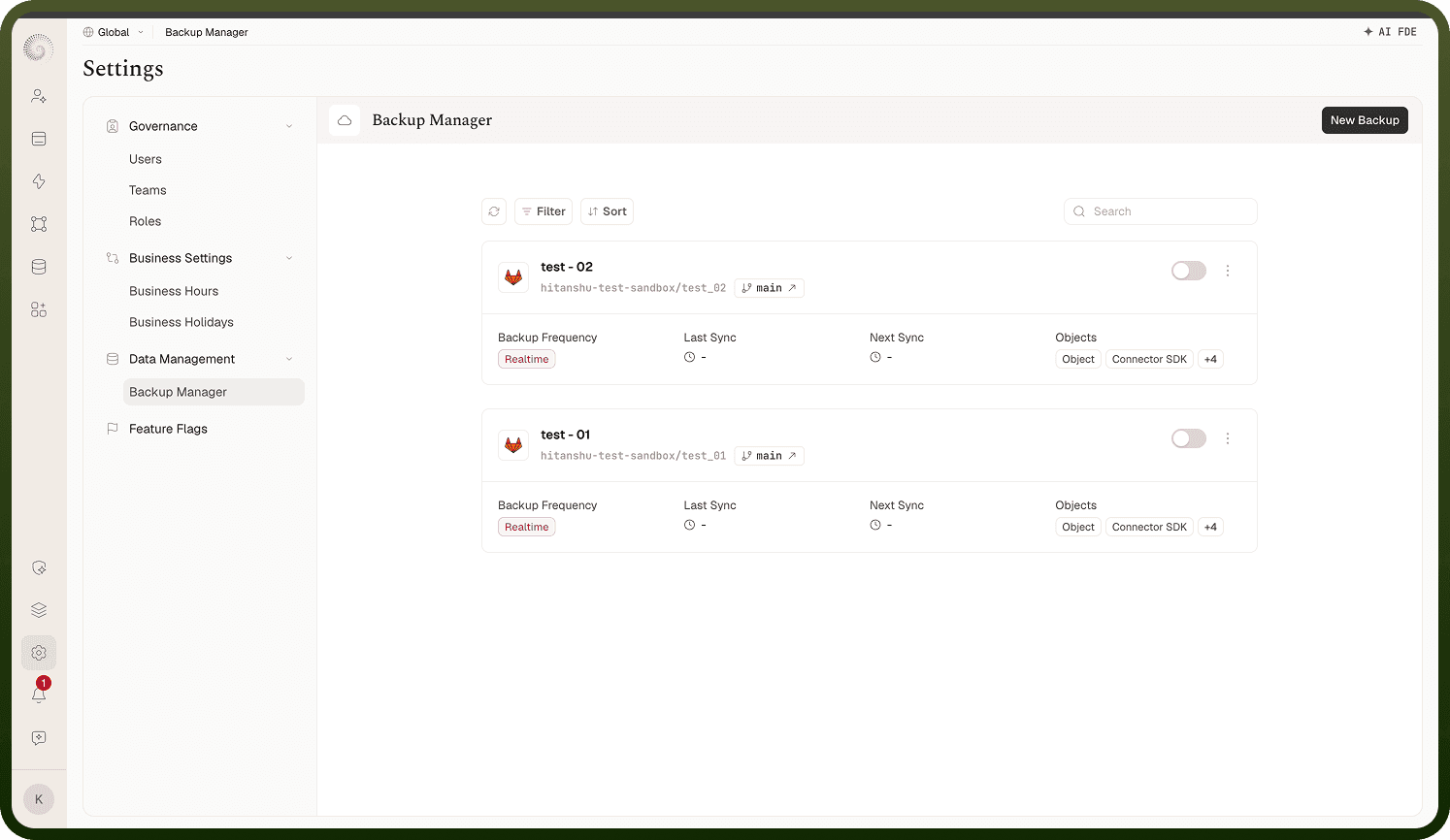
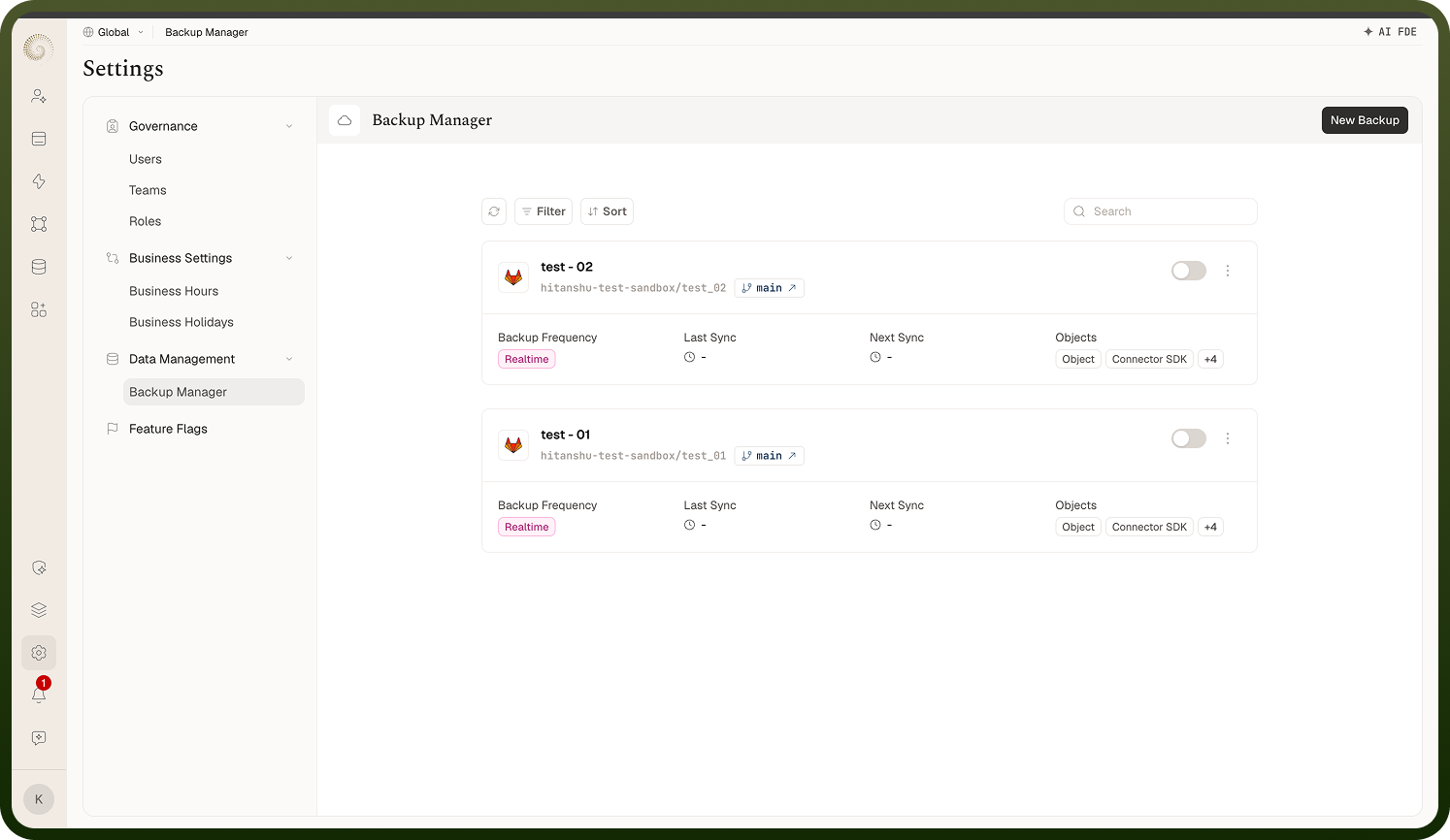
Under Settings › Data Management › Backup Manager you configure automated backups that push your platform objects' configurations to a Git repository you own. Before any exist you'll see "Configure Automated Backups — Configure automated backups for your production environment. Select a Git platform to enable scheduled backups of configurations and data." Each configuration is a card showing the provider, the repository and branch (the branch pill opens it on the Git host), an on/off toggle, and its Backup Frequency, Last Sync, Next Sync, and Objects summary. The card menu offers Clone and Delete; clicking a card opens it for editing.
Where: Settings › Data Management › Backup Manager
Creating a backup configuration
New Backup opens a four-step wizard:
Details ("Add basic details about the backup configuration") — Name, Backup Provider (Github or Gitlab), and the Connection to use (only active connections for that provider). For GitHub you also set the committer User Name and Email used on backup commits.
Select Repository ("Setup the repository & branch") — provider-specific: pick your organisation and an existing repository/branch, or have the backup create a new one.
Platform Objects ("Select individual platform objects or choose from a predefined group to include in the backup.") — pick objects one by one or via Groups: Automation, AI Agent, Applications, API Platform. A counter shows how many objects are selected.
Define Frequency ("Configure real-time or scheduled backup frequency") — see below.
Finishing shows "Backup created successfully."
Where: Backup Manager › New Backup
Running, pausing, cloning, or deleting a backup
Sync Now triggers an immediate backup run ("Backup synced successfully") — but only when the configuration's toggle is on; otherwise you'll see "Only active backup can be synced."
The toggle on each card enables or disables the configuration without deleting it.
Clone duplicates the configuration as "\<name\> (Copy)" so you can tweak a variant (say, a different branch or object set) without rebuilding it.
Delete asks "Delete this backup? Are you sure you want to delete this backup?" and removes the configuration — your Git history stays untouched.
Where: Backup Manager, card actions