


Reusable working-hours schedules that gate when automations and campaigns act.
Overview
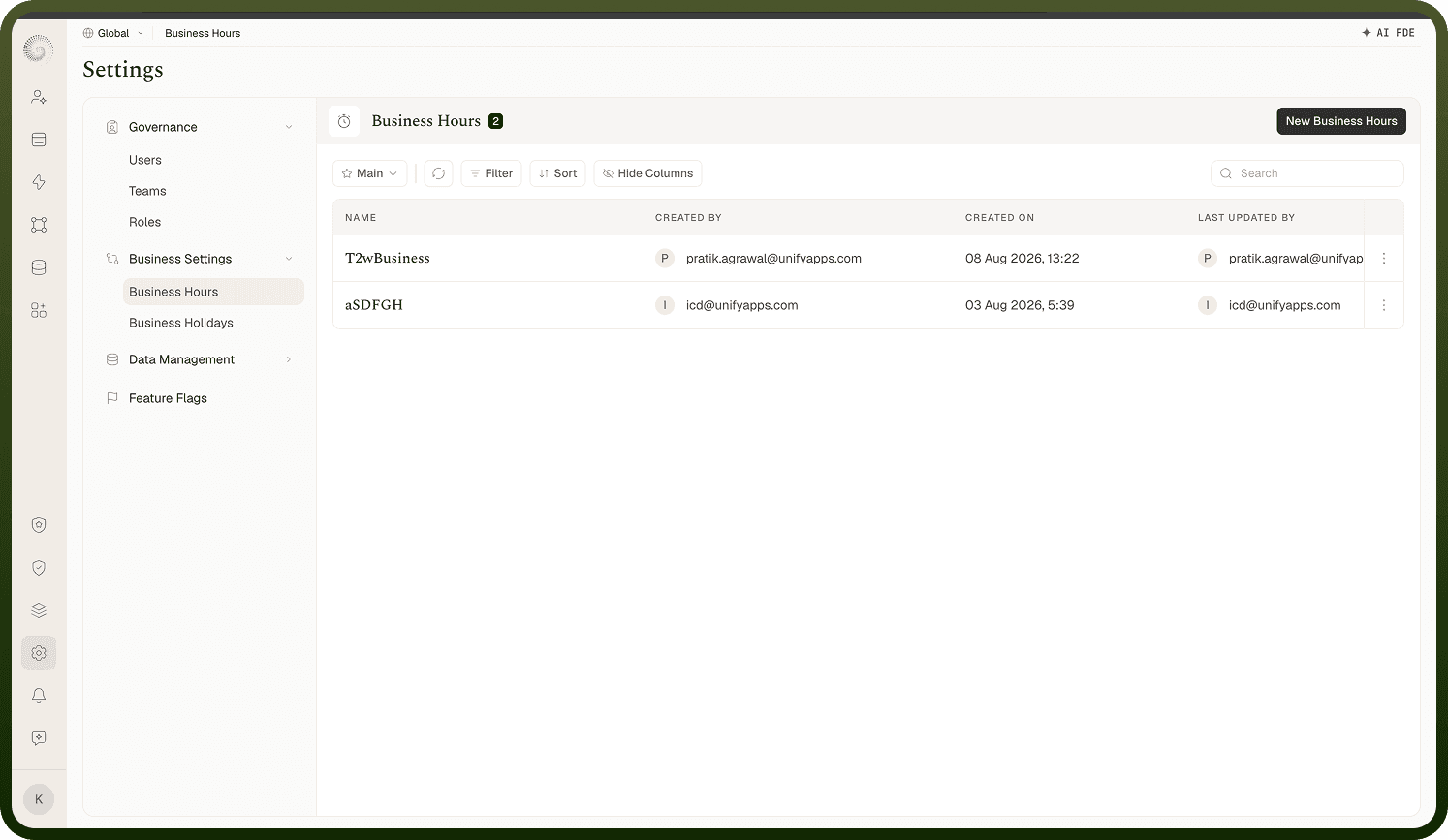
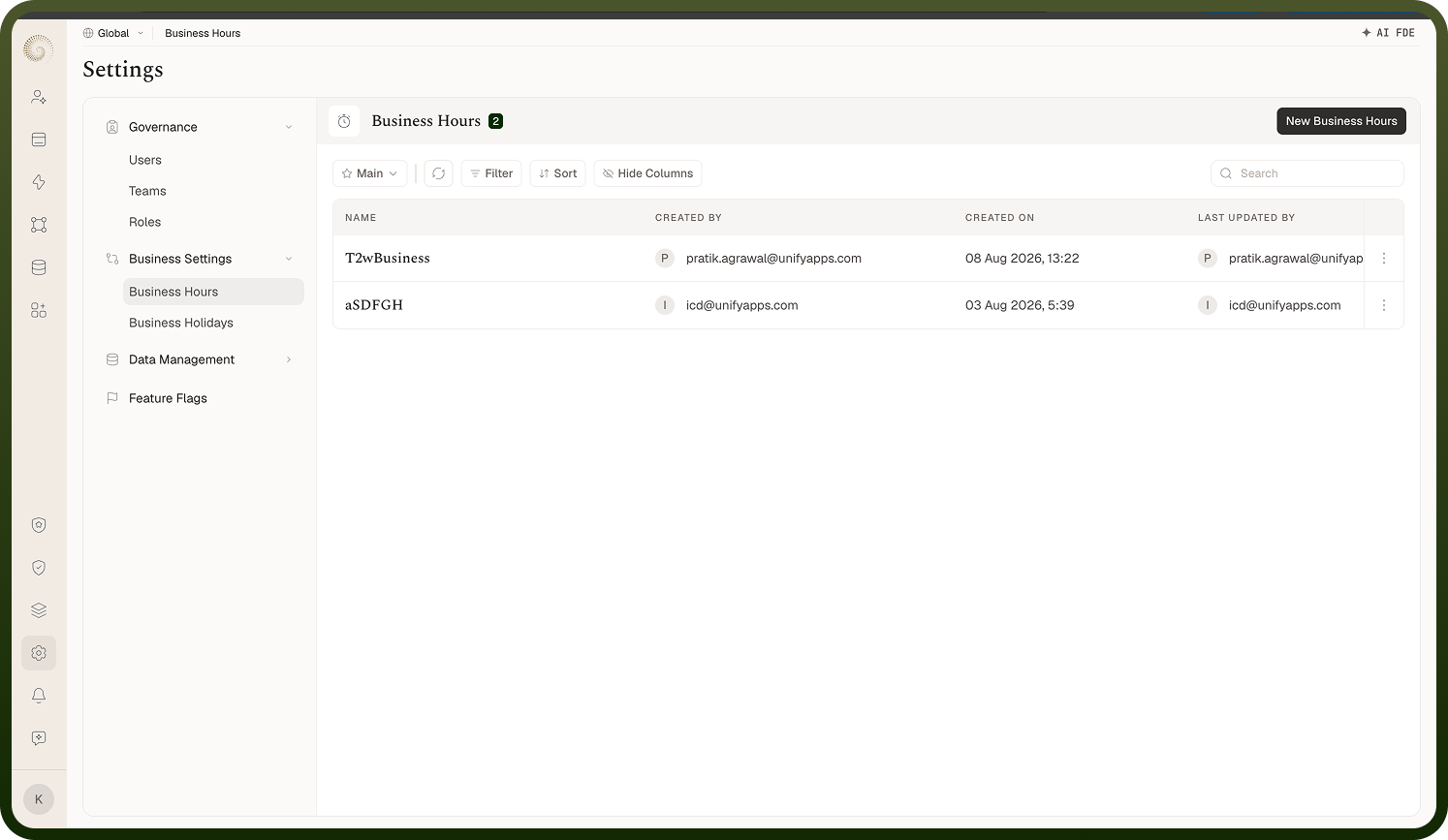
A Business Hours entity is a named weekly schedule — which days you work and between which times, in a specific time zone — defined once and reused across automations and campaigns ("This entity can be used across multiple campaigns"). The manager under Settings › Business Settings › Business Hours lists them with Name, Created By/On, and Last Updated By/On (the Last Updated On column carries a hover audit tooltip); rows offer Edit and Delete (permission-gated), and New Business Hours creates one.
Where: Settings › Business Hours
Setting up a business hours schedule
The Setup your new business hours form asks for:
Name (required) — "Name your Business Hours".
Time Zone (required) — picked from the time-zone list; all times below are interpreted in this zone.
Time Range (required) — "Select the business days and hours of the week": each day Monday–Sunday has a working-day toggle (off by default) and HH:mm start and end times. Tick "Apply Monday start time and end time to all days" to copy Monday's times everywhere at once.
Business Holiday — optionally link a Business Holidays entity ("Select Business Holiday"); its dates count as non-working days for this schedule.
Where: Settings › Business Hours › create / edit
How automations use business hours
Any automation node's advanced settings include a Business Hours toggle: enable it, Select Business Hour, and optionally tick Wait for next window ("Wait until the next business hour window starts before proceeding"). At runtime, before the node executes, the platform checks the current time in the schedule's time zone:
Inside business hours → the node runs normally.
Outside, with Wait for next window on → the run pauses and automatically resumes when the next business-hours window opens.
Outside, with it off → the node fails with "Current time is outside business hours."
Campaigns can also attach a business-hours entity so sends respect working hours.
Where: Automation node › advanced settings › Business Hours
How "within business hours" is decided
The check uses the schedule's own time zone, not the viewer's. First, if a linked Business Holidays entity lists today's date, the whole day counts as outside business hours. Otherwise the current day's row applies: the time must be at or after the start time and before the end time. A day with no times set (a non-working day) is always outside hours. So a schedule of Mon–Fri 09:00–17:00 with a holiday list gives you: weekday working hours, weekends closed, holidays closed all day.
Where: evaluated at run time (schedule's time zone)