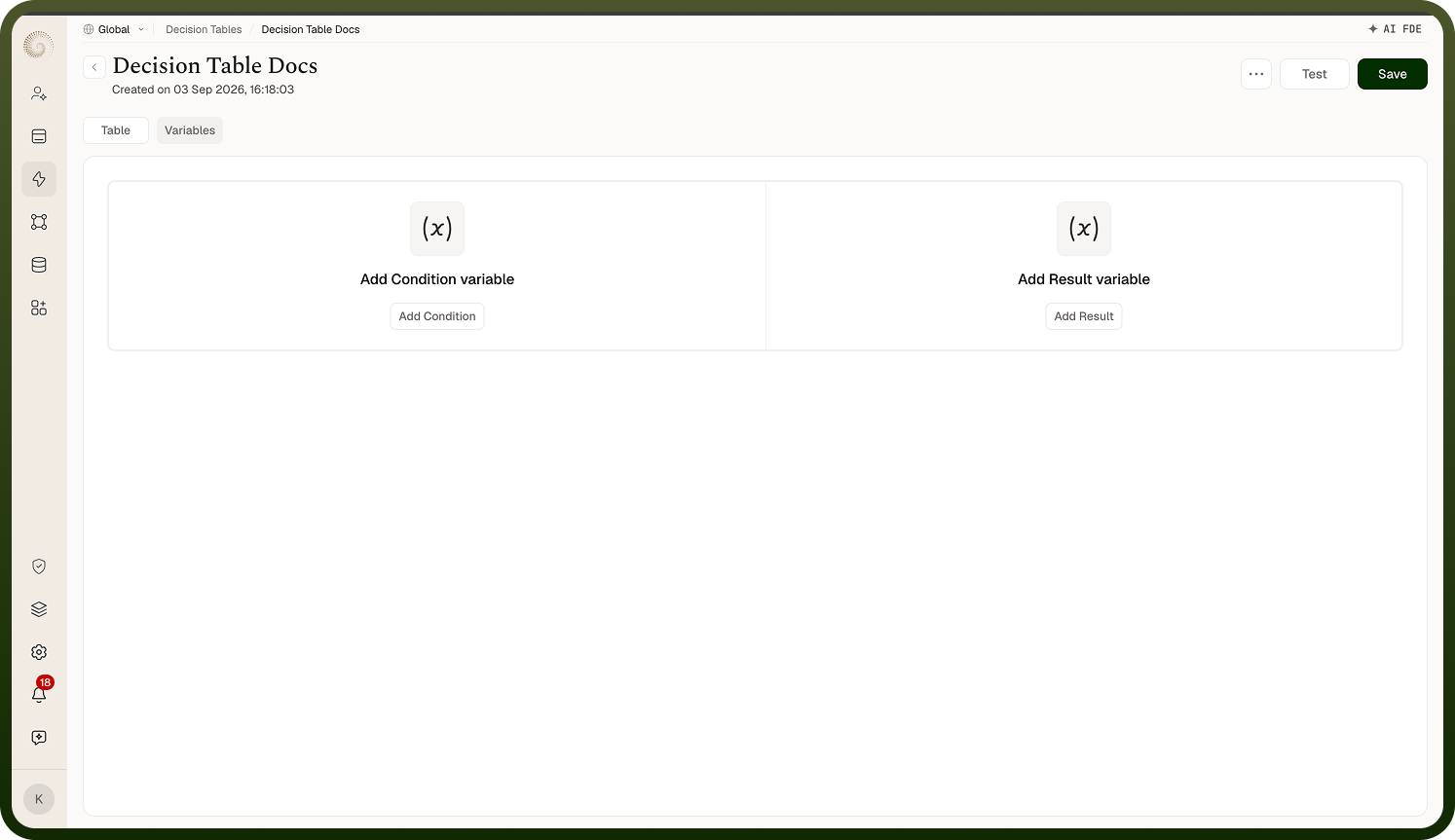
The Table tab — the grid where each row is a rule.
Overview
A grid with two column groups — Condition Variables on the left and Result Variables on the right — one column per variable, one row per rule. If you haven't defined at least one condition and one result variable yet, the tab shows Add Condition / Add Result prompts that take you to the Variables tab instead of the grid.
Where: Decision table › Table
Adding and filling in a rule
Click Add Decision Row at the bottom of the grid to append an empty rule, then click any cell to fill it:
A condition cell opens a small form with Condition (the operator — Equals, Not Equals, and the type-specific extras) and Value. The operator defaults to the one set on the variable but can differ per row.
A result cell has just a Value (pre-filled from the variable's default).
A rule matches when all its condition cells are satisfied by the inputs; the row's result values are what comes back. Remember to click Save in the header — rows are not persisted until you do.
Where: Decision table › Table, cells
FAQs
What happens when the table is executed?
Executions (from an automation's Execute a Decision Table step, or the Test dialog) evaluate the inputs against every row and return results according to the chosen match mode:
First match — the result of the topmost matching row.
Final match — the result of the bottommost matching row.
All matches — a list with the results of every matching row.
Row order therefore matters for first/final match — arrange rows so the rule you want to win sits at the right end of the table. If no row matches, the table returns each result variable's Default value (empty if none set) rather than erroring.
Where: Decision table, execution / match mode
Which match mode is the default?
It differs by surface — a common trip-up:
The table's Test dialog defaults to "Return first decision that match" (first match).
The automation step Execute a Decision Table defaults to Final matched result (last match).
If your test and your automation disagree on which row "won," check that both use the same mode.
Where: Decision table Test vs automation step
Can an automation reshape the table's results?
Yes — the Execute a Decision Table automation step has an Enable dynamic output toggle ("If enabled, you can compute/override decision table results."). Turn it on to add Dynamic output formulas — key/value pairs where a formula (e.g. a CONCATENATE over input and result variables) computes or overrides a result field before it's returned to the automation.