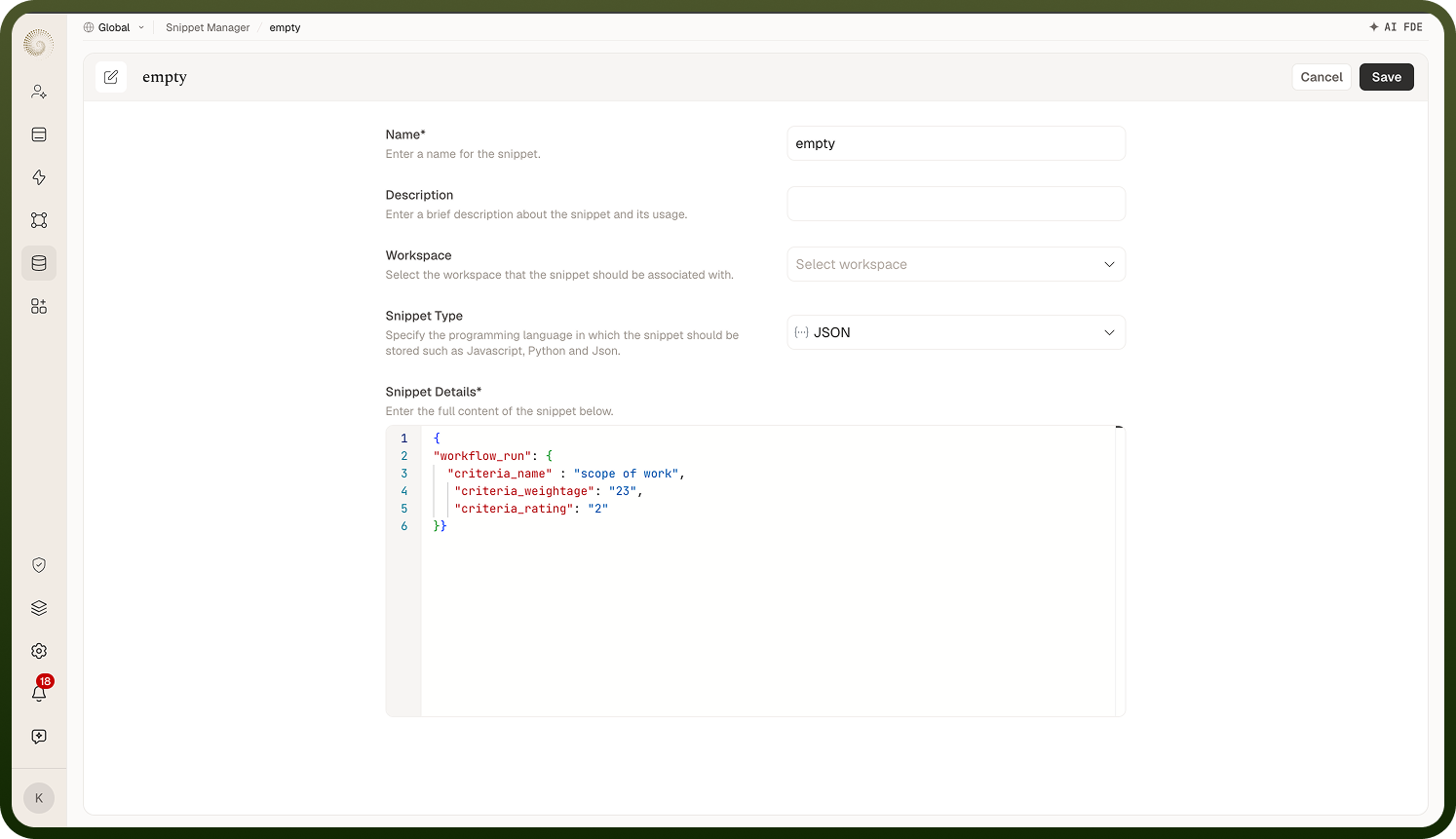
The full-page form where you write a snippet, pick its language, and define its input/output schemas.
Overview
The editor (titled New Snippet, the snippet's name, or Clone {name}) has these fields:
Name — required. "Enter a name for the snippet."
Description — "Enter a brief description about the snippet and its usage."
Workspace — "Select the workspace that the snippet should be associated with."
Snippet Type — the language (below). Defaults to JSON.
Setup Input Schema / Setup Output Schema — only for executable languages (below).
Snippet Details — the code editor itself. "Enter the full content of the snippet below." Required.
Save stores the snippet and returns to the manager; Cancel discards. Editing someone else's snippet without edit permission opens everything read-only with Save disabled.
Where: Snippet Manager › New Snippet / edit
How a snippet is executed
In the automation builder, add the Execute custom code snippets step, pick your Code Snippet, and fill the inputs form (generated from the snippet's input schema). The step runs the code with those inputs and returns values shaped by the output schema for downstream steps to map.
Only JavaScript, Python, Java, and Groovy actually execute; JSON, XML, XSD, and JSON Schema are data/definition snippets used as samples and schemas. Careful: changing the Snippet Type clears the code you've written — the editor resets so content always matches the selected language.
Where: Snippet editor, Snippet Type
When do I define input and output schemas?
Setup Input Schema and Setup Output Schema appear only for the executable languages (JavaScript, Python, Java, Groovy) — data snippets don't take inputs. They describe what the snippet expects ("Describe input parameters") and returns ("Describe output parameters"), and they drive the input form and output pills shown when an automation step runs the snippet. Add fields via Add Field, or Use Code Snippet to derive the schema from a sample.
Where: Snippet editor, Setup Input/Output Schema
What can a schema field be?
The Add New Field dialog takes a Key (must start with a letter, no spaces, no special characters except "_"), Display Label, Field Type — String, Number, Integer, Boolean, Object, or Array (with an Array Type of String/Number/Integer/Boolean/Object) — plus Default value, Help Text, and Nest under to place the field inside an existing Object field.
Where: Snippet editor, schema field dialog
Why won't my snippet save?
Two common blockers, both flagged inline on Snippet Details:
Empty code — the field is required.
Invalid syntax — the editor validates the content against the selected language and rejects saving with "The code snippet is invalid. Please recheck your inputs."
There's no run/test button in this editor — you exercise an executable snippet where it's used, e.g. by testing the automation step that calls it.