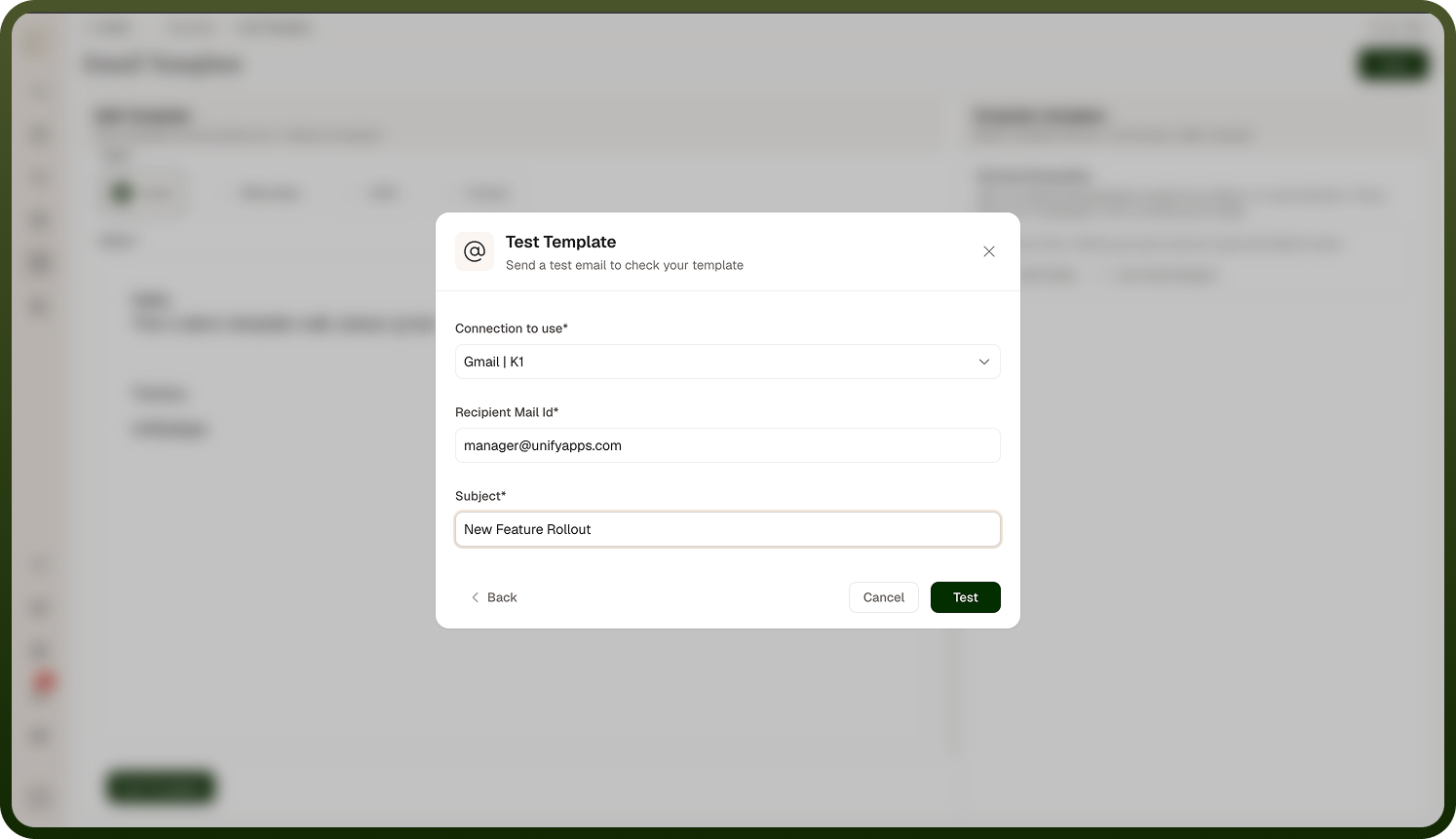
Sending a real test email of an Email template with sample variable values.
Overview
Open the template and click Test Template at the bottom of the content editor. The Test Template dialog ("Send a test email to check your template") walks two tabs:
Variable Mapping — one field per template variable; enter the sample values to render.
Email Setup — Connection to use (pick a Gmail connection), Recipient Mail Id, and Subject (all required).
Next moves you from mapping to setup, Back returns, and Test compiles the template with your values and sends it. On success: "Test email sent successfully."
Where: Template editor › Test Template
FAQs
Why don't I see the Test Template button?
Three conditions gate it:
The template's Type must be Email — SMS, WhatsApp, and Prompt templates have no test dialog.
You need test permission on templates (or on this template when editing an existing one).
The button sits under the content editor, so scroll to the end of the form.
Where: Template editor, Test Template button
Which connection does the test use?
The Connection to use lookup lists only Gmail connections — the test is delivered through Gmail's send-email operation. If the list is empty, create a Gmail connection first (Connections screen), then re-open the dialog.
Where: Test Template › Email Setup
Is the test a real send?
Yes — a real email goes to the Recipient Mail Id you enter, with your Subject and the compiled template as the message body. Send it to yourself or a test inbox, not a customer. Nothing else is saved or changed by the test.
Where: Test Template
Why is the dialog skipping straight to Email Setup?
If the template has no Template Variables defined, there's nothing to map, so the Variable Mapping tab is hidden and you start on Email Setup. If you expected variables, define them in the editor's right-hand panel first.
Where: Test Template, tabs
Why did my test fail?
Both tabs validate before sending — a tab with missing/invalid entries is flagged and the send is blocked until fixed (e.g. an invalid Recipient Mail Id, or a required variable left blank). A send failure after validation ("Something went wrong") usually points at the selected connection — verify the Gmail connection is still authorized.