


The data types you can give a field (column) in an object's schema, and the options each one offers.
Overview
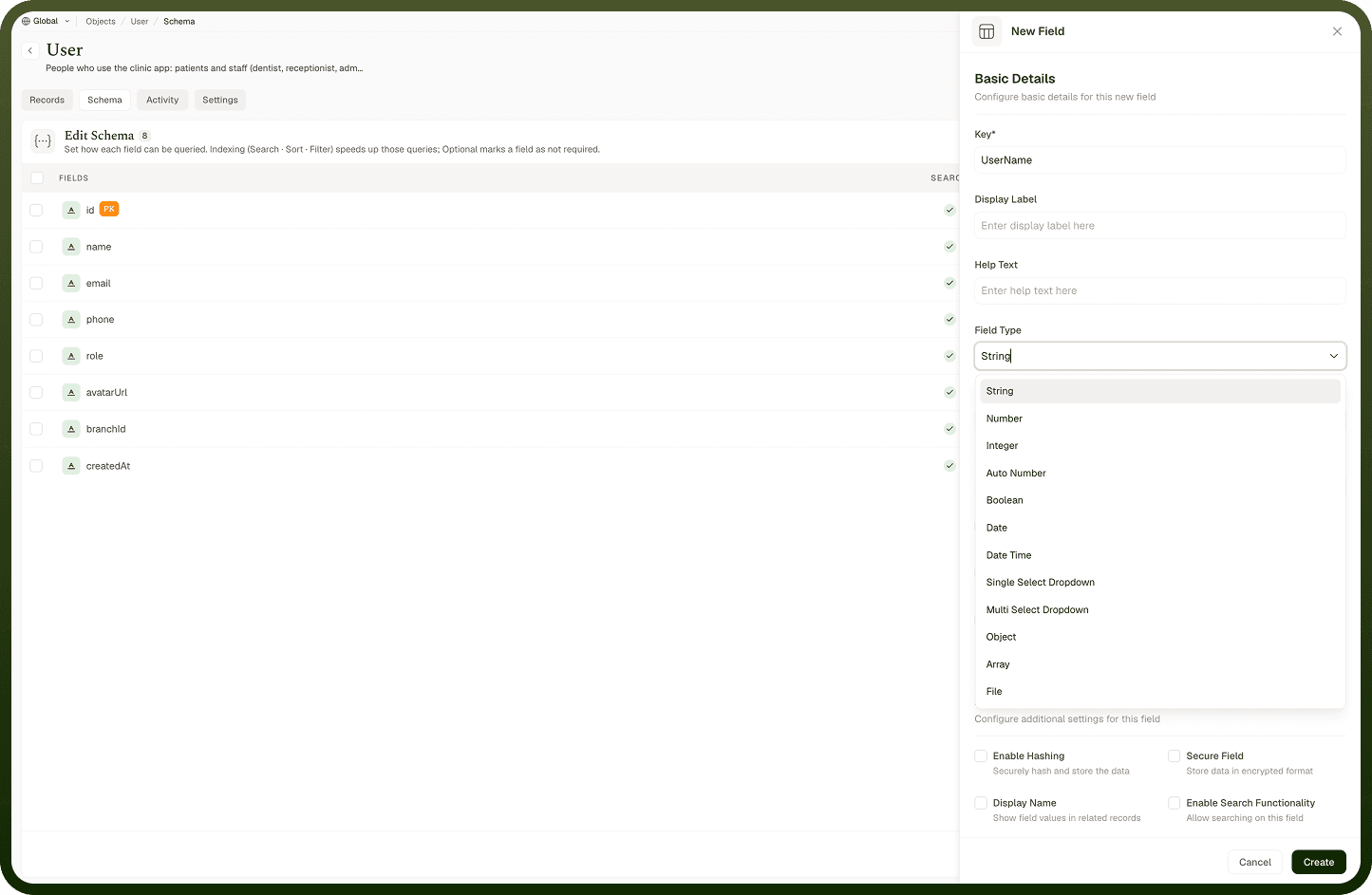
When you add a field to an object you pick its type. The available types are:
String — text (names, descriptions, IDs as text).
Number — numbers with decimals.
Integer — whole numbers only.
Auto Number — a number the system fills in automatically, increasing with each record (optionally with a prefix).
Boolean — true/false.
Date — a calendar date.
Date Time — a date together with a time.
Single Select Dropdown — pick one option from a list.
Multi Select Dropdown — pick several options from a list.
Object — a nested structure with its own sub-fields.
Array — a list of repeated values or objects.
File — an uploaded file attachment.
Vector — embeddings for AI similarity search (Vector Store objects only).
Geo Point — a geographic coordinate (longitude/latitude) (Vector Store objects only).
Vector and Geo Point only appear when the object's storage is a Vector Store; the other twelve types are available on every object. A field's type is chosen when you create it and becomes read-only as soon as the object holds any records. Choose carefully up front.
Where: Object › Schema › add field › Field type
Making a field that fills in a number automatically (Auto Number)
Choose the Auto Number type for a field whose value the system assigns automatically, counting up as records are created — handy for human-readable record numbers like order or ticket IDs. It has two options: a Prefix (optional text joined to the number with an underscore, e.g. ORD_1001) and Starting Number (required — the first number to count from). You don't type Auto Number values yourself; each new record gets the next number in the sequence. The numbers are unique and always increase, but they aren't guaranteed to be perfectly consecutive — one can occasionally be skipped — so treat it as an identifier, not as an exact count of how many records exist. Use it when you want a friendly sequential identifier alongside the record's built-in ID.
Where: Object › Schema, Auto Number field
Storing nested or repeating data (Object and Array fields)
Two types hold structured data instead of a single value:
Object — a nested group of sub-fields under one field (for example an address field containing street, city, zip). You define its inner fields just like top-level ones.
Array — a list of repeated items. You choose what each item is: String, Number, Integer, Boolean, Date, Date Time, or Object. An Array of Objects lets you store a repeating set of structured rows (for example multiple line items).
Use these when one field naturally holds more than a single flat value. For deeply nested data, you can nest objects and arrays inside each other.
Where: Object › Schema, Object / Array fields
Vector and Geo Point field types
These are specialized types:
Vector stores an embedding — a list of numbers that represents text or other content for AI similarity search (the basis of semantic search and RAG). You set the vector's dimension (size) to match the model that produced it, and can tune the similarity-search engine (FAISS, Lucene, or NMSLIB) and distance algorithm — the defaults are fine for most cases. Vector fields are only available on objects stored in a Vector Store.
Geo Point stores a geographic coordinate (longitude and latitude) so you can run location queries, like finding records near a point.
Both types appear only when the object's storage is a Vector Store. Most everyday objects won't need them — reach for them only when you're doing AI similarity search or location-based queries.
Where: Object › Schema, Vector / Geo Point fields
Storing a file in a record
Use a File field to attach an uploaded file (such as a PDF, image, or document) to a record. The field holds the uploaded file rather than text. If your object's main purpose is to hold large files, the object itself can use a Blob Store (chosen when you create it); a File field on a regular object lets individual records carry an attachment alongside their other data.
Where: Object › Schema, File field