


The data inside an object — viewing, searching, filtering, sorting, and sharing the rows.
Overview
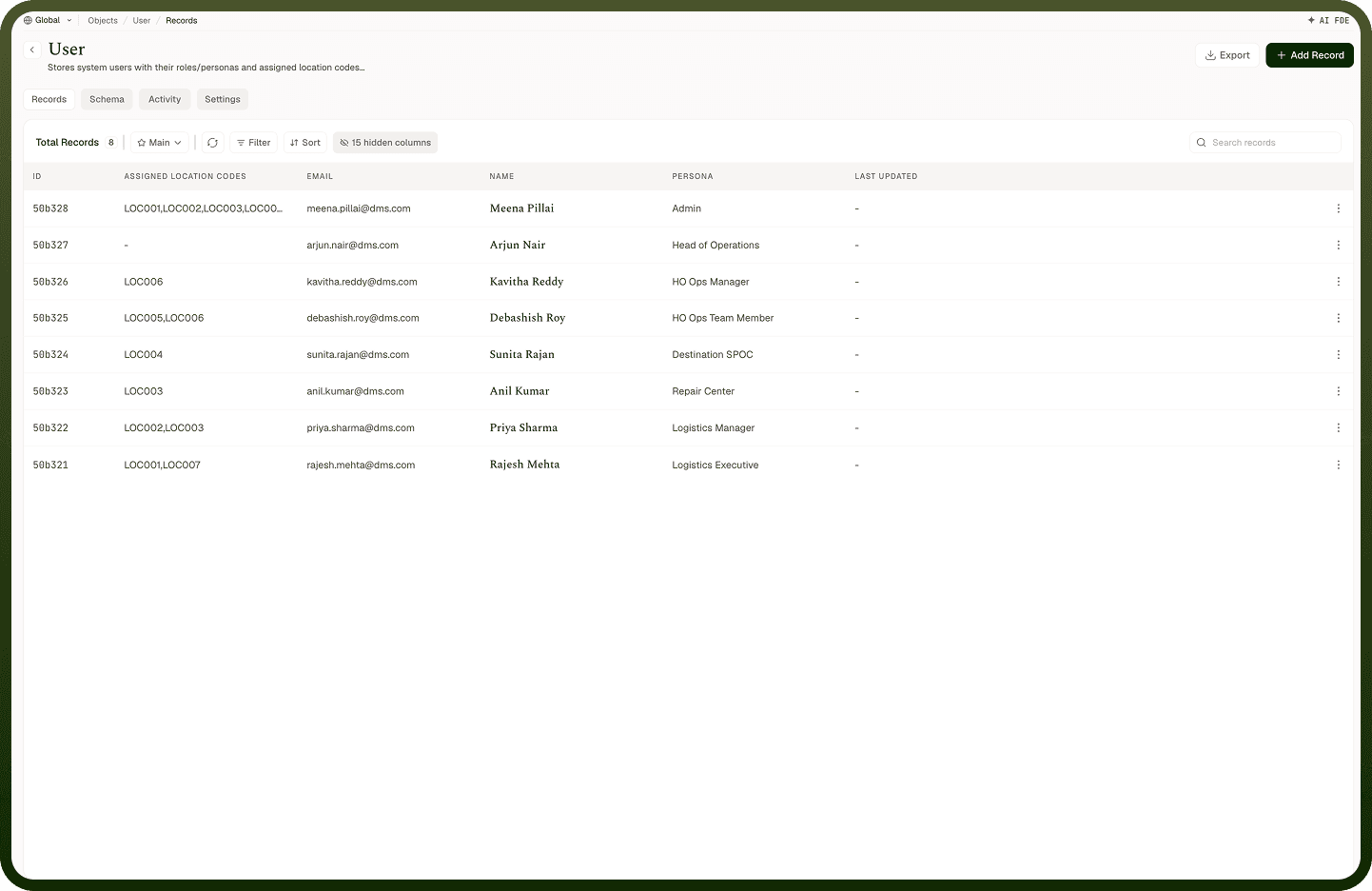
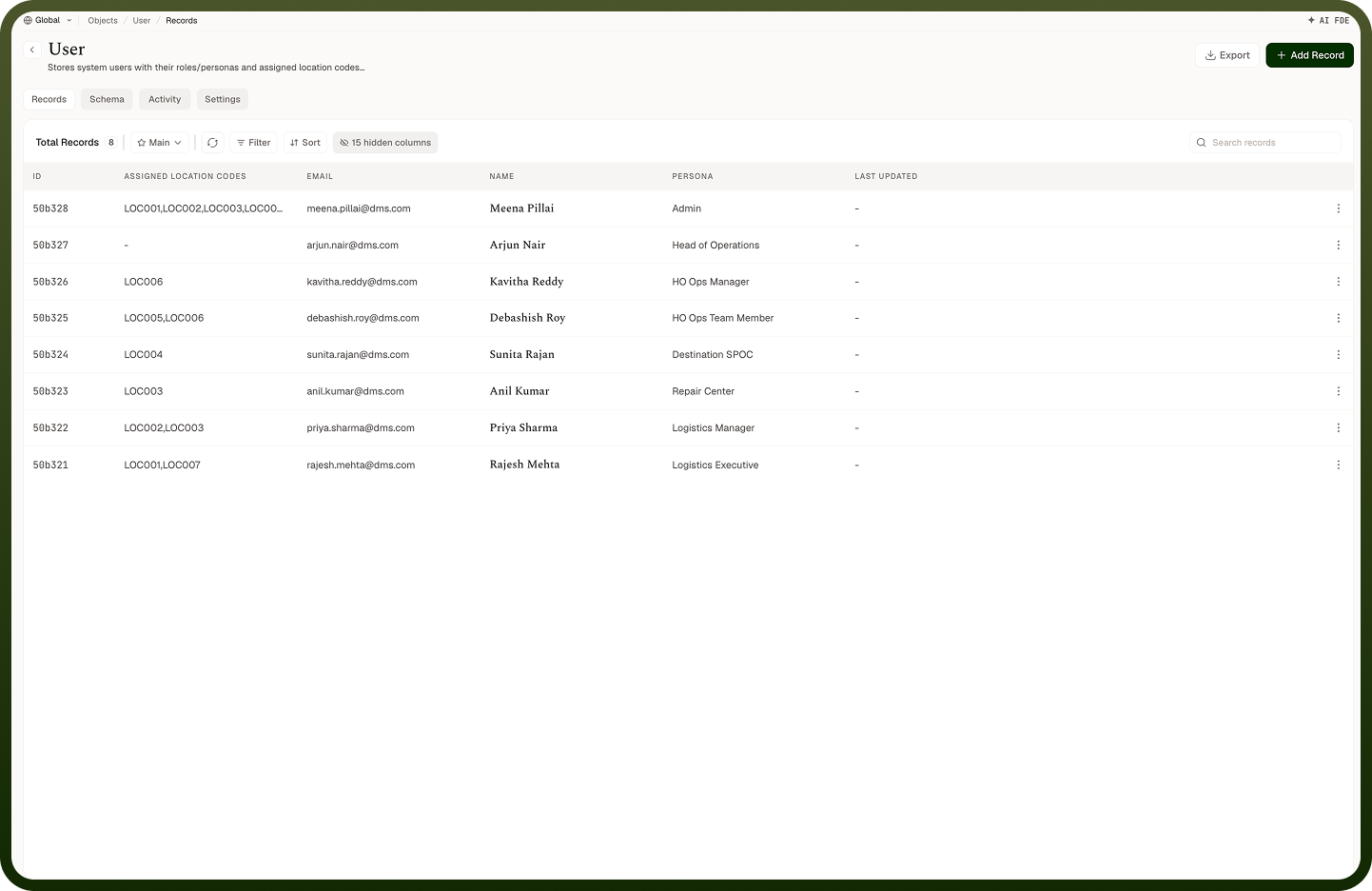
Open an object's records to see its data as a table — one row per record, one column per field, with the built-in ID (first) and Last Updated (last) columns included — Last Updated carries a hover audit tooltip, and the columns menu also offers hidden-by-default Created On and Last Updated By columns (remembered per user). The list pages through the data as you scroll and shows a Total Records count above the table, and you can show or hide columns to focus on the fields you care about. From here you also create, edit, view, share, delete, import, and export records. This is the day-to-day data screen for an object — the schema defines the columns, and this is where the actual rows live.
Where: Object › View Records
Searching records
Use the records search box to find rows by text. The search matches against the object's Display Name field (a contains match, ignoring case) — and the box only appears when the object has a field marked as Display Name in its schema. If there's no search box, mark a String field as the Display Name on the Schema tab. Search is the quick way to jump to a record when you roughly know its label (a name, a title); to match on any other field, or for precise multi-condition narrowing, use filters instead.
Where: Object records, search
Filtering records
Add filters to narrow the records to those matching conditions you set. Each condition picks a field, an operator, and a value, and you can combine several — all conditions apply together. The operators offered depend on the field's type:
Text fields — Contains / Does not contain (case-insensitive), Contains case sensitive / Does not contain case sensitive, Equals to / Does not equal, Starts with / Does not start with, Ends with / Does not end with, Matches regex / Does not match regex, Is present / Is not present.
Number fields — Less than, Less than or equal to, Greater than, Greater than or equal to, Equals to, Does not equal, Is present, Is not present.
Date and Date Time fields — Equals to, Does not equal, Before, Before or equal to, After, After or equal to, Between, Is present, Is not present.
Boolean fields — Is, Is not, Is present, Is not present.
Lookup fields — Is / Is not (pick one or more records to match against).
Is present / Is not present check whether the field has any value at all. Only fields marked filterable can be filtered on. Filters also apply to exports, so filter first, then export to get just the rows you want.
Where: Object records, Filter
Sorting records and choose columns
Sort the table by clicking a column header to order records by that field (ascending or descending); only fields marked sortable can be sorted. Use the column controls to show or hide columns, and drag a column header to reorder them, so the table shows just the fields you need — useful on objects with many fields. Sorting and column choices change your view of the data, not the data itself, so you can rearrange freely while you work.
Where: Object records, sort / columns
Saving and switching between filter views
Once you've set filters, a sort, and your columns the way you like, save them as a view so you can return to them in one click. The Views control names the current view — the default is Main — and whenever a view has unsaved changes a Save view (or Update view) action appears in the toolbar and in the Filter and Sort menu headers. Save view opens a small popover to name it (it suggests "New view N"); saved views sit under Main, each with its own three-dots menu, and you can drag to reorder them. Switch views from the Views control to flip between different filtered and sorted cuts of the same object — say one view per status or team — without rebuilding the filters each time.
Where: Object records, Views
Sharing a single record
As well as sharing a whole object, you can share an individual record with specific users or teams, granting them access to just that row. Open the record's share action, add the people or teams, and give them access. Record-level sharing is enforced when records are listed and opened — people only see the records they've been granted access to. Use it when most of an object is private but certain records need to be visible to particular people, without opening up the whole object.
Where: Object records, share a record