

Adding a new row, changing one, and viewing it read-only.
Overview
Use Add Record on the object's records screen; a modal asks "How would you like to add your records?" with four methods:
Start from scratch — fill a form field-by-field to create one record.
Fill via JSON — paste a JSON object or an array of records; keys matching field names are auto-mapped, unmatched keys are skipped.
Upload file — import records from a CSV or Excel file (shown if you have import permission).
Generate via prompt — auto-generate records from a description using AI.
For a single record, "Start from scratch" is the usual path: the form shows a field per column in the schema, you fill the values, and save. The fields you see, and which are required, come straight from how the object's schema is defined.
Where: Object records › Add Record
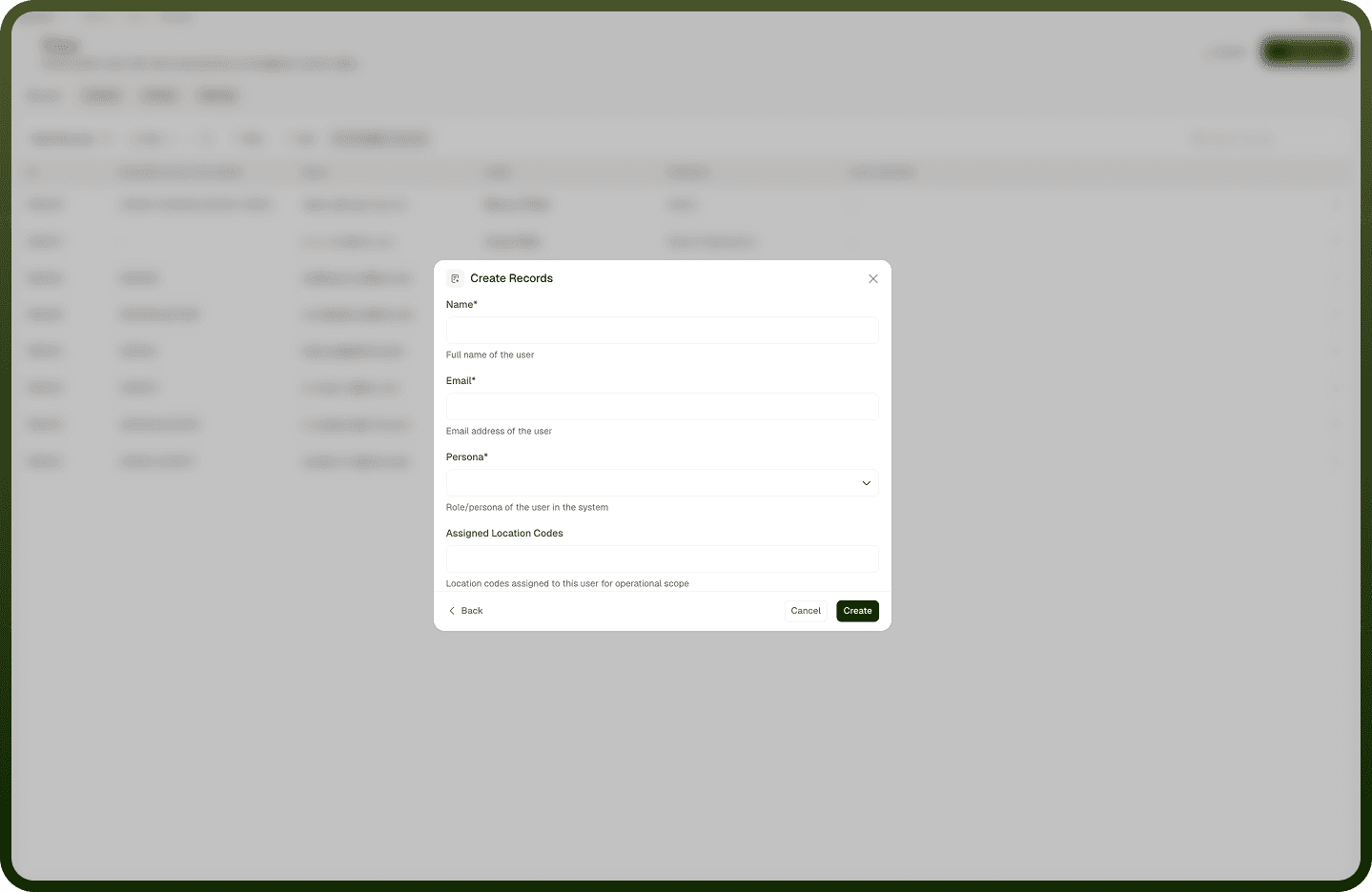
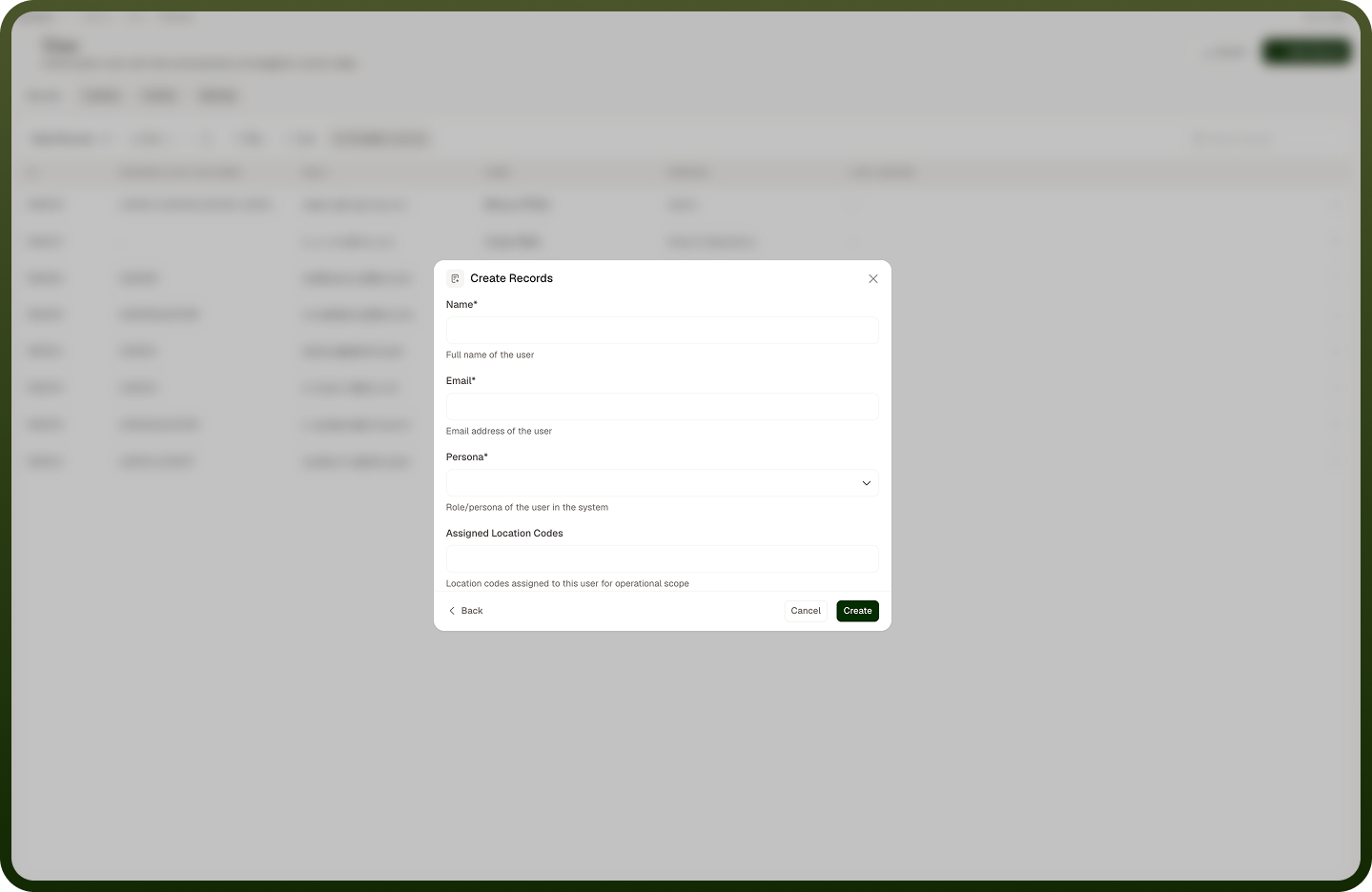
Filling a relationship (lookup) field on a record
A field that links to another object (a lookup) appears as a searchable picker rather than a free-text box. Instead of typing a value, you search for and select an existing record from the linked object, and the form stores the link to it. A single-select lookup lets you pick one related record; a multi-select lookup lets you pick several. The picker shows each option by its Display Name, so you choose by a human-readable label. If foreign-key enforcement is on for that field, only records that actually exist in the linked object can be selected.
Where: Record form, lookup field
Editing a record
Open a record (from its row or the Edit action) to get the same form pre-filled with its current values. When editing you can switch between Edit Details (the form) and Edit Json (the record's data as editable JSON) — Save stays disabled while the JSON is invalid, and switching back to the form drops any JSON keys that aren't in the object's schema, so stick to schema fields. (Creating a record offers the form only.) Change any editable fields and save. Editing runs the same validation as creating — required fields must still have values, and field values must match their types. The built-in system fields (ID, created time) aren't editable; the Last Updated time refreshes automatically when you save. Edits apply immediately to that record.
Where: Object records › edit a record
Viewing a record without changing it
Click a record's row to open it in a view panel — a read-only look at the record, useful for inspecting data or when you only have view access. The panel shows the record's field values as structured data (in JSON form) rather than as a form, with an edit button to switch into the editable form if you have permission. Use view to read a record, and switch to edit only when you actually need to change something.
Where: Object records › view a record