


Requiring sign-off before a change set can be deployed.
Overview
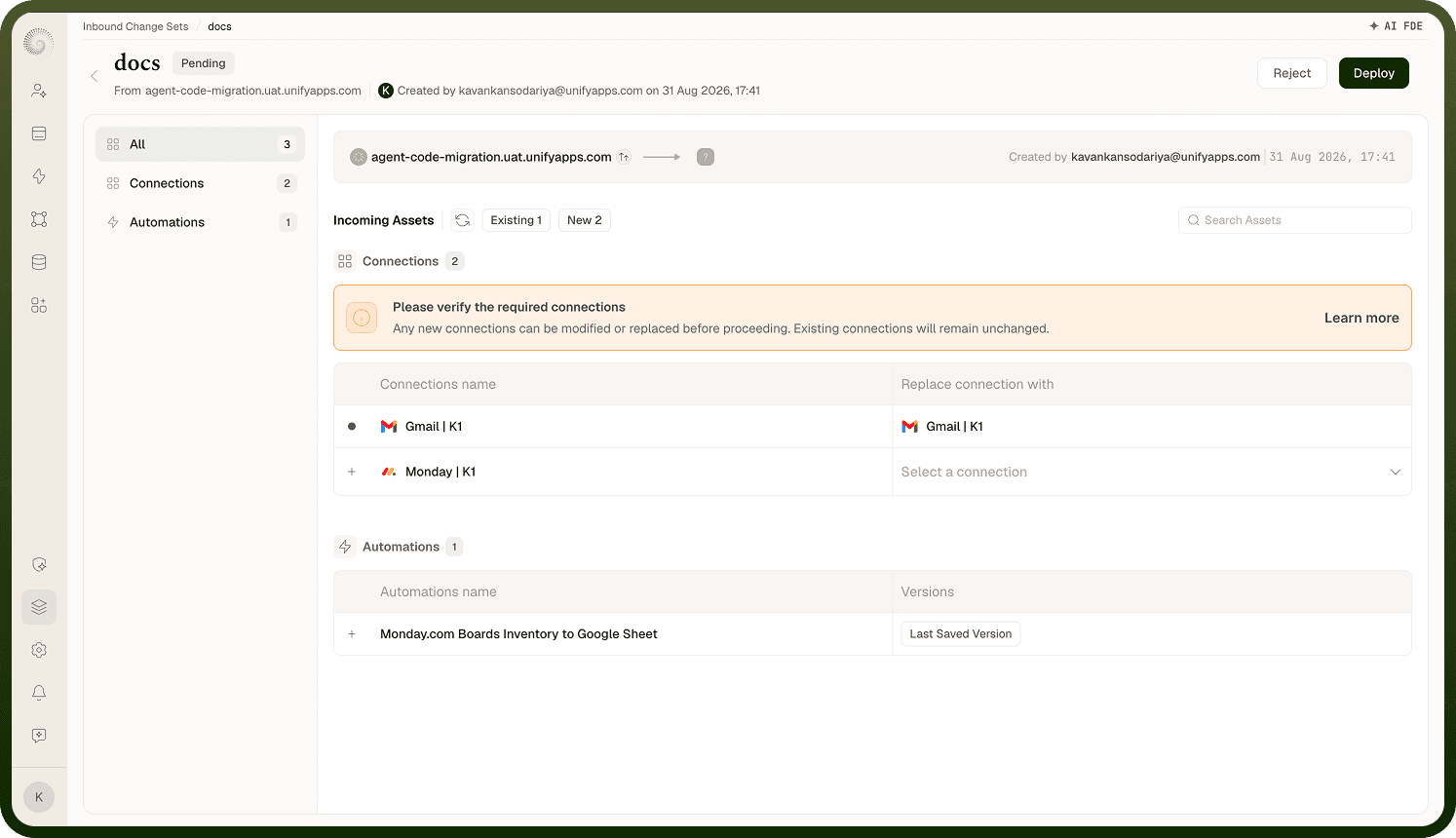
A destination can require approval before a change set is deployed — so changes into a sensitive environment (like production) get a human review first, not just whoever received them. This is set on the connected environment: its Approval Type is either Manual Approval (an arriving change set sits in Pending and can't be deployed until the required people sign off) or Auto-Approval (the default — arriving change sets are imported and deployed automatically, no review). Approvals are how Change Sets supports controlled, auditable releases: the source can send anything, but the destination decides — through review and sign-off — when it actually lands.
Where: Inbound change set (approval); Connected environments › Approval Type
How multi-level approvals work
Approvals can have multiple levels — for example a tech-lead level followed by a manager level. Each level has a name, the approvers (users and/or teams) authorized to act at it, and a number of approvals required (1–6), so a single level can demand sign-off from more than one person. A change set starts at the first level; once that level's required approvals are in, it advances to the next, and only when the final level is approved does it become Approved and ready to deploy. Each connected environment configures its own levels and approvers, so you can make low-risk environments quick (one level, or auto-approval) and high-risk ones strict (several levels). The change set shows which level it's currently waiting on and who can act.
Where: Inbound change set › approval levels
Change sets waiting for my approval
Under Change Sets › Inbound there's a My Approvals tab that lists the change sets currently waiting on you — the ones at a level where you're an authorized approver (it also shows which level each is pending from). Open one to review its assets (what's new, what's updated, any conflicts), then Approve or Reject. This tab is your queue, so you don't have to hunt through the full inbound list to find what needs your sign-off; the All tab shows every inbound change set regardless of who needs to act.
Where: Change Sets › Inbound › My Approvals