


The events a custom connector can listen for, and how it detects them.
What is a trigger
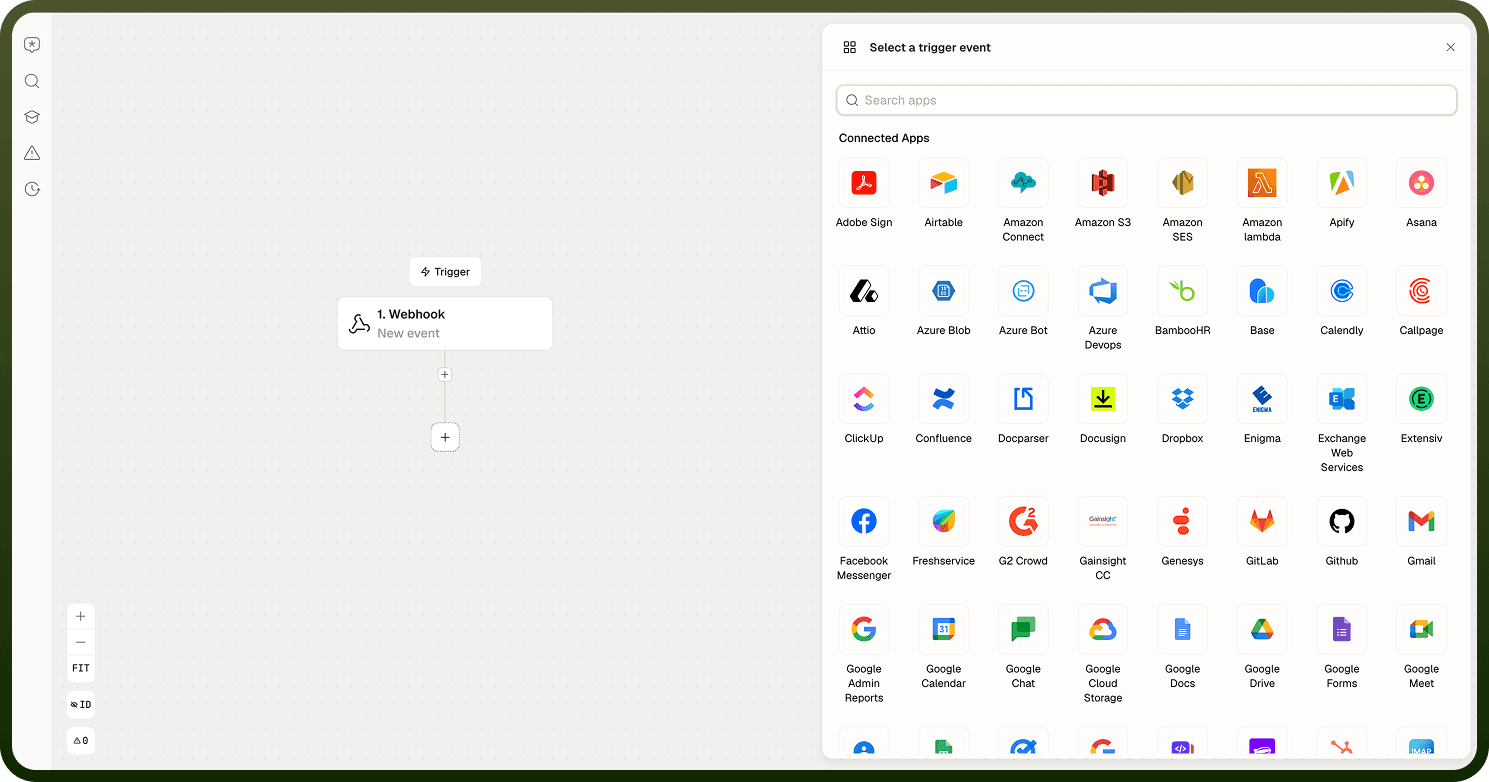
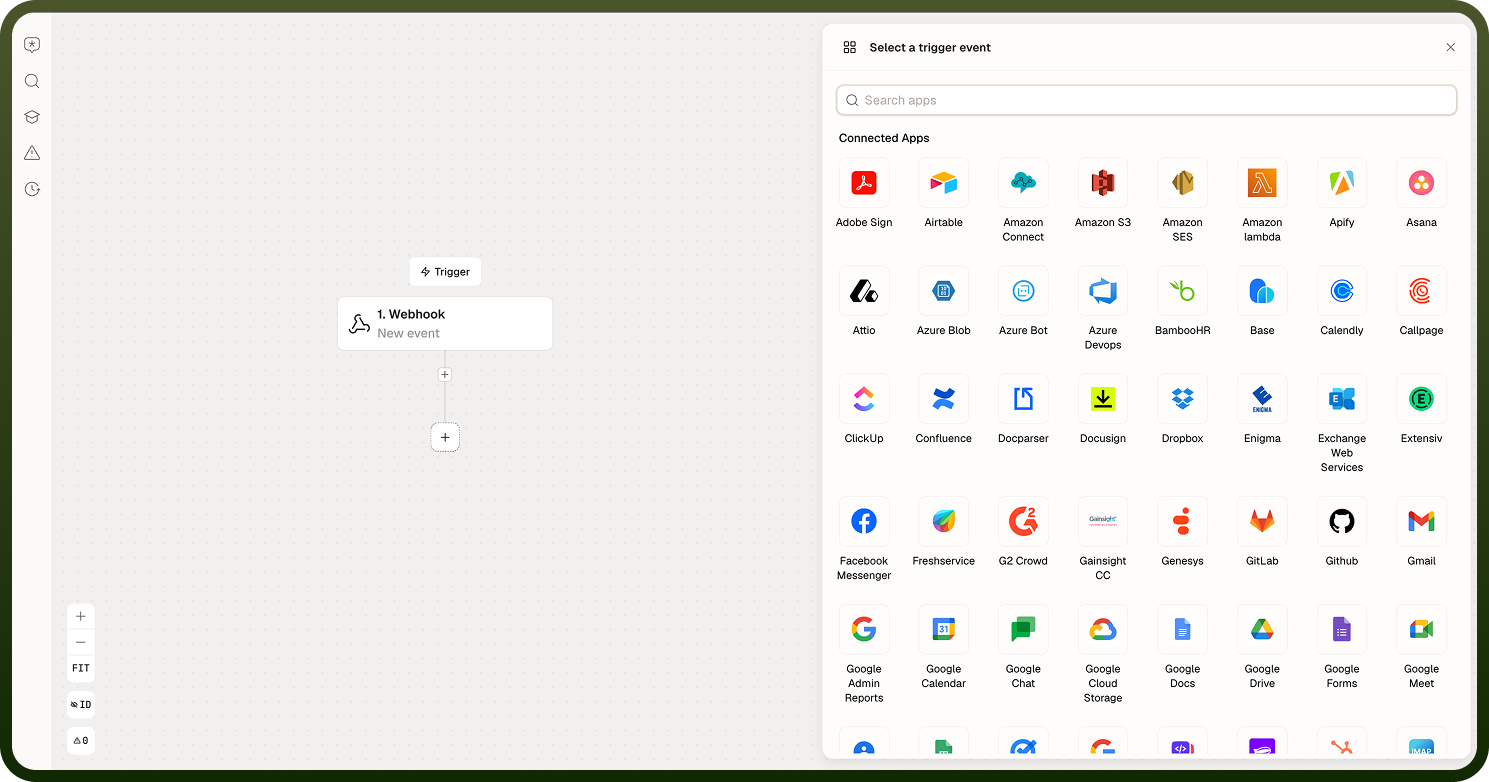
A trigger is an event source — it makes an automation start when something happens in the external app (a new record, an updated ticket, an incoming message). Like an action, a trigger is defined across three tabs: Input (what the user configures, e.g. which list to watch), HTTP Request (how the connector checks for or receives events), and Output (the shape of each event handed to the automation). The difference is how it detects events: by repeatedly checking (polling) or by being notified (webhooks). You add a trigger per event you want to react to.
Polling vs webhook triggers
When you create a trigger (New Trigger — name, description, and Trigger Type), you choose one of two detection styles:
Webhook — "real-time HTTP events": the app notifies the platform the instant an event occurs, by calling a platform URL. On the trigger's request tab you then pick the Webhook Registration Type: Manual (the user pastes the platform URL into the app themselves) or Auto-Registered (the connector registers the webhook with the app for you).
Polling — "scheduled data checks": the connector calls the API on a schedule and pulls new records.
Use a webhook when the app offers one (near-instant, less load); use polling when it doesn't (works with any API, but events arrive on the next check).
How polling avoids duplicate events
A polling trigger keeps a pointer marking how far it has read, using the Pagination Config on its request: the current offset, page, or cursor is available as a variable you insert into the request, so each check asks the API only for what follows the last position. The platform persists this checkpoint between runs — the first poll establishes a starting point, and every later poll resumes from where the previous one ended. Within a run, pagination walks every page of new results (see the pagination screen).
Webhook setup and registration
With a webhook trigger, the external app calls a platform URL whenever an event happens:
For an Auto-Registered webhook, you select one of the connector's own actions as the Webhook Registration call (the API request that subscribes the platform URL) and another as the Webhook De-registration call (unsubscribing when the trigger is removed). The platform runs the registration when a user turns the trigger on, tracks it, and retries a failed registration automatically.
For a Manual webhook, the user copies the platform URL and pastes it into the app's settings themselves.
Either way, when an event arrives its payload is delivered as the trigger's output — shaped by the output schema you defined — and the automation starts: one event per call, with no polling delay.
Inputs, request, and outputs
Same three tabs as an action, with a trigger twist:
Input — what the user configures when enabling the trigger (which folder, which event type), with the same field types as actions (including lookups).
HTTP Request — for polling, the call that fetches new items plus its Pagination Config; for webhooks, the registration type and its registration/de-registration actions. Polling requests can also be imported from a cURL command (the import fills the trigger's method, URL, headers, and body).
Output — the shape of each event delivered to the automation, so its steps can use the event's fields; an error response can be defined too.
Define outputs precisely so automations can act on the event's data, and set the polling pagination (or the webhook registration) correctly so events fire reliably. Like actions, a trigger must be deployed (Deploy Trigger toggle) before automations can use it.