


The Variables tab — defining the condition (input) and result (output) columns of a decision table.
Overview
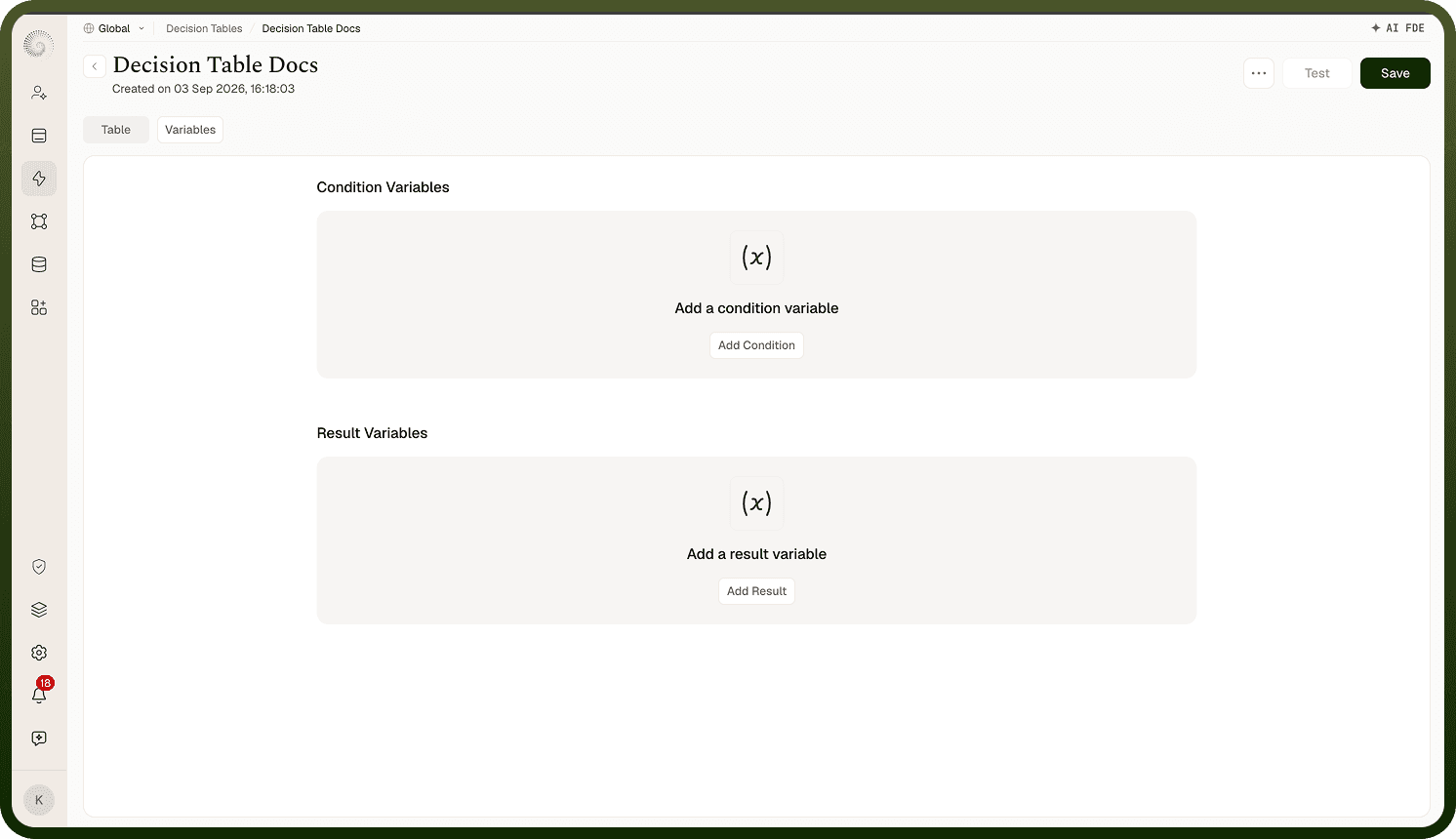
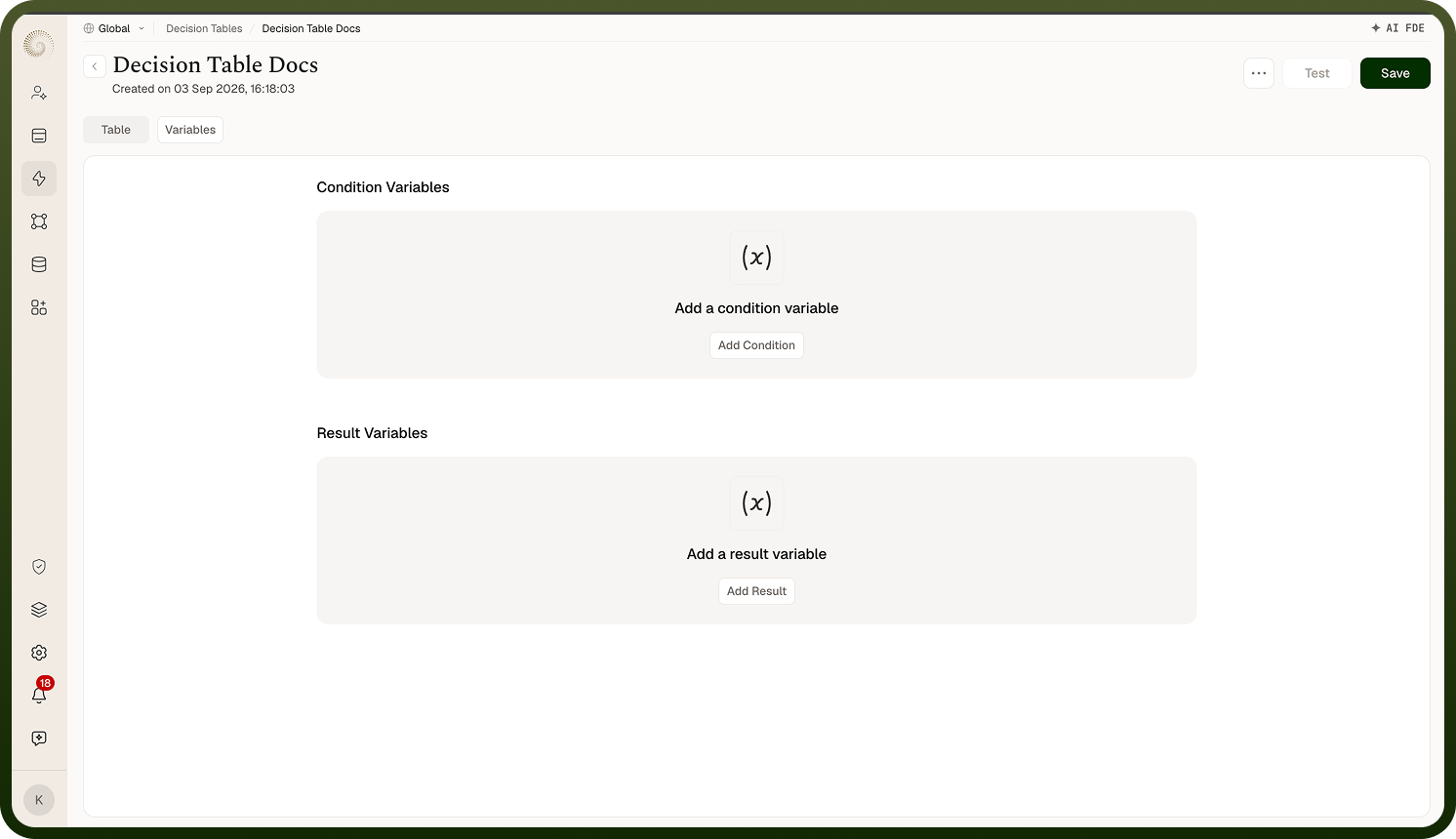
A decision table's editor has two tabs: Table and Variables. The Variables tab defines the table's columns in two sections:
Condition Variables — the inputs each rule tests ("if" columns).
Result Variables — the values returned when a rule matches ("then" columns).
Empty sections show Add a condition variable / Add a result variable prompts; once you have variables, Add appends more. Clicking a variable reopens it for editing; the trash icon on hover removes it. You need at least one of each before the Table tab lets you write rules.
Where: Decision table › Variables
Setting on a variable
The New Variable panel asks for:
Key — the internal name. Must start with a letter; no spaces; no special characters except "_".
Label — the display name shown as the column header (defaults from the Key).
Description — optional.
Field Type — String, Number, Integer, Boolean, Single Select Dropdown, or Multi Select Dropdown. The type is locked once the variable is saved.
Condition variables also pick an Operator (below); result variables get a Default value instead.
Both Keys and Labels must be unique across all variables in the table — duplicates are rejected on save with a "Duplicate name/label" error.
Where: Decision table › Variables › New Variable
How dropdown variables get their options
For Single Select Dropdown and Multi Select Dropdown types, choose the Dropdown Value Type:
Static — enter the Options yourself (at least one value).
Lookup — pick an Object to Lookup, so option values come from records of an existing object.
Where: Decision table › Variables, Dropdown Value Type