


Labels that group related assets so they're quick to select.
Overview
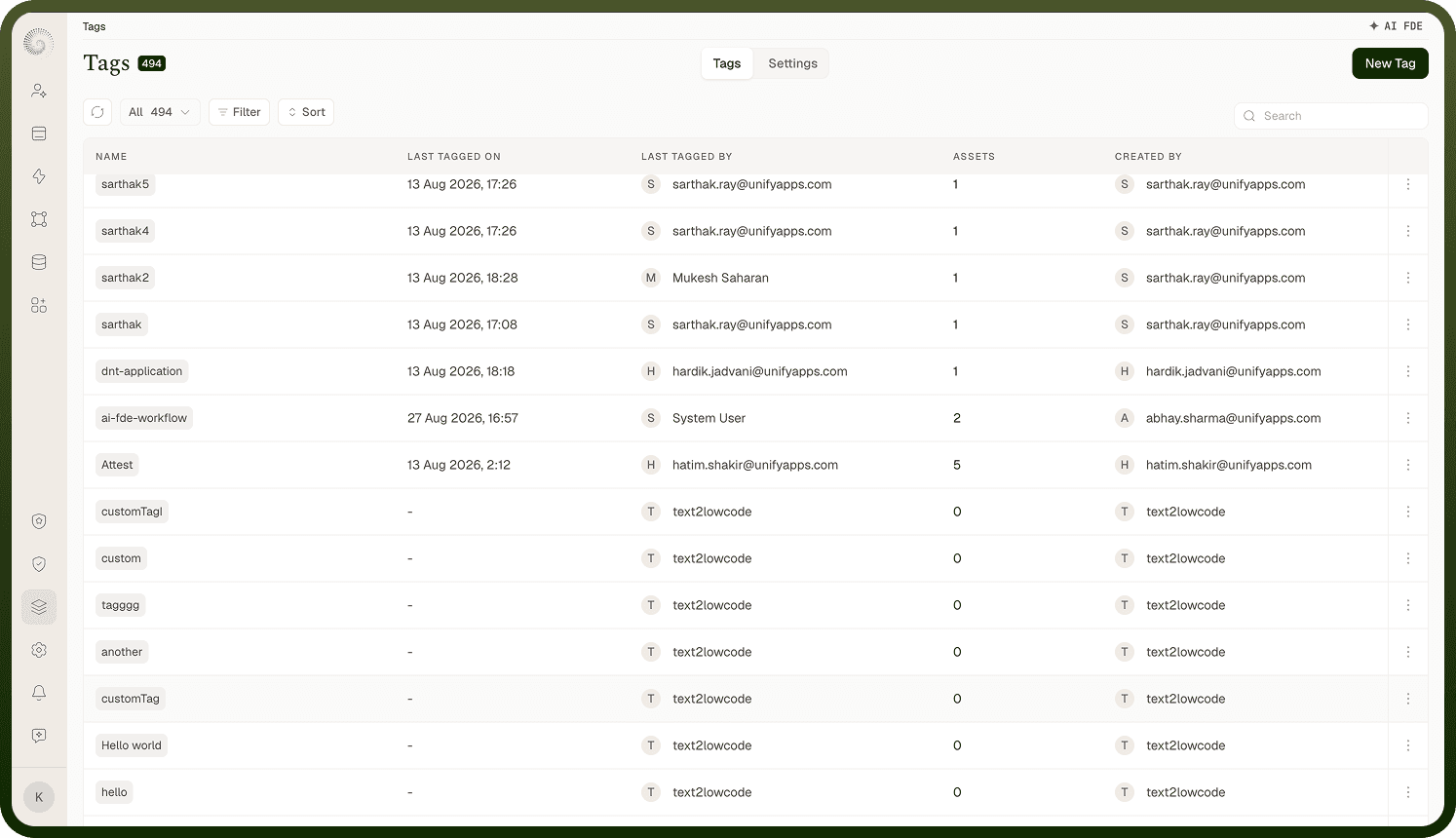
A tag is a label you attach to a group of related assets so you can pull them into a change set quickly, instead of finding each one by hand. For example, a "Payment integration" tag might cover the payment connection, the charge and refund automations, the payment email template, and the related environment variables. Tags don't change what an asset is — they're just a saved grouping for assembling change sets. They live under Change Sets › Tags.
Where: Settings › Change Sets › Tags
Creating and managing tags
Under Change Sets › Tags, use Create Tag to make a tag — it just needs a name. You then attach the tag to assets; opening a tag shows the assets carrying it, grouped by type (a tag with no assets yet shows an empty state until you add it to something). The Tags area lists your tags so you can edit or delete them, and its Settings tab lets you enforce tags — requiring a tag on every platform object, or only on the object types you choose. Build tags around the things you promote together — a feature, an integration, a module — so that when it's time to ship that work you can grab the whole group at once rather than reconstructing the list each release.
Where: Change Sets › Tags › create / edit / settings
How tags speed up building a change set
On the asset-selection step of a change set there's a Select by tag dropdown — pick one or more tags and their assets are added to your selection (your manual picks and per-asset version choices are kept). The behavior is additive and slightly asymmetric, so know the rules: adding a second tag grows the selection; removing one tag of several leaves its assets selected; removing the last tag clears the tag-derived selection. Dependencies are still pulled in automatically, and hovering a truncated tag or version list shows the full set. This turns "remember every piece of the payment feature" into "pick the payment tag." Tags are most valuable for recurring promotions: tag a feature's assets once, and every future change set for that feature starts from the right shortlist instead of a blank slate.
Where: Outbound change set › Select Assets › Select by tag