


The Schema tab, where you define an object's fields (columns) and their structure.
Overview
An object's schema is the set of fields (columns) it holds — it defines the shape of every record. The Schema tab shows the fields in a table with their Field Type and key settings (whether each is searchable, sortable, filterable, optional/required), and nested fields shown as an expandable tree. Designing the schema is the first thing you do with a new object: decide what each record needs to store, add a field per piece of data, choose each field's type, and mark which one is the identifier. You can keep evolving the schema as your needs change, within the limits below.
Where: Object › Schema tab
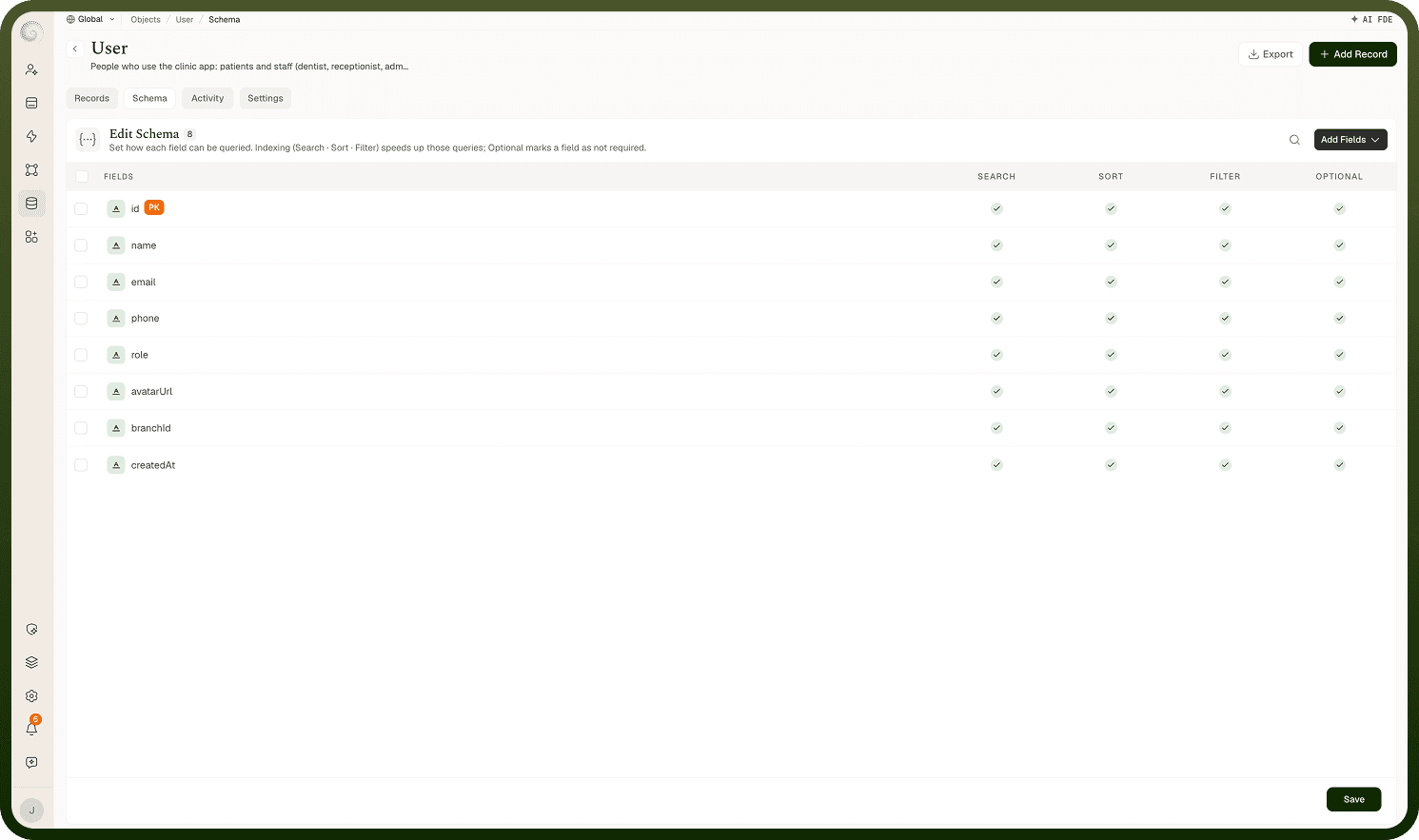
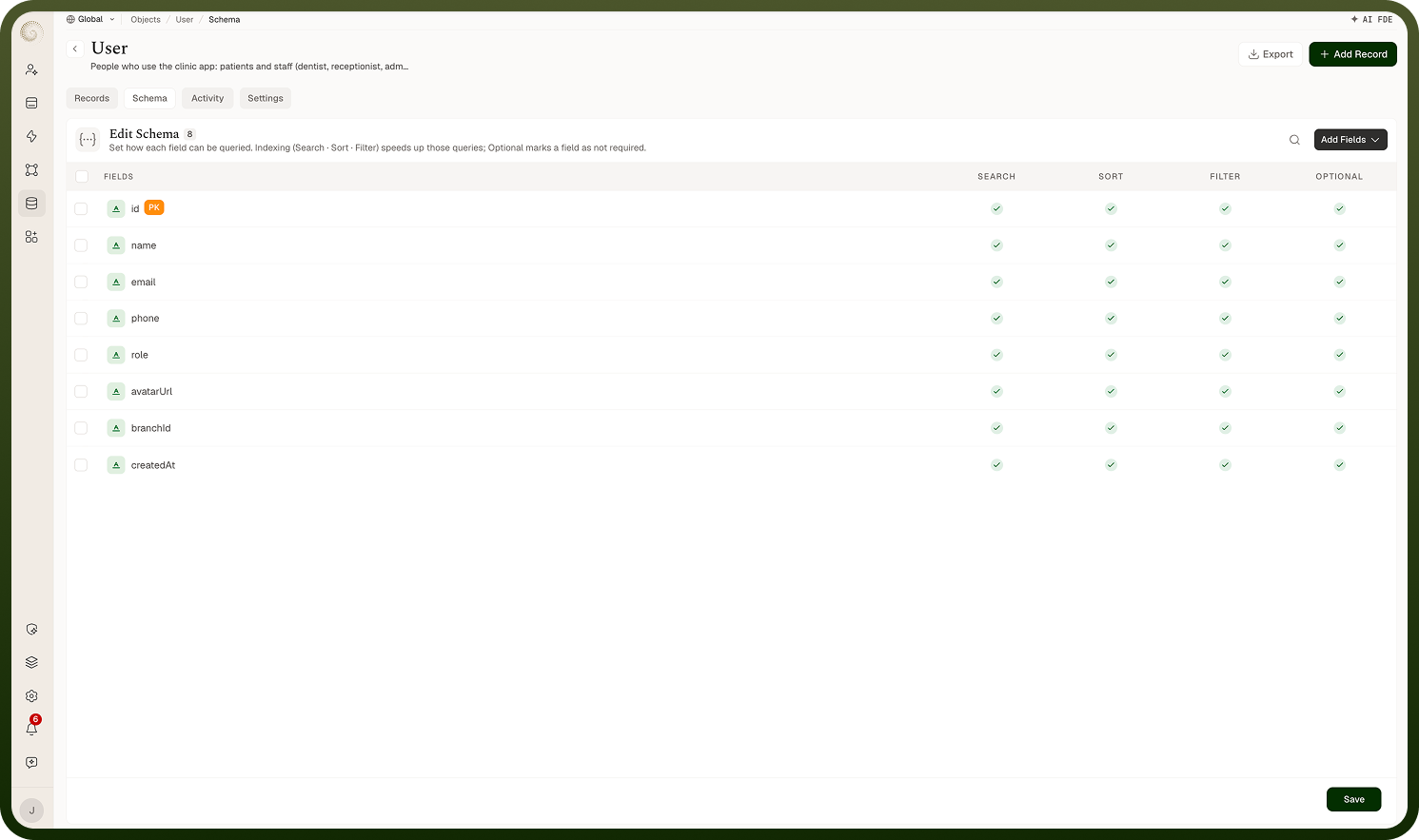
Adding a field to an object
On a custom object's Schema tab, use Add fields — a menu with two ways to add:
Enter manually ("Add schema details and configure it manually") — opens the field form. Give it a Key (its internal name — start with a letter, letters/numbers/underscores only), a Display Label (the friendly name), and pick a Field Type. Then set the options that apply — make it optional or required, give it a default value, mark it as Primary Key or Unique Key, or turn on searchable/sortable/filterable. Type-specific options appear after you pick the type (for example a Prefix for Auto Number, or Static vs Lookup options for a dropdown).
Use Code Snippet ("Add schema by code") — define many fields at once by editing the whole schema as code instead of adding them one at a time.
Save to add the field to every record going forward. Standard (built-in) objects have a read-only schema, so Add fields doesn't appear on them — and the same applies when you lack edit permission on a custom object: without it, Add fields, the per-field edit/delete actions, and the bulk-edit checkboxes don't render.
Where: Object › Schema › Add fields
Editing or deleting fields
On a custom object you can edit a field (open it to change its editable properties) and delete a field you no longer need. Deleting a field removes that column from the object, so confirm before doing it. You can also select several fields with the row checkboxes and act on them together — Edit Properties changes shared settings (Required, Enable Search, Enable Sorting, Enable Filtering) across all the selected fields at once — which is faster than editing one at a time on a large schema. On a Standard object the schema is view-only: you can't add, edit, delete, or bulk-edit its fields (and the object's Settings tab is hidden too).
Where: Object › Schema, edit / delete / Edit Properties
Building nested (object and array) fields
For data that isn't a single flat value, use an Object field (a named group of sub-fields) or an Array field (a repeating list). When you add one, you define its inner fields the same way you define top-level fields, and the Schema tab shows them indented under their parent so the structure is clear. You can nest further — an Array of Objects, or an Object containing an Array — to model repeating, structured data like line items or a list of addresses. Reach for nesting when one record naturally contains sub-records; keep the schema flat when a simple set of columns will do.
Where: Object › Schema, Object / Array fields