


Managing the tag catalog — creating, renaming, archiving — and enforcing tagging across platform objects. (How tags speed up building change sets is covered in the Change Sets docs.)
Overview
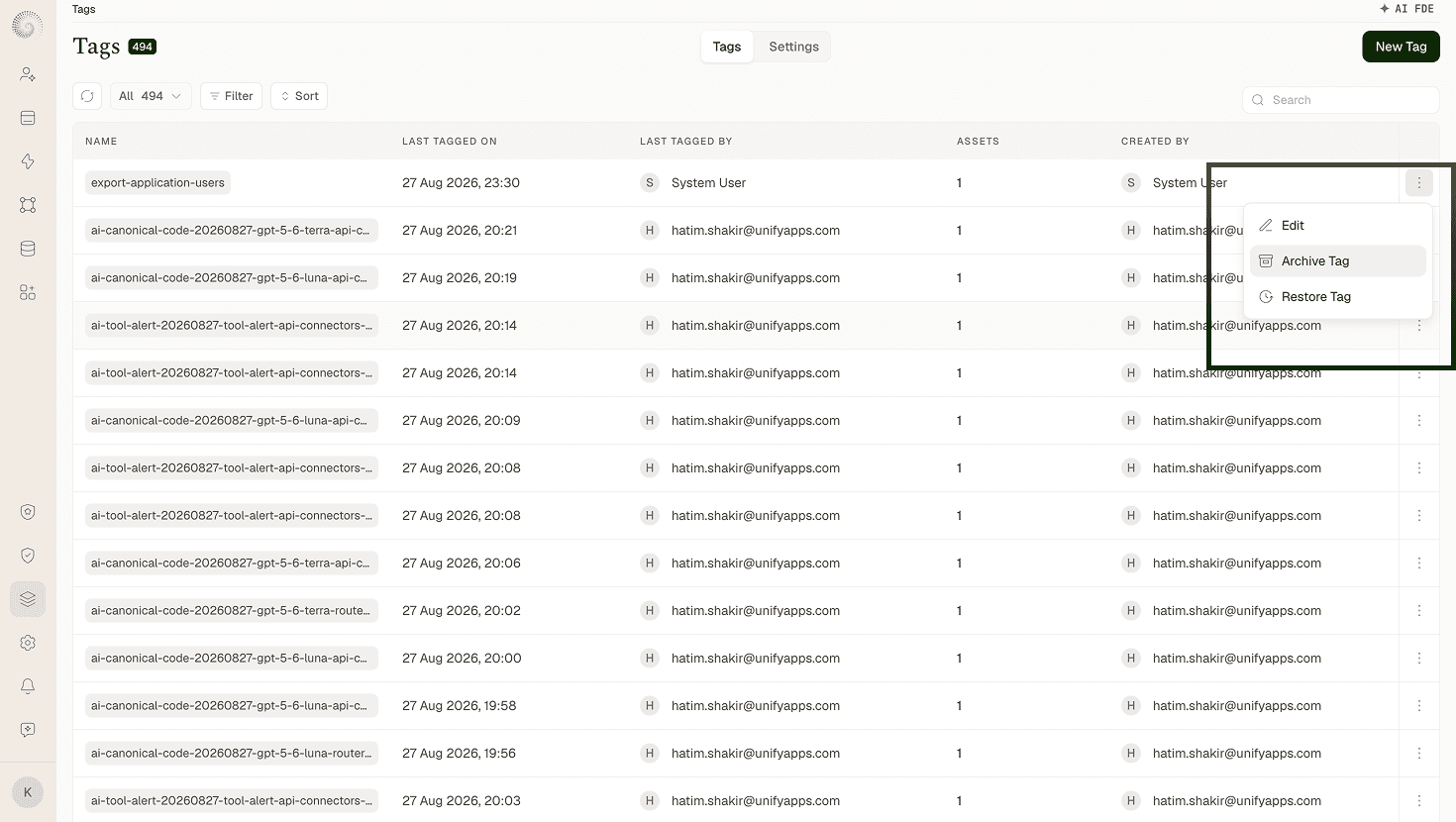
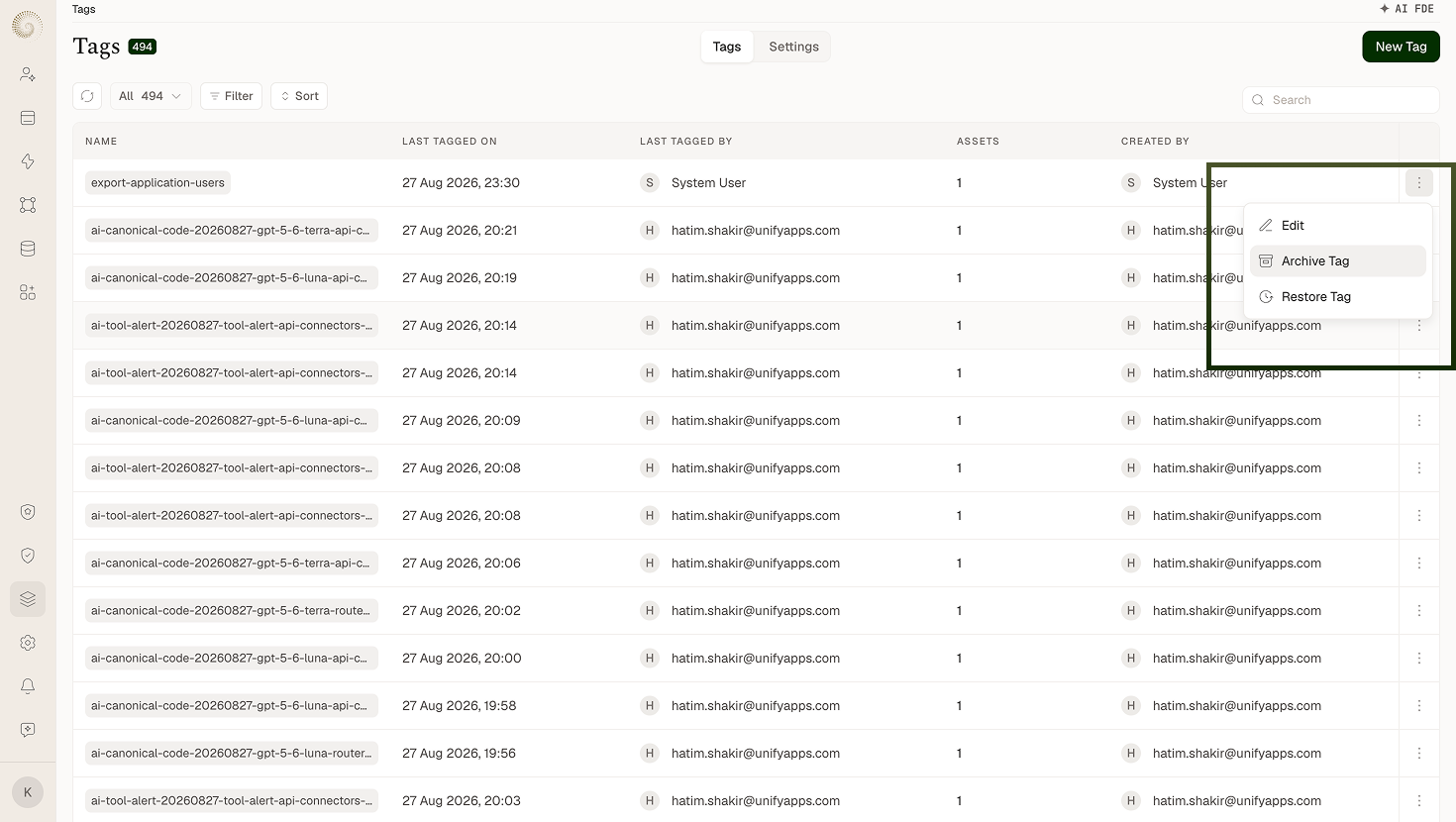
Tags live under Settings › Change Sets › Tags. The manager lists your tags with search, sort, and a filter to view Active Tags, Archived Tags, or all. New Tag creates one — a tag is just a Name (required). From a tag's row you can open its details, Edit (rename) it, Archive Tag, or Restore Tag. Renames are tracked in the tag's activity ("Renamed tag from \<old\> to \<new\>").
Where: Settings › Change Sets › Tags
Tag's details page
Opening a tag shows everything carrying it: a table of the tagged assets, filterable by asset class, plus the tag's activity history (Tag Activities — when the tag was added to or removed from assets, renames, archive/restore events). From the header you can archive or restore the tag and start a new change set pre-filtered to this tag — the fastest path from "this feature's tag" to "a change set containing its assets."
Where: Settings › Change Sets › Tags › tag details
Archiving a tag
Archive Tag retires a tag without deleting its history — archived tags are kept under the Archived Tags filter and marked with an Archived pill on their details page. Restore Tag brings one back. If you act on an archived tag where an active one is required, you'll be asked to confirm: "You're currently viewing an archived tag. Proceeding will Unarchive it & will create a changeset." — proceeding restores the tag and takes you into a new change set for it.
Where: Settings › Change Sets › Tags, Archive / Restore
Making tags mandatory (Tagging Policy)
The Tags area's Settings tab holds the Tagging Policy with an Enforce Tagging toggle — "Require tags when creating selected platform objects." When enabled, choose the scope:
All (All Objects — "Enforce tags across all platform objects"), or
Custom (Custom Selection — "Enforce tags only on chosen platform objects"), then pick the Platform Objects where a tag becomes a mandatory field.
Save applies the policy ("Tagging policy saved successfully"); Discard Changes reverts your edits. Use this to guarantee new assets are always tagged — which keeps change-set assembly reliable.
Where: Settings › Change Sets › Tags › Settings