


Picking an element in the live preview and changing its text, its sample data, or its appearance without asking the agent.
Overview
On the Preview tab, click Edit (the element-picker button) in the header. The preview becomes pickable and an Edit panel opens on the right. Click anything in the running app — or pick a row in the panel's layers tree — and the panel fills with what that element exposes. Clicking it again leaves edit mode. The button is unavailable until the app has been built at least once.
Where: Code Builder › Preview › Edit (element picker)
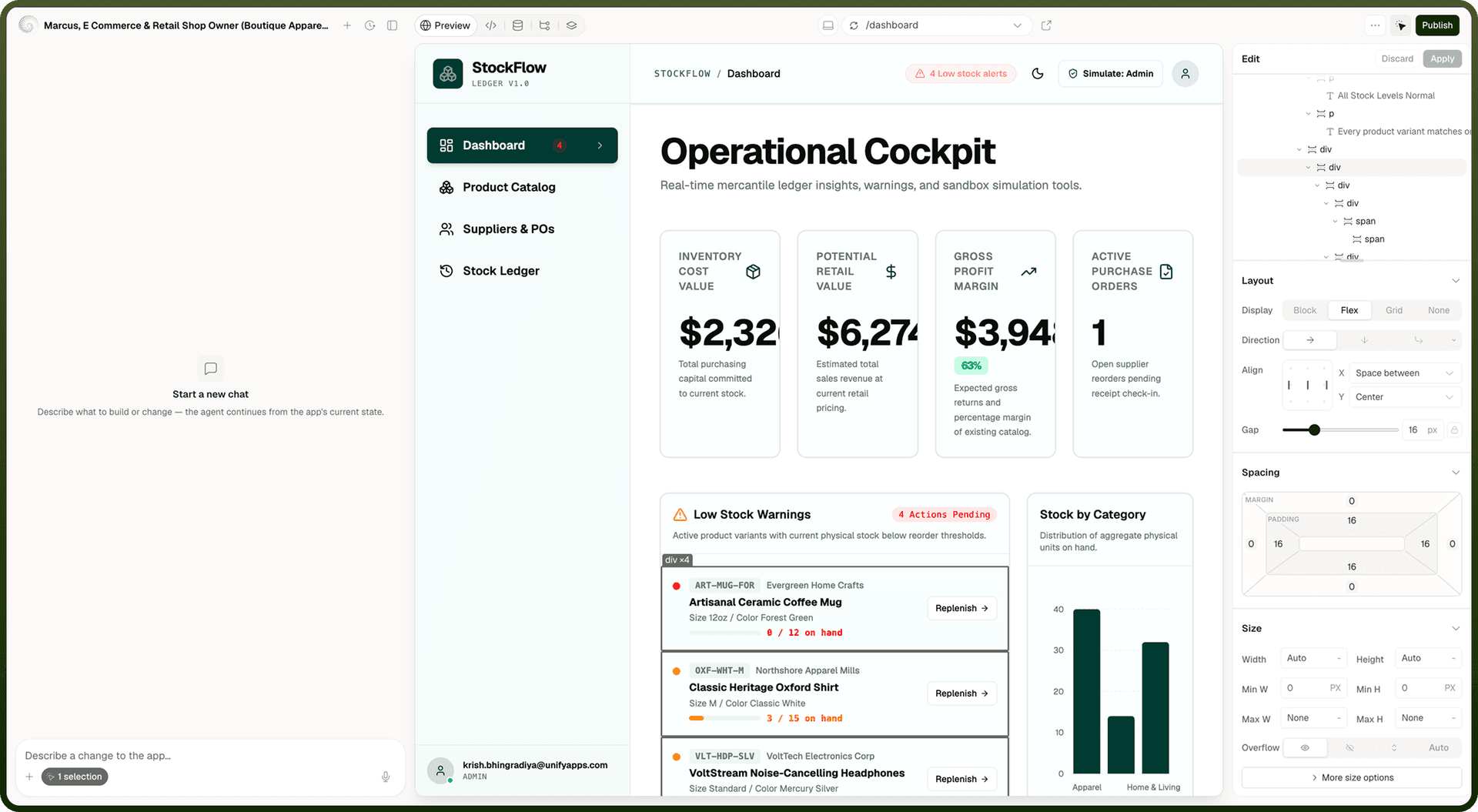
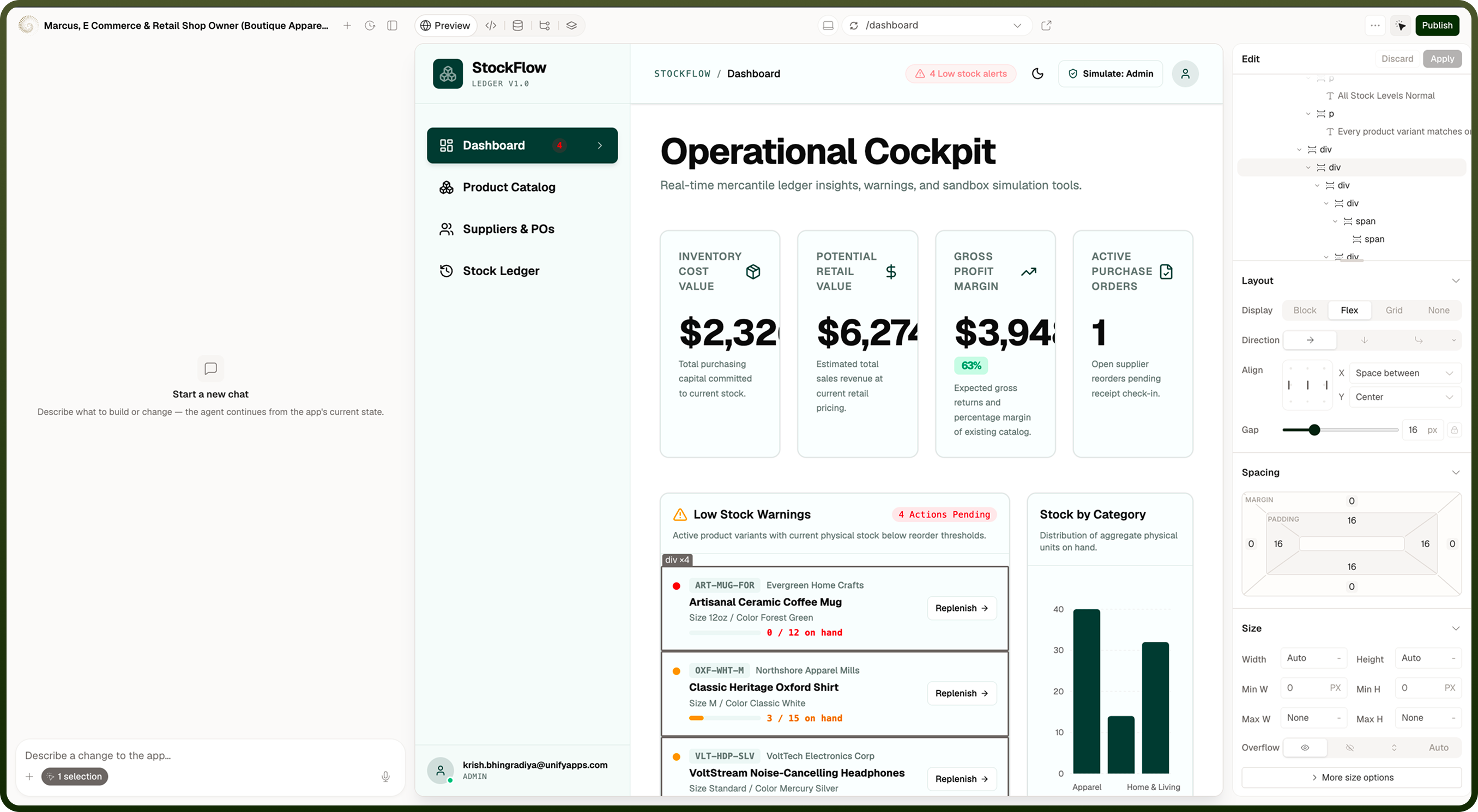
Edit panel
Top to bottom:
Data sources — the app's standalone data bindings, each tagged list or scalar with a few of its field names. Only bindings that aren't already shown in the tree appear here.
The layers tree — the element hierarchy of the page the preview is currently showing, not every page in the app. Rows expand and collapse, and clicking one selects that element in the preview too.
The editor for whatever is selected — its text and/or its data, plus its style when you picked it in the preview.
The panel header carries Discard and Apply, both inactive until you actually change something. Apply sends everything you've changed — text edits, seed data, and style edits — as one batch; both buttons lock with a spinner while it runs. If part of the batch fails you'll see the first reason "(and N more)"; if the app takes too long you'll see "The app took too long to respond. Your changes are still pending — press Apply to try again." — your drafts are kept on anything other than a clean success. If the data behind the panel can't be loaded you'll see the reason and a Retry button; if the app simply has none, No data.
Where: Code Builder › Preview › Edit panel
Changing a piece of text
Select the element and edit its text in the panel. The change appears in the running preview as you type, without reloading it — so scroll position, form input and the current page all survive. Press Apply to keep it, which writes the new text into the app's source so it also shows up in the published app; Discard puts everything back. Text that comes from data rather than being written into the page is shown read-only — change it at its data source instead.
Where: Code Builder › Preview › Edit panel