


Browsing and acting on all your connections.
Overview
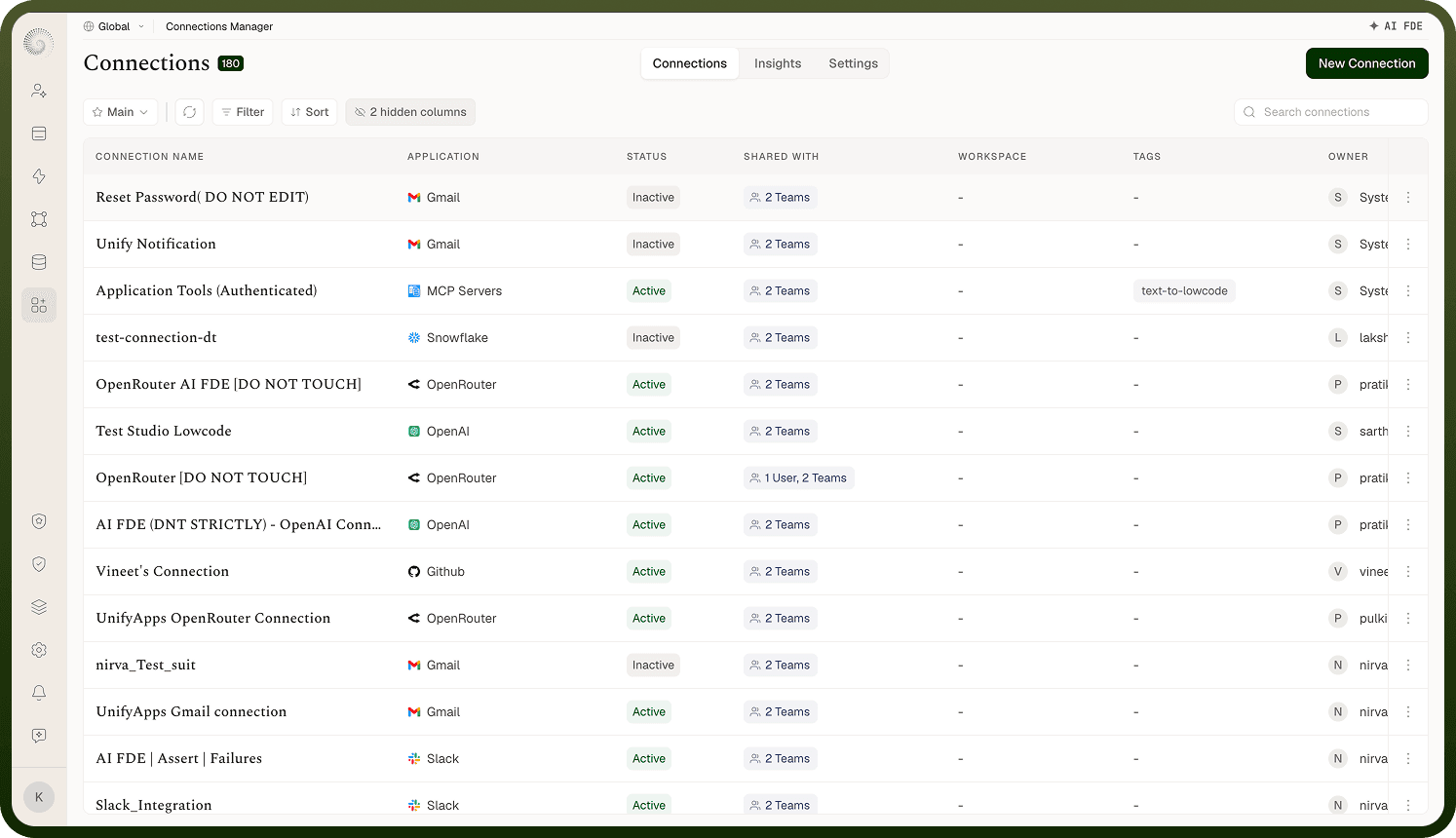
The Connections manager lists every connection you have access to, as a table (newest first by default). Next to the Connections title, a count pill shows how many connections match the current list (it only appears on this list view, not on the Insights or Settings tabs). Each row shows the connection name, the application it links to (with its icon), its status (an Active or Inactive tag), its tags, who it's Shared with, who owns it, and when it was Last Updated; when you're viewing across workspaces, a Workspace column appears too. Two details worth knowing: Last Updated shows a dash for a connection that's never been edited since creation — hover the cell for its audit details (created on/by, plus last-updated on/by once edited) — and a columns menu can reveal two extra hidden-by-default columns (Created On and Last Updated By), remembered per user. You can also drag a column's header to reorder the columns to your liking.
The Shared with pill summarizes each connection's sharing at a glance: Everyone (shared with the whole workspace or organization — the two look the same here), a count like "2 Users, 1 Team" for specific grants, or Only me for an unshared, owner-only connection. Revoking everyone's access returns it to Only me. The manager also has Insights and Settings tabs alongside the list. If you have no connections yet, you'll see a "Setup your new connection" prompt with a New Connection button.
Where: Connections › All
Finding a specific connection
Use the search ("Search connections") to filter by name, filter by columns such as application or tags, and sort — by status to surface Inactive connections, or by last-updated to see recent changes. You can also save views of a filtered/sorted list so a set you check often is one click away. On environments with many connections this is the fast way to get to the one you need rather than scrolling. The status column is especially useful for spotting connections that need attention.
Where: Connections › All (search / sort / views)
Connection from the list
Each row's actions let you manage the connection without opening it fully:
Edit — open it to rename, re-authenticate, change settings.
Clone — make a copy (with the same credentials).
Share — give other users or groups access.
Delete — remove it permanently.
Each action appears only if you have the matching permission on that connection (edit, create, share, delete respectively). Before deleting, check what depends on the connection (its Dependencies tab) — the delete confirmation also warns how many assets will stop working.
Where: Connections › All (row actions)
Status column
Each connection shows an Active or Inactive tag:
Active — authenticated and usable; automations can run through it.
Inactive — not currently usable; it was disconnected, or the platform disabled it after its credentials stopped working (failed health checks or failed token refreshes). It needs to be re-authenticated.
Because the platform keeps checking connections in the background, the status reflects real health, not just whether it was set up once. Scan this column to catch a broken connection before an automation does.
Where: Connections › All, Status column