Unify Logo Footer.svg
Platform Tools
Logo
Set up your first connection

Set up your first connection

Logo

4 mins READ

Setting up a new authenticated link to an app.

Overview

Use New Connection and:

  1. Pick the app you want to connect to — apps are grouped by category, with search (any built-in connector or a custom one).

  2. Fill in the connection form — a name, the authentication method (if the app offers more than one, e.g. OAuth vs API key), and the inputs that method needs: credentials, host/region, scopes. A docs panel beside the form shows the app's own setup instructions.

  3. Create / Authorize — for key/password-style auth click Create: the platform first tests the credentials against the app and only saves the connection if the test passes. For OAuth click Authorize: you're sent through the app's login-and-consent flow instead.

Once saved, the connection is available for automations, apps, and agents to use. The exact inputs depend on the app and auth method you chose.
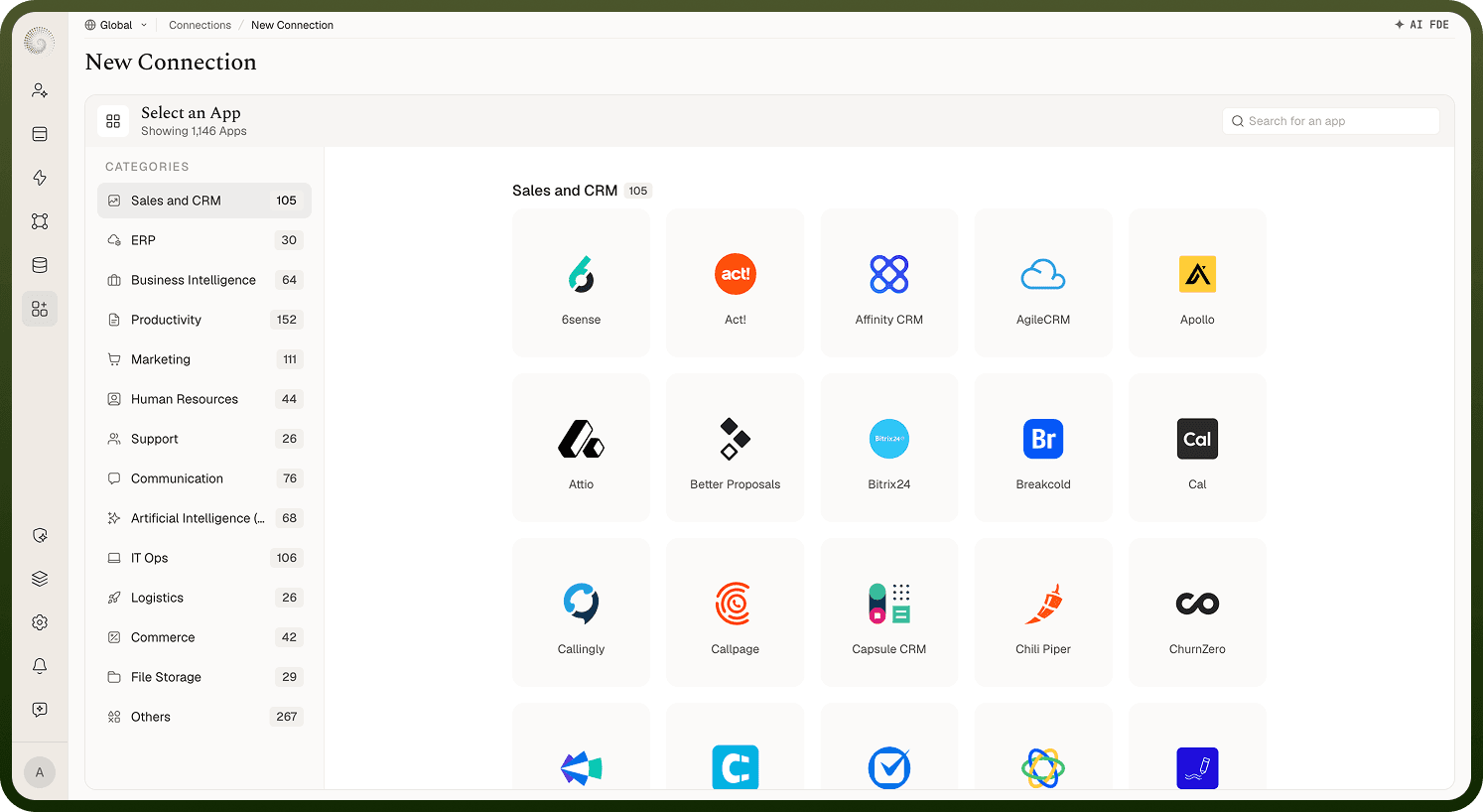
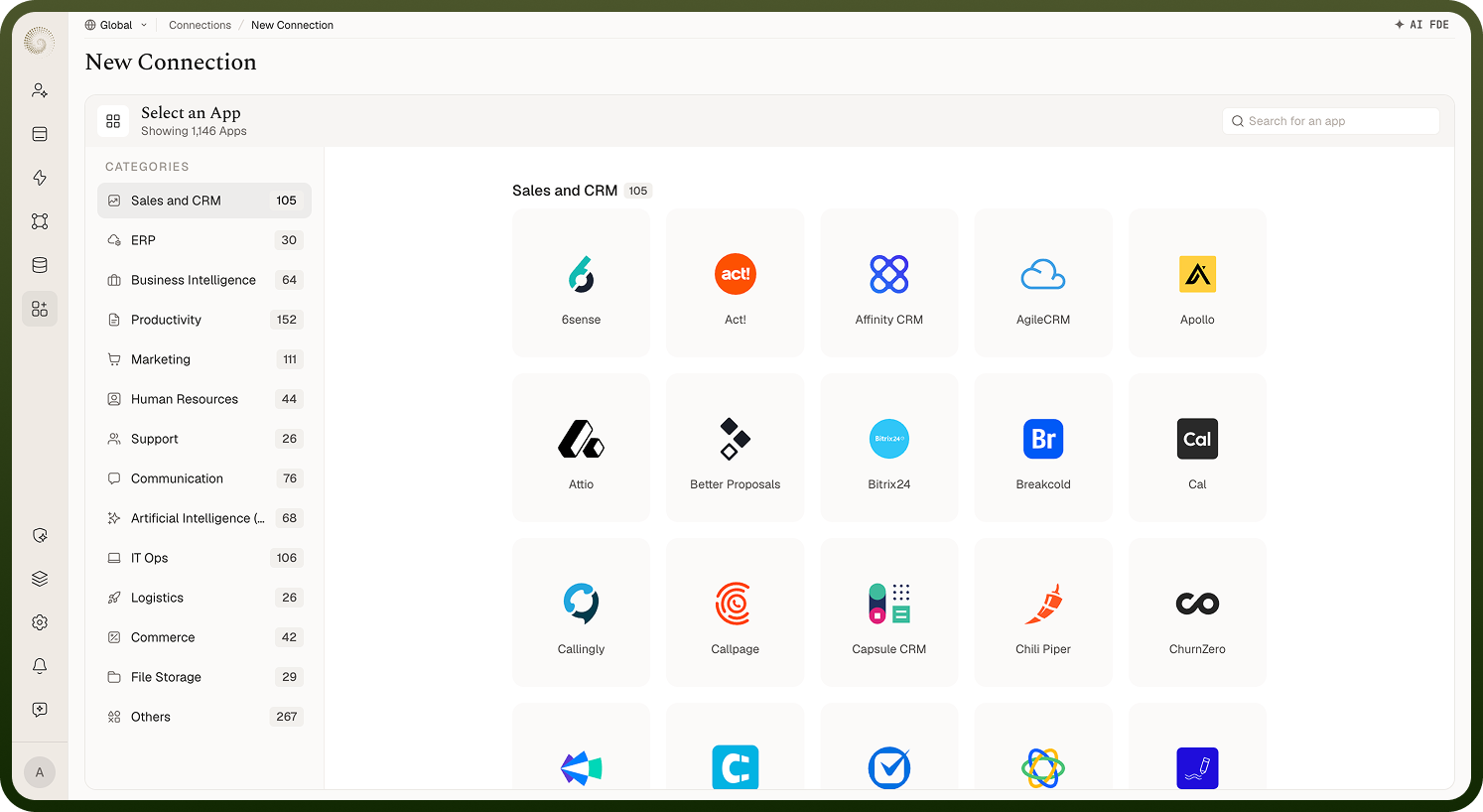
Screenshot_2026-09-02_at_12.13.26_PM_1.png

How authenticating actually works

What happens depends on the method:

  • OAuth — clicking Authorize sends you to the app's own login/consent page; you approve access and are returned to the platform, which exchanges that approval for an access token (and a refresh token if the app issues one). No password is stored — just the tokens, encrypted. Some apps then show a short Confirm OAuth Details step for extra inputs. Tokens are refreshed automatically afterwards as they expire.

  • API key / token or Basic auth — you enter the key (or username/password) directly and click Create; the platform makes a real test call to validate it, then stores it encrypted. No redirect.

Either way the credentials are encrypted at rest and never shown back to you, and the platform applies them to every request the connection makes.
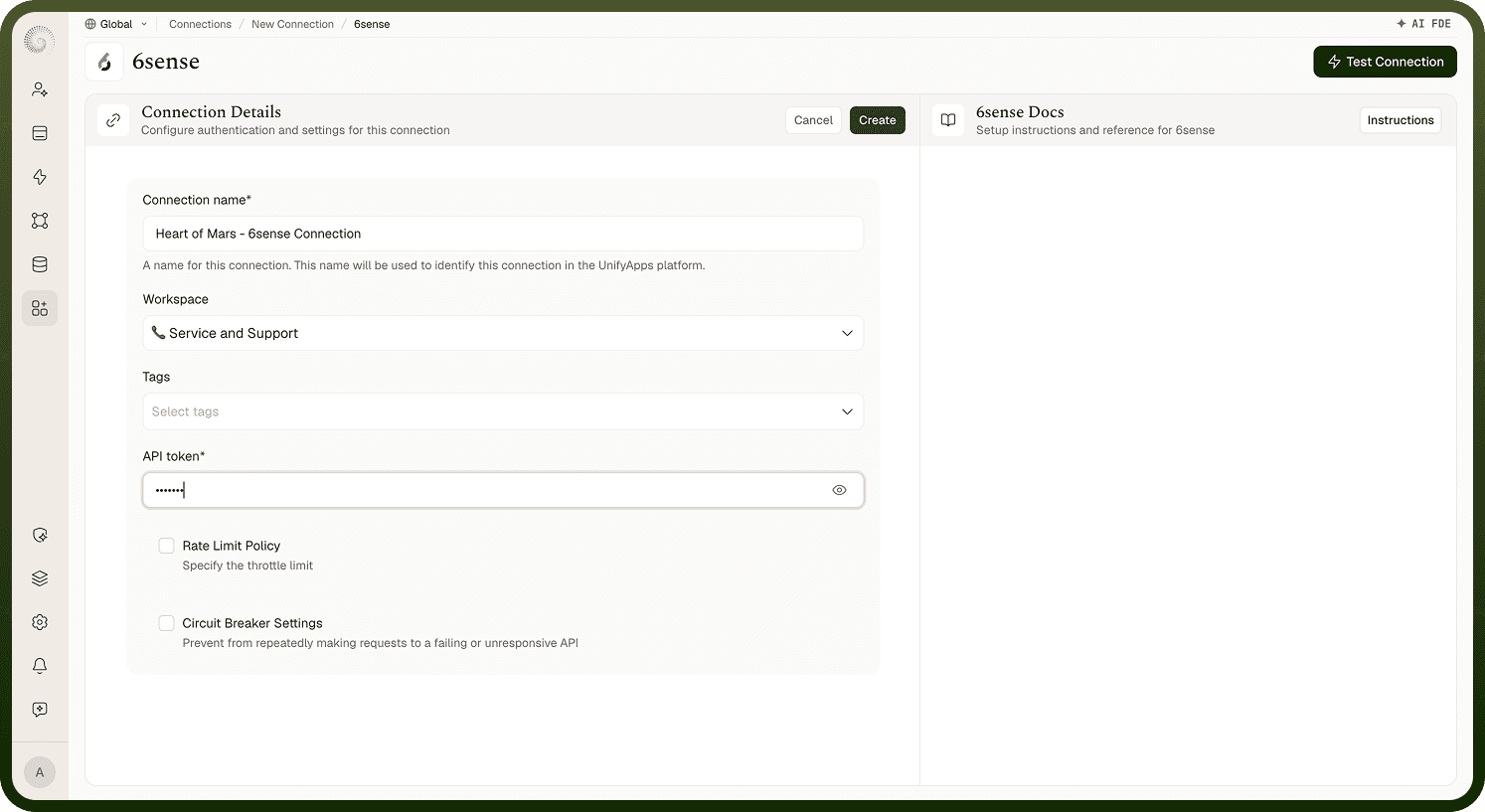
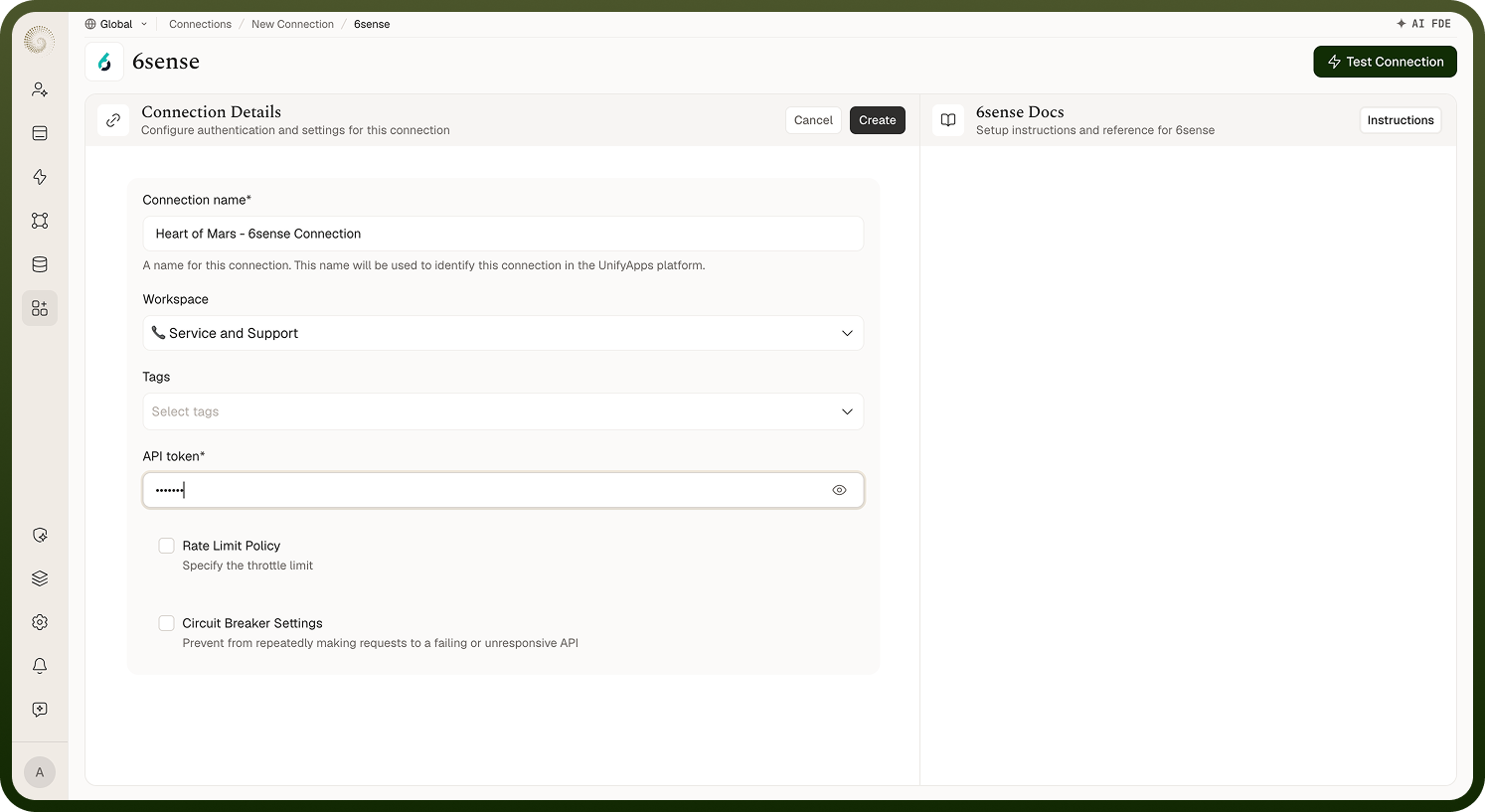
Screenshot_2026-09-02_at_12.13.46_PM_1.png
FAQs

Should I test a connection before saving it?

For key/password-style auth there's a Test Connection button next to the save action. It does a dry run: it uses the inputs you've entered to make a real check-call to the app and reports "Test connection successful" — without saving anything. This catches a wrong key, a missing scope, or a typo'd host up front. Note that clicking Create runs the same test automatically and refuses to save if it fails, so you can't accidentally save broken credentials — Test Connection is just the way to check as you go. The button doesn't appear for OAuth methods, since there the authorize flow itself is the validation.

Why didn't my connection authenticate?

What's happening: Authentication fails, or the test errors when you try to connect — an error banner appears on the connection form describing what went wrong. Why: The credentials are wrong or insufficient, or the app rejected the request — a mistyped API key, an OAuth app missing the right scopes/redirect, an account without permission, or the app being unreachable (a firewall, a wrong host). Fix:

  1. Read the error banner — it usually names the cause directly.

  2. Re-check each input against what the app expects (key, host, scopes).

  3. For OAuth, make sure you approved the requested permissions and that the app/integration is set up on the provider's side.

  4. Use Test Connection to confirm before saving (non-OAuth).