


Loading records from a file, and editing, deleting, or exporting many at once.
Overview
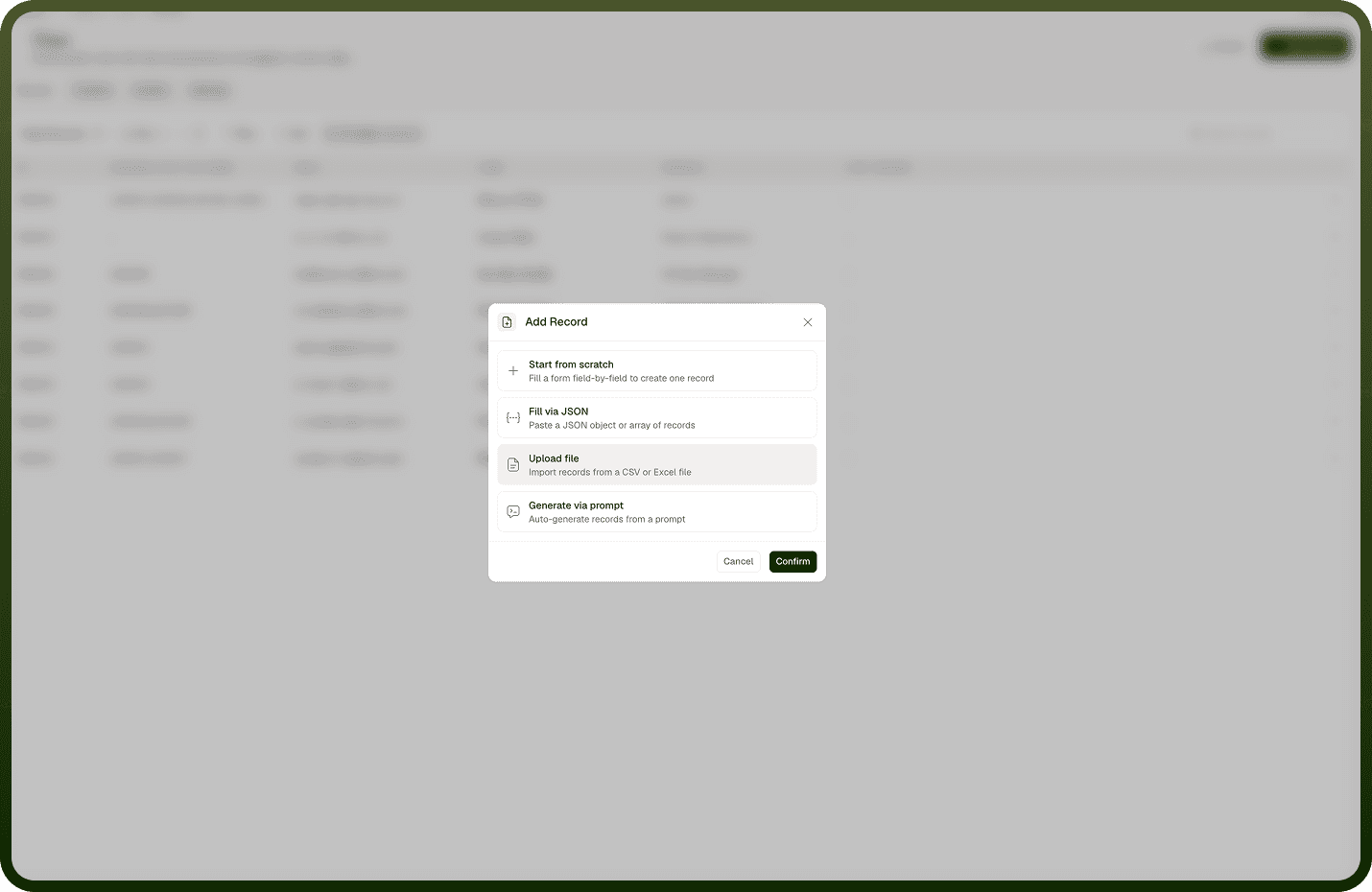
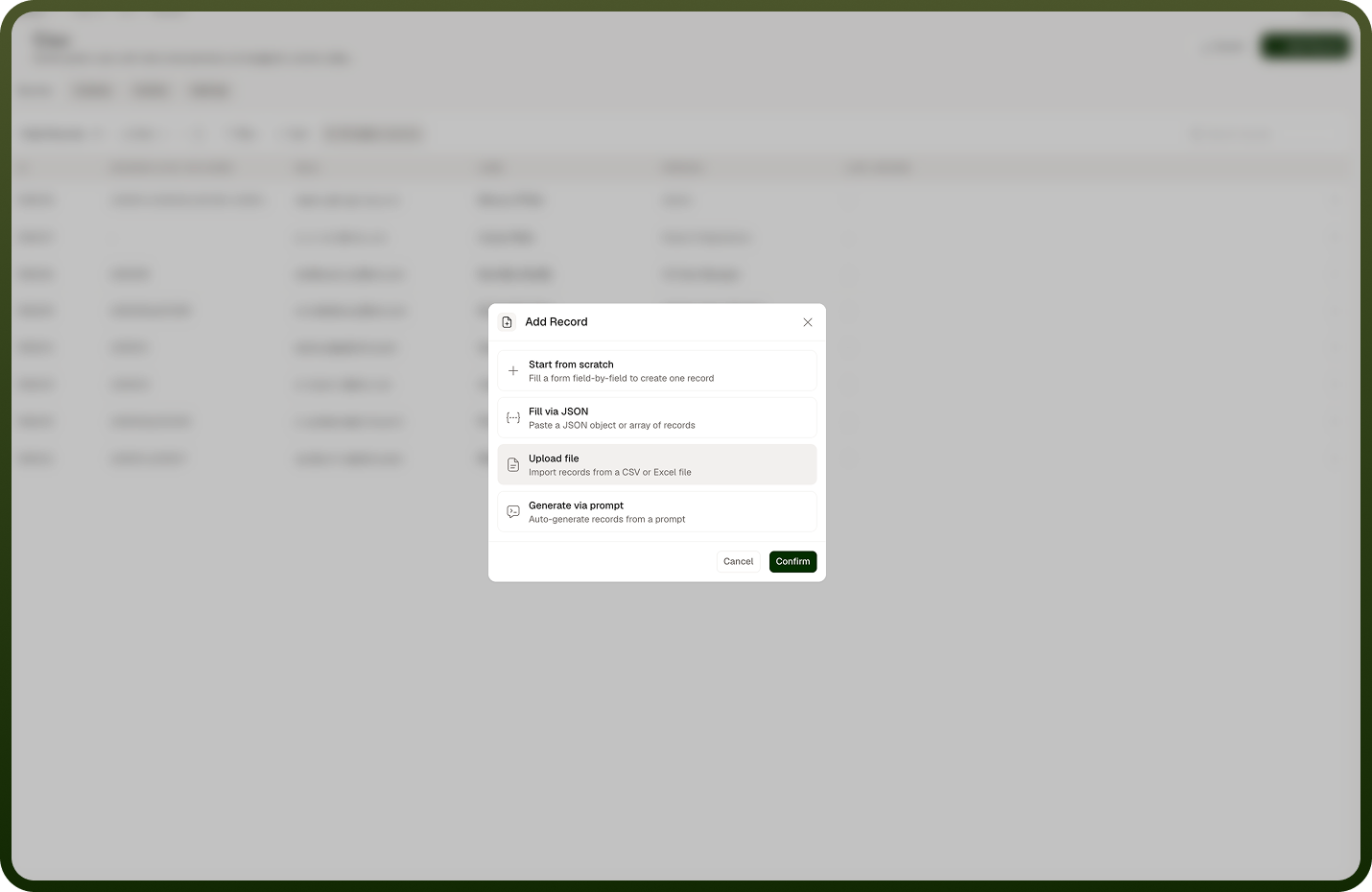
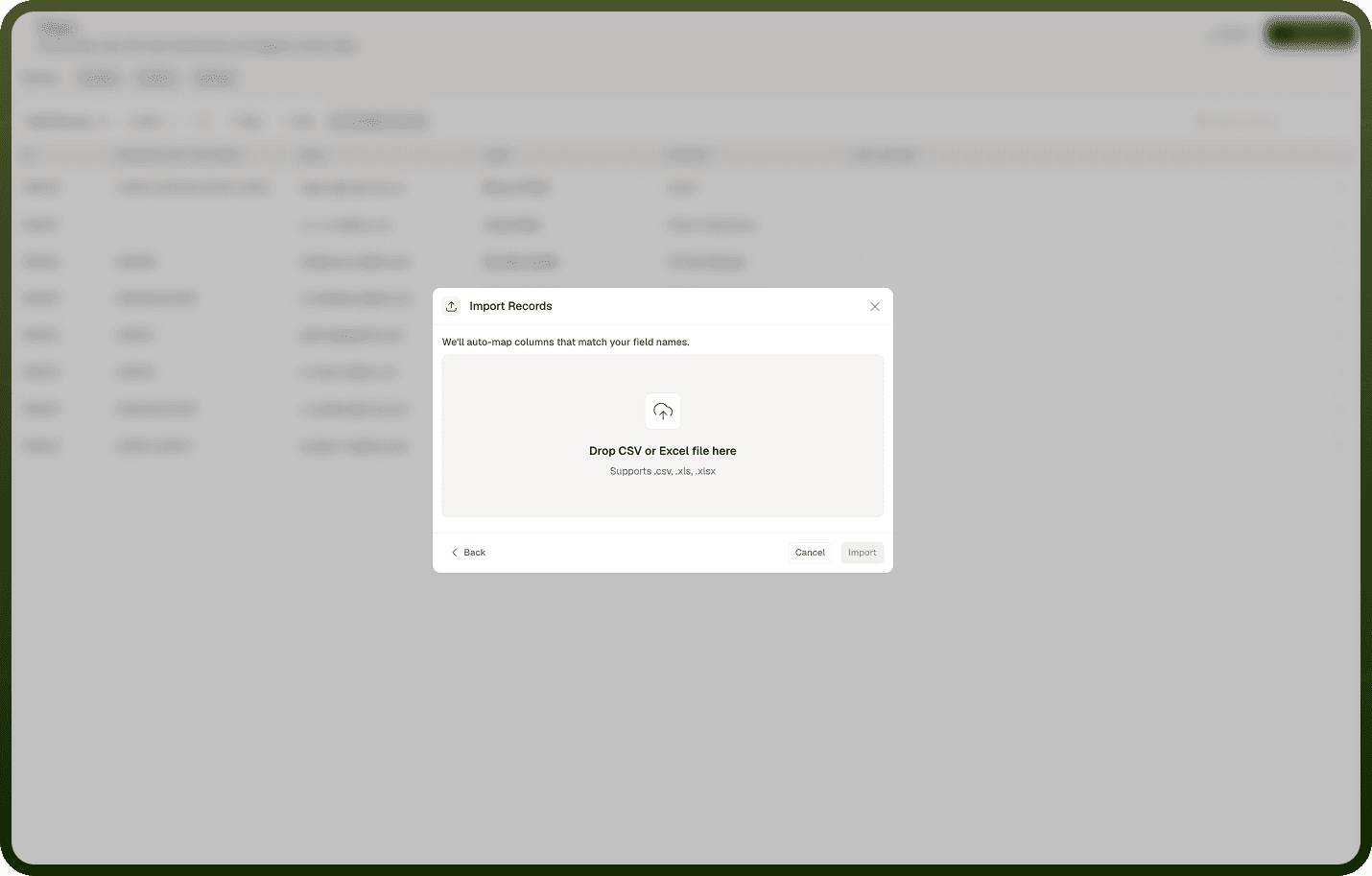
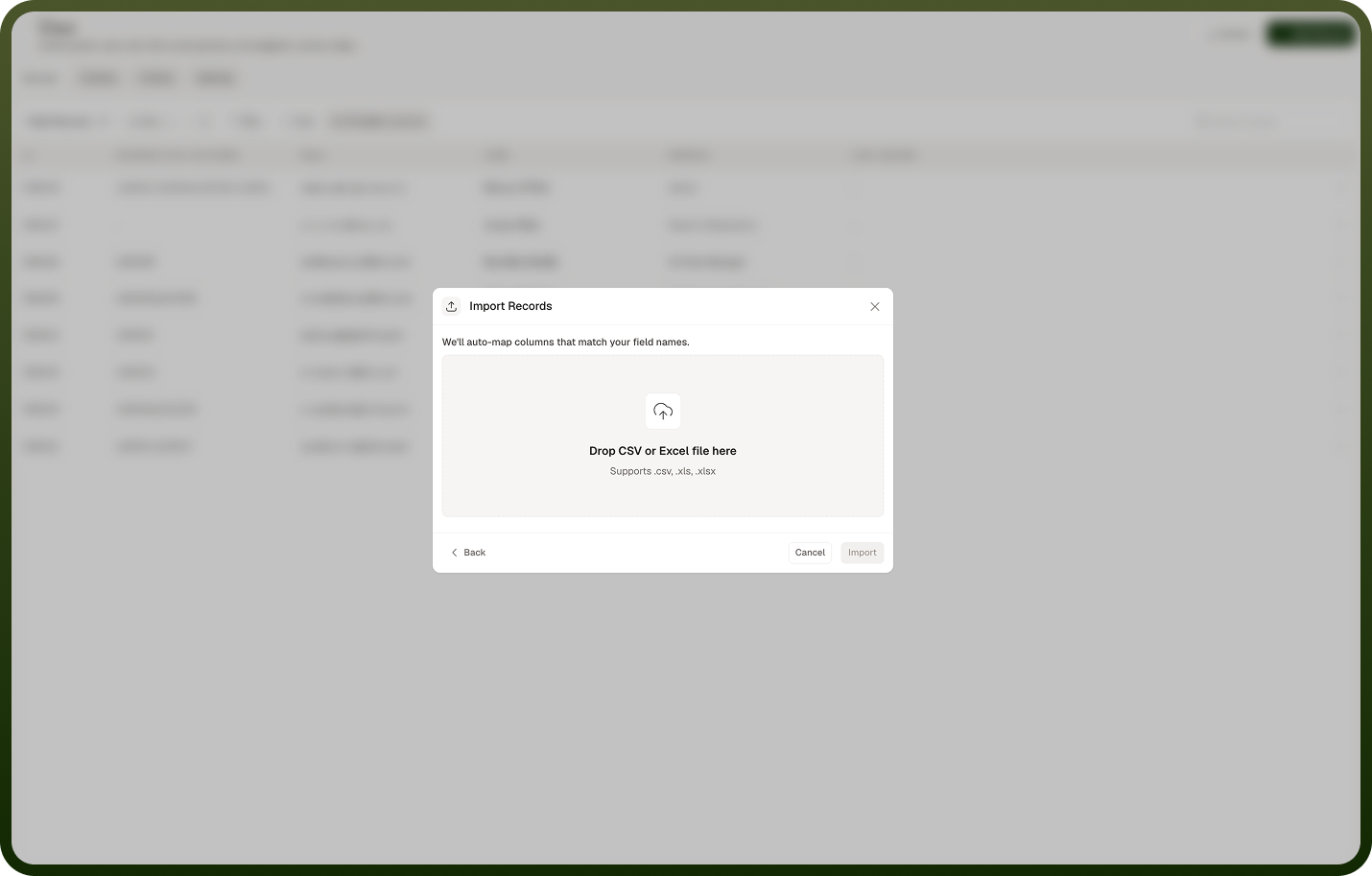
From Add Record, choose Upload file and drop in your file. Supported formats are CSV, Excel (XLS/XLSX), and JSON. On the Map Fields step, the file's columns are auto-matched to the object's fields where the names line up; you adjust the mapping for the rest, and any column left unmapped is discarded. Every required field must be mapped before you can proceed. A Preview Data step shows the first rows so you can confirm the mapping looks right before confirming. The import then runs in the background — records land in batches, and your data appears shortly after. Use import to populate a new object or to add many records at once instead of creating them one by one.
Where: Object records › Add Record › Upload file
Tracking an import's progress
Once an import starts, a toast in the bottom-right corner tracks it — showing "Importing {file}" with a progress bar and "Running in the background", which you can minimise while it runs. When it finishes it reports one of four states: running, completed, completed with errors, or failed. From the toast, Show Details opens an Import details view with three counts — Imported, Skipped, and Total rows in file — plus a table of the rows that didn't import and why, and a Download button to save that error report. An import-status button stays on the object header so you can reopen the latest import's status later.
Where: Object records, import status toast / Import details
Editing or deleting many records at once
The records screen works record-by-record: each row's menu offers Edit, Share, and Delete (delete asks for confirmation and can't be undone), but there's no bulk-edit or bulk-delete action on the table itself. To change many records at once, re-import a file with the updated values (via an automation using Partial update so matching records are updated rather than duplicated), or build an automation that queries the records and updates or deletes them. Note that bulk field editing does exist — on the Schema tab you can select several fields and change shared settings together — but that edits the object's schema, not its records.
Where: Object records, row actions
Exporting records
Use Export on the records screen and choose a format — CSV, XLS, or XLSX. The export respects the filters currently applied, so set your filters first to export exactly the subset you want (or clear them to export everything). Export runs in the background; you're notified when the file is ready to download. Use it to pull data out for analysis, sharing, or backup.
Where: Object records › Export