


Bill
Integrating your application with Bill enables seamless financial automation, bill payments, and expense management. Bill’s API allows you to create, approve, schedule, and track bills and payments programmatically, streamlining accounts payable and receivable workflows. With powerful approval workflows, real-time payment status, and automated reconciliation, Bill enhances operational efficiency while ensuring accuracy, compliance, and financial visibility across teams.
Authentication:
Integrating your application with Bill unlocks automated financial operations, simplified payment processing, and efficient approval management. Before you begin, ensure you have the following information:
Connection Name : Choose a meaningful name for your connection. This name helps you identify the connection within your application or integration settings. It could be something descriptive like "MyAppBillIntegration".
Sandbox environment: Select the environment of your Bill account.
Username: Enter your Bill account login email address as the username.
Authentication Type : Select the type of authentication for connecting to your Bill account:
API Token
Password
API Token based :
Log in to your Bill account and go to Settings.
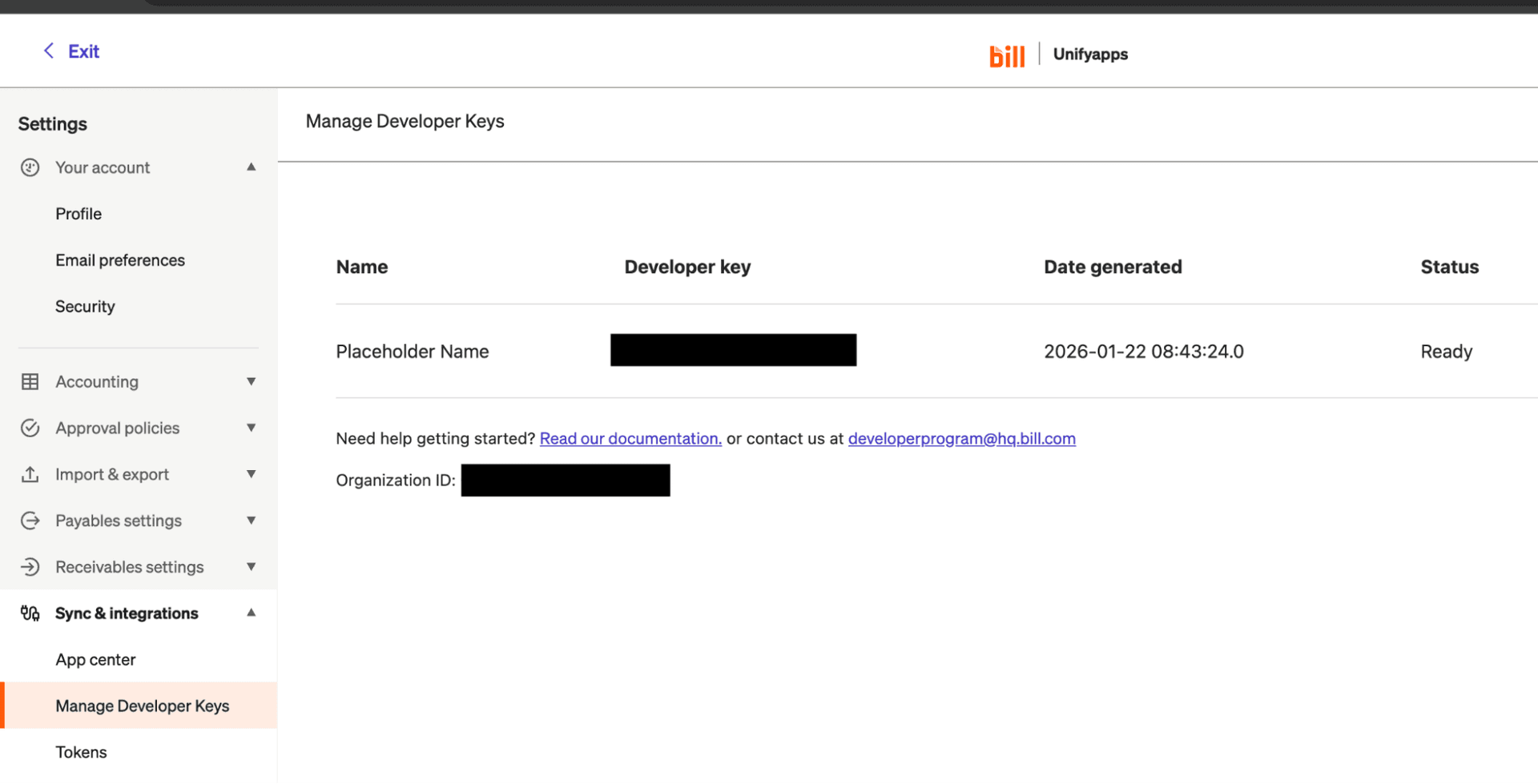
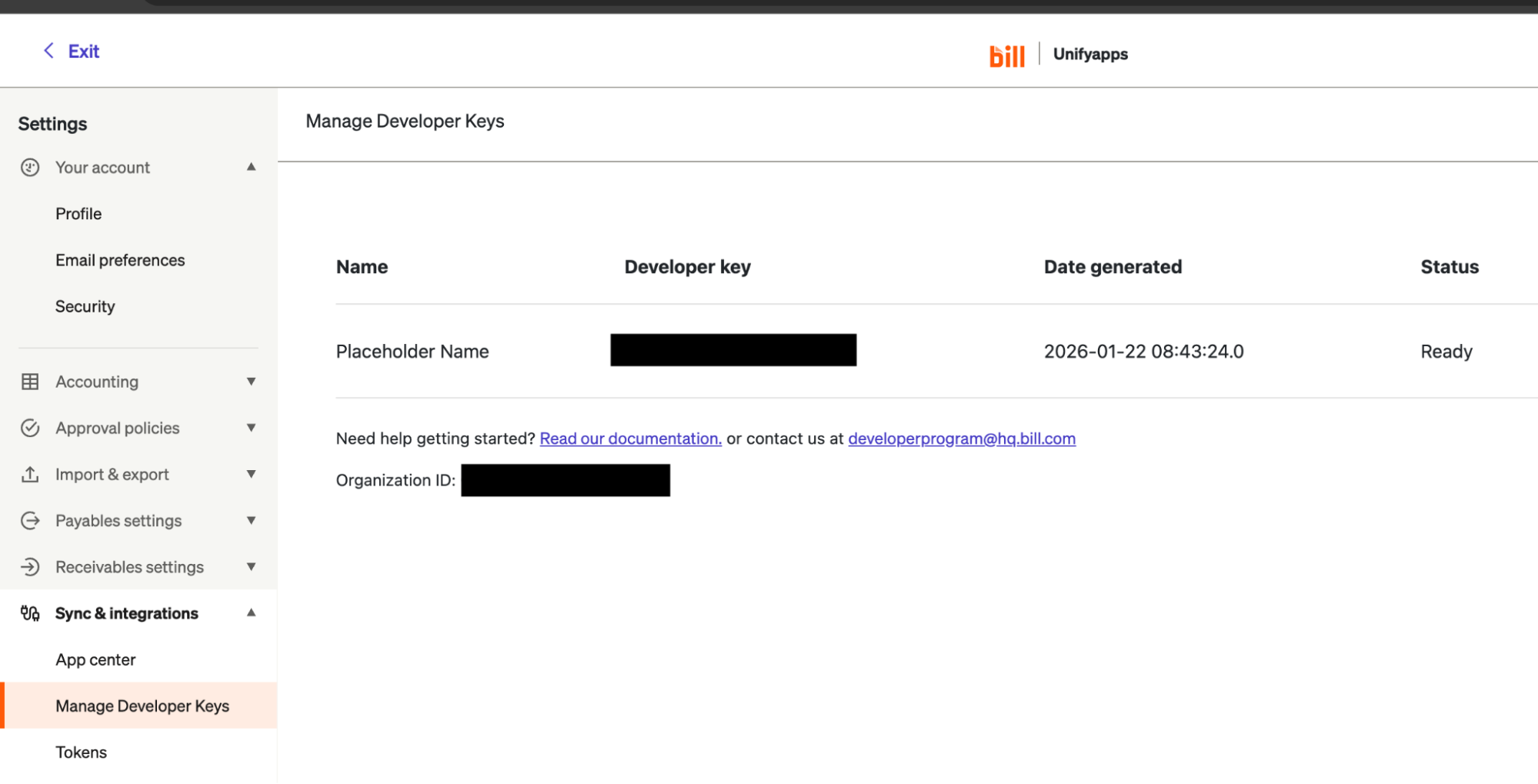
Navigate to Sync & Integrations and click Manage Developer Keys.
Click Generate Developer Key and securely save the generated key, this will be used as your Developer key.
Note the Organization ID displayed below the generated developer key.
Click the Tokens section below Manage Developer Keys.
Click New to create a new sync token.
Enter a name (use your login email address) and click Save.
Copy and securely store the generated token for authentication purposes.
Password Based :
Log in to your Bill account and go to Settings.
Navigate to Sync & Integrations and click Manage Developer Keys.
Click Generate Developer Key and securely save the generated key, this will be used as your Developer key.
Note the Organization ID displayed below the generated developer key.
Use your login password as the password.
Use these credentials for authentication purposes.
ACTIONS :
Action Name | Description |
| Creates a bill in Bill |
| Creates an invoice in Bill |
| Creates multiple bills in Bill |
| Creates multiple vendors in Bill |
| Creates a vendor in Bill |
| Downloads a bill attachment from Bill |
| Retrieves a bill from Bill |
| Retrieves a bill attachment from Bill |
| Retrieves an invoice from Bill |
| Retrieves payment details from Bill |
| Retrieves a vendor from Bill |
| Retrieves all the bills from Bill |
| Retrieves all the invoices from Bill |
| Retrieves all the vendors from Bill |
| Replaces a bill in Bill |
| Replaces an invoice in Bill |
| Sends an invoice in Bill |
| Updates a bill in Bill |
| Updates an invoice in Bill |
| Updates a vendor in Bill |
TRIGGERS :
Trigger Name | Description |
New approved bill | Triggers when a new bill is approved in Bill |
On new payment | Triggers when a new payment is made in Bill |