


Google Docs is Google's cloud-based word processor for writing and editing documents together in real time, with automatic saving and access from any device. The UnifyApps Google Docs connector uses the Google Docs API, together with the Google Drive API, to create, upload, find, update and append text to documents, build documents from templates and react to new documents from workflows and agents.
This guide covers every authentication type available on the connection form, and the actions and triggers supported, along with the Google scope each one needs.
Authentication
Before you begin, you should have the following information:
Connection name: a descriptive name such as MyAppGoogleDocsIntegration, so the connection is easy to identify later.
Authentication type: select the type of authentication for connecting to your Google Docs account:
OAuth
OAuth with Client Credentials
Service Account
The two OAuth types have a Scopes field. If you leave it empty, the connection requests https://www.googleapis.com/auth/documents and https://www.googleapis.com/auth/drive.file. That covers reading and editing any document, but Drive-based actions and triggers then only see files the connection created itself; add https://www.googleapis.com/auth/drive.readonly or https://www.googleapis.com/auth/drive if you need them to reach other files. The Service Account type has no Scopes field and always requests documents and drive.file. See the Scopes Required column in the tables below.
1. OAuth
Use this when you want to connect with your own Google account and do not need to create a Google Cloud app.
Enter a Connection name.
Select OAuth as the Authentication type.
Leave Scopes empty for the default, or select the scopes you need.
Click Authorize. You are redirected to the Google sign-in page.
Sign in with the Google account that has access to the documents you need.
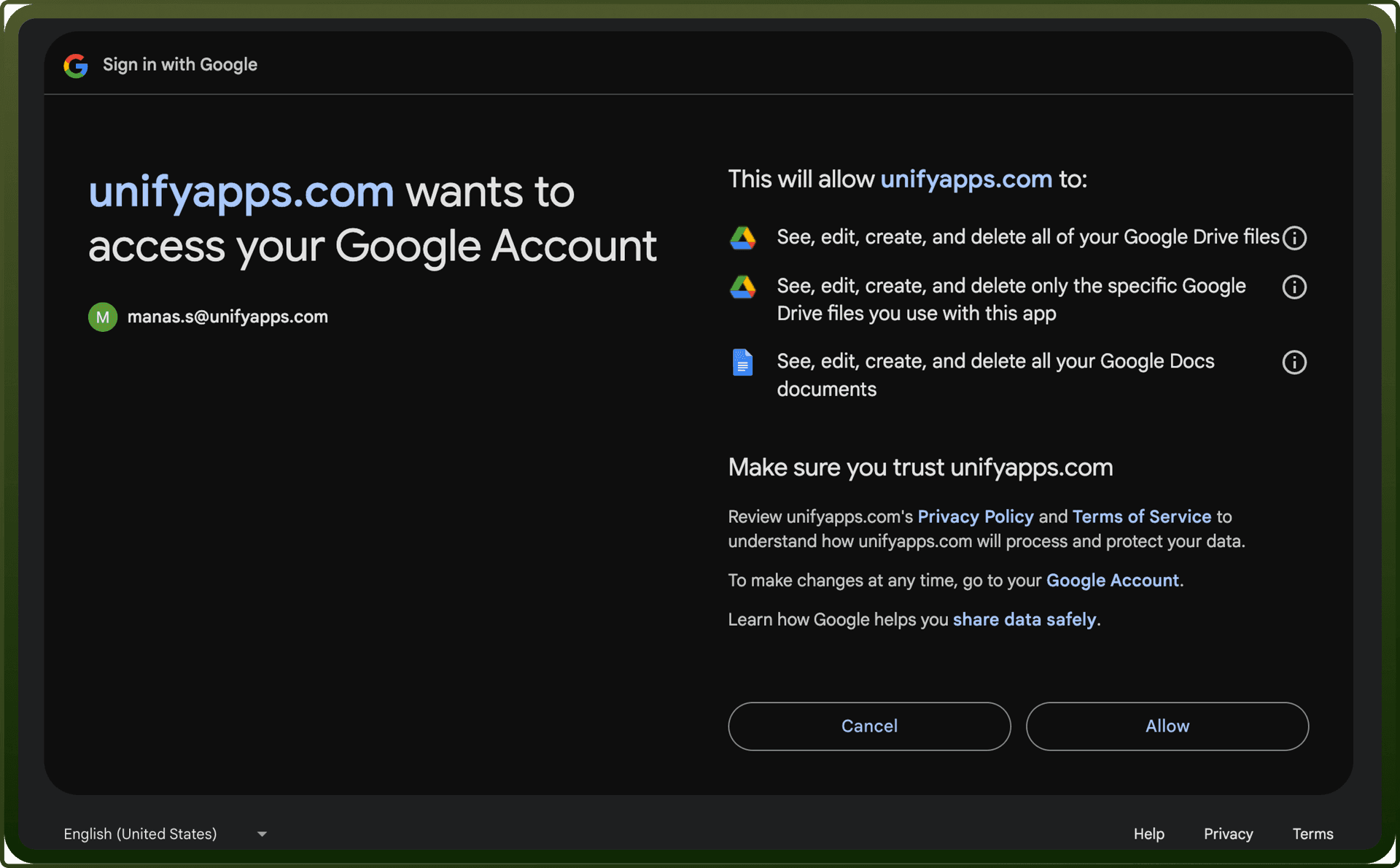
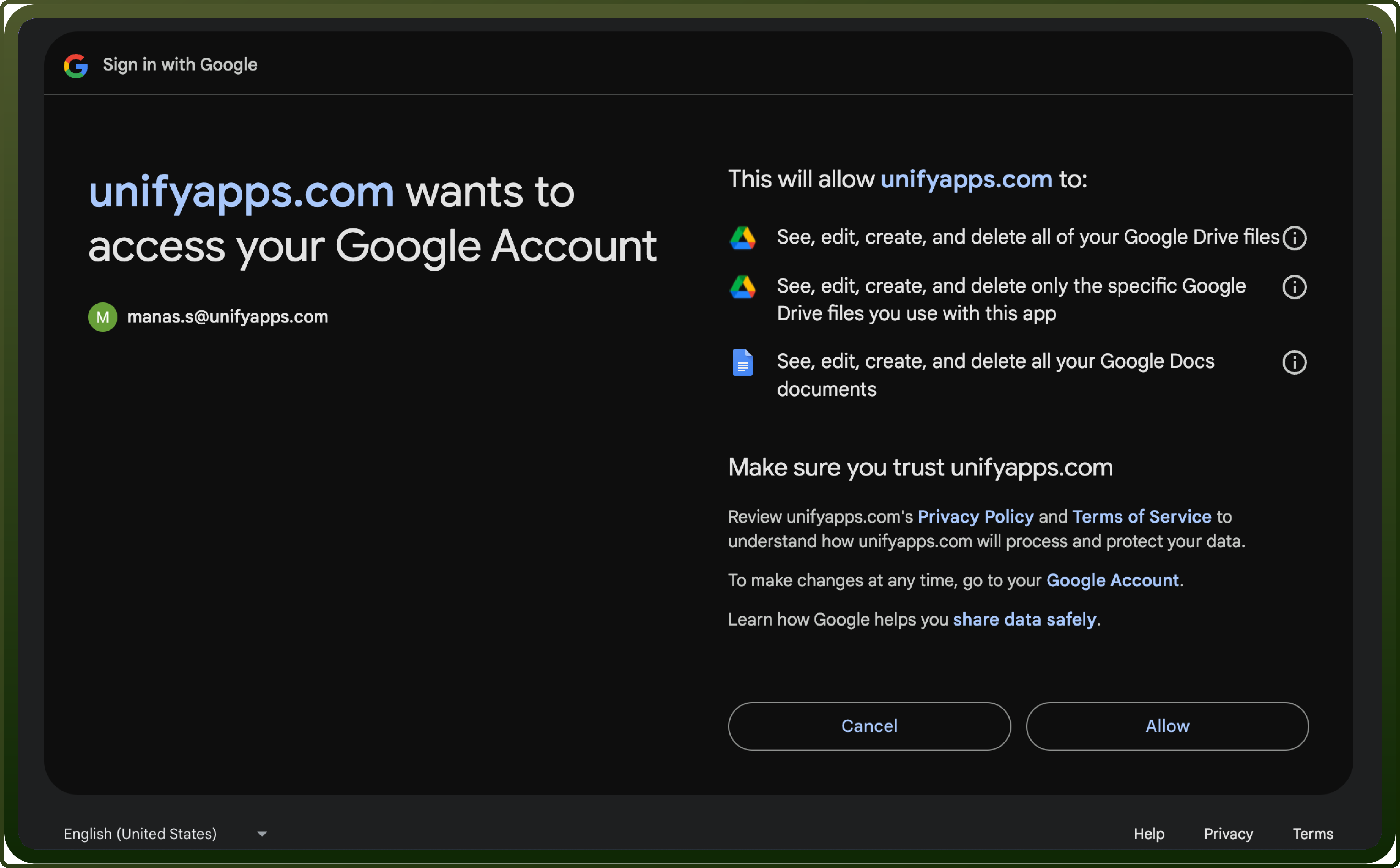
Review the permissions on the consent screen, for example See, edit, create, and delete all your Google Docs documents, and click Allow.
You are redirected back to UnifyApps with a confirmation that the account is connected.
2. OAuth with Client Credentials
Use this when your organization wants the connection to use its own Google Cloud OAuth client, while actions still run as the Google user who signs in.
Step 1: Create an OAuth client in Google Cloud
In the Google Cloud Console, select or create a project, and enable the Google Docs API and Google Drive API under APIs & Services → Library.
Go to Google Auth platform → Branding. If you see Google Auth platform not configured yet, click Get Started, enter an App name, User support email, Audience and contact email, and click Create.
Go to Data Access, click Add or Remove Scopes, select the Google Docs and Google Drive scopes the connection will use, and click Save. If the audience is External, add the users who will sign in under Audience → Test users.
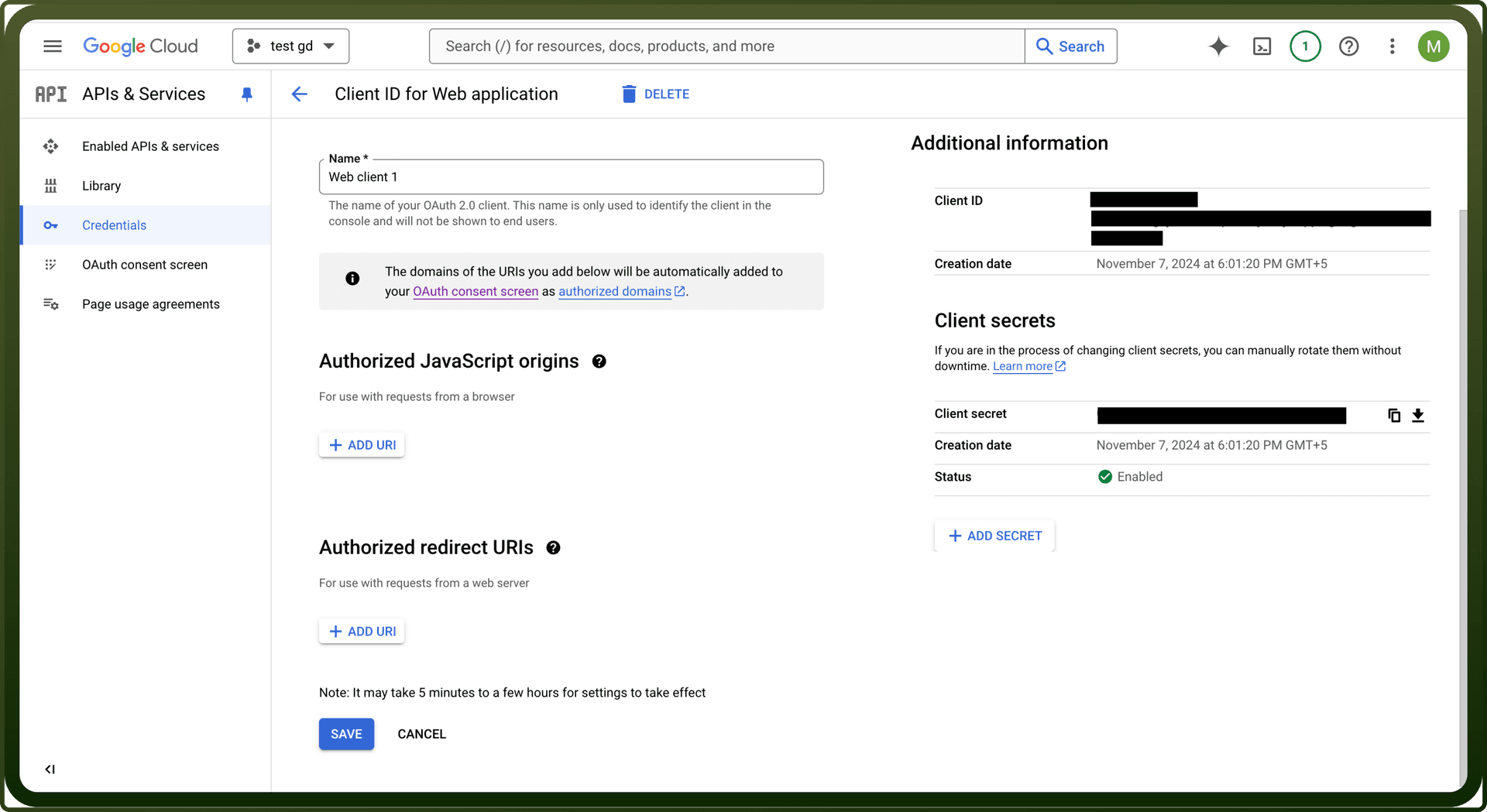
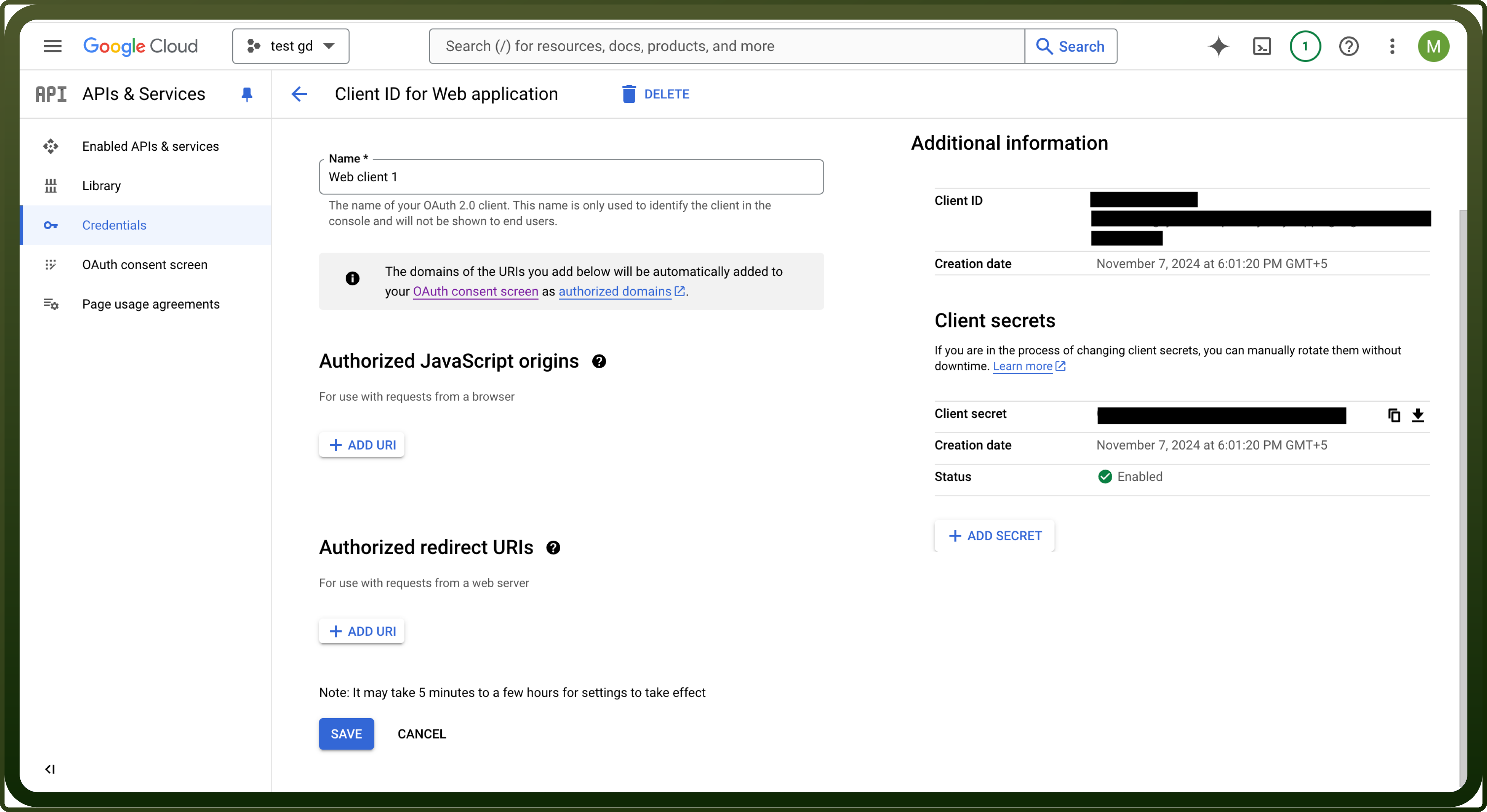
Go to Google Auth platform → Clients and click Create Client. Choose Web application as the Application type and enter a name.
Under Authorized redirect URIs, click Add URI and paste the Callback URL shown on the UnifyApps connection form (it is copyable and differs per environment).
Click Create, then copy the Client ID and Client secret. Copy the secret immediately: Google shows it only once.
Step 2: Connection setup in UnifyApps
Open Connections → New Connection → Google Docs and enter a Connection name.
Select OAuth with Client Credentials as the Authentication type.
Enter the Client ID and Client Secret copied from Google Cloud.
Select the same Scopes you added to the consent screen, or leave the field empty for the default.
Click Authorize, sign in with Google and click Allow on the consent screen.
Confirm the success message after the redirect back to UnifyApps.
3. Service Account
Use this for Google Workspace domains, where a service account acts on behalf of a user in the domain through domain-wide delegation. No user has to sign in.
Step 1: Create a service account in Google Cloud
In the Google Cloud Console, select or create a project, and enable the Google Docs API and Google Drive API under APIs & Services → Library.
Go to IAM & Admin → Service Accounts and click Create service account. Enter a name and click Done.
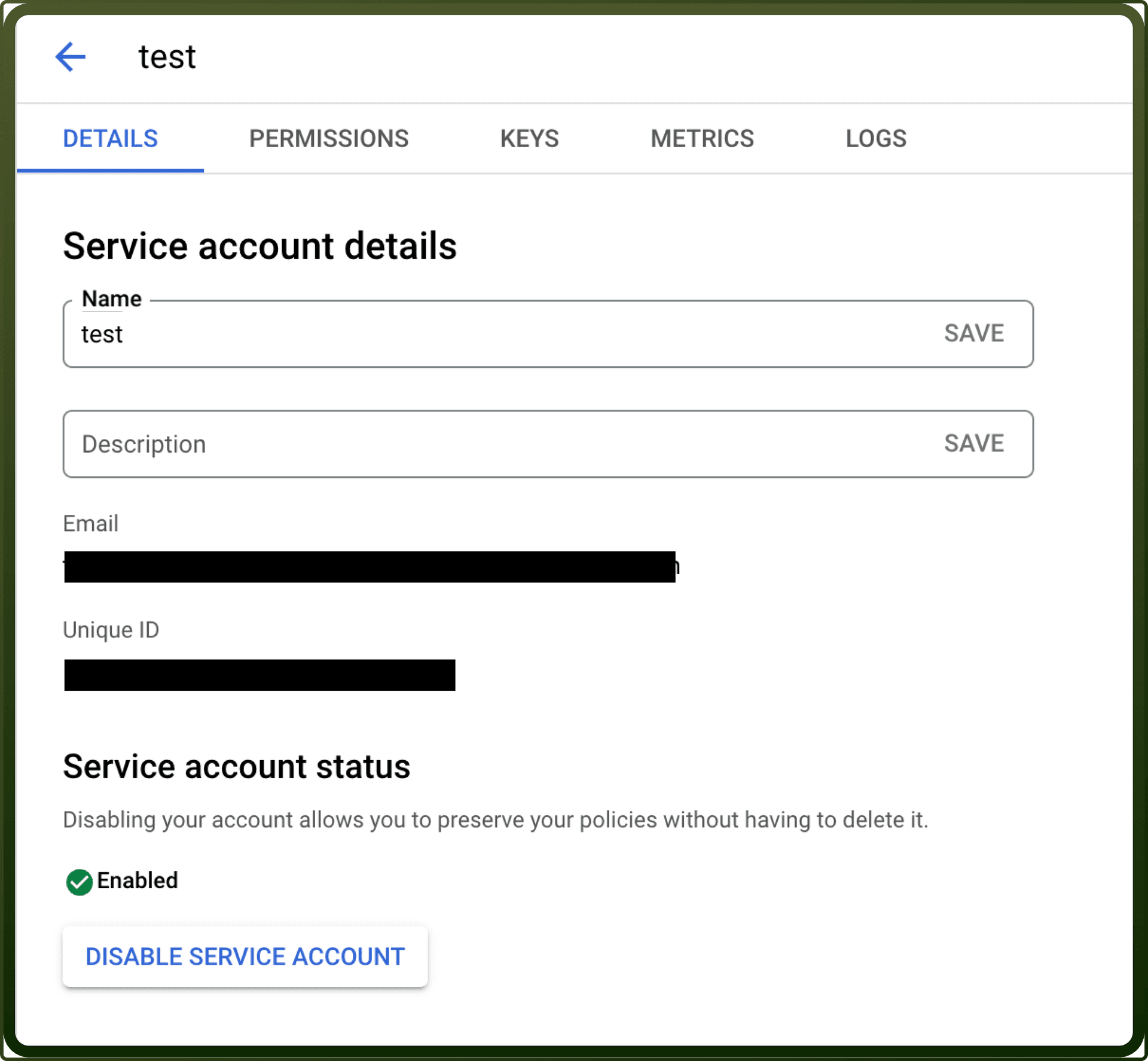
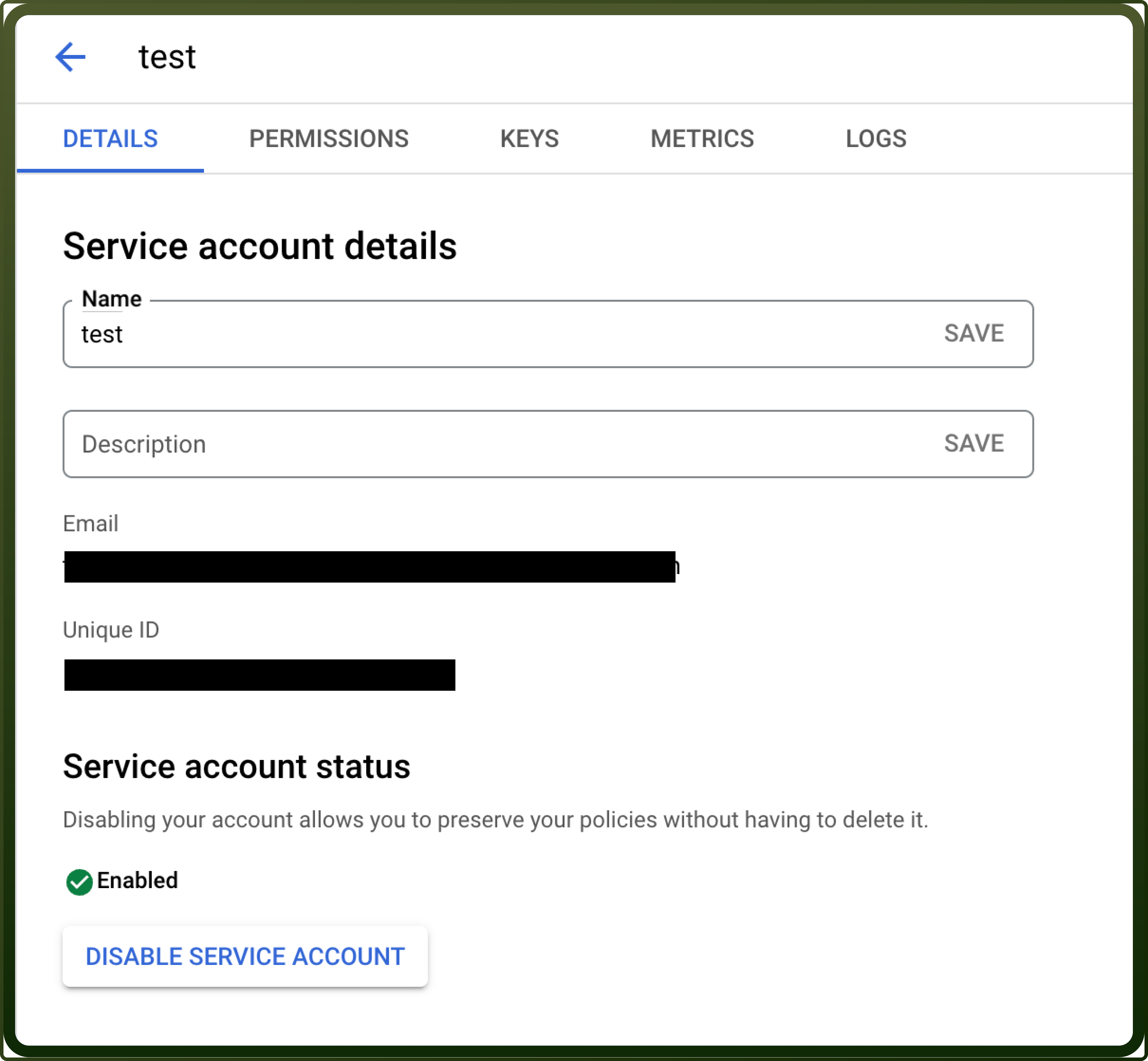
Open the service account and copy its Email. Click Show advanced settings and, under Domain-wide delegation, copy the Client ID used in the next step.
Go to the Keys tab → Add key → Create new key, choose JSON and click Create. The downloaded file holds the
client_emailandprivate_key. Store it securely.
Step 2: Give the service account domain-wide access
A Google Workspace super administrator opens the Admin console → Security → Access and data control → API controls.
Click Manage Domain Wide Delegation → Add new.
Enter the service account's client ID, add
https://www.googleapis.com/auth/documentsandhttps://www.googleapis.com/auth/drive.file, separated by a comma, and click Authorize. See Delegate domain-wide authority to your service account for details.
Note: the connection requests both scopes, so both must be granted here or the connection cannot get a token. It can only reach the documents of users in the Workspace domain where domain-wide delegation was granted. Google says changes can take up to 24 hours to apply.
Step 3: Create the connection in UnifyApps
Select Service Account as the Authentication type.
Enter the GCP Project Service Account Email and paste the Private Key from the JSON key file.
Enter the User email of the Workspace user whose documents the connection acts on.
Click Test Connection to validate the credentials, then click Create.
Actions
Scopes are shown in short form: documents.readonly means https://www.googleapis.com/auth/documents.readonly. The column shows the narrowest scope you can select on the form that works on documents the connection did not create; drive covers every action. drive.file only reaches files the connection created or was given access to by the user.
Actions | Description | Scopes Required |
|---|---|---|
| Appends text to the end of an existing document in Google Docs. | documents (or drive) |
| Creates a document in Google Docs. | drive.file (or drive) |
| Creates a document in Google Docs from an existing template, filled with the data you provide. | drive (or drive.file if the connection created the template) |
| Downloads a document from Google Docs. This action is deprecated. | drive.readonly (or drive) |
| Finds a specific document by name in Google Docs. | documents.readonly (or documents) |
| Gets file metadata from Google Docs. | drive.readonly (or drive) |
| Lists folders in Google Drive. | drive.readonly (or drive) |
| Updates the text in an existing document in Google Docs. | documents (or drive) |
| Uploads a document to Google Docs. | drive.file (or drive) |
Triggers
Triggers | Description | Scopes Required |
|---|---|---|
| Triggers when a new document is created in Google Docs. | drive.readonly (or drive) |
| Triggers when a new document is created in a specific folder. | drive.readonly (or drive) |