


Use the Hootsuite connector to manage social media content and analytics.
Integrating your application with Hootsuite lets you use these operations in an automation. It exposes 16 actions, listed below. Add the connector from the Connections area, authenticate, then select its operations in the automation builder. Capabilities: actions.
Authentication
Before you begin, make sure you have the following information:
Connection Name: Choose a meaningful name for your connection. This name helps you identify the connection within your application or integration settings.
Authentication Type: Hootsuite supports OAuth authentication.
Obtaining Your OAuth Client Credentials
If you don't already have one, create a Hootsuite Developer account and wait for it to be approved.
Sign in to the Hootsuite Developer Portal and open My Apps.
Click on your app, or create a new app if you haven't added one yet.
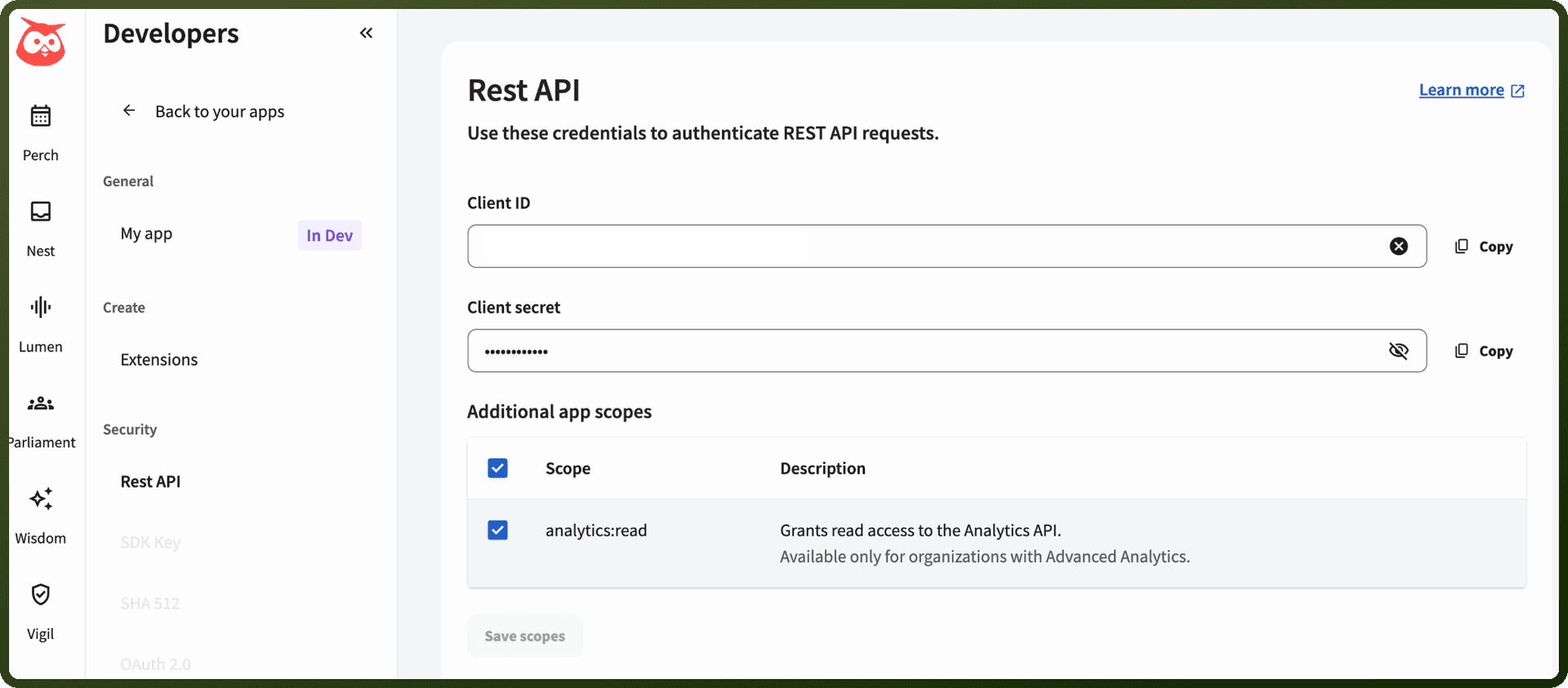
Go to the Security tab, then select REST API.
Copy the Client ID and Client Secret shown there and store them securely for further authentication purposes.
Actions
Action Name | Description |
|---|---|
Add member to team | Adds member to a team in Hootsuite |
Create media upload job | Creates a media upload job in Hootsuite |
Create member | Creates a member in Hootsuite |
Create team | Creates a team in Hootsuite |
Delete message | Deletes a message in Hootsuite |
Get media upload status | Gets a media upload status in Hootsuite |
Get member | Gets a member in Hootsuite |
Get members organizations | Gets organizations of a member in Hootsuite |
Get message | Gets a message in Hootsuite |
Get message review history | Gets message review history in Hootsuite |
Get outbound messages | Gets outbound messages in Hootsuite |
Get team | Gets a team in Hootsuite |
Get team members | Gets team members in Hootsuite |
Get team members permissions | Gets permissions of a team member in Hootsuite |
Get team social profiles | Gets social profiles of a team in Hootsuite |
Schedule message | Schedules a message in Hootsuite |