


Use the Google vertex AI connector to build, train, and deploy AI models.
Integrating your application with Google vertex AI lets you use these operations in an automation. It exposes 7 actions, listed below. Add the connector from the Connections area, authenticate, then select its operations in the automation builder. Capabilities: actions.
Authentication
Before you begin, make sure you have the following information:
Connection Name: Choose a meaningful name for your connection. This name helps you identify the connection within your application or integration settings.
Authentication Type: Google vertex AI supports the following authentication methods:
Service Account
OAUTH
OAuth with Client Credentials
Service Account Based Authentication
Create a service account:
Go to the Google Cloud Console, navigate to IAM & Admin > Service Accounts.
Create a new service account, assign it a name and description. Learn more.
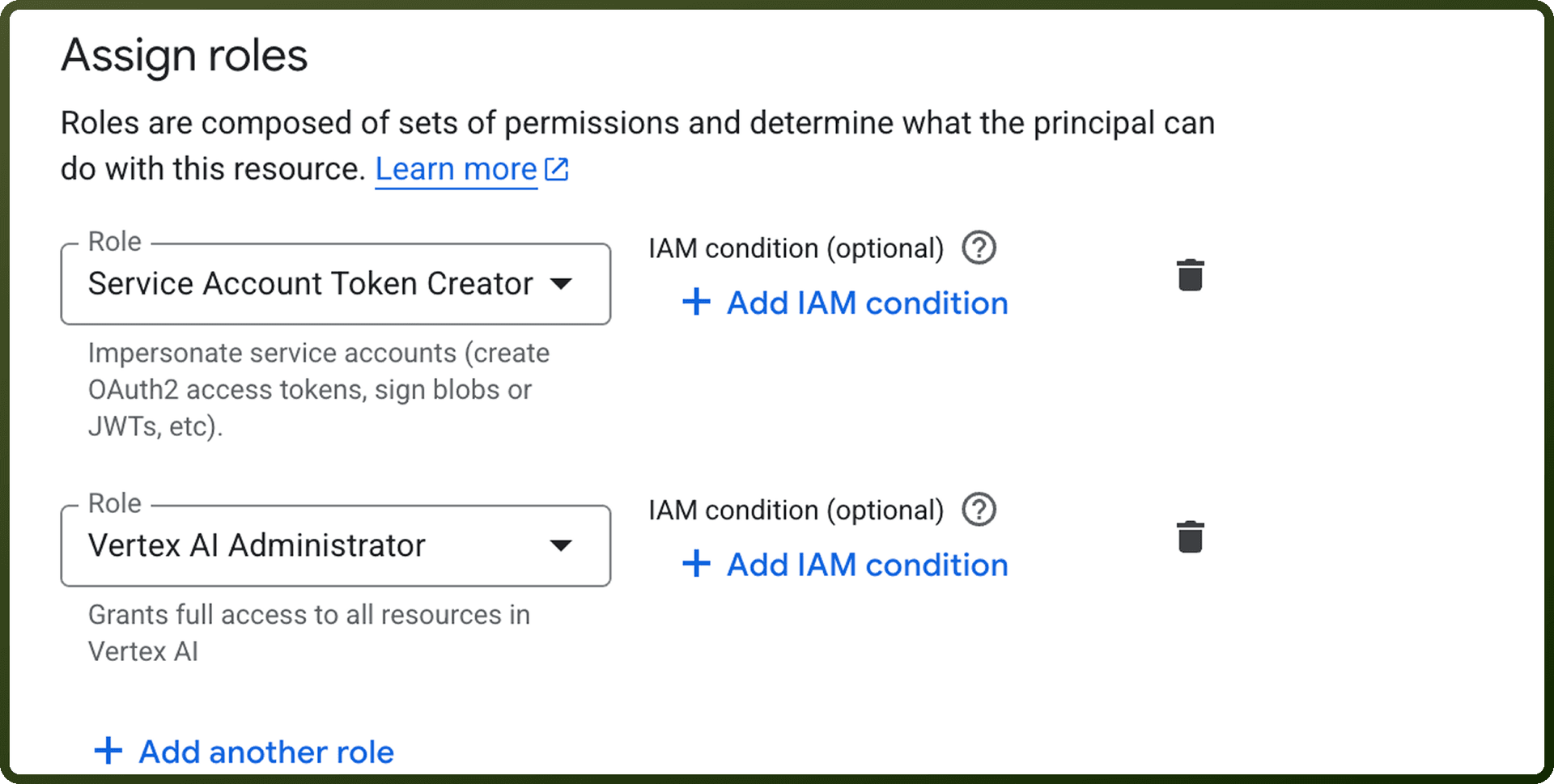
Assign Roles:
You'll be asked to assign roles to this Service Account.
Roles define what this service account can do, such as:
Viewer – can only view files.
Editor – can edit files.
Drive Admin – can manage Google Drive.
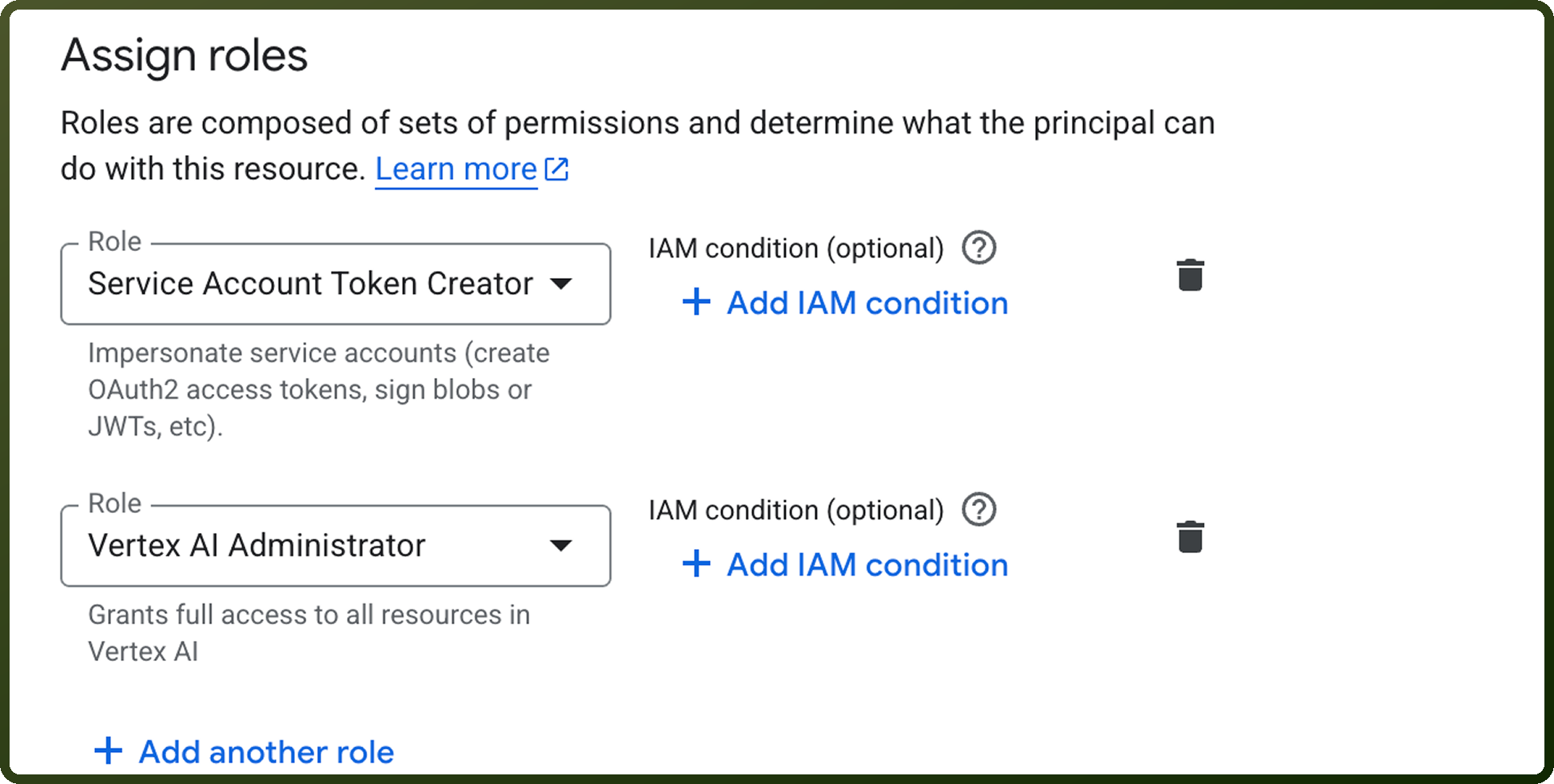
Define the necessary roles: "Service Account Token Creator" and "Vertex AI Administrator".
You can assign multiple roles or even create your own custom roles with specific permissions as needed. Learn more about roles here.
Generate a Private Key for Service Account (JSON Format):
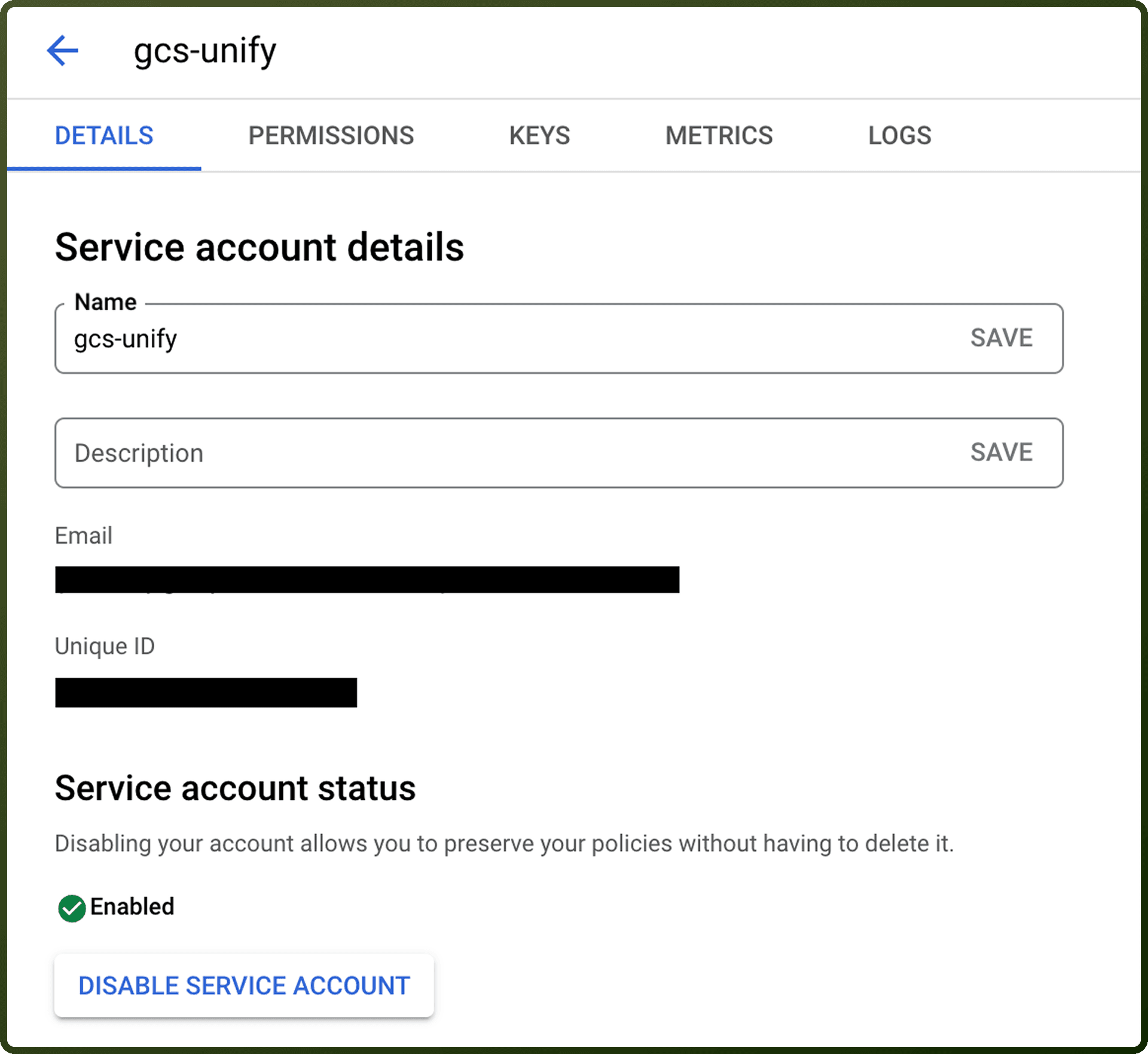
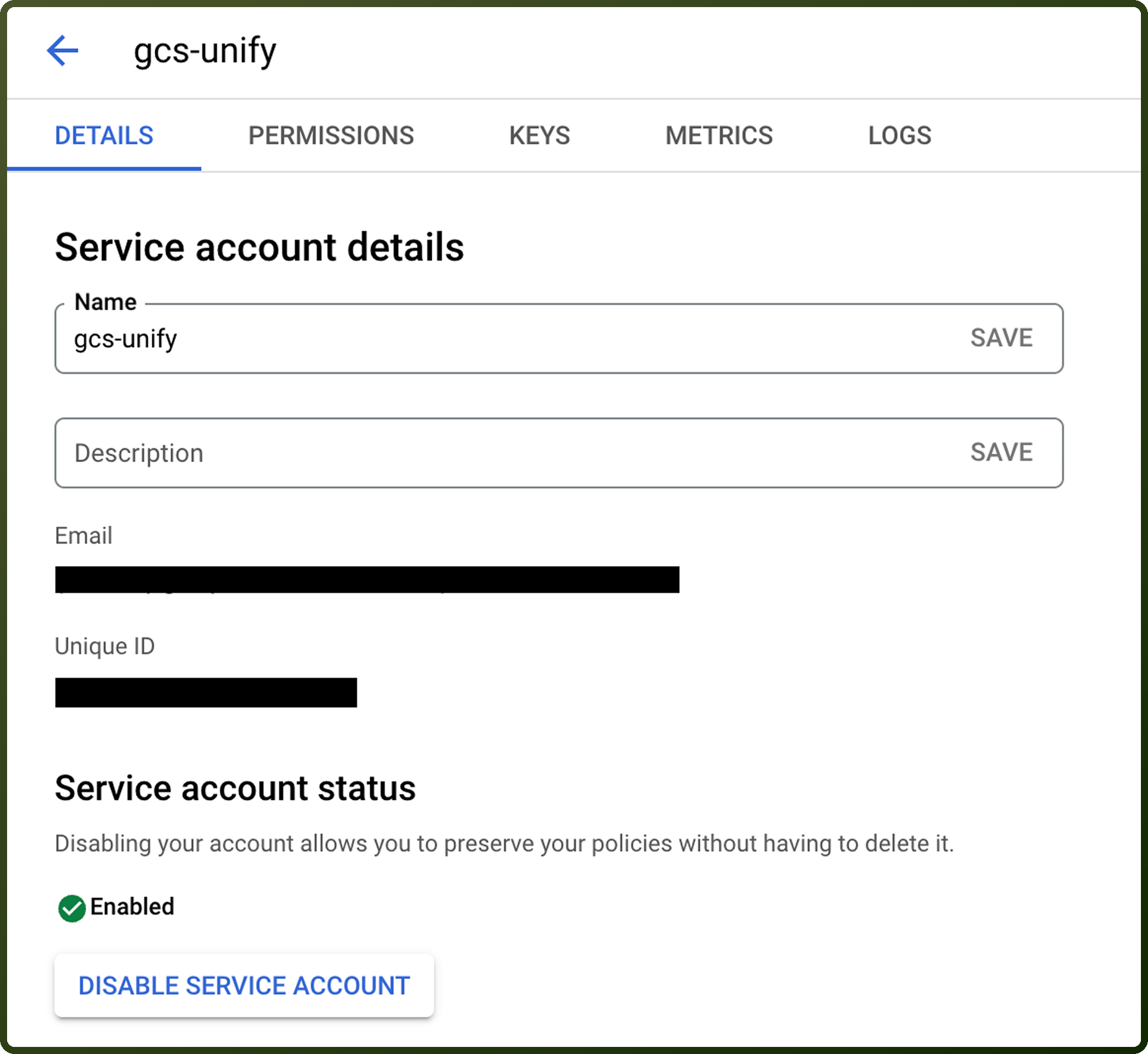
After the service account is created, click on it → "Keys" tab → Add Key → Create New Key.
Choose JSON → click Create.
This will download a private key JSON file, which contains: client_email, private_key, and other data used to authenticate the service.
Add domain-level access to the service account (based on client ID):
Enable Domain-Wide Delegation in the Service Account.
Then go to: Admin Console → Security → API controls → Manage Domain Delegation.
Add the Client ID of the service account.
Set scopes (like https://www.googleapis.com/auth/cloud-platform.)
Learn more here.
Provide User Email (Only if using Domain-Wide Delegation):
If domain-wide delegation is enabled, enter the User Email (e.g., user@yourdomain.com) to let the service account act on behalf of that user.
This allows access to user-specific resources like Vertex AI models or files tied to that account.
Learn more about service accounts here.
OAUTH
Authorize the connection with a Google account using UnifyApps' pre-configured OAuth client. No additional credentials are required — enter the connection name and GCP Project ID, then complete the Google consent screen when prompted.
OAuth with Client Credentials
Use this method to authorize with your own Google Cloud OAuth client.
In the Google Cloud Console, go to APIs & Services > Credentials and create an OAuth client ID for a web application.
Add the UnifyApps redirect URL shown on the connection screen to the client's Authorized redirect URIs.
Enter the credentials in UnifyApps:
Client ID: the client ID for the application.
Client secret: the client secret for the application.
Complete the Google consent screen when prompted.
Actions
Action Name | Description |
|---|---|
Generate content | Generates content using Google Vertex AI Gemini API |
Generate content (Generic) | Generate content using Gemini API via Google Vertex AI |
Get prediction | Get prediction from Google Vertex AI |
Invoke Agent | Invoke a deployed Agent in Google Vertex AI Agent Engine |
Stream generate content | Generates streaming content using Google Vertex AI |
Stream generate content (Generic) | Stream generate content using Gemini API via Google Vertex AI |
Stream invoke Agent | Stream invoke a deployed Agent in Google Vertex AI Agent Engine |
About the API
Google Vertex AI provides:
Generative AI Models: Access to Gemini and other large language models
Text & Code Generation: Chat, text generation, and code completion
Multimodal Processing: Image, video, and audio understanding/generation
Vision & Language: Document understanding, image analysis
AI Search: Semantic search and retrieval-augmented generation
Grounding: Integration with Google Search and custom data sources
Fine-tuning: Model customization for domain-specific tasks
Evaluation: Built-in evaluation frameworks and metrics
Deployment: Managed inference endpoints and batch processing
Monitoring: Comprehensive logging and performance monitoring