


Power BI is a business analytics tool by Microsoft that enables users to visualize data and share insights across an organization. The UnifyApps Power BI connector uses the Power BI REST API to manage workspaces, datasets, tables and reports from workflows and agents.
This guide covers every authentication type available on the connection form and the actions supported, along with the Power BI scope each one needs.
Authentication
Before you begin,you should have the following information:
Connection name: a descriptive name such as MyAppPowerBIIntegration, so the connection is easy to identify later.
Authentication type: Select the type of authentication for connecting to your Outlook account:
OAuth
OAuth with Client Credentials Based Authentication
Client Credentials
1. OAuth
Use this when you want to connect with your own Microsoft account and do not need to register an app.
Enter a Connection name.
Select OAuth as the Authentication type.
Leave Tenant ID as common, or enter your tenant ID to restrict sign-in to one organization.
Optionally enter a Workspace ID and Dataset ID to use as defaults.
Click Authorize. You are redirected to the Microsoft sign-in page.
Sign in with the Microsoft account that has access to the Power BI workspaces you need.
Review the permissions requested on the consent screen and click Accept.
You are redirected back to UnifyApps with a confirmation that the account is connected.
2. OAuth with client credentials
Use this when your organization wants the connection to use its own Azure app registration while actions still run on behalf of a signed-in user.
Step 1: App registration in Azure
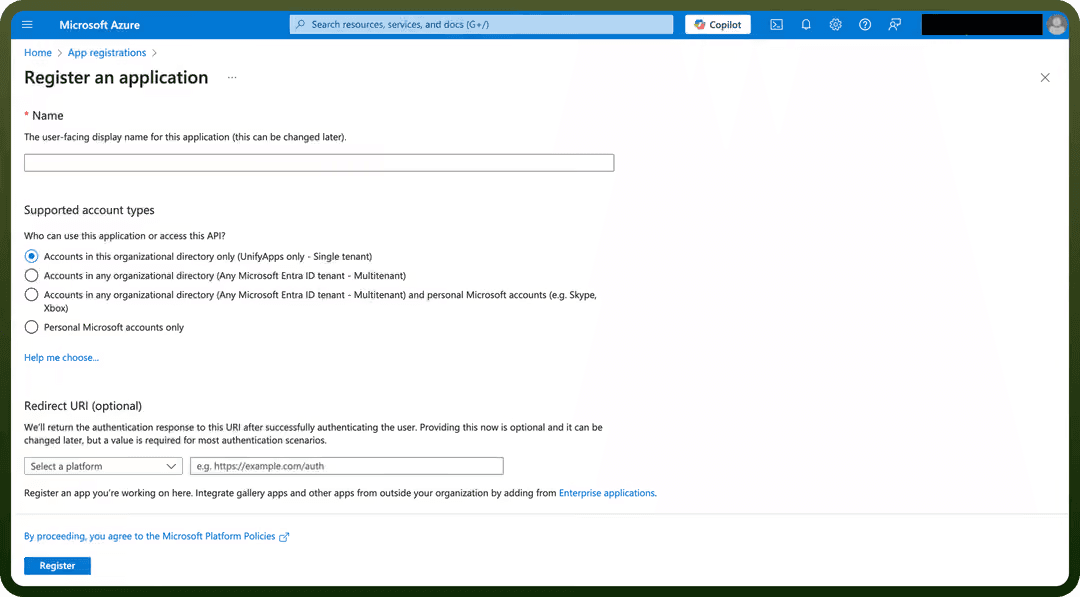
Log in to the Azure portal, search for App registrations and click New registration.
Enter a name and choose the supported account type as Multitenant or Single tenant
Under Redirect URI, choose platform Web and paste the Callback URL shown at the top of the connection form (it is copyable and differs per environment).
Click Register
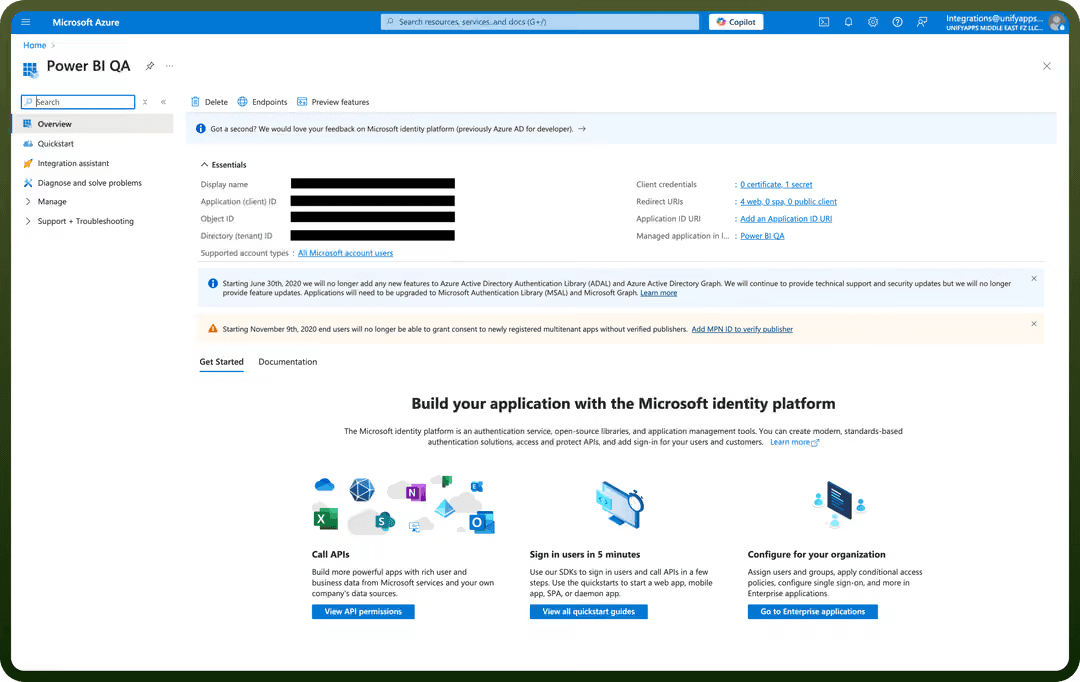
On the Overview tab, copy the Application client ID and the Directory tenant ID .
Go to API permissions → Add a permission → Power BI Service → Delegated permissions and add Workspace.Read.All and Dataset.Read.All. These are the basic scopes for creating a connection.
Add offline_access so the connection can refresh its token, and click Grant admin consent if your tenant requires it.
Go to Certificates & secrets → New client secret, add a description and expiry, and click Add. Copy the secret Value immediately and store it securely. It is not shown again.
Step 2: Connection setup in UnifyApps
Open Connections → New Connection → Power BI and enter a Connection name.
Select OAuth with client credentials as the Authentication type.
Enter the Client ID, Client secret and Tenant ID copied from Azure.
Optionally enter a Workspace ID and Dataset ID to use as defaults.
Click Authorize, sign in with Microsoft and accept the consent screen.
Confirm the success message after the redirect back to UnifyApps.
3. Client credentials
Use this for app-only access that does not depend on a signed-in user. The app acts as a service principal.
Step 1: Register the app in Azure
Log in to the Azure portal, search for App registrations and click New registration.
Enter a name and supported account type, and click Register. No redirect URI is needed for this flow.
From Overview, copy the Application (client) ID and Directory (tenant) ID.
Go to Certificates & secrets → New client secret, click Add, and copy the secret Value.
Step 2: Allow the service principal and give it workspace access
A Power BI/Fabric administrator opens the Admin portal → Tenant settings → Developer settings.
Enable Service principals can use Fabric APIs (previously named Allow service principals to use Power BI APIs), and limit it to a security group that contains your app.
If you plan to use the Execute query action, also enable Dataset Execute Queries REST API under Integration settings.
Open the Power BI workspace, go to Manage access, and click Add people or groups.
Search for the app registration (or the security group that contains it) and give it a role such as Member or Admin.
Repeat for every workspace the connection must reach.
Note: access in this flow is controlled by the tenant settings and workspace roles above, not by delegated API permissions. Microsoft recommends not adding Power BI API permissions to an app registration used as a service principal.
Step 3: Create the connection in UnifyApps
Select Client credentials as the Authentication type.
Enter the Client ID, Client secret and Tenant ID. Use your actual tenant ID here; the default common is meant for the sign-in based flows.
Optionally enter a Workspace ID and Dataset ID.
Click Test Connection to validate the credentials, then click Create.
Actions
Actions | Description | Scopes Required |
|---|---|---|
| Adds rows to a table in Power BI. | Dataset.ReadWrite.All |
| Adds a user to a specific workspace in Power BI. | Workspace.ReadWrite.All |
| Creates a new dataset in Power BI. | Dataset.ReadWrite.All |
| Creates a new workspace in Power BI. | Workspace.ReadWrite.All |
| Downloads a report from Power BI. | Report.ReadWrite.All, or Report.Read.All and Dataset.Read.All |
| Executes a DAX query against a dataset in Power BI. | Dataset.Read.All (or Dataset.ReadWrite.All) |
| Gets dataset details from Power BI. | Dataset.Read.All |
| Gets metadata of a table in Power BI. | Dataset.Read.All |
| Gets report details from Power BI. | Report.Read.All |
| Gets rows of a table in Power BI. | Dataset.Read.All |
| Lists datasets from Power BI. | Dataset.Read.All |
| Lists tables in a Power BI dataset. | Dataset.Read.All |
| Searches for a report. | Report.Read.All |
| Updates a report in Power BI. | Report.ReadWrite.All |
| Updates a workspace user in Power BI. | Workspace.ReadWrite.All |