


Use the EdiNation connector to automate EDI document exchange.
Integrating your application with EdiNation lets you use these operations in an automation. It exposes 5 actions, listed below. Add the connector from the Connections area, authenticate, then select its operations in the automation builder. Capabilities: actions.
Authentication
Before you begin, make sure you have the following information:
Connection Name: Choose a meaningful name for your connection. This name helps you identify the connection within your application or integration settings.
Authentication Type: The authentication method for this connector is defined in the connection setup. Select the connector in the Connections area to see the fields it requires.
Obtaining Your API Key
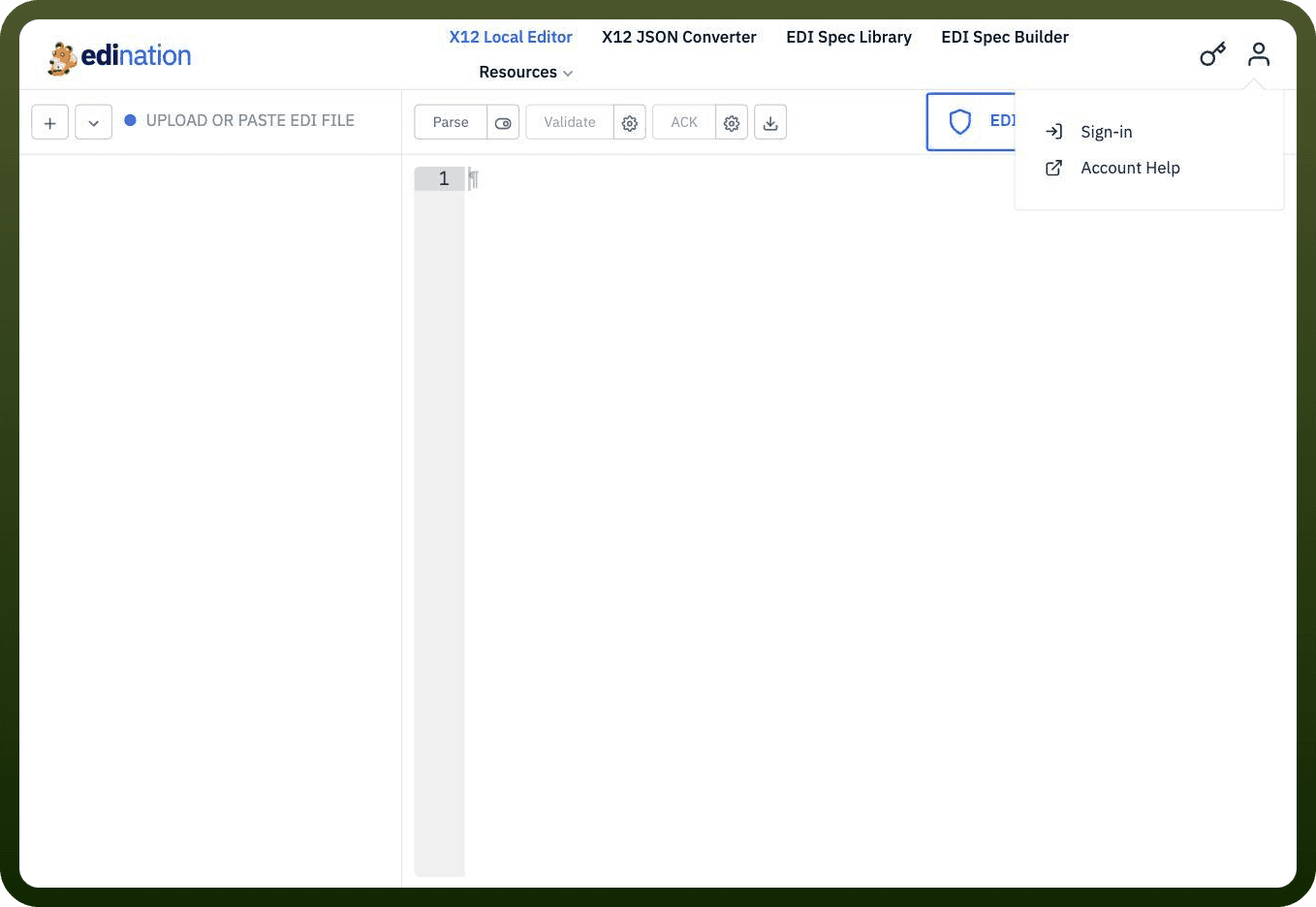
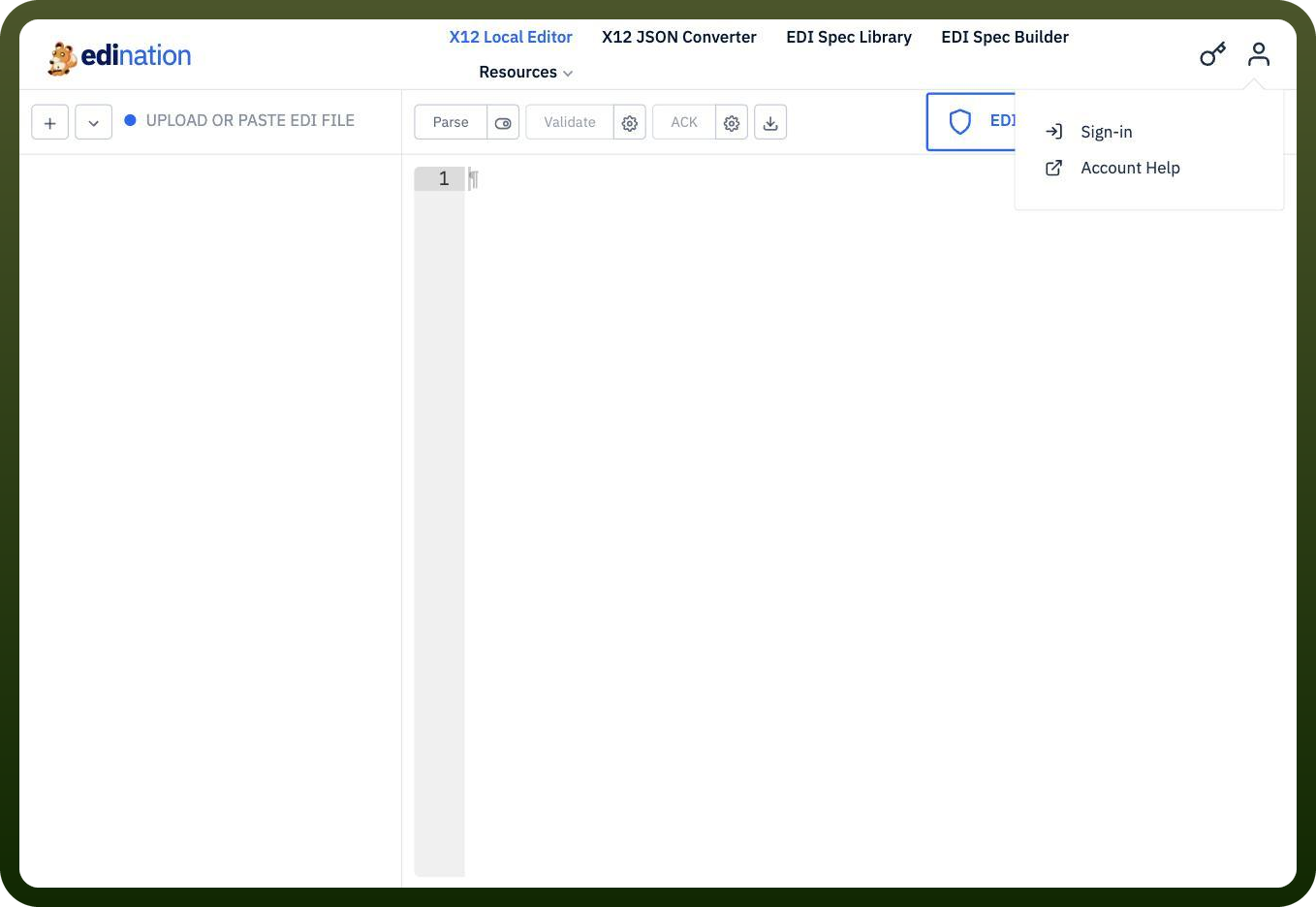
Go to the EdiNation portal at edination.edifabric.com, click the user icon in the top-right corner, and select Sign-in.
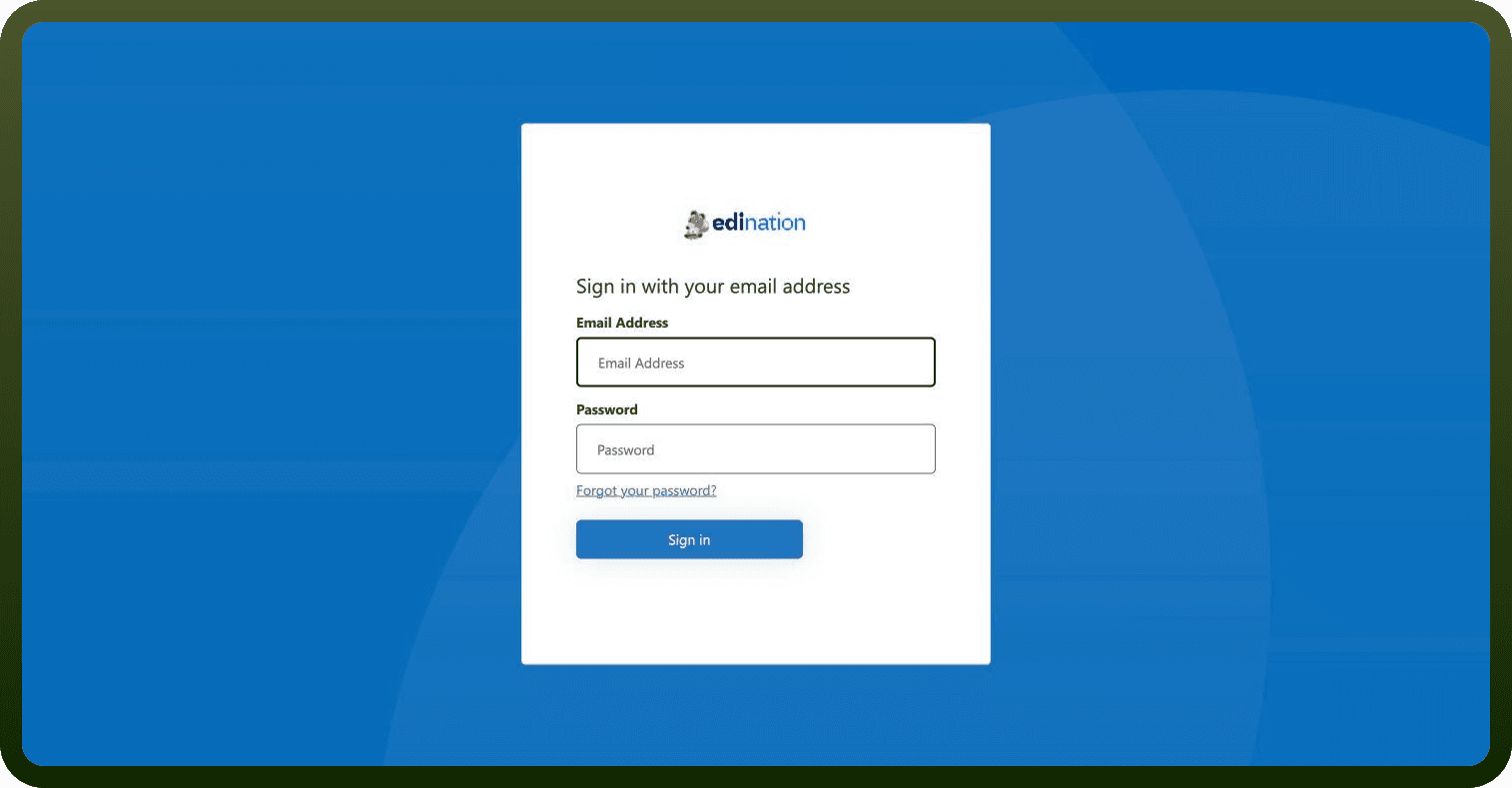
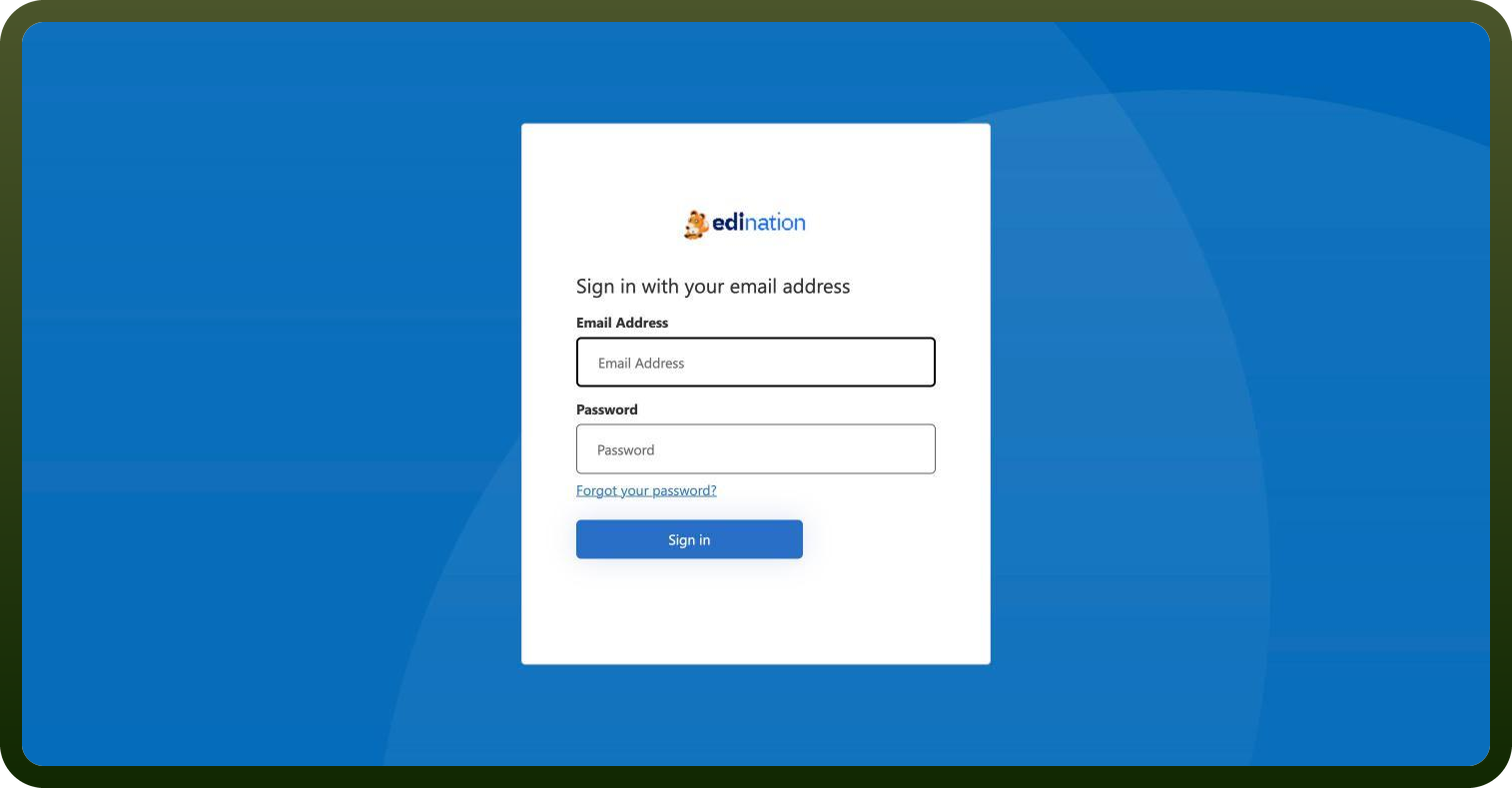
Enter the email address you used to sign up. If you're logging in for the first time, click "Forgot your password?" to set one.
Once signed in, click Get API key and wait for your key to display.
Select and copy the generated API key.
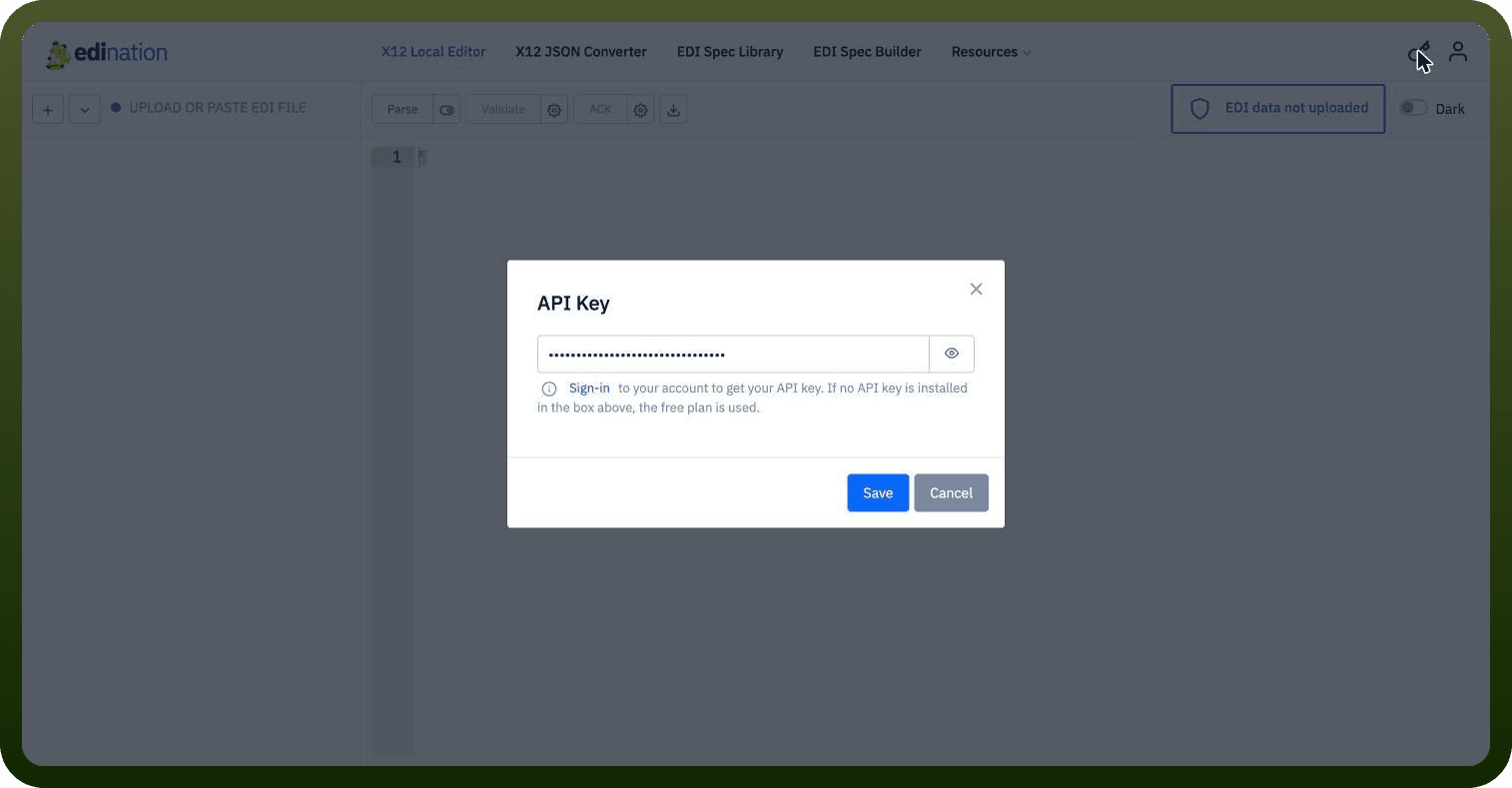
Store the key securely — you'll need it to authenticate calls to the EdiNation Developer API.
Actions
Action Name | Description |
|---|---|
Read Edifact as JSON | Reads edifact as JSON in EdiNation |
Read HL7 as JSON | Reads hl7 as JSON in EdiNation |
Read X12 as JSON | Reads x12 as JSON in EdiNation |
Write Edifact as JSON | Writes edifact as JSON in EdiNation |
Write X12 as JSON | Writes x12 as JSON in EdiNation |