


Use the Bitly connector to shorten and track links.
Integrating your application with Bitly lets you use these operations in an automation. It exposes 9 actions, listed below. Add the connector from the Connections area, authenticate, then select its operations in the automation builder. Capabilities: actions.
Authentication
Before you begin, make sure you have the following information:
Connection Name: Choose a meaningful name for your connection. This name helps you identify the connection within your application or integration settings.
Authentication Type: The authentication method for this connector is defined in the connection setup. Select the connector in the Connections area to see the fields it requires.
Obtaining Your API Access Token
Log in to your Bitly account.
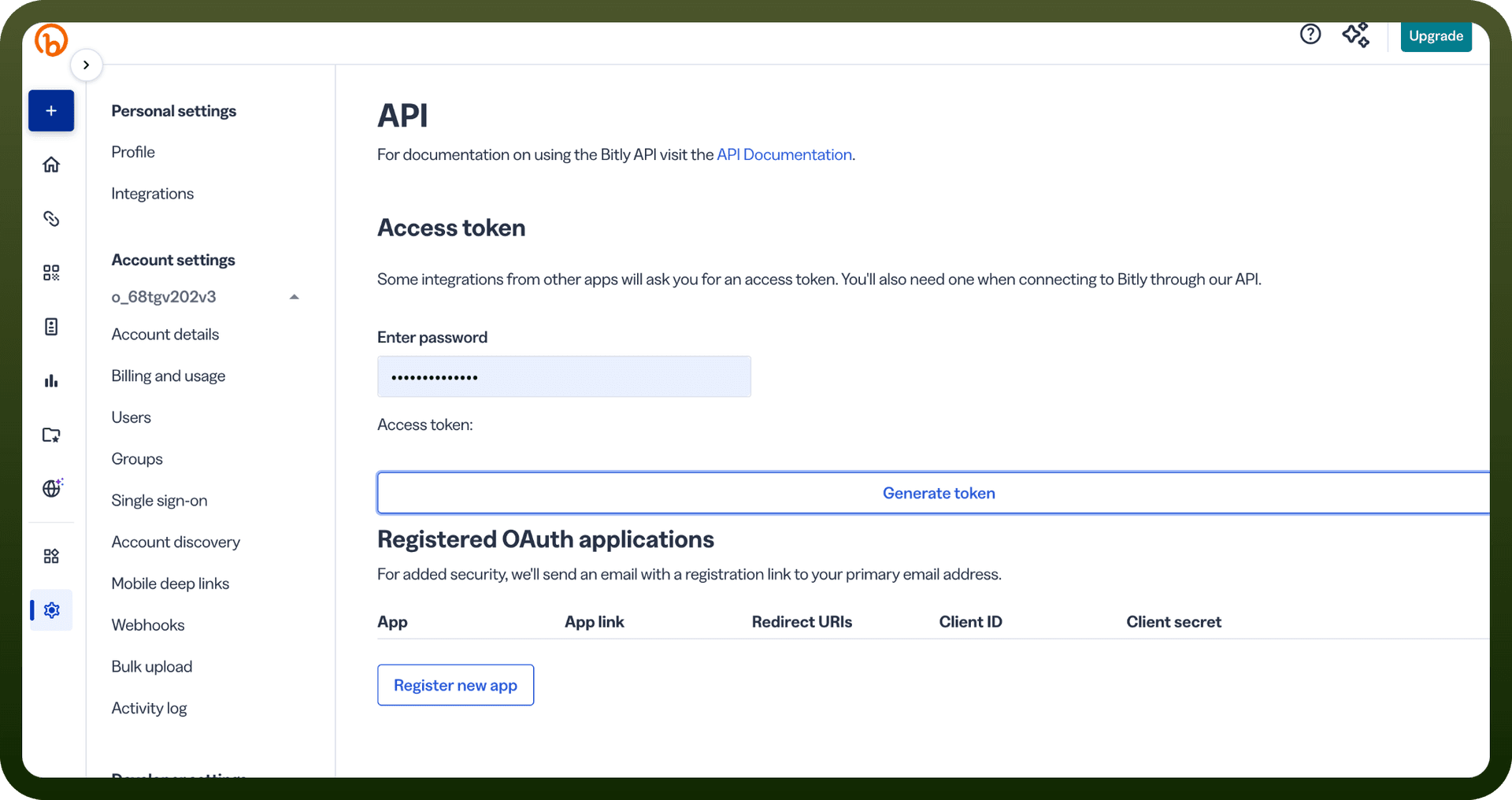
Click Settings in the left sidebar, then go to API.
Enter your Bitly account password when prompted.
Click Generate Token to create a new access token.
Copy the generated token and store it securely for further authentication purposes.
Actions
Action Name | Description |
|---|---|
Create bitlink | Creates a bitlink by converting a long url in Bitly |
Delete bitlink | Deletes an unedited hash bitlink in Bitly |
Get bitlink | Retrieves bitlink information of specific link in Bitly |
Get bitlinks by group | Retrieves a paginated collection of bitlinks for a group in Bitly |
Get QR code | Retrieves a QR code for a bitlink in Bitly |
Get shortlink | Retrieves short link and long URL for the specified link in Bitly |
Get sorted bitlinks | Returns a list of bitlinks sorted by group in Bitly |
Update bitlink | Updates fields in the specified link in Bitly |
Update bitlinks in bulk | Bulk updates can add or remove tags or archive bitlinks in Bitly |