


Use the Couchbase connector to manage scalable NoSQL databases.
Integrating your application with Couchbase lets you use these operations in an automation. It exposes 3 actions, listed below. Add the connector from the Connections area, authenticate, then select its operations in the automation builder. Capabilities: actions.
Authentication
Before you begin, make sure you have the following information:
Connection Name: Choose a meaningful name for your connection. This name helps you identify the connection within your application or integration settings.
Authentication Type: The authentication method for this connector is defined in the connection setup. Select the connector in the Connections area to see the fields it requires.
Obtaining Your Data API Credentials
Log in to Couchbase Capella and open the Operational cluster you want to connect.
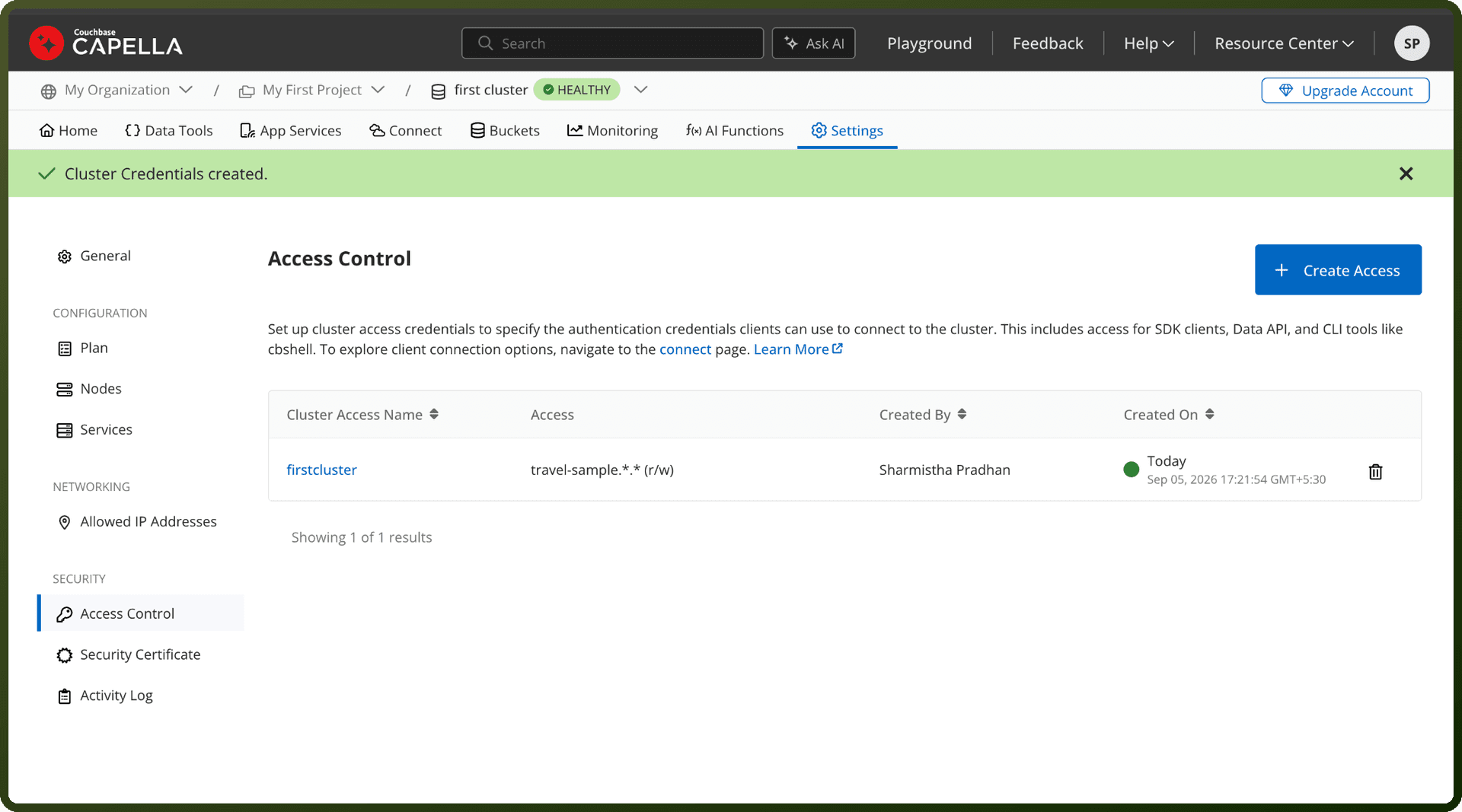
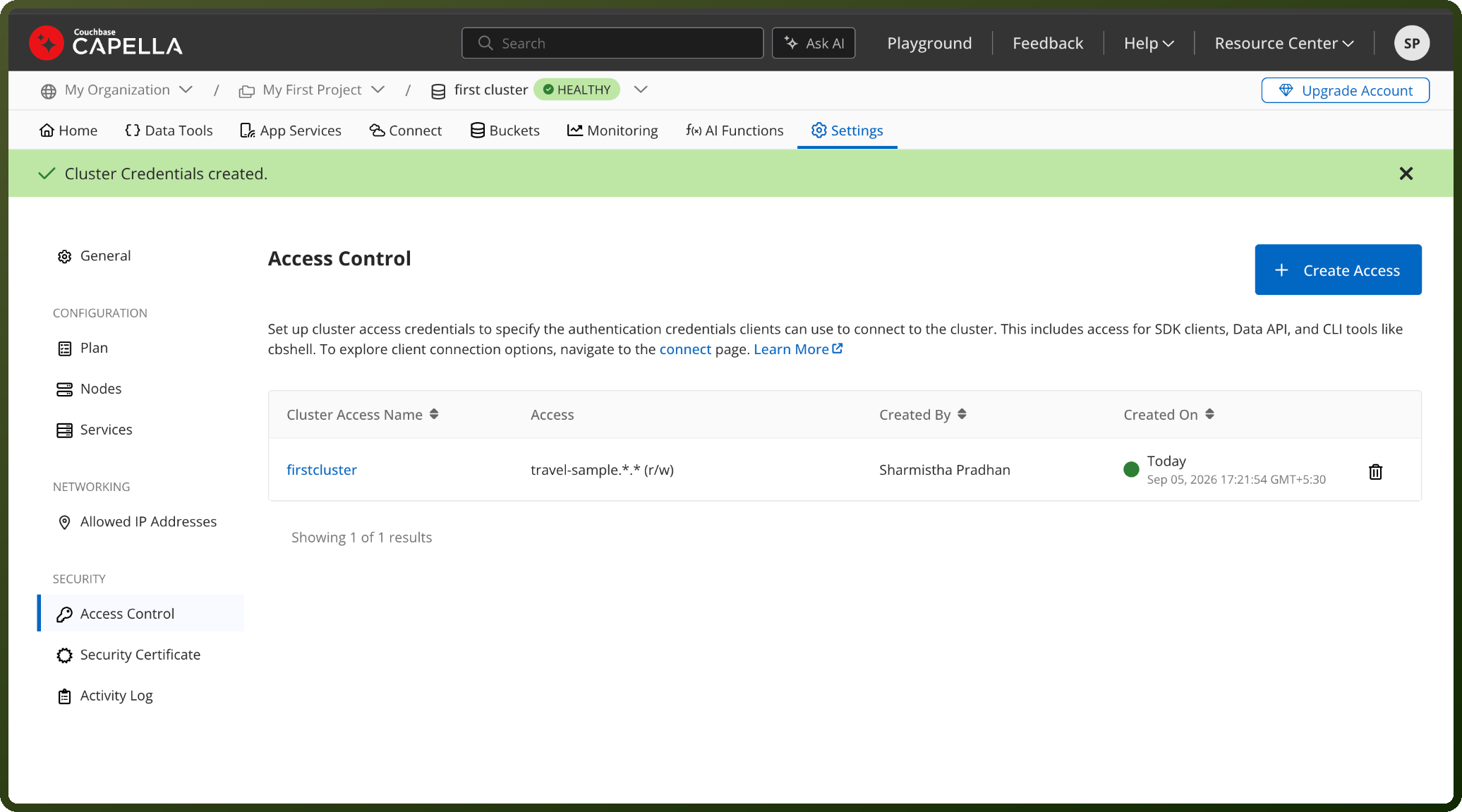
In the left navigation, go to Settings, then select Cluster Access.
Click Create Access.
Enter an access name, then set a password or click Auto-generate password.
Under credential type, choose Advanced Role Based Access (or Basic Bucket Level Access) and select the roles or buckets the connector needs, then click Create Cluster Access.
Copy the access name and password immediately and store them securely, since Capella does not show the password again.
Open the cluster's Connect tab, select Data API, then click Enable Data API if it isn't already enabled, and copy the Data API Endpoint for use in the connection.
Actions
Action Name | Description |
|---|---|
Execute SQL statement | Executes SQL query in Couchbase |
Get bucket information | Gets bucket information in Couchbase |
Get caller ID | Gets caller's ID in Couchbase |