


Integrating your application with Bing Search transforms your data strategy by centralizing massive web, image, and video datasets into a high-performance, unified API. Bing Search enables teams to execute complex analytical queries in seconds, leverage real-time web grounding for AI models, and drive actionable insights—all while maintaining enterprise-grade security and seamless scalability across the Microsoft Azure ecosystem.
Authentication:
Integrating your application with Bing Search enables automated real-time web research, factual grounding, and dynamic information retrieval workflows. Leveraging the Microsoft Azure ecosystem, this integration allows teams to execute complex queries and pull high-quality web data to power AI-driven insights and RAG applications.
Connection Name: Choose a name that uniquely identifies this connection within your application or settings, like "MyBingsearchConnection". This is crucial for managing multiple connections or integrations.Service Endpoint:This is the endpoint URL where your AI services are hostedGo to the Azure portal and log in to your Azure account.
Navigate to your Azure AI resource, then locate the "Keys and Endpoint" section.
Copy the endpoint URL
Ocp-Apim-Subscription-Key: This subscription key provides access to your Azure AI services.In the Azure portal, go to your Azure AI resource.
In the "Keys and Endpoint" section, you'll find two API keys. Copy one of the keys, as this will serve as the subscription key in your connection.
1. Create a Bing Search Resource in Azure
To start, you must have an active Azure subscription to create your search resource and receive your keys.
Sign in to the Azure Portal.
Click
"Create a resource"and search for "Bing Search".Select
"Bing Search v7", choose your pricing tier (such as the Free F0 or Standard S1), and clickCreate.
2. Retrieve Your Access Credentials
Once the resource is deployed, you can access your unique security keys.
Navigate to your new Bing Search resource.
In the left-hand menu under Resource Management, select "Keys and Endpoint".
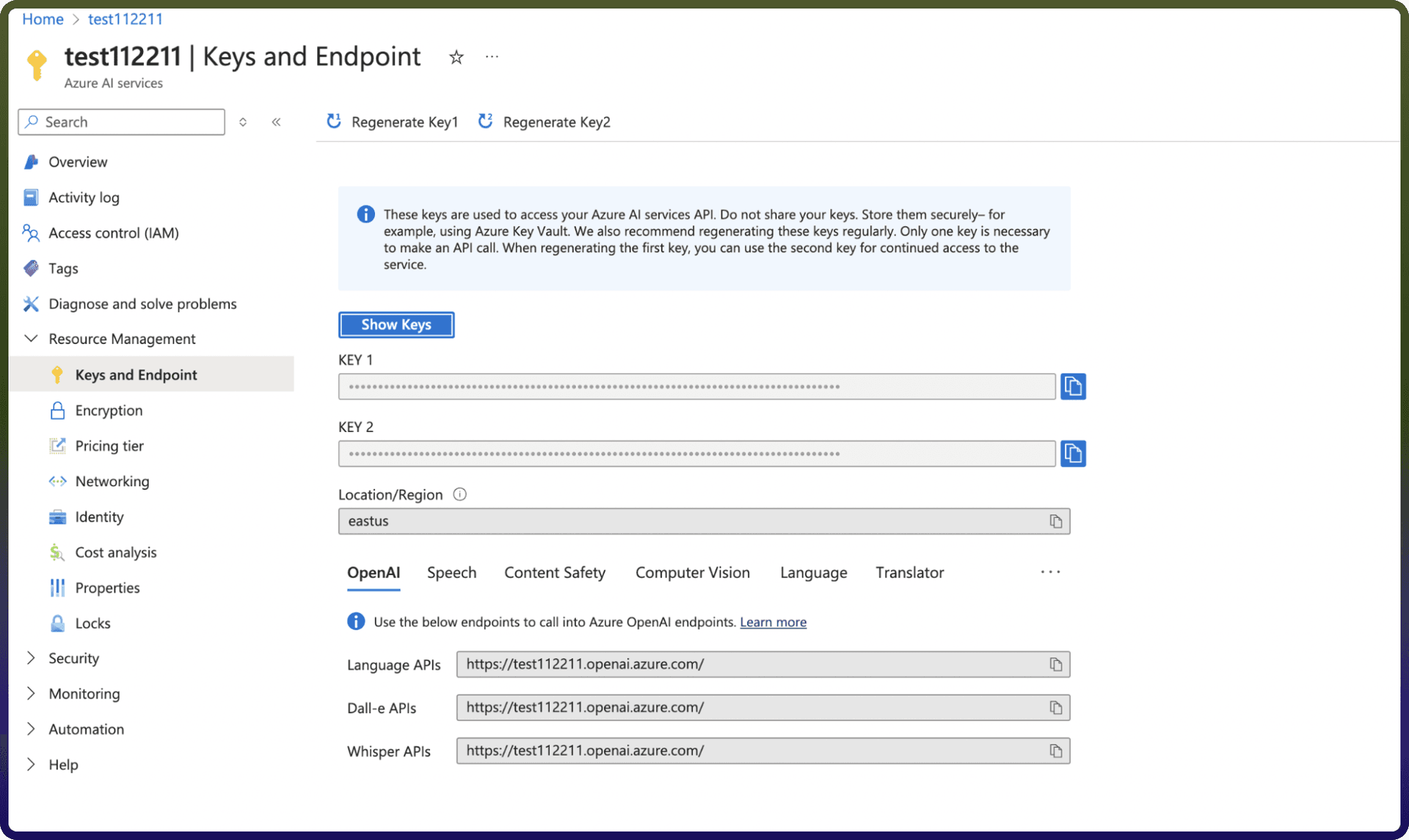
Copy either Key 1 or Key 2. These serve as your Ocp-Apim-Subscription-Key for all API calls
3. Transition to AI Grounding (2026 Update)
As of 2026, Microsoft is retiring the standalone Bing Search APIs in favor of Azure AI Foundry.
Retirement Date: August 11, 2026.New Workflow:Teams are encouraged to transition to "Grounding with Bing Search" within the Azure AI ecosystem for more advanced RAG capabilities.
Actions :
Action Name | Description |
| Perform an entity search in Bing Search |
| Perform an image search in Bing Search |
| Perform a news search in Bing Search |
| Perform a trending image search in Bing Search |
| Perform a trending news search in Bing Search |
| Perform a trending video search in Bing Search |
| Perform a video search in Bing Search |
| Perform a visual search in Bing Search |
| Perform a web search in Bing Search |