


Use the CraftMyPDF connector to generate PDF documents from templates.
Integrating your application with CraftMyPDF lets you use these operations in an automation. It exposes 11 actions, listed below. Add the connector from the Connections area, authenticate, then select its operations in the automation builder. Capabilities: actions.
Authentication
Before you begin, make sure you have the following information:
Connection Name: Choose a meaningful name for your connection. This name helps you identify the connection within your application or integration settings.
Authentication Type: The authentication method for this connector is defined in the connection setup. Select the connector in the Connections area to see the fields it requires.
Obtaining Your API Key
Log in to your CraftMyPDF account (sign up at craftmypdf.com if you don't already have one).
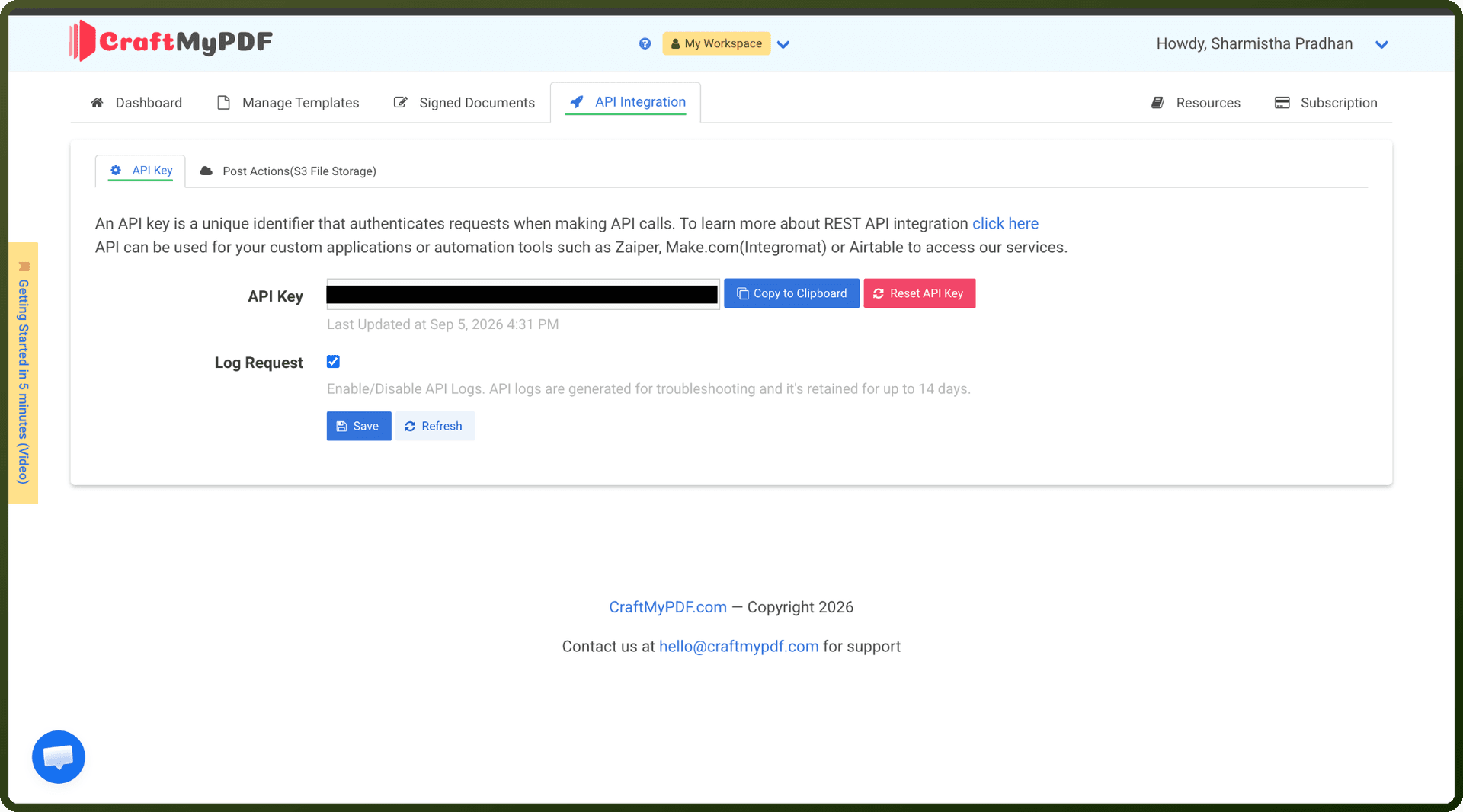
In your dashboard, click the API Integration tab.
Locate the API key shown on this page.
Copy the API key and store it securely for use when connecting CraftMyPDF.
Actions
Action Name | Description |
|---|---|
Add Text to PDF | Adds text such as page numbers, watermark to a PDF in CraftMyPDF |
Add Watermark to PDF | Adds a watermark to a PDF in CraftMyPDF |
Create image | Creates an image in CraftMyPDF |
Create PDF | Creates a PDF file in CraftMyPDF |
Create PDF Template | Creates a PDF template in CraftMyPDF |
Delete PDF Template | Deletes a PDF template in CraftMyPDF |
Fill PDF Document | Updates the fillable fields in a PDF document with the provided values in CraftMyPDF |
Get Account Information | Gets account information in CraftMyPDF |
Get PDF Template | Gets a PDF template by ID in CraftMyPDF |
List PDF Templates | Lists all your PDF templates in CraftMyPDF |
Merge PDF URLs | Join multiple PDF URLs in CraftMyPDF |