


Use the Insightly connector to manage CRM, projects, and customer relationships.
Integrating your application with Insightly lets you use these operations in an automation. It exposes 10 actions, listed below. Add the connector from the Connections area, authenticate, then select its operations in the automation builder. Capabilities: actions, triggers.
Authentication
Before you begin, make sure you have the following information:
Connection Name: Choose a meaningful name for your connection. This name helps you identify the connection within your application or integration settings.
Authentication Type: The authentication method for this connector is defined in the connection setup. Select the connector in the Connections area to see the fields it requires.
Obtaining Your API Key
Login into your Insightly account.
Click the user icon in the top-right corner of the navigation menu.
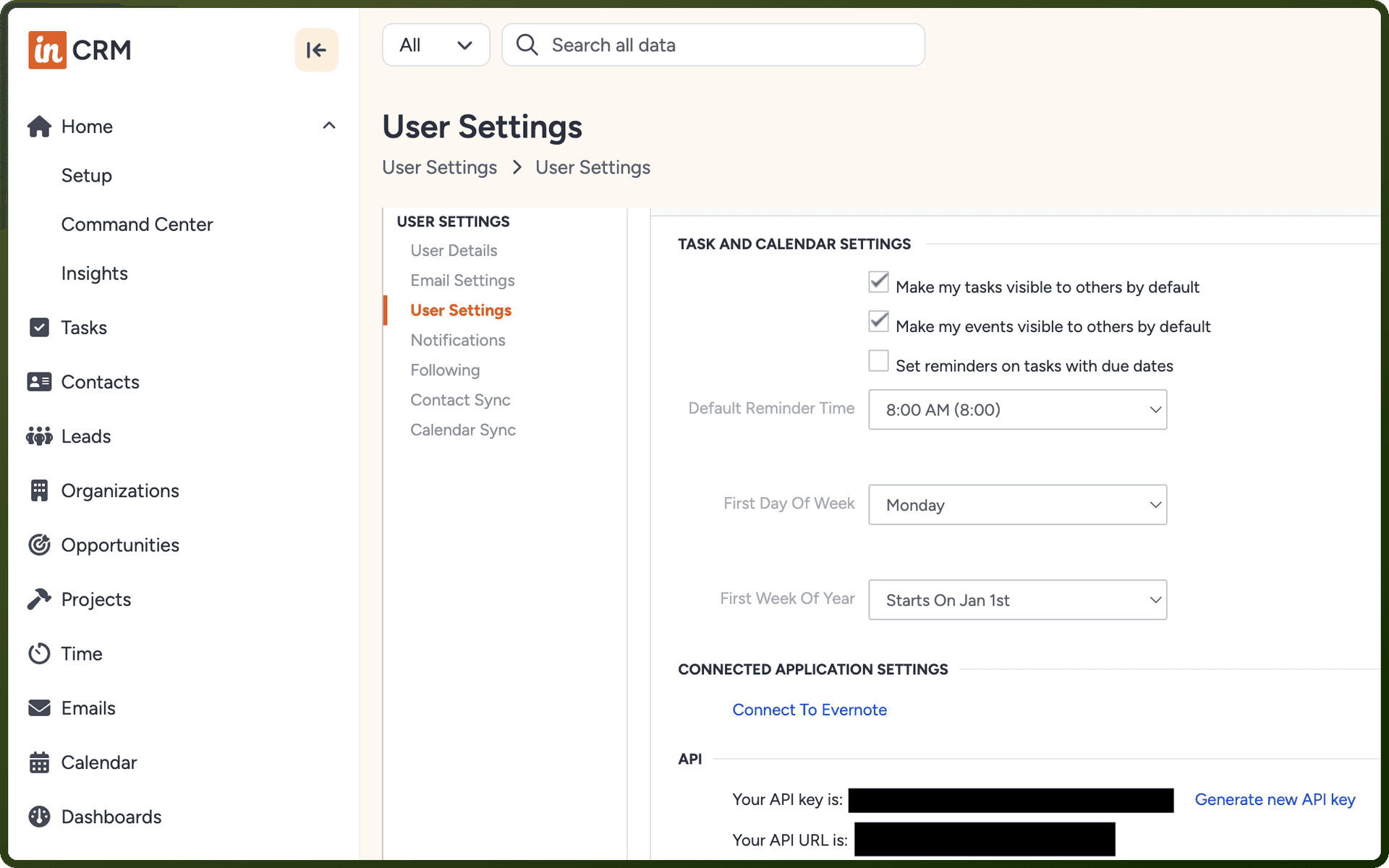
Select User Settings from the dropdown menu.
On the User Settings page, open the API section to view your API key and API URL.
Copy the API key and store it securely for further authentication purposes.
Actions
Action Name | Description |
|---|---|
Create contact | Creates a new contact in Insightly |
Create event | Creates a new event in Insightly |
Create opportunity | Creates a new opportunity in Insightly |
Create organization | Creates a new organisation in Insightly |
Get user by ID | Gets a user by ID from Insightly |
List contacts | Lists contacts in Insightly |
Search contacts | Searches contacts in Insightly |
Search users | Searches users in Insightly |
Update contact | Updates a contact in Insightly |
Update opportunity | Updates an opportunity in Insightly |