


Microsoft OneNote is Microsoft's digital notebook for capturing, organizing and sharing notes in notebooks, sections and pages. The UnifyApps Microsoft OneNote connector uses the Microsoft Graph API to create and list notebooks, section groups, sections and pages, read, update, copy and delete pages, and track long-running copy operations from workflows and agents.
This guide covers every authentication type available on the connection form and the actions supported, along with the Microsoft Graph permission each one needs.
Authentication
Before you begin, you should have the following information:
Connection name: a descriptive name such as MyAppOneNoteIntegration, so the connection is easy to identify later.
Authentication type: select the type of authentication for connecting to your Microsoft OneNote account:
OAuth
OAuth with Client Credentials
Both types act on behalf of the Microsoft user who signs in. The Scopes field has nothing selected by default, so select the permissions your actions need. The list offers Notes.Read, Notes.ReadWrite, Notes.Read.All and User.Read (OAuth also lists offline_access). Recommended: select Notes.ReadWrite, which covers every action on your own notebooks; add Notes.Read.All to read notebooks of other users, Microsoft 365 groups or SharePoint sites. offline_access is always added so the connection can refresh its token.
Note: Microsoft Graph stopped supporting app-only (application) access to OneNote on March 31, 2025, so OneNote connections always run as a signed-in user.
1. OAuth
Use this when you want to connect with your own Microsoft account and do not need to register an app.
Enter a Connection name.
Select OAuth as the Authentication type.
Leave Tenant ID empty to use
common, or enter your tenant ID or domain to restrict sign-in to one organization (organizationsallows any work or school account,consumersonly personal Microsoft accounts).In Scopes, select the permissions for the actions you plan to use, for example
Notes.ReadWrite.Click Authorize. You are redirected to the Microsoft sign-in page.
Sign in with the Microsoft account whose notebooks the connection should use.
Review the permissions requested on the consent screen and click Accept.
Notes.Read.Allmay need administrator consent in your organization.You are redirected back to UnifyApps with a confirmation that the account is connected.
2. OAuth with Client Credentials
Use this when your organization wants the connection to use its own Azure app registration while actions still run on behalf of a signed-in user.
Step 1: App registration in Azure
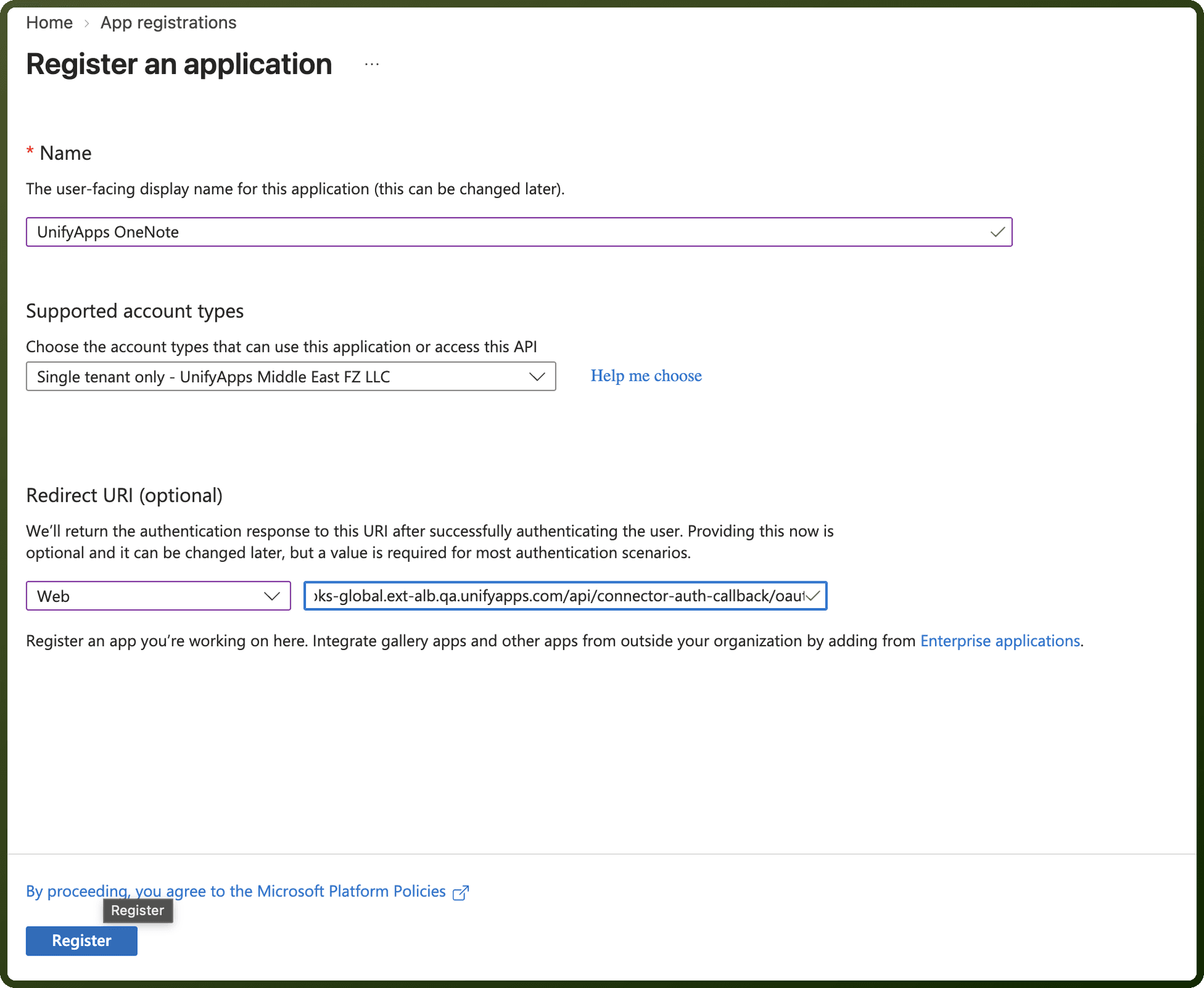
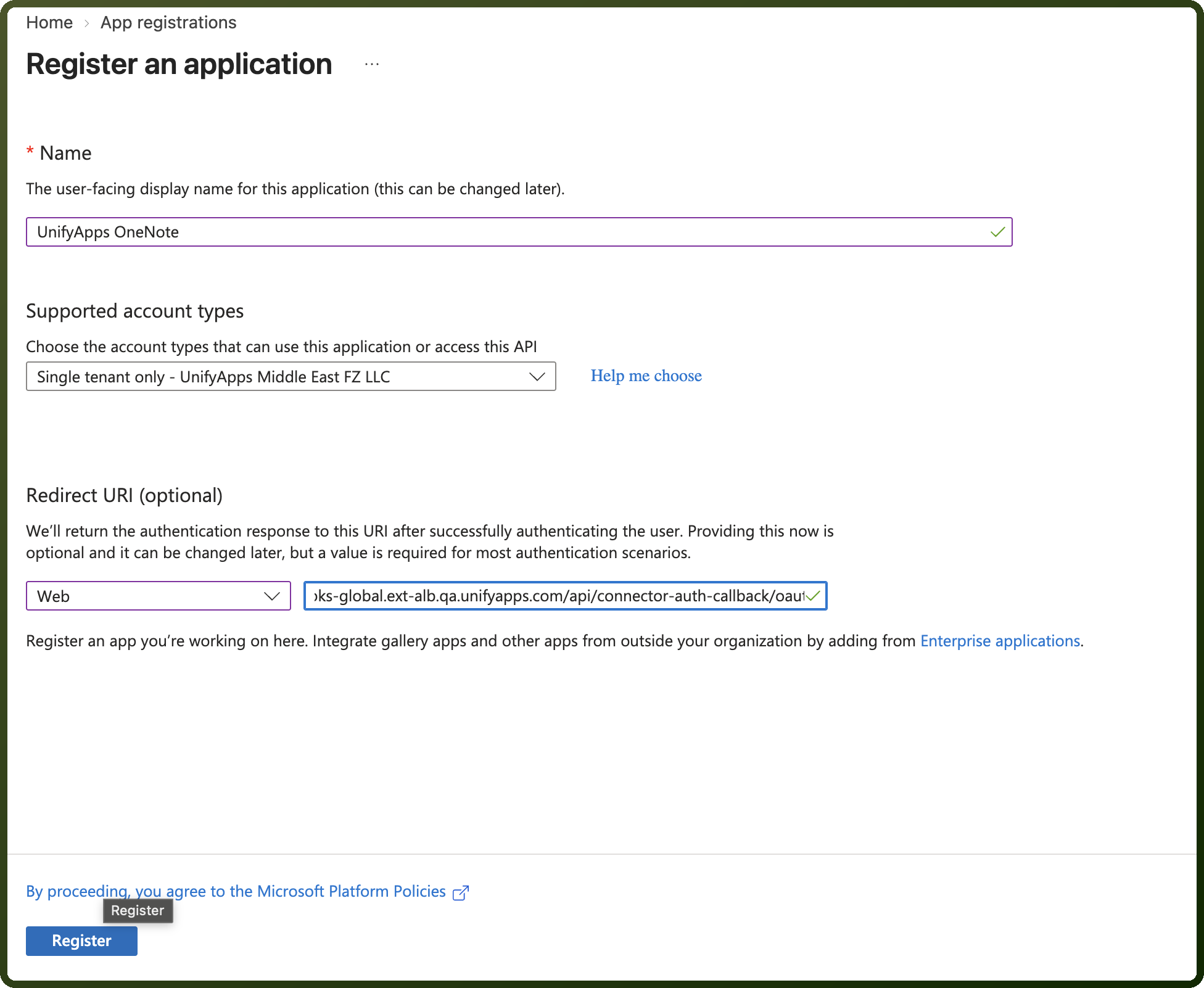
Log in to the Azure portal, search for App registrations and click New registration.
Enter a name and choose the supported account type, single tenant or multitenant. Choose an account type that includes personal Microsoft accounts if users will connect personal OneNote notebooks.
Under Redirect URI, choose platform Web and paste the Callback URL shown on the connection form (it is copyable and differs per environment).
Click Register.
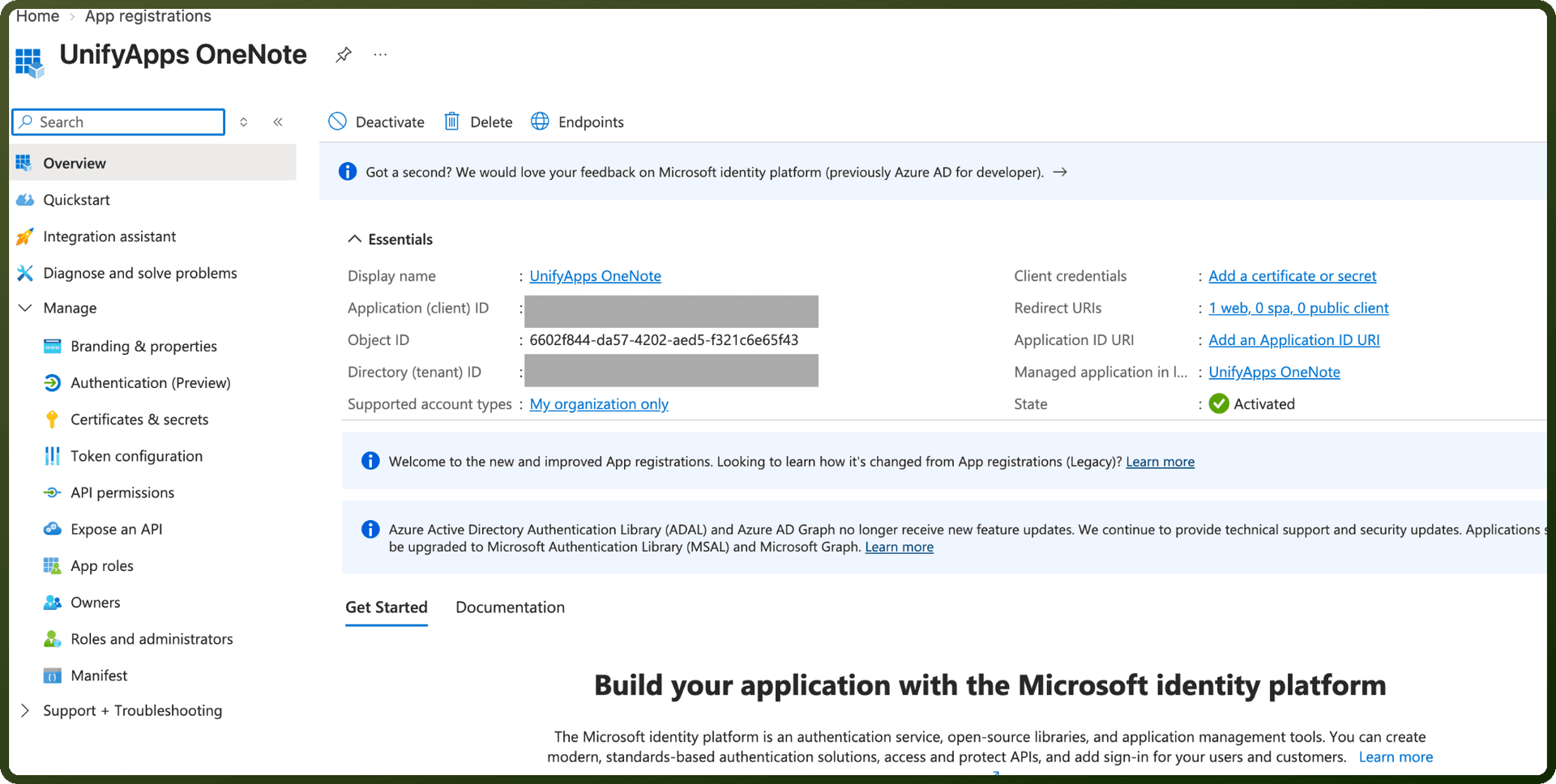
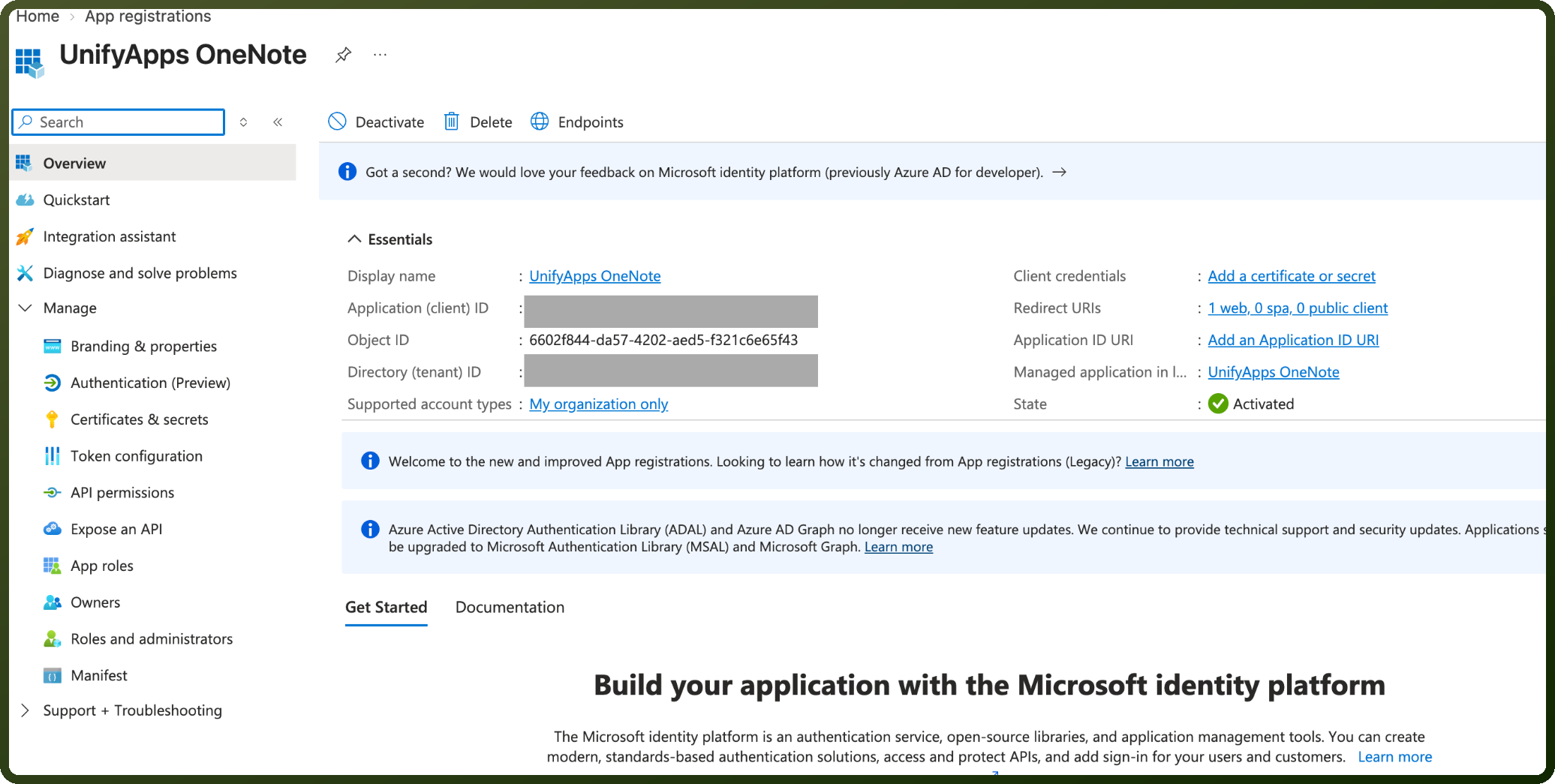
On the Overview tab, copy the Application (client) ID and the Directory (tenant) ID.
Go to API permissions → Add a permission → Microsoft Graph → Delegated permissions and add the permissions you will select in Scopes (for example
Notes.ReadWriteandUser.Read), plusoffline_accessso the connection can refresh its token. Click Grant admin consent if your tenant requires it.Go to Certificates & secrets → New client secret, add a description and expiry, and click Add. Copy the secret Value immediately and store it securely. It is not shown again.
Step 2: Connection setup in UnifyApps
Open Connections → New Connection → Microsoft OneNote and enter a Connection name.
Select OAuth with Client Credentials as the Authentication type.
Enter the Client ID, Client secret and Tenant ID copied from Azure.
In Scopes, select the same permissions you added to the app registration. Select at least one; if the field is empty, only
offline_accessis requested.Click Authorize, sign in with Microsoft and accept the consent screen.
Confirm the success message after the redirect back to UnifyApps.
Actions
Scopes are Microsoft Graph delegated permissions. Microsoft documents Notes.Create as the narrowest permission for creating content and reading notebook structure, but the Scopes list on the connection form does not offer it, so select the permission in brackets. Notes.Read and Notes.ReadWrite cover the signed-in user's own notebooks. To work with notebooks of other users, Microsoft 365 groups or SharePoint sites that the user can access, use Notes.Read.All for reading; changing them needs Notes.ReadWrite.All, which the Scopes list does not offer.
Actions | Description | Scopes Required |
|---|---|---|
| Copies a OneNote page to a section. The copy runs asynchronously; check it with Get OneNote Operation Status. | Notes.Create (or Notes.ReadWrite) |
| Copies a OneNote section to another notebook. The copy runs asynchronously. | Notes.Create (or Notes.ReadWrite) |
| Copies a OneNote section to another section group. The copy runs asynchronously. | Notes.Create (or Notes.ReadWrite) |
| Creates a new notebook in Microsoft OneNote. | Notes.Create (or Notes.ReadWrite) |
| Creates a new page in Microsoft OneNote. | Notes.Create (or Notes.ReadWrite) |
| Creates a new page in a specific OneNote section. | Notes.Create (or Notes.ReadWrite) |
| Creates a new section inside a section group. | Notes.Create (or Notes.ReadWrite) |
| Creates a new section group inside an existing section group. | Notes.Create (or Notes.ReadWrite) |
| Creates a new section group inside a notebook. | Notes.Create (or Notes.ReadWrite) |
| Creates a new section inside a notebook. | Notes.Create (or Notes.ReadWrite) |
| Deletes a OneNote page. | Notes.ReadWrite |
| Gets the status of a long-running OneNote operation, such as a copy. | Notes.Create (or Notes.Read) |
| Gets the HTML content of a OneNote page. | Notes.Read |
| Gets the OneNote notebooks the user accessed recently. | Notes.Create (or Notes.Read) |
| Gets the details of a OneNote section. | Notes.Create (or Notes.Read) |
| Gets the properties of a OneNote section group. | Notes.Create (or Notes.Read) |
| Lists notebooks in Microsoft OneNote. | Notes.Create (or Notes.Read) |
| Lists OneNote pages. | Notes.Read |
| Lists OneNote section groups. | Notes.Create (or Notes.Read) |
| Lists OneNote sections. | Notes.Create (or Notes.Read) |
| Lists the pages in a OneNote section. | Notes.Read |
| Lists the child section groups of a section group. | Notes.Create (or Notes.Read) |
| Lists the sections in a section group. | Notes.Create (or Notes.Read) |
| Updates the content of a OneNote page using patch commands. | Notes.ReadWrite |