


Google Discovery Engine is the Google Cloud API behind Vertex AI Search and Gemini Enterprise, used to build AI-powered search, recommendation and answer apps over your own structured and unstructured data. The UnifyApps Google discovery engine connector uses the Discovery Engine API to manage data stores, schemas, documents, engines and controls, run searches and generate answers, record user events, and manage Gemini Enterprise user licenses from workflows and agents.
This guide covers every authentication type available on the connection form, and the actions supported, along with the scope and IAM permission each one needs.
Authentication
Before you begin, you should have the following information:
Connection name: a descriptive name such as MyAppDiscoveryEngineIntegration, so the connection is easy to identify later.
Authentication type: select the type of authentication for connecting to your Google Cloud project:
Service Account
OAuth
OAuth with Client Credentials
For every authentication type, the Discovery Engine API must be enabled in your Google Cloud project, and the signed-in user or the service account needs a Discovery Engine IAM role on that project, such as Discovery Engine Viewer for read-only actions, Discovery Engine Editor to create and change resources, or Discovery Engine Admin for full access. The connection has no Scopes field: it always requests the cloud-platform scope.
1. Service Account
Use this for server-to-server access, where a Google Cloud service account calls the Discovery Engine API and no user has to sign in.
Step 1: Create a service account in Google Cloud
In the Google Cloud Console, select or create a project, and enable the Discovery Engine API under APIs & Services → Library.
Go to IAM & Admin → Service Accounts and click Create service account. Enter a name and click Create and continue.
Under Permissions, grant the Discovery Engine role the connection needs, for example Discovery Engine Editor, click Continue, then click Done.
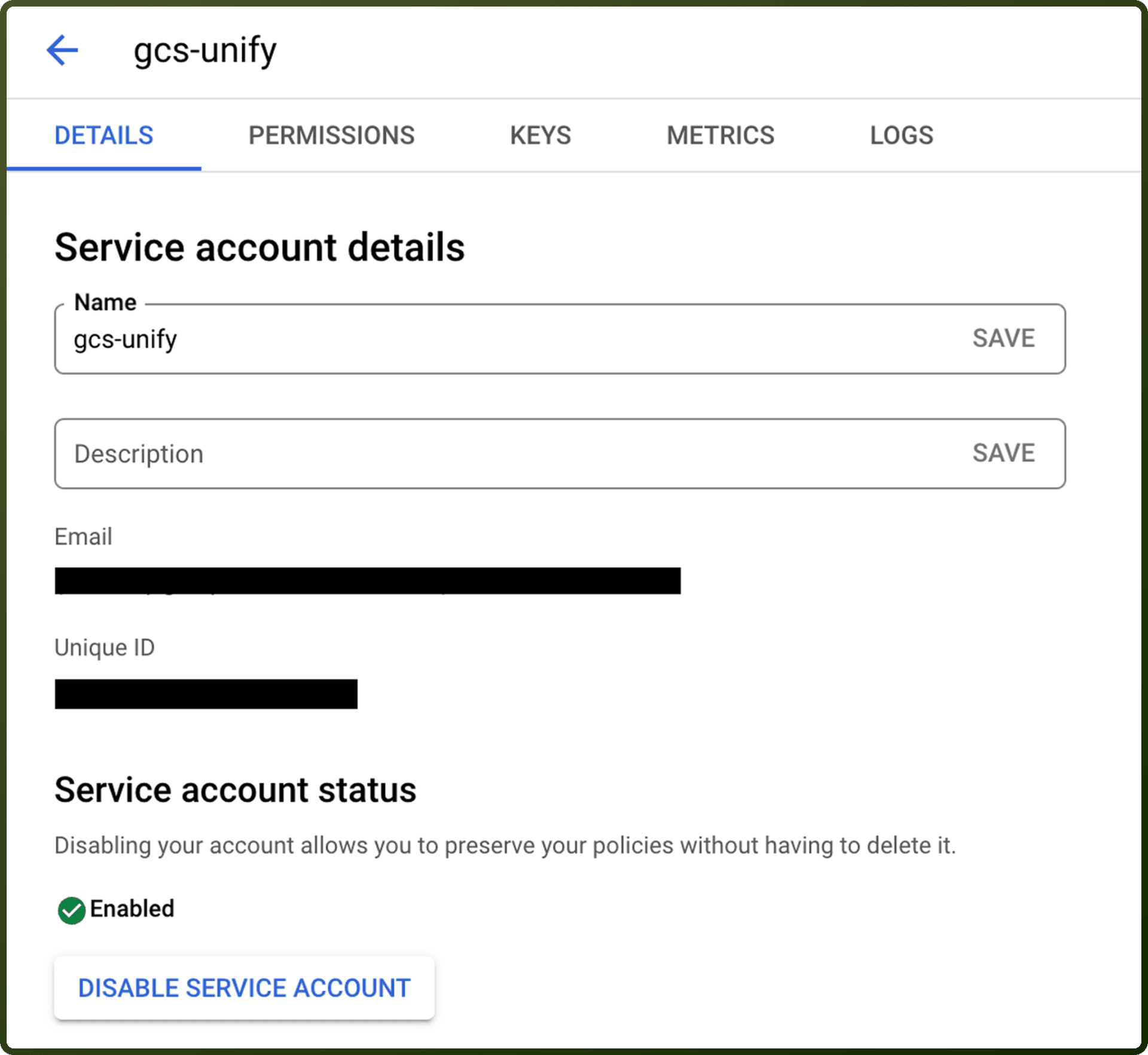
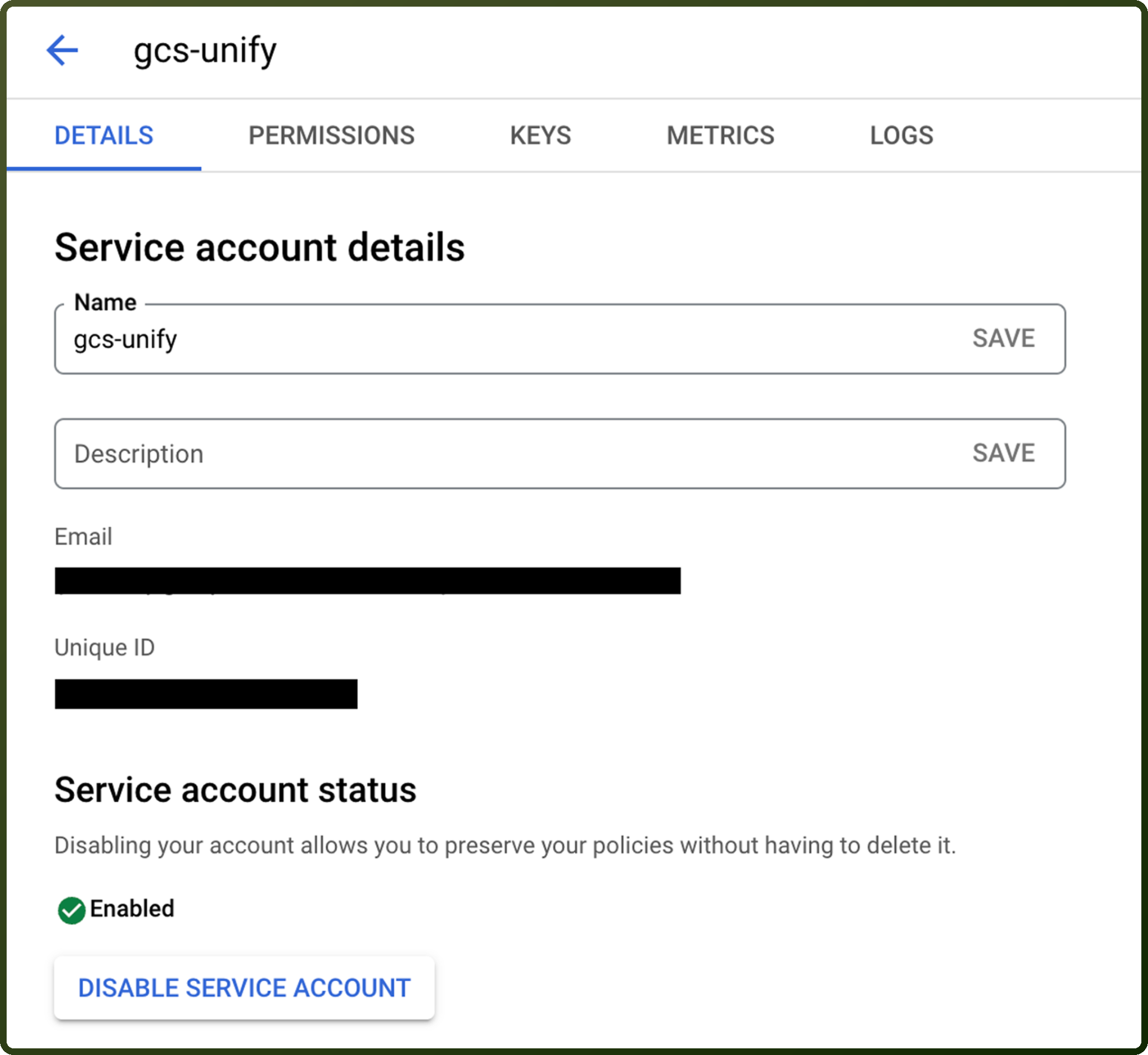
Open the service account and copy its Email.
Go to the Keys tab → Add key → Create new key, choose JSON and click Create. The downloaded file holds the
client_emailandprivate_key. Store it securely.
Note: a service account does not need domain-wide delegation for this connector. Its access comes only from the IAM roles it holds on the project.
Step 2: Create the connection in UnifyApps
Open Connections → New Connection → Google discovery engine and enter a Connection name.
Select Service Account as the Authentication type.
Enter the Service account email, the
client_emailvalue from the JSON key file (for examplemy-sa@project-id.iam.gserviceaccount.com).Paste the Private key, the full
private_keyvalue from the JSON key file, including theBEGIN PRIVATE KEYandEND PRIVATE KEYlines.Click Test Connection to validate the credentials, then click Create.
2. OAuth
Use this when you want to connect with your own Google account and do not need to create a Google Cloud app.
Enter a Connection name.
Select OAuth as the Authentication type.
Click Authorize. You are redirected to the Google sign-in page.
Sign in with a Google account that has a Discovery Engine role on the project you want to use.
Review the permissions on the consent screen, which ask for access to your Google Cloud data, and click Allow.
You are redirected back to UnifyApps with a confirmation that the account is connected.
3. OAuth with Client Credentials
Use this when your organization wants the connection to use its own Google Cloud OAuth client, while actions still run as the Google user who signs in.
Step 1: Create an OAuth client in Google Cloud
In the Google Cloud Console, select or create a project, and enable the Discovery Engine API under APIs & Services → Library.
Go to Google Auth platform → Branding. If you see Google Auth platform not configured yet, click Get Started, enter an App name, User support email, Audience and contact email, and click Create.
Go to Data Access, click Add or Remove Scopes, add the
https://www.googleapis.com/auth/cloud-platformscope, and click Save. If the audience is External, add the users who will sign in under Audience → Test users.Go to Google Auth platform → Clients and click Create Client. Choose Web application as the Application type and enter a name.
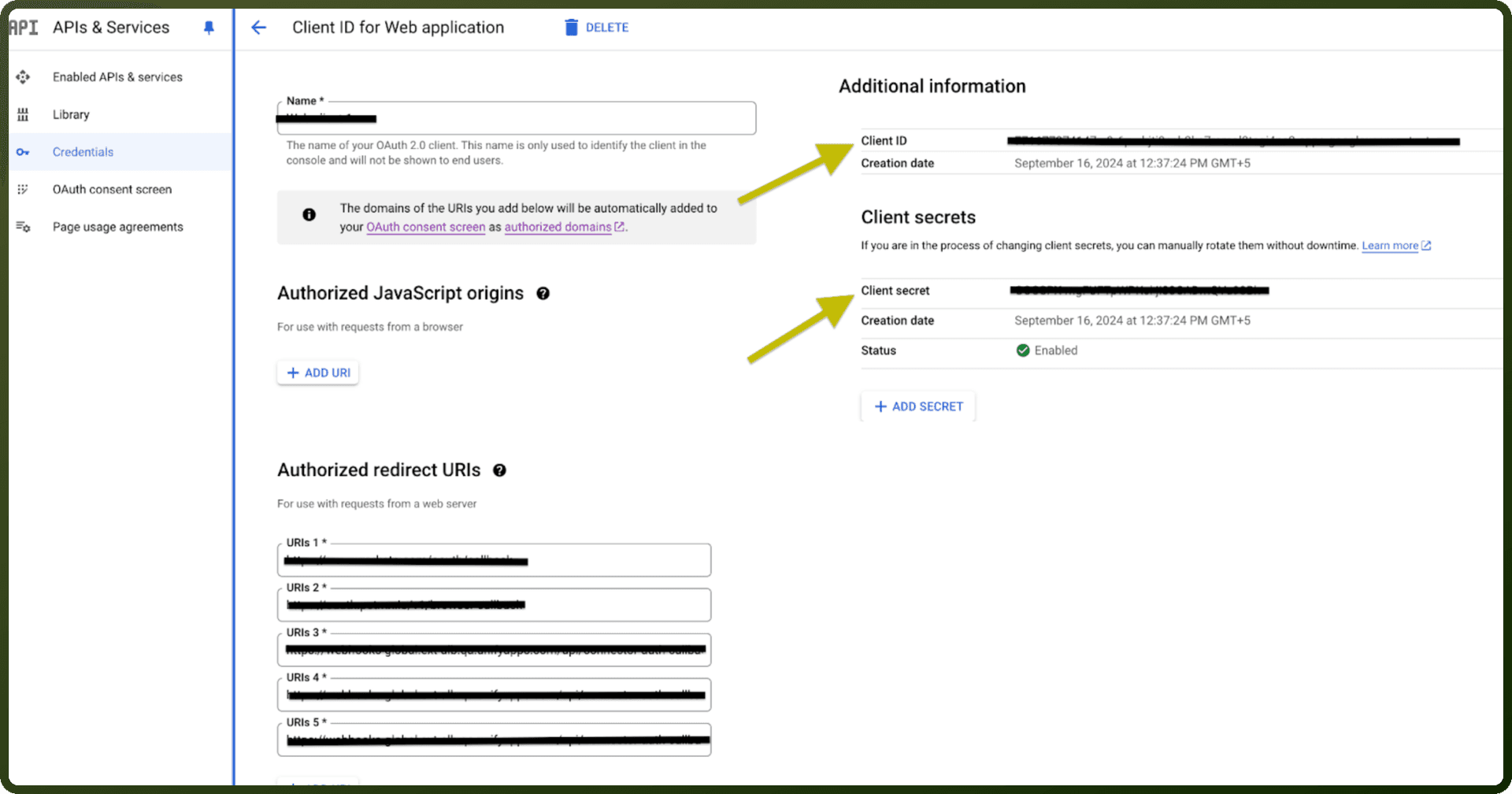
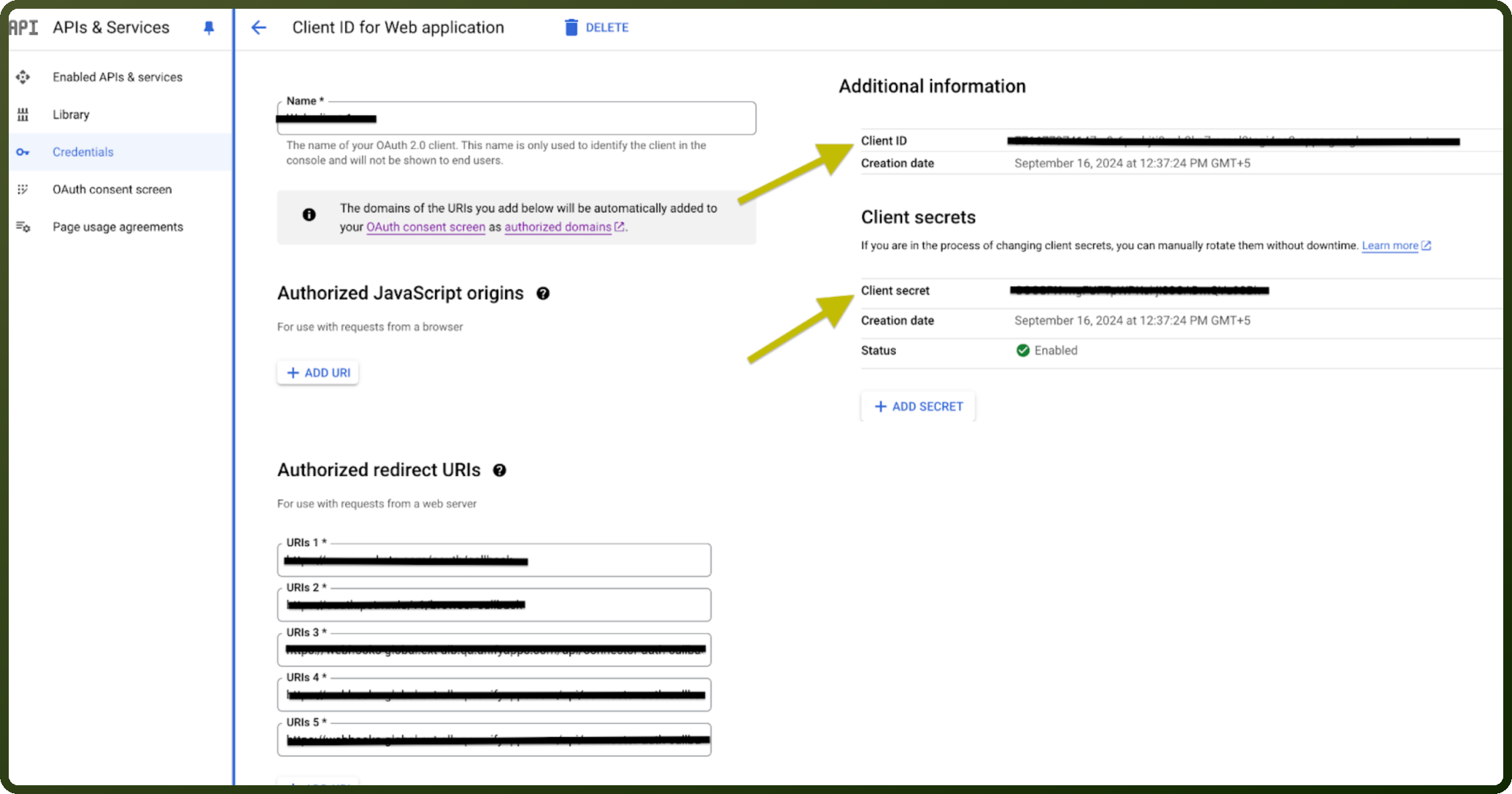
Under Authorized redirect URIs, click Add URI and enter the UnifyApps OAuth callback URL for your environment, which ends in
/api/connector-auth-callback/oauth. This connection form does not display it; your UnifyApps administrator can provide it.Click Create, then copy the Client ID and Client secret. Copy the secret immediately: Google shows it only once.
Step 2: Connection setup in UnifyApps
Open Connections → New Connection → Google discovery engine and enter a Connection name.
Select OAuth with Client Credentials as the Authentication type.
Enter the Client ID and Client secret copied from Google Cloud.
Click Authorize, sign in with a Google account that has a Discovery Engine role on the project, and click Allow on the consent screen.
Confirm the success message after the redirect back to UnifyApps.
Actions
Every action uses the cloud-platform scope (https://www.googleapis.com/auth/cloud-platform), which the connection always requests. What an action may do is then decided by IAM, so each row also names the IAM permission the user or service account needs on the project. The Discovery Engine Viewer, Editor and Admin roles include these permissions for reading, changing and administering resources respectively.
Actions | Description | Scopes Required |
|---|---|---|
| Answers a query using a Discovery Engine app (engine) and its serving configuration. | cloud-platform (IAM: discoveryengine.servingConfigs.answer) |
| Searches a Discovery Engine app (engine) in any location, with filter, language, query expansion and spell correction options. | cloud-platform (IAM: discoveryengine.servingConfigs.search) |
| Answers a query using a data store's serving configuration. | cloud-platform (IAM: discoveryengine.servingConfigs.answer) |
| Gets metadata for multiple documents in a data store. | cloud-platform (IAM: discoveryengine.documents.batchGetDocumentsMetadata) |
| Assigns or removes Gemini Enterprise licenses for multiple users in one batch request. | cloud-platform (IAM: discoveryengine.userStores.batchUpdateUserLicenses) |
| Collects a user event for Discovery Engine analytics and recommendations. | cloud-platform |
| Returns autocomplete suggestions for a query. | cloud-platform (IAM: discoveryengine.completionConfigs.completeQuery) |
| Creates a control rule for a data store. | cloud-platform (IAM: discoveryengine.controls.create) |
| Creates a data store. | cloud-platform (IAM: discoveryengine.dataStores.create) |
| Creates a document in a data store branch. | cloud-platform (IAM: discoveryengine.documents.create) |
| Creates a search engine (app) for a collection. | cloud-platform (IAM: discoveryengine.engines.create) |
| Creates a schema for a data store. | cloud-platform (IAM: discoveryengine.schemas.create) |
| Creates a session for multi-turn conversations with an engine. | cloud-platform (IAM: discoveryengine.sessions.create) |
| Gets the details of a data store. | cloud-platform (IAM: discoveryengine.dataStores.get) |
| Gets a document from a data store branch. | cloud-platform (IAM: discoveryengine.documents.get) |
| Gets the status of a long-running operation. | cloud-platform (IAM: discoveryengine.operations.get) |
| Gets the details of a data store schema. | cloud-platform (IAM: discoveryengine.schemas.get) |
| Gets the details of a session. | cloud-platform (IAM: discoveryengine.sessions.get) |
| Imports documents into a data store from various sources. | cloud-platform (IAM: discoveryengine.documents.import) |
| Lists the branches of a data store. | cloud-platform (IAM: discoveryengine.branches.list) |
| Lists the control rules of a data store. | cloud-platform (IAM: discoveryengine.controls.list) |
| Lists the data stores in a collection. | cloud-platform (IAM: discoveryengine.dataStores.list) |
| Lists the sessions of an engine. | cloud-platform (IAM: discoveryengine.sessions.list) |
| Lists the Gemini Enterprise user licenses of a Google Cloud project. | cloud-platform (IAM: discoveryengine.userStores.listUserLicenses) |
| Purges the documents that match a filter from a data store branch. | cloud-platform (IAM: discoveryengine.documents.purge) |
| Searches documents and data in an engine using the Discovery Engine search API. | cloud-platform (IAM: discoveryengine.servingConfigs.search) |
| Updates a control rule of a data store. | cloud-platform (IAM: discoveryengine.controls.update) |
| Updates a data store. | cloud-platform (IAM: discoveryengine.dataStores.update) |
| Updates a document in a data store branch. | cloud-platform (IAM: discoveryengine.documents.update) |
| Updates a data store schema. | cloud-platform (IAM: discoveryengine.schemas.update) |
| Updates a data store's serving configuration. | cloud-platform (IAM: discoveryengine.servingConfigs.update) |
| Writes a user event for analytics and personalization. | cloud-platform (IAM: discoveryengine.userEvents.create) |