


Use the Hamsa connector to manage business workflows and operations.
Integrating your application with Hamsa lets you use these operations in an automation. It exposes 5 actions, listed below. Add the connector from the Connections area, authenticate, then select its operations in the automation builder. Capabilities: actions.
Authentication
Before you begin, make sure you have the following information:
Connection Name: Choose a meaningful name for your connection. This name helps you identify the connection within your application or integration settings.
Authentication Type: The authentication method for this connector is defined in the connection setup. Select the connector in the Connections area to see the fields it requires.
Obtaining Your API Key
Log in to your Hamsa account.
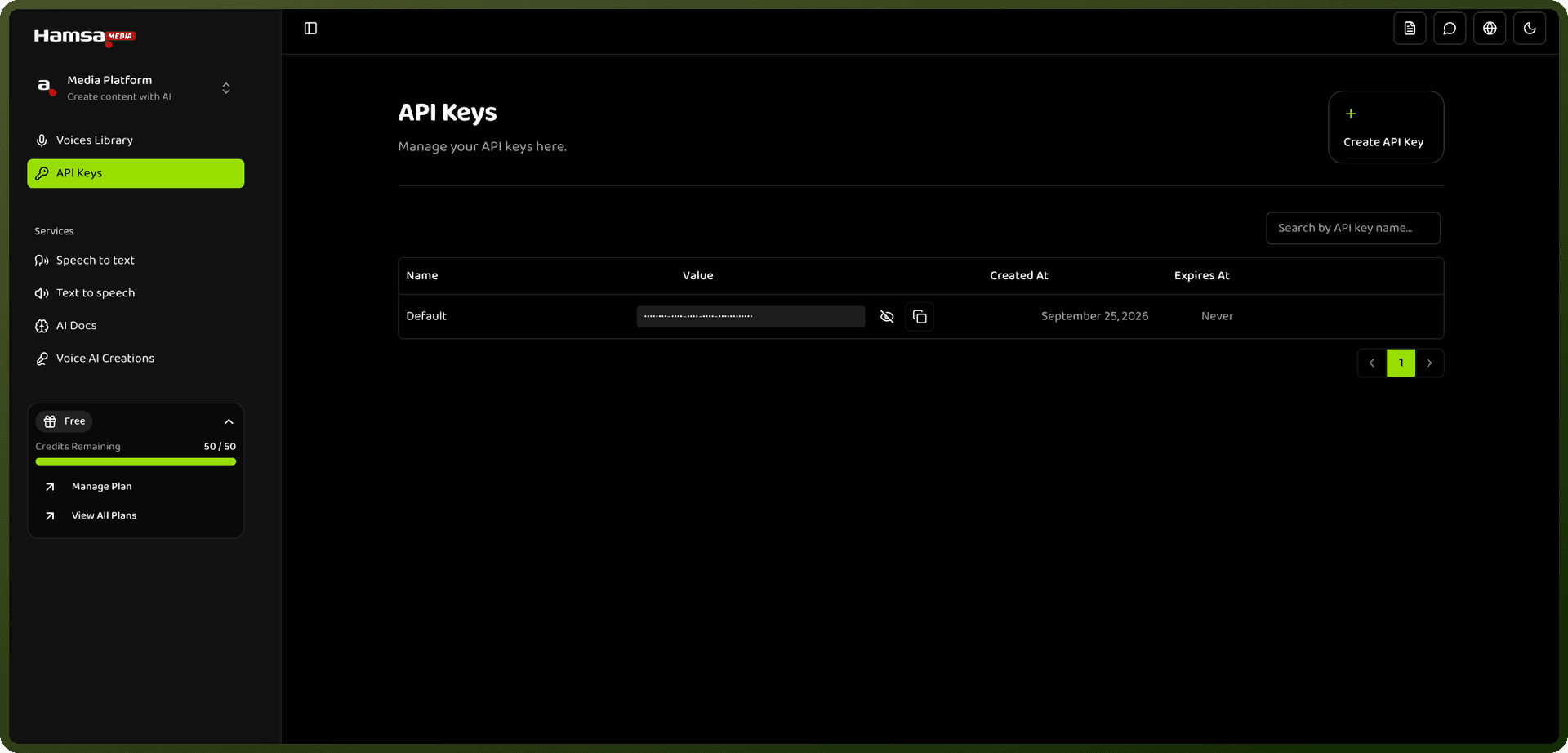
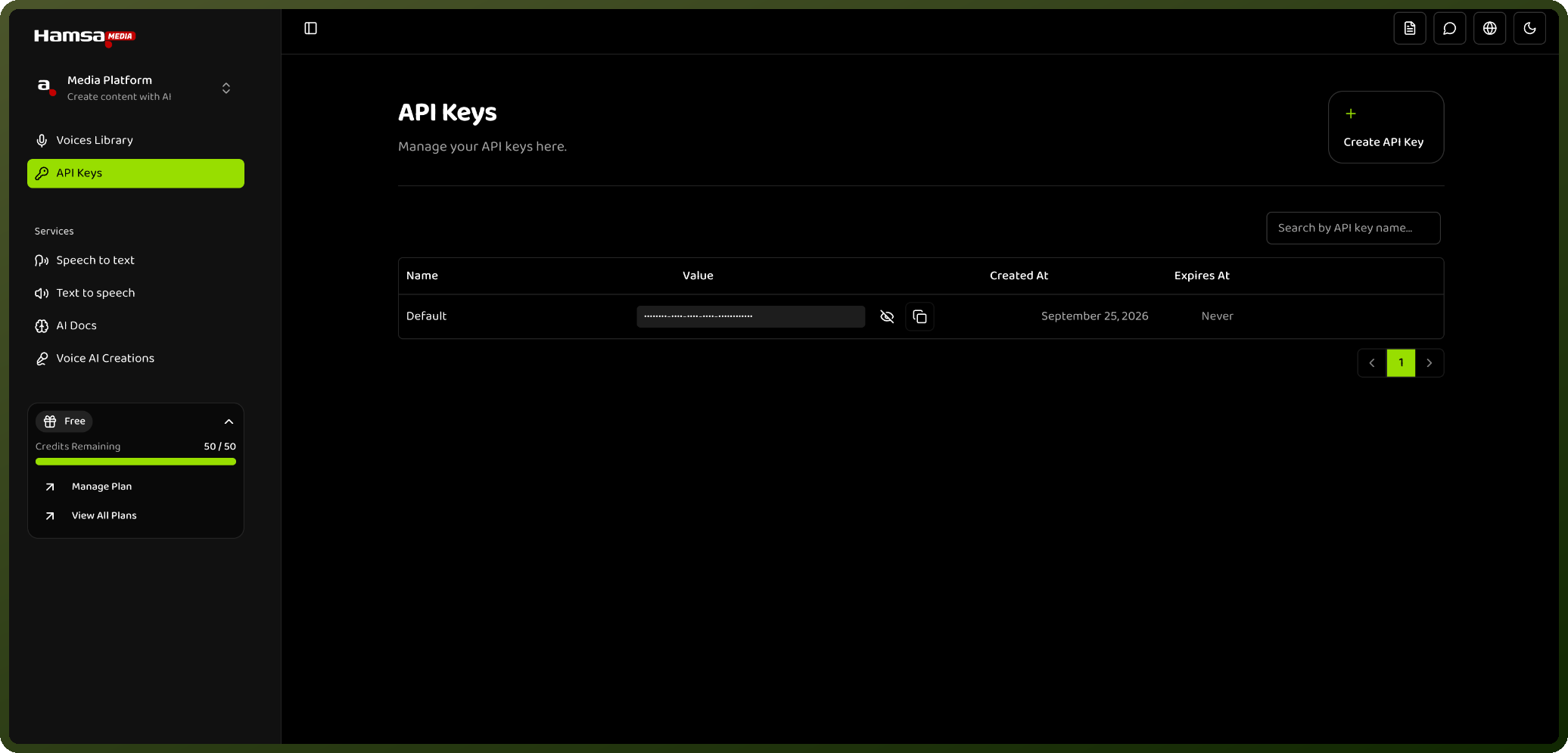
On the Dashboard, click Create API Key (or open the API keys tab and click Create API Key there).
In the popup, enter a name for the key and either set an expiry date or choose no expiry.
Click Create to generate the key.
Copy the API Key Identifier from the dashboard and store it securely for further authentication purposes. Some endpoints also require a Project ID, which you can copy from the project switcher in the top navigation bar of the dashboard.
Actions
Action Name | Description |
|---|---|
Get job details | Get the details of a transcription job in Hamsa using the job ID |
Speech to text | Converts speech to text in Hamsa |
Text to speech | Converts text to speech in Hamsa |
Text to speech Realtime | Converts text to speech in realtime in Hamsa |
Transcribe audio | Converts speech to text in Hamsa |