


Use the Voucherify connector to manage coupons, loyalty programs, and promotions.
Integrating your application with Voucherify lets you use these operations in an automation. It exposes 11 actions, listed below. Add the connector from the Connections area, authenticate, then select its operations in the automation builder. Capabilities: actions.
Authentication
Before you begin, make sure you have the following information:
Connection Name: Choose a meaningful name for your connection. This name helps you identify the connection within your application or integration settings.
Authentication Type: The authentication method for this connector is defined in the connection setup. Select the connector in the Connections area to see the fields it requires.
Obtaining Your API Keys
Log in to your Voucherify dashboard.
Open Project Settings, then go to the General tab.
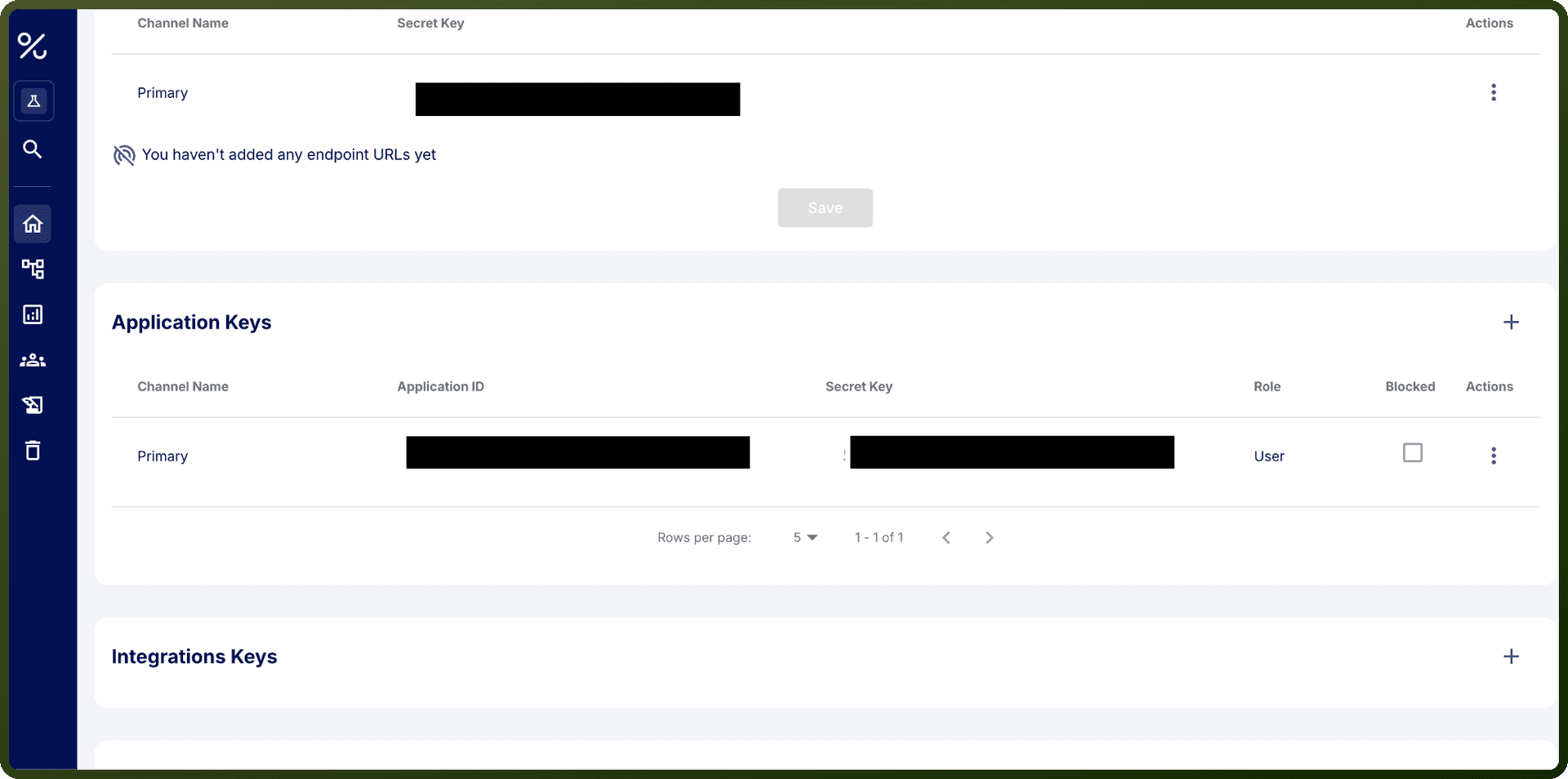
Scroll down to the Application Keys section.
Click Generate to create your Application ID and Secret Key (or view them if they already exist).
Copy the Application ID and Secret Key and store them securely — the Secret Key is only fully visible for 14 days after it is first generated.
Actions
Action Name | Description |
|---|---|
Create customer | Creates a customer in Voucherify |
Create order | Creates an order in Voucherify |
Create product | Creates a product in Voucherify |
Get customer | Retrieves details of a customer in Voucherify |
Get order | Retrieves an order in Voucherify |
Get product | Retrieves a product and its SKUs in Voucherify |
List customer activity | Retrieves activity details of a customer in Voucherify |
List customer's segments | Returns the list of segments IDs to which the customer belongs to in Voucherify |
List customers | Returns a list of customers in Voucherify |
List orders | Lists orders in Voucherify |
List products | Lists products in Voucherify |