


Use the Capsule CRM connector to manage contacts, deals, and customer interactions.
Integrating your application with Capsule CRM lets you use these operations in an automation. It exposes 7 actions, listed below. Add the connector from the Connections area, authenticate, then select its operations in the automation builder. Capabilities: actions.
Authentication
Before you begin, make sure you have the following information:
Connection Name: Choose a meaningful name for your connection. This name helps you identify the connection within your application or integration settings.
Authentication Type: Capsule CRM supports OAuth authentication.
Obtaining Your OAuth Client Credentials
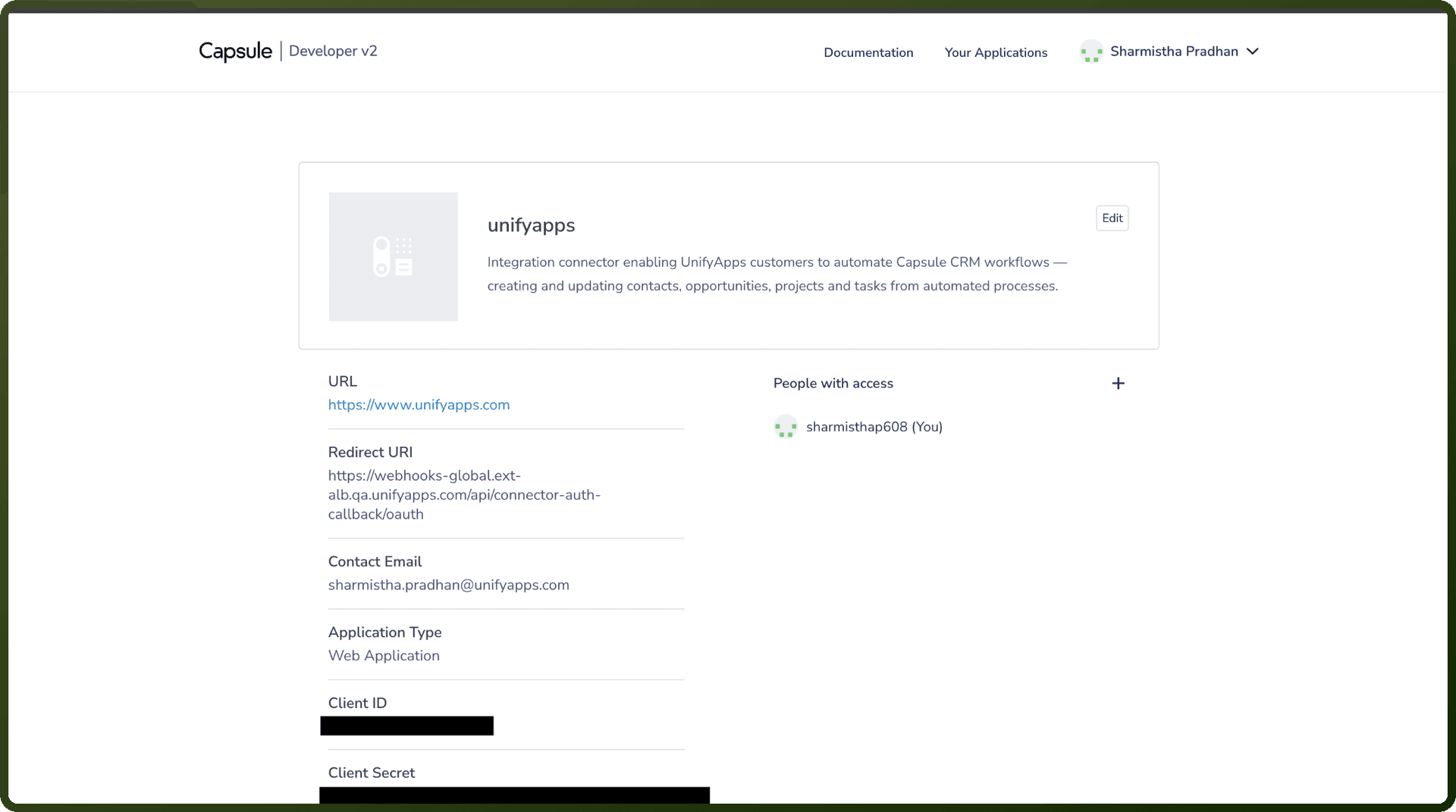
Go to the Capsule Developer Portal at developer.capsulecrm.com.
Sign in to the Developer Portal with your GitHub account (this is separate from your regular Capsule CRM login).
Go to developer.capsulecrm.com/clients/new to register a new application.
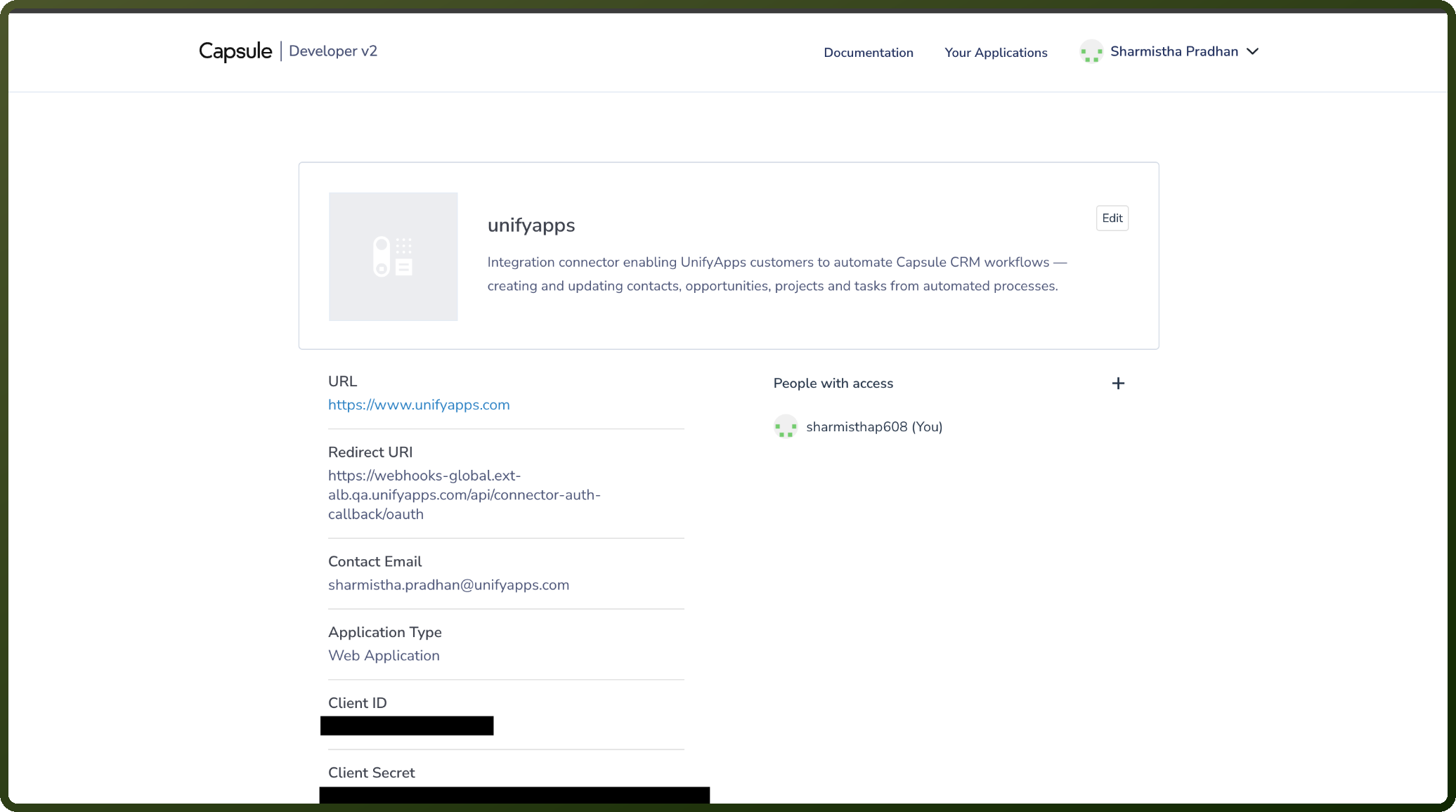
Enter a name for your application and enter the redirect URI UnifyApps provides.
Submit the form to register the application.
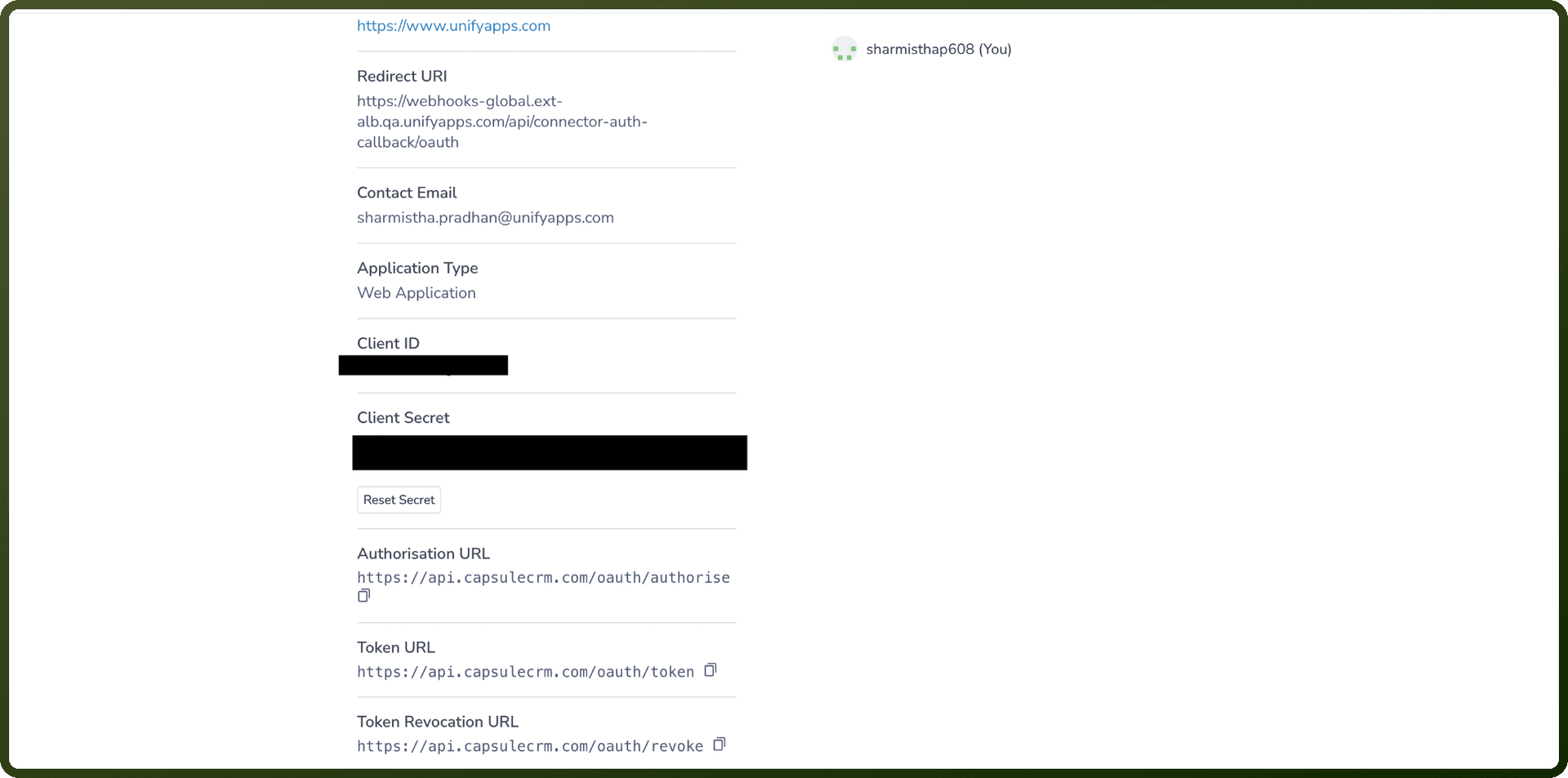
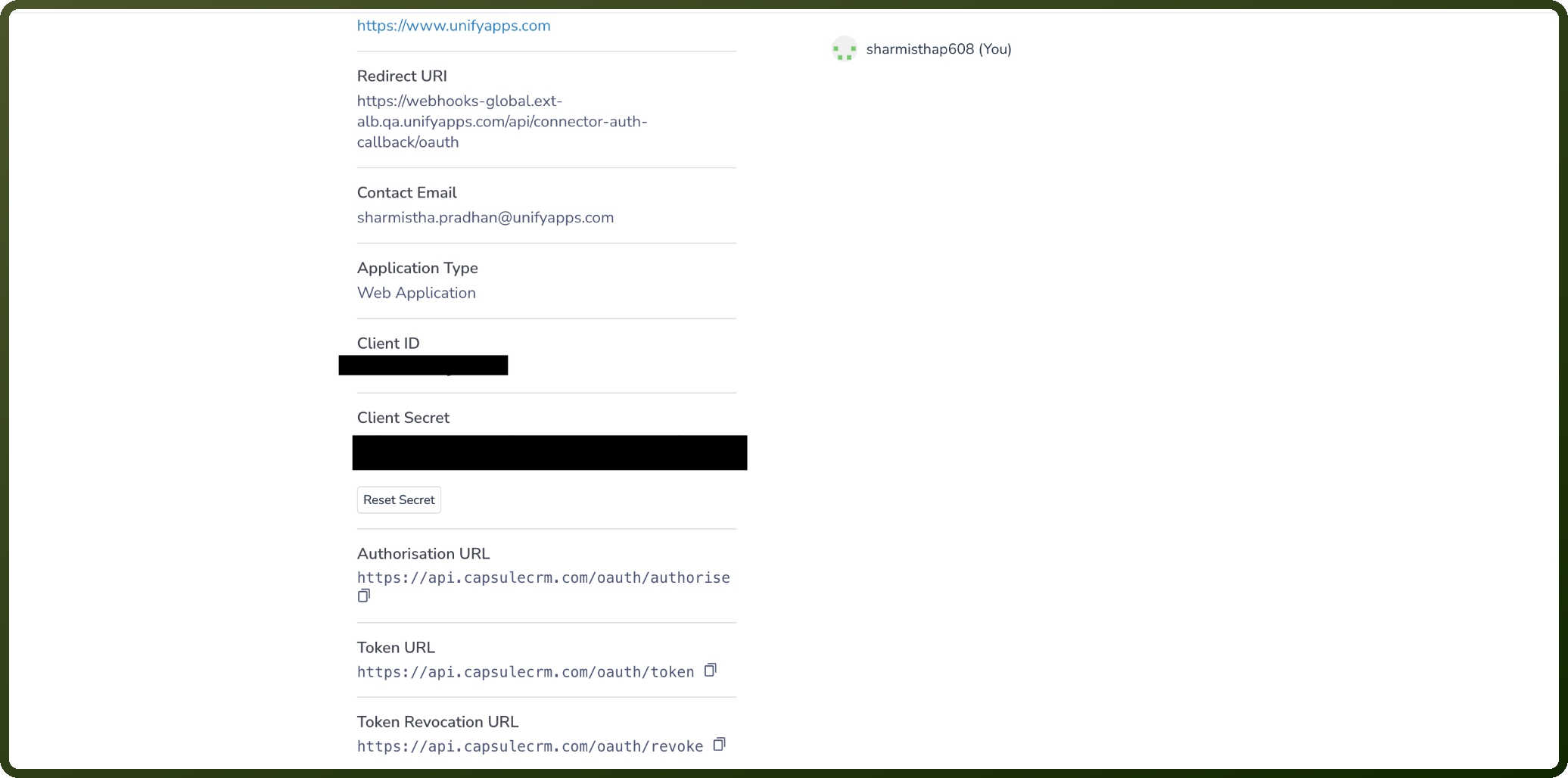
Copy the generated Client ID and Client Secret and store them securely, then use them to authenticate the connection in UnifyApps.
Actions
Action Name | Description |
|---|---|
Create a project | Creates a new project in Capsule CRM |
Create a task | Creates a new task in Capsule CRM |
Create an opportunity | Creates a new opportunity in Capsule CRM |
Create organisation | Creates a new organisation in Capsule CRM |
Search opportunities | Searches opportunities in Capsule CRM |
Search projects | Searches projects in Capsule CRM |
Update an opportunity | Updates an opportunity in Capsule CRM |