


Use the Azure Data Lake Storage connector to scalable cloud data lake storage for big-data analytics.
Integrating your application with Azure Data Lake Storage lets you use these operations in an automation. It exposes 7 actions, listed below. Add the connector from the Connections area, authenticate, then select its operations in the automation builder. Capabilities: actions.
Authentication
Before you begin, make sure you have the following information:
Connection Name: Choose a meaningful name for your connection. This name helps you identify the connection within your application or integration settings.
Authentication Type: Azure Data Lake Storage supports Credentials authentication.
Obtaining Your Access Key
Sign in to the Azure Portal and open the storage account that has hierarchical namespace (Data Lake Storage Gen2) enabled.
In the resource menu on the left, under Security + networking, select Access keys.
Click Show keys to reveal the key values.
Under key1, find the Key field and click Copy to copy the access key.
Note your storage account name as well — you'll need both the account name and the access key to authenticate the connection.
Store the copied key securely; anyone with this key has full access to the storage account's data.
Authentication & setup
Microsoft Entra ID (Recommended)
Use Azure managed identities or service principals
Azure RBAC for granular permission control
Most secure approach for production
Shared Key
Account access keys provide full access
Not recommended; should be disabled where possible
Can be obtained from storage account settings
Shared Access Signature (SAS)
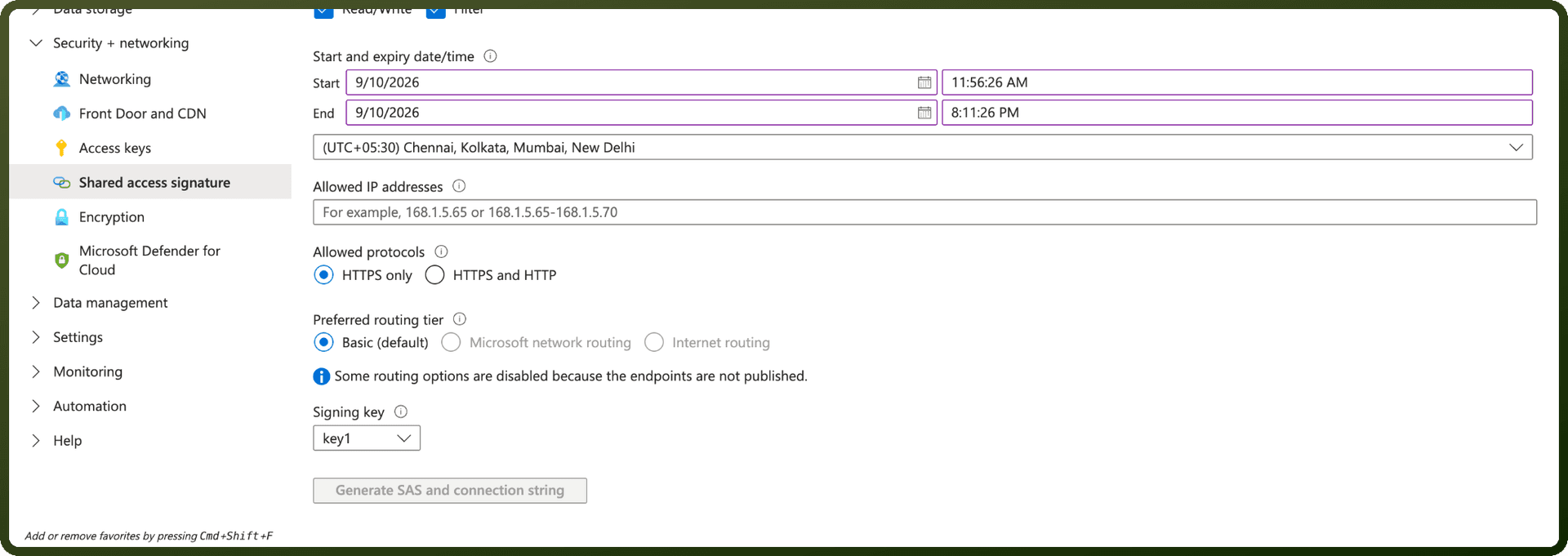
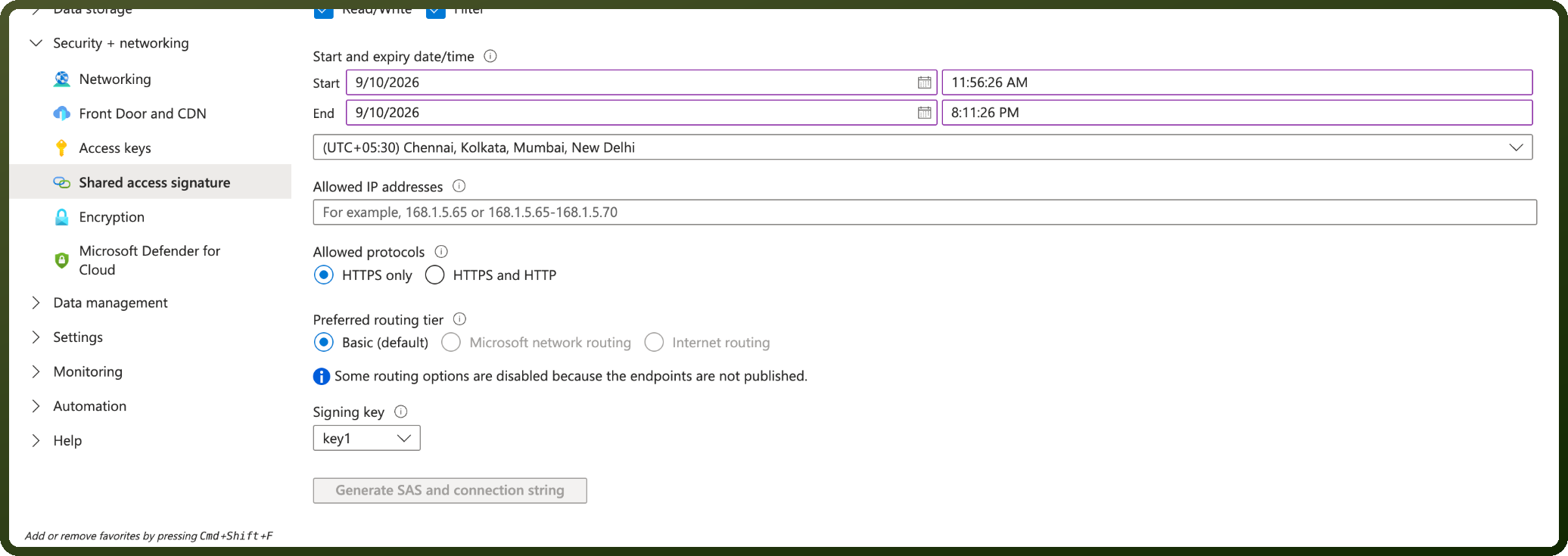
Navigate to your Storage Account in Azure Portal, select Shared access signature under Security/Data Management.
Choose allowed services, resource types (Service/Container/Object), set expiry parameters, and click Generate SAS and connection string.
Copy the generated SAS token (or SAS URL).
In your connector settings, select Shared Access Signature (SAS) and paste the copied token along with your Storage Account Name/URL.
Actions
Action Name | Description |
|---|---|
Create filesystem | Creates a filesystem in Azure Data Lake Storage |
Delete filesystem | Deletes a filesystem in Azure Data Lake Storage |
List filesystems | Lists filesystems in Azure Data Lake Storage |
List paths | Lists paths in a filesystem in Azure Data Lake Storage |
List tables | Lists tables in Azure Data Lake Storage |
Query table | Queries table in Azure Data Lake Storage |
Read file | Reads a file from a filesystem in Azure Data Lake Storage |
About the API
Azure Data Lake Storage Gen2 REST APIs provide a file system interface on top of Blob Storage, enabling big data analytics workloads. The API supports hierarchical namespace with filesystem and path operations. Capabilities include creating filesystems, managing directory structures, reading and writing files, managing metadata and access control lists (ACLs), and file lease operations for concurrency.
Official documentation
https://learn.microsoft.com/en-us/rest/api/storageservices/data-lake-storage-gen2