


Use the DHL connector to manage global shipping and logistics.
Integrating your application with DHL lets you use these operations in an automation. It exposes 1 action and 1 trigger, listed below. Add the connector from the Connections area, authenticate, then select its operations in the automation builder. Capabilities: actions, triggers.
Authentication
Before you begin, make sure you have the following information:
Connection Name: Choose a meaningful name for your connection. This name helps you identify the connection within your application or integration settings.
Authentication Type: The authentication method for this connector is defined in the connection setup. Select the connector in the Connections area to see the fields it requires.
Obtaining Your API Key
Go to the DHL Developer Portal and sign up for an account, or log in if you already have one.
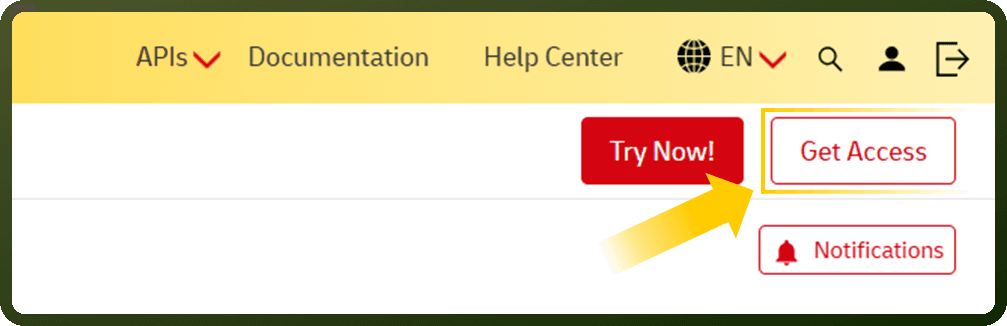
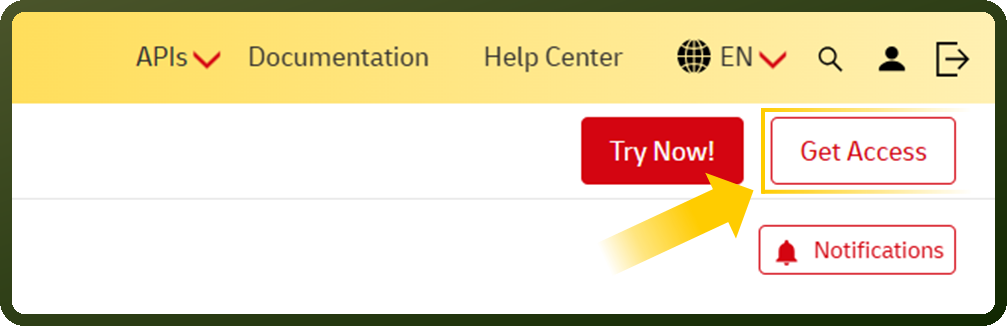
Open the Shipment Tracking API page and click Get Access.
Enter a name for your app, then click the + under Add to app to attach the Shipment Tracking API.
Click Create App and wait for DHL to review and approve your request.
Once approved, go to My Apps in your dashboard and select your app.
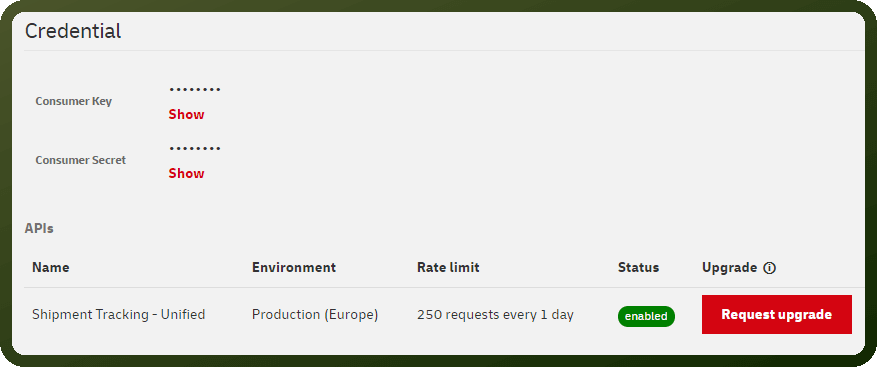
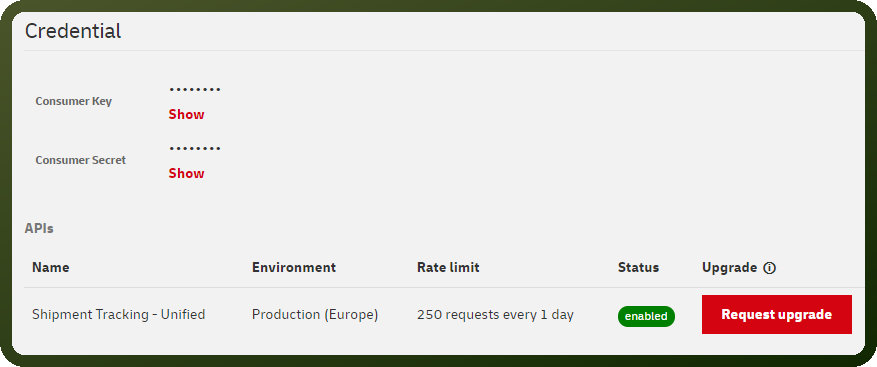
Open the Credentials section and click Show next to Consumer Key.
Copy the API key and store it securely for further authentication purposes.


Actions
Action Name | Description |
|---|---|
Get a shipment status | Gets a status of a shipment by tracking number in DHL |
Triggers
Trigger Name | Description |
|---|---|
Account tracking event (All Shipments) | This trigger will be invoked when tracking events occur for all shipments in your DHL account |