


Microsoft Teams is a collaboration platform that supports communication, file sharing, and workflow management.
Integrating it with your application enhances team connectivity and productivity through real-time communication and streamlined collaboration.
Authentication
Before you begin, ensure you have the following information:
Connection Name: Select a descriptive name for your connection, like "MyAppTeamsIntegration". This helps easily identify the connection within your application or integration settings.Authentication Type: Microsoft Teams supports Credentials and OAuth authentication for integrations.
Credentials
Log in to the Microsoft Azure Portal by clicking here.
In the search Bar, search for
App Registrationand then Click onNew Registration.Provide the
Nameandsupported account typesand register your app.The
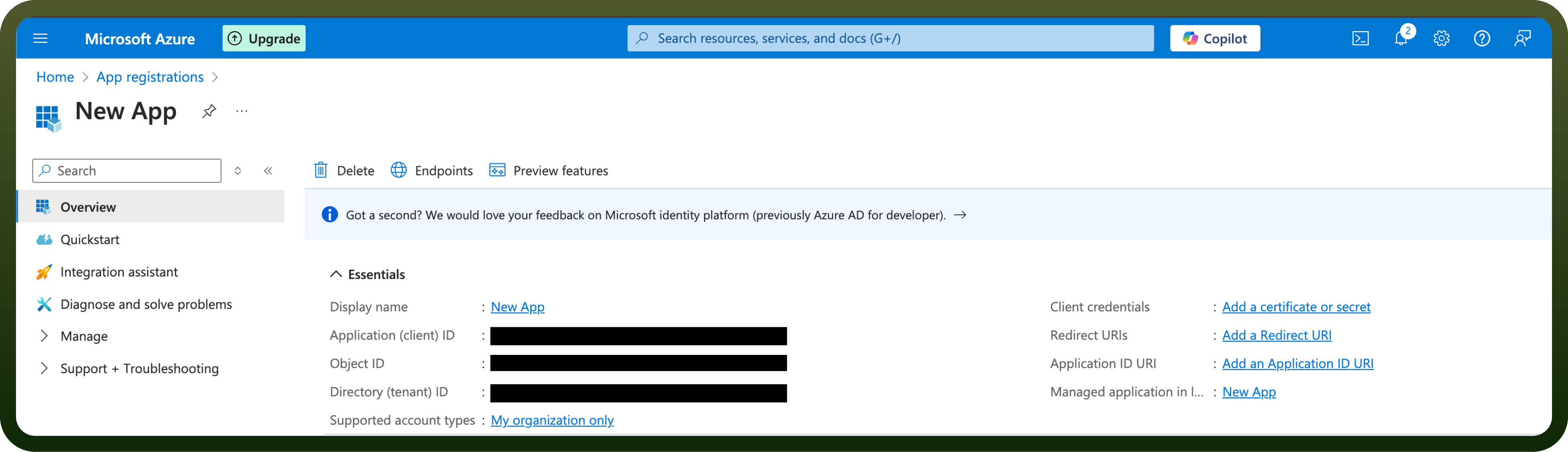
Client IDrefers to the Application(client) IDThe
Tenant IDrefers to the Directory (Tenant) IDClick “
Add a credential or scope” to generate the client secret.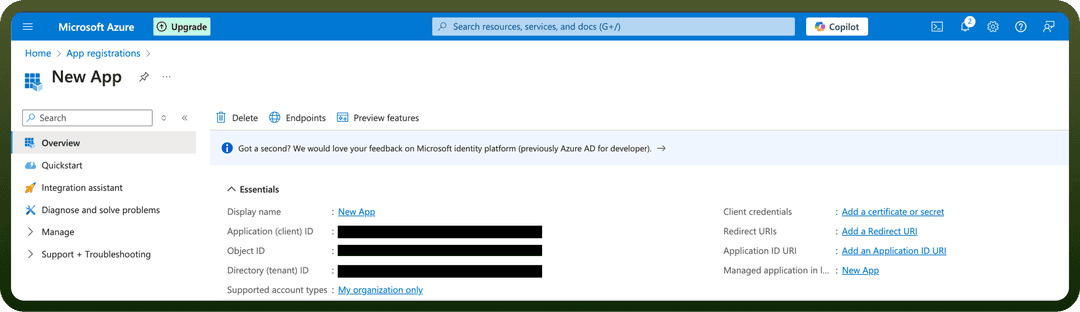
API Permissions
| Api permissions | Description |
Channel.Create | To create channels within any team. |
Channel.Delete.All | To delete any channel in any team. |
ChannelMember.ReadWrite.All | To read and manage members in all channels. |
ChannelMessage.Read.All | To read messages in any team channel. |
ChannelMessage.Send | To send messages to any team channel |
Chat.Create | To create new chat threads. |
Chat.Read | To read user-accessible chat threads. |
Chat.ReadBasic | To view basic chat metadata. |
Chat.ReadWrite | To read and send messages in chats. |
TeamMember.Read.All | To view members of any team. |
TeamMember.ReadWrite.All | To add or remove members from any team. |
User.Read.All | To read all user profiles in an organization. |
User.ReadWrite.All | To read, update, and manage user profiles. |
Group.Read.All | To read all groups in the organization. |
Group.ReadWrite.All | To manage all groups, including creating and deleting. |
OAuth
Click on the Authorise button to authenticate your connection.
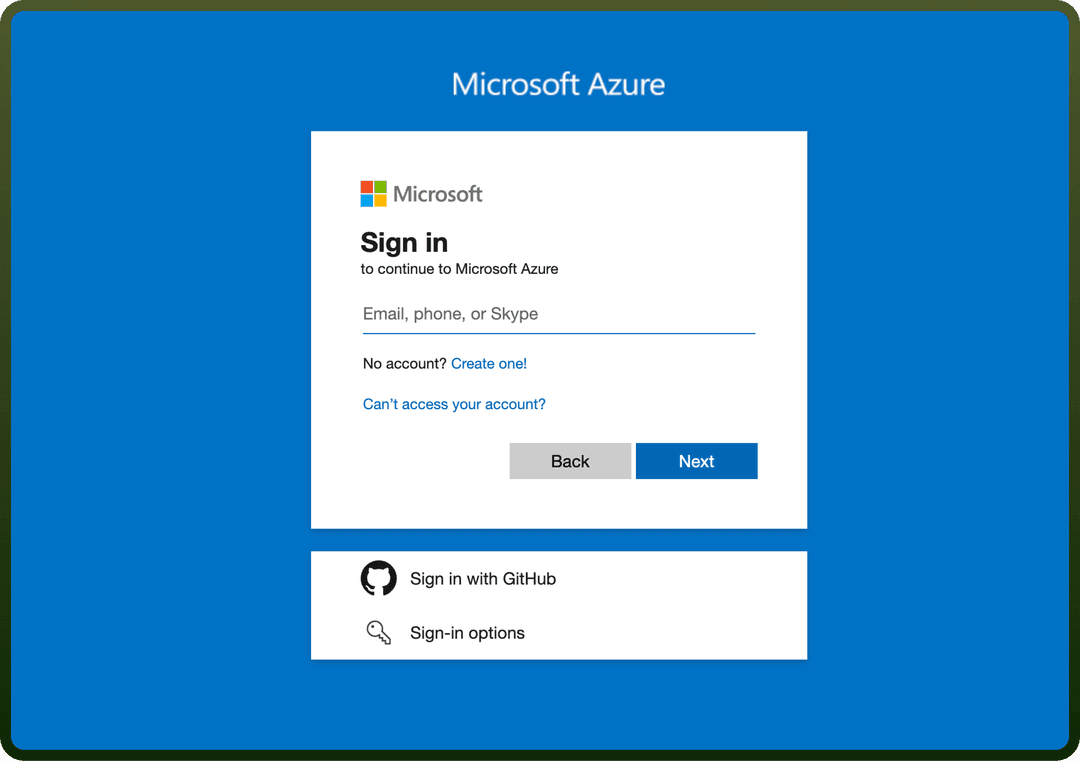
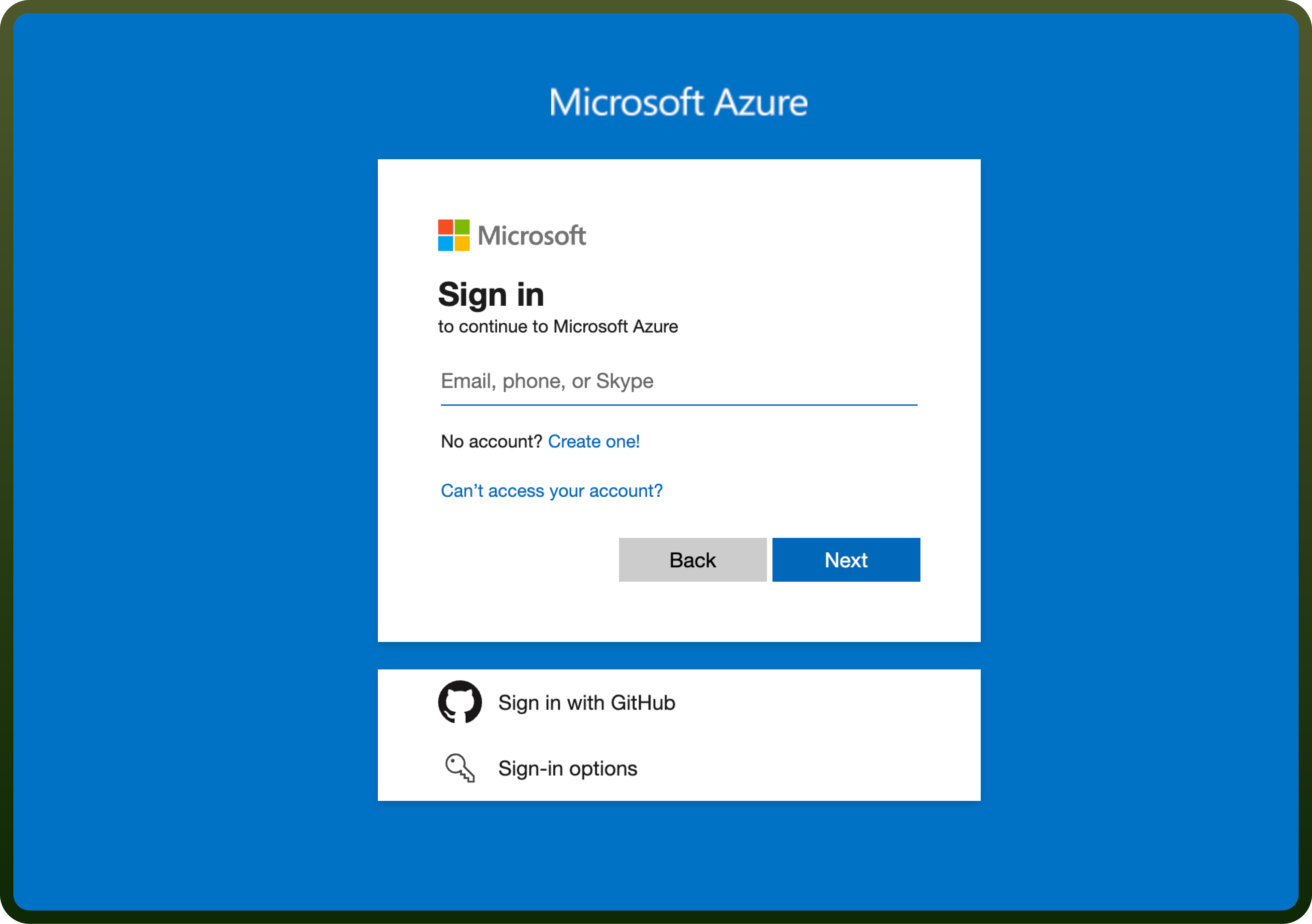
You’ll be redirected to the Microsoft Azure login page.
Enter email address and password of your account to which you want to integrate UnifyApps with and click on “
Next” button to authenticate.Microsoft Teams will display a permissions request screen. You'll see the specific permissions we request access to (e.g.,Create channels, Read user chat messages).
Carefully review the permissions we're asking for. If you're comfortable with the permissions, click the “
Allow” or “Grant Access” button.After granting access, you'll be automatically redirected back to our platform. You should see a confirmation message that your Microsoft Teams account is now connected.
Actions
| Action | Description |
Create channel | Creates a new channel in Microsoft Teams |
Create private channel | Creates a new private channel in Microsoft Teams |
Reply to channel message | Creates a reply to a channel message in Microsoft Teams |
Send channel message | Sends a message to a channel in Microsoft Teams |
Send chat message | Sends a message to a chat in Microsoft Teams |
Triggers
| Action | Description |
New Channel | Triggers when a new channel is created within a team. |
New Channel Mention | Triggers when a member or highlight word is mentioned in a channel. |
New Channel Message | Triggers when a new message is posted in a channel. |
New Chat | Triggers when a new chat is created |
New Chat Message | Triggers when a new message is received in a chat. |
New Reply to Message | Triggers when a new reply is added to a message in a channel. |
New Team Member | Triggers when a new member is added to a team. |